

Consistently managing email communication across environments is a crucial part of any enterprise application. Dataverse provides a built‑in Email Template entity, and Power Automate allows us to dynamically populate these templates and send personalized emails to users.
This article explains step-by-step how to:
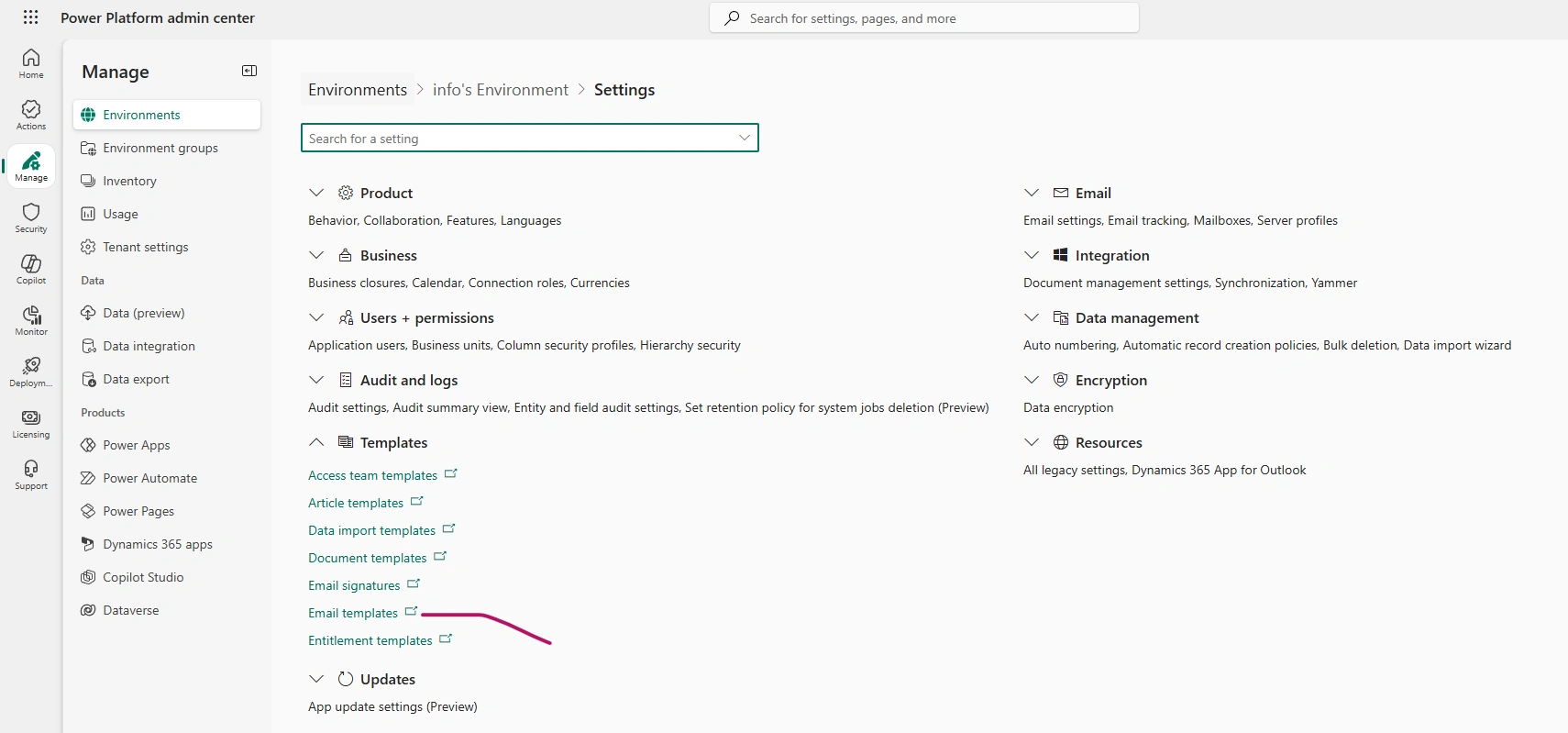
Create and store Email Templates inside Environment → Settings → Templates → Email Templates
Retrieve those templates from Power Automate using the Dataverse connector
Dynamically replace placeholder values in the Subject and Body
Send automated emails using Power Automate
Part 1: Creating an Email Template in Dataverse
Step 1 — Navigate to Email Templates
Open Power Apps → choose your Environment.
Go to Settings (the gear icon in the top-right).
Select Templates → Email Templates.
Step 2 — Create New Template
Click + New Template
Choose the category (e.g., Global Template, or entity-specific like Contact, Account, etc.).
Provide details:
Template Name
Subject
Body (HTML allowed)
Step 3 — Use Placeholder Variables
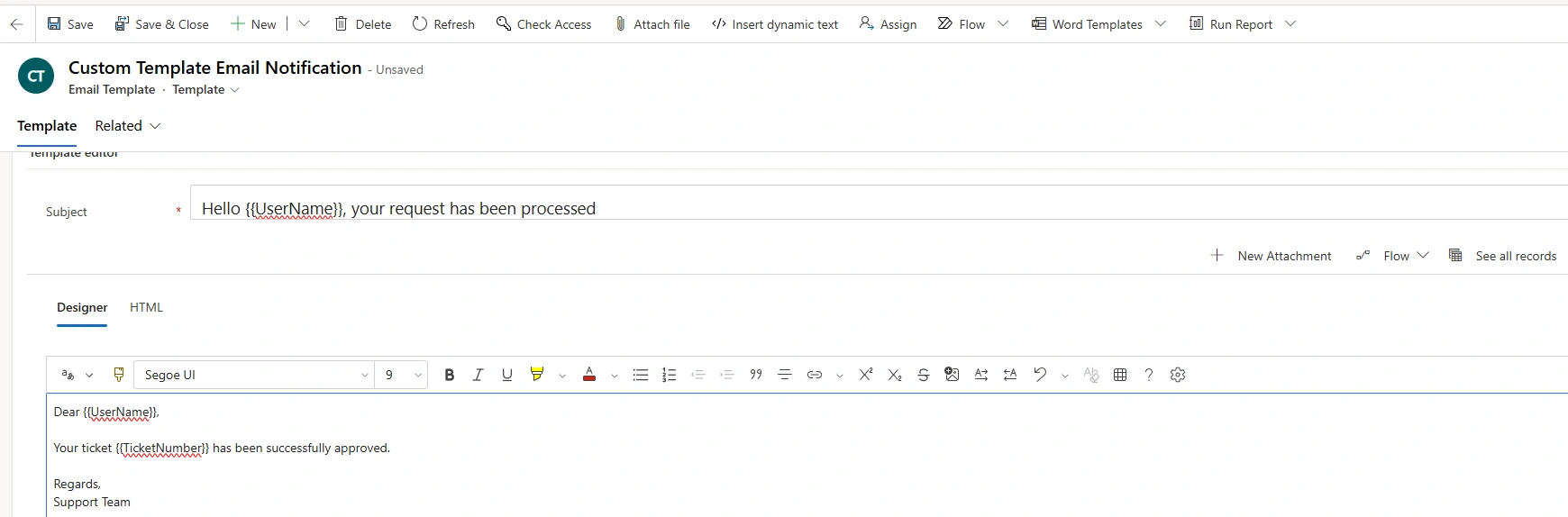
Inside subject/body, add placeholders you want to replace dynamically. Example:
Subject: Hello {{UserName}}, your request has been processed
Body:
Dear {{UserName}},<br><br>
Your ticket {{TicketNumber}} has been successfully approved.<br>
Regards,<br>
Support Team
These placeholders (
{{UserName}},{{TicketNumber}}) will later be replaced dynamically through Power Automate.
Step 4 — Save Template
Click Save & Close.
Your template now exists inside Dataverse Email Template table.
Part 2: Retrieve Template from Dataverse using Power Automate
Step 1 — Create a Flow
Open Power Automate
Choose Automated Cloud Flow
Add a trigger (e.g., When a row is added, Recurrence, etc.)
Step 2 — Get Email Template from Dataverse
Add step → Dataverse → List Rows
Select Email Templates table (
templatetable)Apply filter to fetch your template:
title eq 'Your Template Name'
From output, select the first row (use
first(body('List_Rows')?['value'])if needed).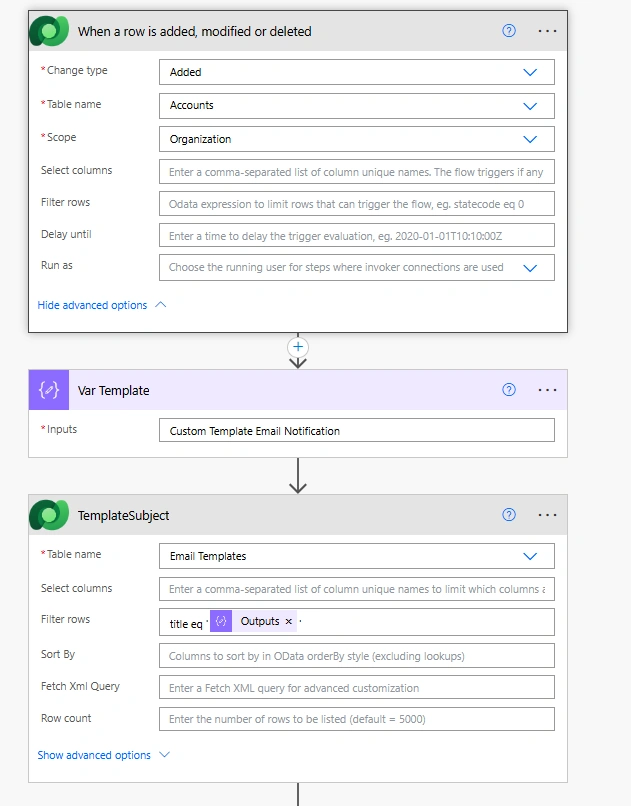
Step 3 — Extract Subject and Body
Map fields:
Subject →
subjectBody →
body
Part 3: Replace Dynamic Variables in Template
Power Automate does not auto‑replace placeholders, so we manually process them.
Step 1 — Add “Compose” Actions
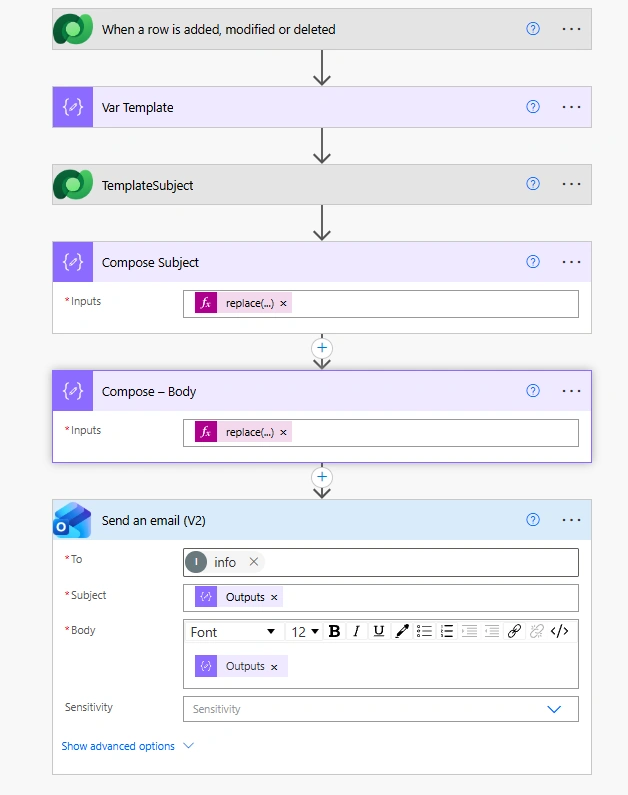
Create two Compose actions:
Compose – Subject
replace(outputs('TemplateSubject'), '{{UserName}}', variables('UserName'))
Compose – Body
You can chain multiple replacements:
replace(
    replace(
        outputs('TemplateBody'),
        '{{UserName}}',
        variables('UserName')
    ),
    '{{TicketNumber}}',
    variables('TicketNumber')
)
Step 2 — Store Dynamic Values in Variables
Before using them in replace:
Add Initialize Variable – UserName
Add Initialize Variable – TicketNumber
Populate values from Dataverse row or trigger.
Part 4: Send Email Using Power Automate
Option 1 — Using “Send an email (V2)” with Outlook Connector
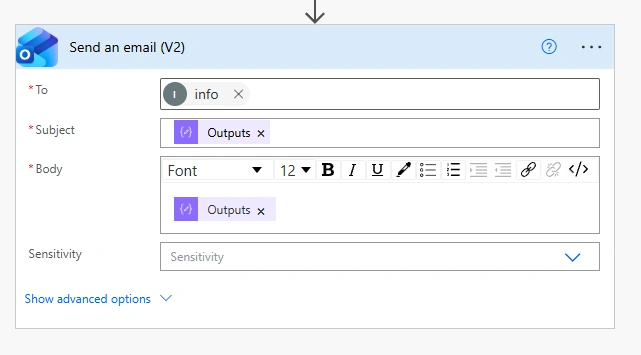
Add action: Outlook → Send an email (V2)
To: user email
Subject: output of Compose – Subject
Body: output of Compose – Body
Final Flow Summary
✔ Retrieve Template from Dataverse
✔ Load Subject + Body into variables
✔ Replace placeholders dynamically
✔ Send email with updated content
Join the conversation! Your thoughts help the community grow.