

Providing readability of text to a greater extent across all window sizes and monitor resolutions is the characteristic of Windows Presentation Foundation Flow Documents. In simple terms, A Flow Document is nothing but simple combination of text, audio, video, images ext. in such a way that the user can watch these documents at every resizable extent irrespective of the resolution of the monitor or sizes of the windows, otherwise the documents would have grown fuzzy and blurred and pixilated at higher resolutions but WPF Flow Documents gives the opportunity to read these documents at all resolutions.
A few terms that we will come across while dealing with Texts in WPF.
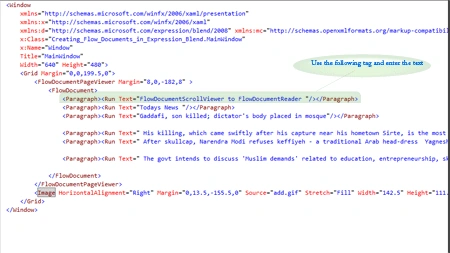
FlowDocuments : These are useful tools of WPF which change itself automatically according to the resolution or window sizes. This is the salient feature that makes it a unique one.
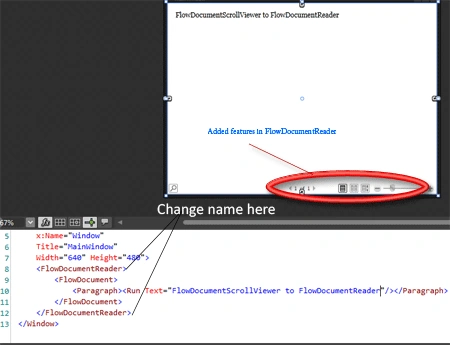
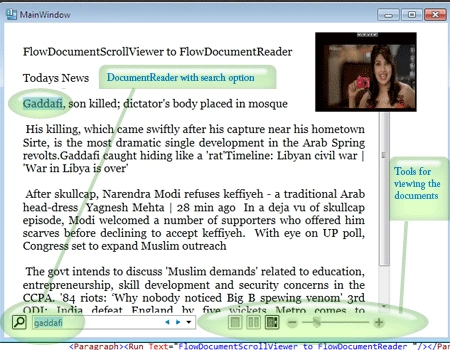
FlowDocumentReader : It is a very sophisticated tool for viewing the flow documents. There are three modes of viewing documents - Page mode, Two Page mode and Scroll mode. It also provides the feature of searching within the document. It also has resizing tools to view texts at different resolutions.
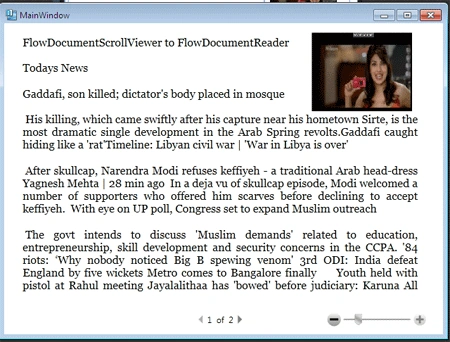
FlowDocumentPageViewer : This can be assumed as viewing the page of FlowDocumentReader without search feature and without options for modes.
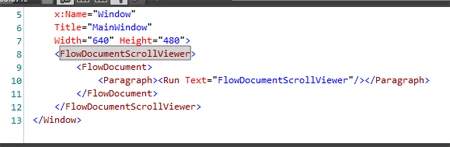
FlowDocumentScrollViewer : This feature allows the viewer to view long texts using scroll bar.
RichTextBox : This feature of flow document allows user to add, edit and view texts but there is no option for resizing, searching, and adding texts into columns automatically.
Now lets start Creating FlowDocument
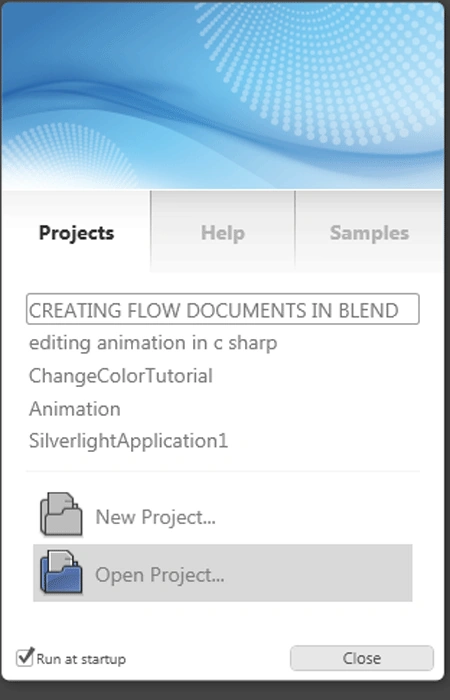
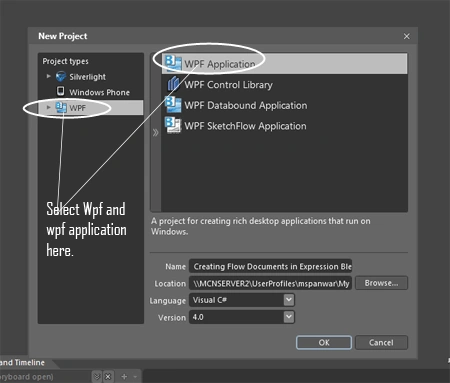
Step 1 : Since we are going to create FlowDocumentScrollViewer in Blend so Launch Expression Blend and select WPF --> WPF application.
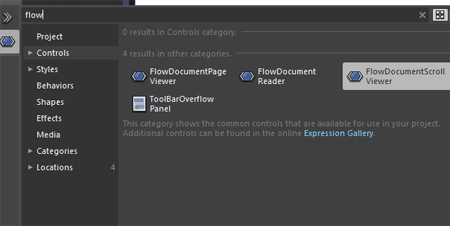
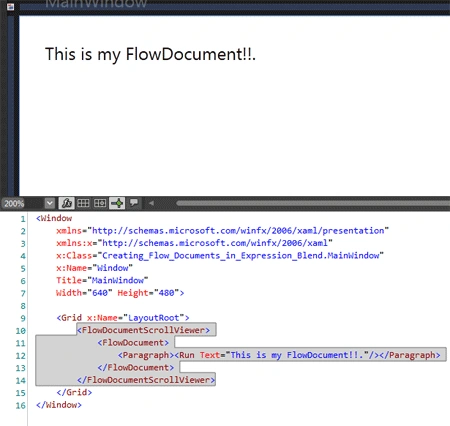
Step 2 : Now you have the artboard in front of you, all you need to do is go to assets and search for FlowDocumentScrollViewer. After this the control appears in the panel, select this control and drag it on the artboard.
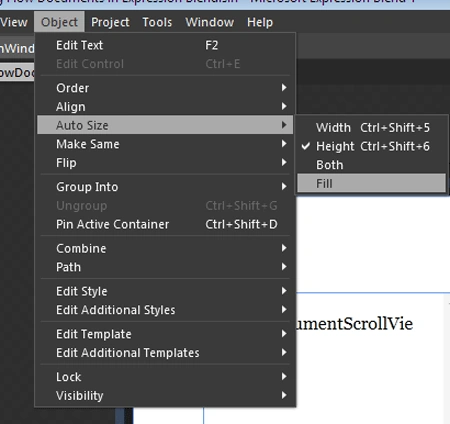
Step 3 : Select the FlowDocumentScrollViewer control on the artboard and resize it. For resizing either resize through the selection tool by extending the boundaries of the control or goto the menu bar Object-->Auto size--> fill. This fills the control on the artboard completely.
Join the conversation! Your thoughts help the community grow.