

Introduction
In SharePoint, sometimes we need to select more than one person for a record, like adding multiple team members or approvers. But updating a multi-select Person or Group column can be a bit tricky in Power Automate. In this article, we will learn a simple way to create or update this multi-select people field so you can use it easily in your flows.
Use Case
Sometimes a single record needs to have multiple users assigned to it, like approvers or reviewers. When updating this through a Power Automate flow , extra handling is needed so the multi-select Person or Group column works as expected. For this article, we will keep it simple by storing the user's email in a single variable and then using it to create the multi-select Person or Group column.
Below are the steps
Step 1
Go to your SharePoint list, create a new column of type Person or Group, and make sure Allow multiple selections is turned on.

Step 2
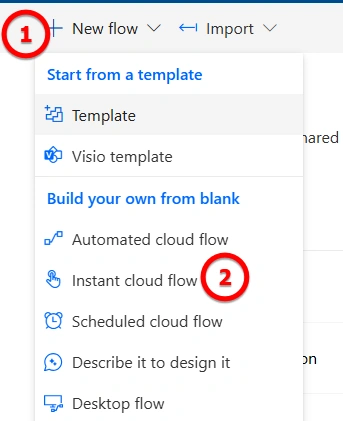
Go to make.powerautomate.com , open Power Automate, and create a new Manually triggered flow.
(As per your requirement, you can choose any trigger that fits your scenario.)
Step 3
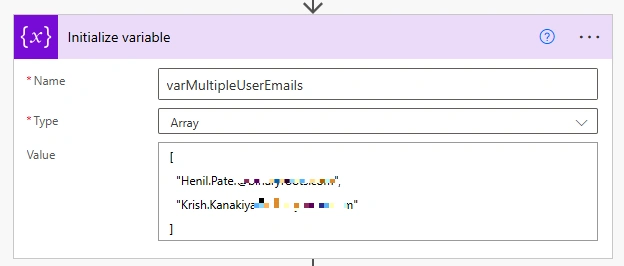
Add a variable in your flow and give the name as "varMultipleUserEmails" and type as Array, then add emails in array format like ["[email protected]","[email protected]"].
You can add actual Office 365 user emails; here I am are just using these as a showcase.
Step 4
Add a Select action, set From as variables('varMultipleUserEmails') and map Claims as concat('i:0#.f|membership|', item()).

Step 5
Add a Create or Update item action, select your SharePoint site address and list name, make sure the Person or Group field is set to Switch to input entire array , and then add the Select action output.

Step 6
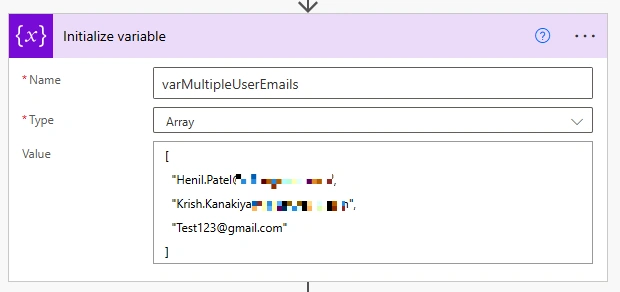
The above steps work fine when all users are already available in Office 365. But in real scenarios, data can come from multiple sources, and some records may contain email IDs that do not exist in the Office 365 tenant (as shown in the image).
To handle this, we need to change the approach. Before creating or updating the multi-select Person field, we should first verify whether the user exists in Office 365. Only if the user exists should we create or update the field; otherwise, the user should be skipped.
Step 7
Save the Flow and run it and You will see an error for [email protected] not found because it is not part of your Office 365 tenant. like this type of scenario we need to check and skip those email which is not part of your Office 365 tenant.
So in the next couple of steps, I will show you how to check and skip those users who are not part of your Office 365 tenant before creating or updating the SharePoint multi-select Person or Group column.

Step 8
Add a variable in your flow and give the name as "varValidMultipleUserEmails" , type as Array , and keep the value blank [].

Step 9
Add an Apply to Each action, set Value as the output from variable "varMultipleUserEmails" , and inside the loop, add the Search for Users action, pass the current item .

Step 10
After Search for users (V2) action add condition that will check current user email is not empty and AccountEnabled property of the user is true .
Condition Expressions:
empty(outputs('Search_for_users_(V2)')?['body/value'])
first(outputs('Search_for_users_(V2)')?['body/value'])?['AccountEnabled']

Step 11
If the condition is true meaning the current user's email is valid and it is part of office 365 tenant, then:
Add Append to array Variable action
Select the variable varValidMultipleUserEmails.
Pass the current item from the loop as the value.

Step 12
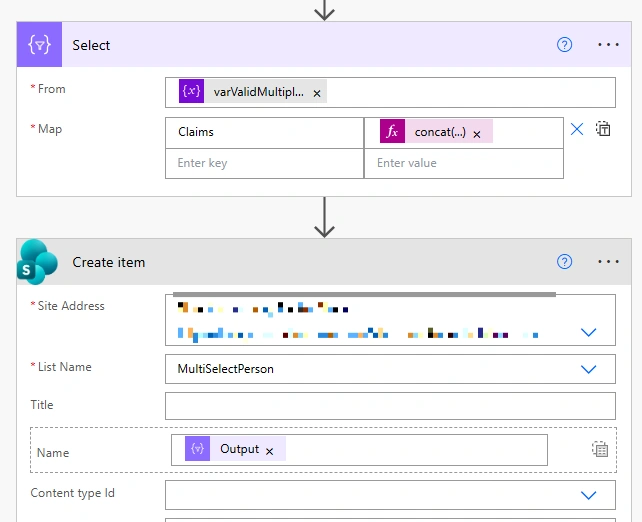
Move the Select action (from Step 4) after the Apply to Each and change its From value from " varMultipleUserEmails " to " varValidMultipleUserEmails " , then move the Create item action after the Select and in the Name field use the Select output .
Overall flow structure:

Output

Conclusion
By following these steps in Power Automate, you can easily create or update multi-select person fields in SharePoint. This approach ensures that only valid users with active accounts are added.
Join the conversation! Your thoughts help the community grow.