In view1.xsl, search for "<body style" (Shown in below Image) and copy the region to view2.xsl so both of the views look similar
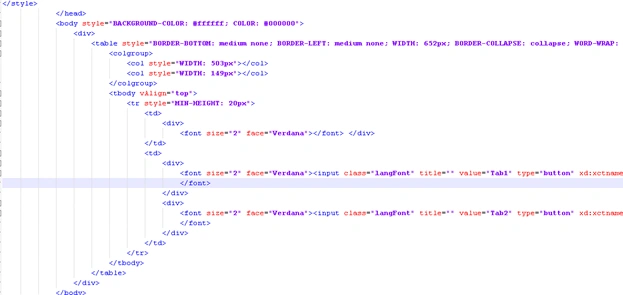
Note that for each view, we will have a different style for the button corresponding to that view, i.e. the "active" view. For example, the first view (View 1) will have the first button (Tab 1) as the active view button, while the rest will have non-active view buttons.
For your active view, insert the following for the active button:
style="BORDER-RIGHT: #000000 1pt solid; PADDING-RIGHT: 10px; BORDER-TOP: #000000 1pt solid; FONT-WEIGHT: bold;
PADDING-BOTTOM: 7px; MARGIN: 4px 0px 0px; BORDER-LEFT: #1e3c7b 2.25pt solid; WIDTH: 100%; COLOR: #ffffff; PADDING-TOP:
7px; BORDER-BOTTOM: #000000 1pt solid; BACKGROUND-COLOR: #517dbf; TEXT-ALIGN: right"
And for the non-active ones, insert the following
You will then have the following for view1.xsl:

View 2 tab selected





Join the conversation! Your thoughts help the community grow.