

Introduction
Customizing a SharePoint list form with Power Apps lets you replace the default list form (New, Edit, View) with a fully customized experience—without rebuilding the entire list as a standalone app.
Here’s a clear step-by-step guide.
Customizing a SharePoint list form with Power Apps lets you replace the default list form (New, Edit, View) with a fully customized experience—without rebuilding the entire list as a standalone app.
Here’s a clear step-by-step guide.
When to Use Power Apps to Customize a SharePoint Form
Use Power Apps customization when you want to:
Add conditional logic (show/hide fields)
Create dynamic validation rules
Auto-calculate values
Customize layout beyond standard SharePoint formatting
Add basic automation triggers (with Power Automate)
Improve user experience without building a full app
If you need complex multi-screen navigation or integration with many data sources, a standalone canvas app might be better.
How to Customize a SharePoint List Form
Step 1: Open Your SharePoint List

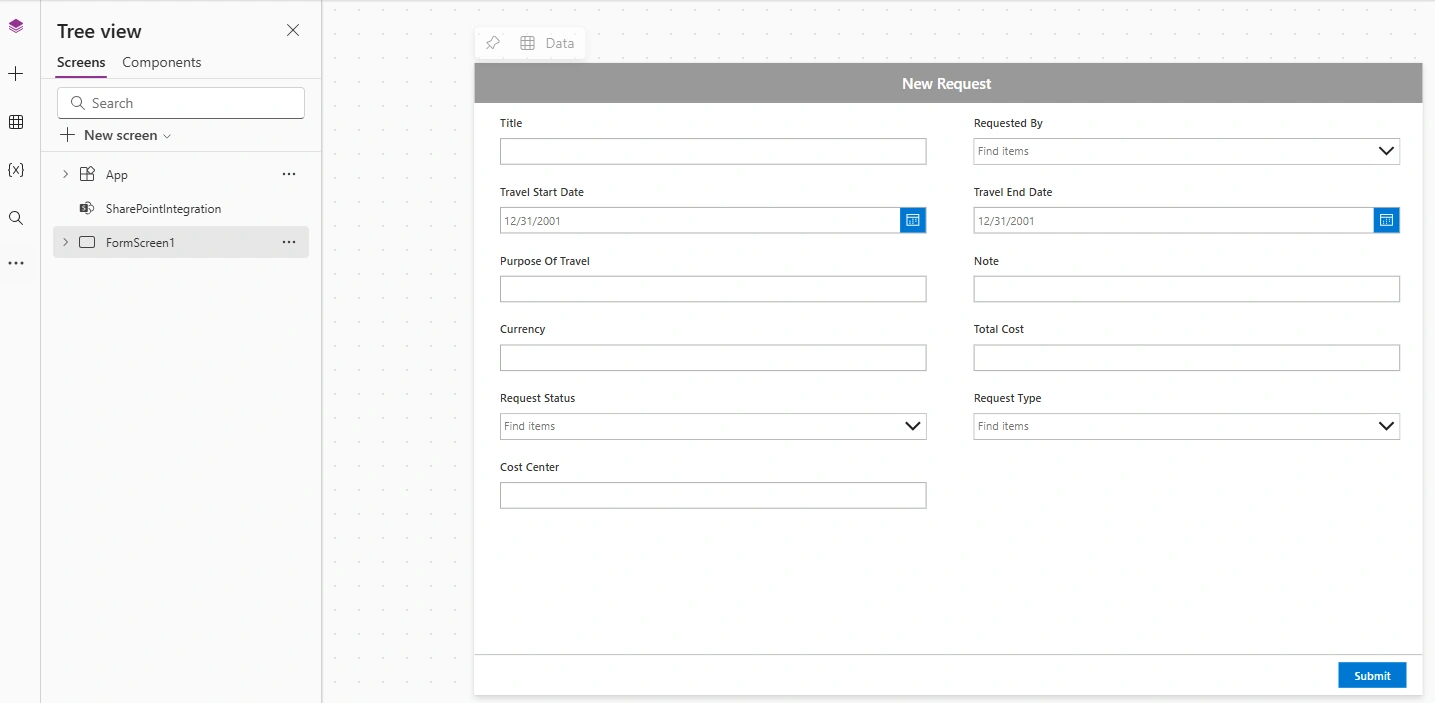
Go to your SharePoint site
Open your list
Click Integrate → Power Apps → Customize forms
Power Apps Studio opens automatically in your browser.
🔹 Understanding What Opens
Power Apps creates:
A single-screen app
A SharePointForm control (connected to your list)
Three form modes:
New
Edit
View
The form is already connected to your list’s data source.
🔹 Common Customizations
1️⃣ Rearrange Fields
Select the form
Click Edit fields
Drag to reorder
Add/remove fields
2️⃣ Conditional Visibility (Show/Hide Fields)
Example: Show “Reason for Rejection” only if Status = Rejected.
Select the field’s DataCard and modify the Visible property:
If(DataCardValue_Status.Selected.Value = "Rejected", true, false)Or simpler:
DataCardValue_Status.Selected.Value = "Rejected"3️⃣ Make Fields Required Conditionally
Set the Required property:
DataCardValue_Status.Selected.Value = "Approved"4️⃣ Default Values
Set a default value for a field:
User().FullNameOr:
Today()5️⃣ Lock Fields Based on Mode
Example: Make a field editable only when creating:
If(SharePointForm1.Mode = FormMode.New, Edit, View)Set this in the DisplayMode property.
6️⃣ Add Validation
Example: Prevent submission if amount > 10,000:
Select the form → OnSave property:
If(
   Value(DataCardValue_Amount.Text) > 10000,
   Notify("Amount exceeds limit", NotificationType.Error),
   SubmitForm(SharePointForm1)
)
🔹 Using Power Automate with the Form
After submission, trigger workflows using:
List-based flows in Power Automate
Trigger: "When an item is created or modified"
Example use cases:
Send approval emails
Update another list
Create Teams notifications
🔹 Publishing the Form
After customization:
Click File
Click Save
Click Publish to SharePoint
Close Power Apps Studio
Your SharePoint list now uses the customized form automatically.
🔹 Important Limitations
| Limitation | Explanation |
|---|---|
| Single screen only | Cannot add additional screens |
| Must use SharePoint list as primary data source | |
| No offline support | |
| Performance impacted by heavy logic |
🔹 Advanced Enhancements
You can also:
Add tabs using containers
Add icons and images
Use variables for logic
Connect to secondary data sources (e.g., another list)
Add attachments customization
Customize People/Choice field behavior
🔹 When to Use JSON Instead
If you only need:
Column formatting
Simple conditional colors
Row formatting
Use SharePoint JSON formatting instead of Power Apps.
🔷 Governance Considerations
The form is stored in the list
Export as
.msappfor backupALM requires manual handling
Version control is limited
🔷 Limitations
Only one customized form per list
No multiple screens (without heavy workarounds)
Not ideal for very complex UX
Performance tied to SharePoint list
Conclusion
You can customize SharePoint list forms with Power Apps by opening your list, selecting Integrate → Power Apps → Customize forms, then using Power Apps’ drag-and-drop interface to modify layout, add rules, conditional formatting, and custom controls. Once done, save and publish the form back to SharePoint. This allows tailored data entry experiences without coding, enhancing usability and workflow efficiency.
Join the conversation! Your thoughts help the community grow.