

In this article, we will be developing a Xamarin.Forms application for human face detection using Cognitive Services. This is how it will work.
First, the camera will open and take a snapshot. The cognitive services will start detecting the face, age, gender, and hair. We’ll also use some “NuGet Packages” for face detection and camera initiation.
What is Cognitive Service?
In the smart world today, we need our applications to be more intelligent and exciting so that we can attract the users toward our applications. For this purpose, we’ll use Cognitive Services.
Microsoft has provided us with some really useful Cognitive Services which will make our application more intelligent in making smart decisions. These services are called “Azure Cognitive Services”. These are the game changers which change the way we make our application more intelligent, by just using cognitive services and a few lines of code.
What are NuGet Packages
NuGet is a free and open-source package manager designed for the Microsoft development platforms (formally known as NuPack). Since its introduction in 2010, NuGet has evolved into the largest ecosystem and services. NuGet is distributed as a Visual Studio extension.
For face detection, we’ll use two types of NuGet Packages.
- Plugin.Media.
- Microsoft.ProjectOxford.Face.
“Xam.Plugin.Media” will be used for opening the camera while “Torutek.Microsoft.ProjectOxford.Face” will be used for face detection purpose.
Steps of building a face detection application
First of all, we need a subscription key which is defined below and is free for testing phase.
Subscription key
Subscription key and its path -
- ("Subscription Key")
- https://westcentralus.api.cognitive.microsoft.com/face/v1.0
Now we’ll install the following packages.
- Plugin.Media.
- Microsoft.ProjectOxford.Face.
- soft.json.
- net.http.
After installing packages, it’s time to write the few lines of code.
- <StackLayout>
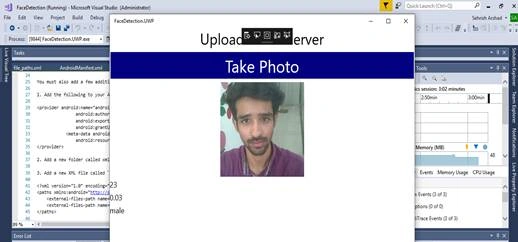
- <Label Text="Upload file to Server" HorizontalOptions="Center" TextColor="Black" FontSize="36"></Label>
- <Button Text="Take Photo" BackgroundColor="Navy" TextColor="White" FontSize="40" x:Name="TakePhoto" Clicked="TakePhoto_Clicked"></Button>
- <Image x:Name="FileImage1" WidthRequest="400" HeightRequest="220"></Image>
- <Label x:Name="Ageget" FontSize="18" TextColor="Black"></Label>
- <Label x:Name="Hairget" FontSize="18" TextColor="Black"></Label>
- <Label x:Name="Genderget" FontSize="18" TextColor="Black"></Label>
- </StackLayout>
Join the conversation! Your thoughts help the community grow.