

Introduction
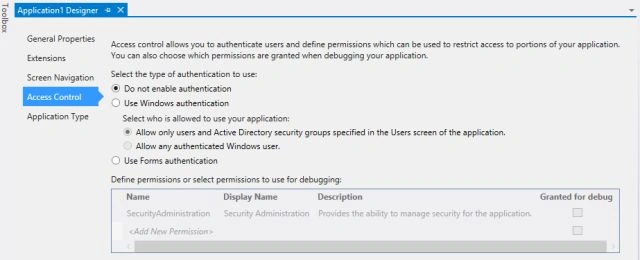
Since I described in my previous article "Enable Authentication For Securing LightSwitch Application in Visual Studio 2012" how to enable authentication, this article describes how to disable authentication using LightSwitch in Visual Studio 2012.
Using LightSwitch, we can make our application more secure by preventing unauthorized access to the users from reading, changing, or deleting data. If we apply authentication and authorization, then users must prove their identities before accessing the application. So in this way we can make our application more secure.
Authentication
To enable authentication we can use:
- Form Authentication
In form authentication a user must supply a username and a word to access the application and forms authentication is managed by the application itself. - Windows Authentication
In this no additional username and word is required.
Now I will describe how to disable authentication.
Step 1
Open the Solution Explorer in LightSwitch Visual Studio 2012.
Image 1

Step 2
In the Solution Explorer double-click or right-click and select "Properties", as in the following:
Image 2



Join the conversation! Your thoughts help the community grow.