

Here we will see how to enable multi-selection in a Grid in a LightSwitch Application (Visual C#) in Visual Studio 2012.
The following is the procedure for enabling multi-selection in a Grid.
Step 1
Open the Solution Explorer.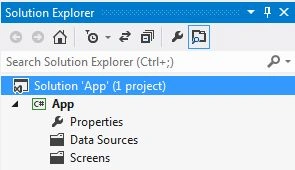
Step 2
In the Solution Explorer, right-click on the Server and choose "Add Table".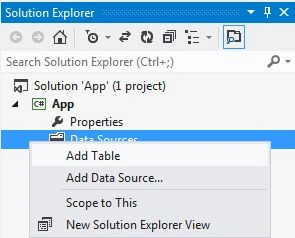
Step 3
The Person table appears.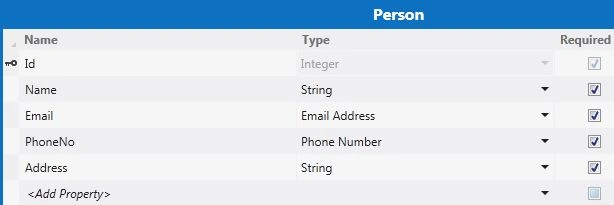
Step 4
In the Solution Explorer, right-click on the Screens and choose "Add Screen".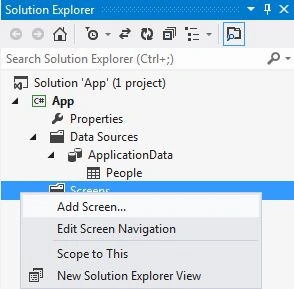
Step 6
The Add New Screen dialog box appears. Select the "Editable Grid Screen" from the Screen Template, under screen information, choose "People" under screen data and provide a name to the screen, and click the "OK" button.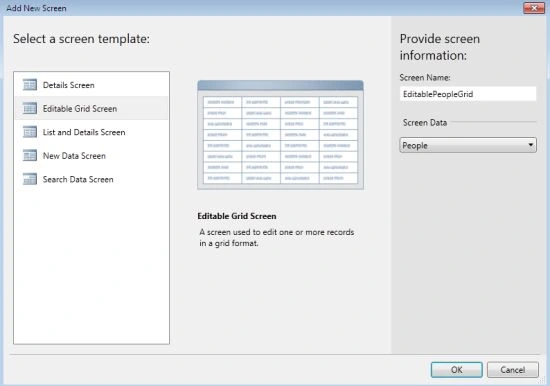
Step 7
The Screen Designer appears for the Editable Grid Screen.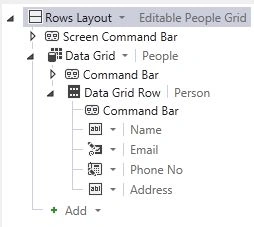
Step 8
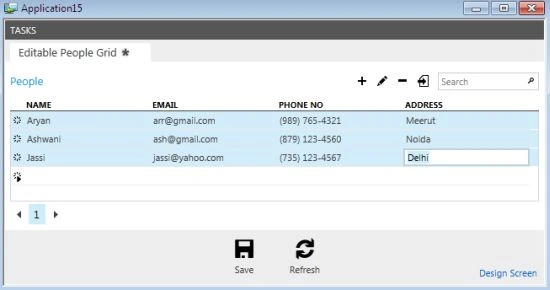
Press F5 to run the application and add some data to the screen.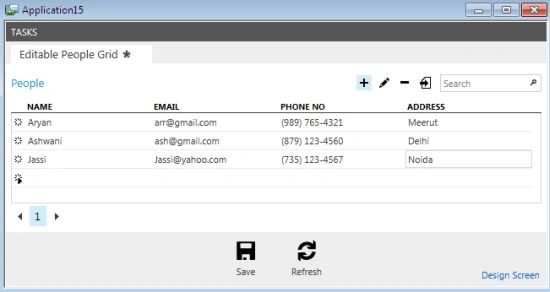
Step 9
Stop Debugging the application and go to the menu bar, and under the write code method, select the "_Created()" method and set the selection mode property of the specified grid.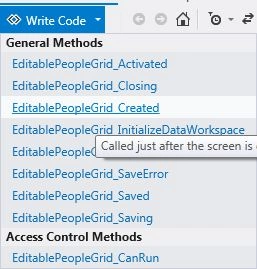
Add the following lines of code.
using System;
using System.Linq;
using System.IO;
using System.IO.IsolatedStorage;
using System.Collections.Generic;
using Microsoft.LightSwitch;
using Microsoft.LightSwitch.Framework.Client;
using Microsoft.LightSwitch.Presentation;
using Microsoft.LightSwitch.Presentation.Extensions;
using System.Windows.Controls;
Join the conversation! Your thoughts help the community grow.