

Introduction
In this article we discuss how to hide or unhide folders using the attrib command in a command prompt window. The attrib command is very helpful for hiding a folder completely, in other words by using attrib command our folder is hidden and isn't visible when we select to show all files and folders. This command provides security benefits for our software programs and important documents from other users.
What is attrib?
The attrib command is a Windows command prompt command. The main purpose of this command is to remove and set file attributes (hidden, read-only, system and archive). The attributes provide security to software programs. It displays, sets or removes the read-only, hidden and archive file attributes assigned for a file or directory.
It allows a user to change the file attribute directly using this command. Let's understand how it works.
There are four attributes in Windows files
- Hidden
It makes files or folders invisible to the user to provide for safety of the files or folders.
- Read-only
It provides the read-only attribute to the file, in other words no one can delete or make changes to that specific file that has the read-only attribute.
- Archived
Provide a backup of file. Hence help in recovering of files.
- System
Mark the file as an important system file, hence change the priority of the file.
Parameters of attrib command
- +r : Used to set the file attribute as read-only.
- -r : Used to clear the read-only file attribute.
- +a : Used to set the file attribute as archive.
- -a : Used to clear the archive file attribute.
- +s : Used to set the file attribute as a system file.
- -s : Used to clear the system file attribute.
- +h : Used to make the file attribute as hidden not visible to the user.
- -h : Used to clear the hidden file attribute.
- [Drive:][Path] FileName: Provides the location and name of the directory where files or folders are stored, Then provide the file or folder name and then set the attribute that you want to apply.
How to hide or unhide folders and files
The main advantage of hiding using the attrib command is that when we click on the show hidden files option in Windows then the file or folder isn't shown.
For hiding files and folders we need to use a procedure. In the following scenario I first created a new folder to show how to hide or unhide a folder.
Choose the destination folder that you want to hide or unhide. I created a new folder (A) in my E: drive.
Step 1
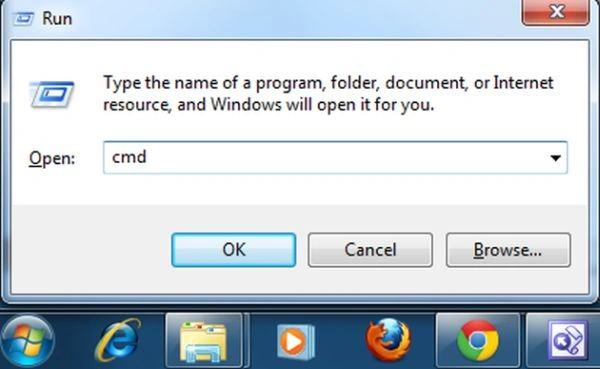
Open the command prompt.
To open the command shell 1, press Window+r and type "cmd" then press Enter or select from the startup menu.
Step 2
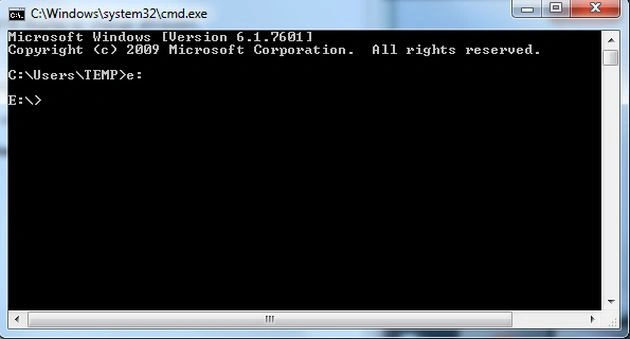
Now go to the drive where your folder is stored in the drive. Let's use my new folder (A) stored in the E: drive then I type:
E:
Then press Enter as in the following,
Step 3
Now to hide the folder we need to type in the following command:
E:(drive_name where your folder exist) attrib folder_name +s +h +r
As in the following.
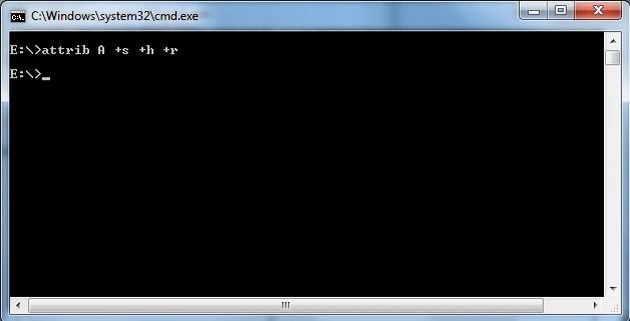
Now you see the advantage of this command. Open your drive and check that your destination folder will not be there since it is now hidden.
Hiding using this command will provide you the extra advantage that they aren't visible when you show your hidden folder through "Organize" -> "Folder and search" -> "view" -> "show hidden files and folders".
Step 4
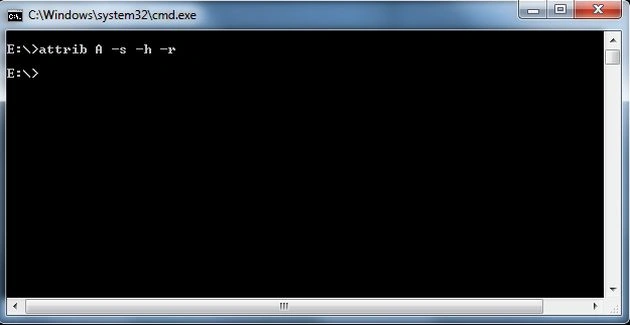
Now type in the following command to unhide the folder:
E:(drive_name where your folder exist) attrib folder_name -s -h -r
As in the following,
Note
If you want to hide your destination folder completely then you need to delete your recent visit list from your system.
Keegan KrügelPosted Jan 15, 2018, 5:11 PM
I have hidden a file of mine a while ago with the attrib command on cmd and now i cant seem to find the file or even "unhide" it ???
Sagar Pandurang KapPosted Dec 12, 2017, 1:24 AM
Nice article .. Thank you...
Karthi KeyanPosted Feb 14, 2017, 10:20 PM
My drive E is hide. How i unhide the folder
Shm kdlPosted Apr 22, 2016, 10:01 AM
I hide few folders using -s -h attributes. Now i forgot those folder names. How can i recover those folders ?
kasun MadushankaPosted May 14, 2015, 5:05 AM
thanks dr