

Introduction
Access Denied is one of the most common and frustrating issues in Microsoft Power Apps. The confusing part is that a user may be able to open the app successfully but still receive an access error when loading data, submitting a form, calling a Power Automate flow, or accessing a specific record.
The reason is simple: a Power Apps solution rarely depends on only one permission.
A typical enterprise application has several layers:
Power Apps → Connections → Data Sources → Power Automate → Security Roles → Record Permissions
If access fails at any one of these layers, the user may see an “Access Denied,” “403 Forbidden,” or authentication error.
This article explains the five most common scenarios and provides a practical troubleshooting approach.
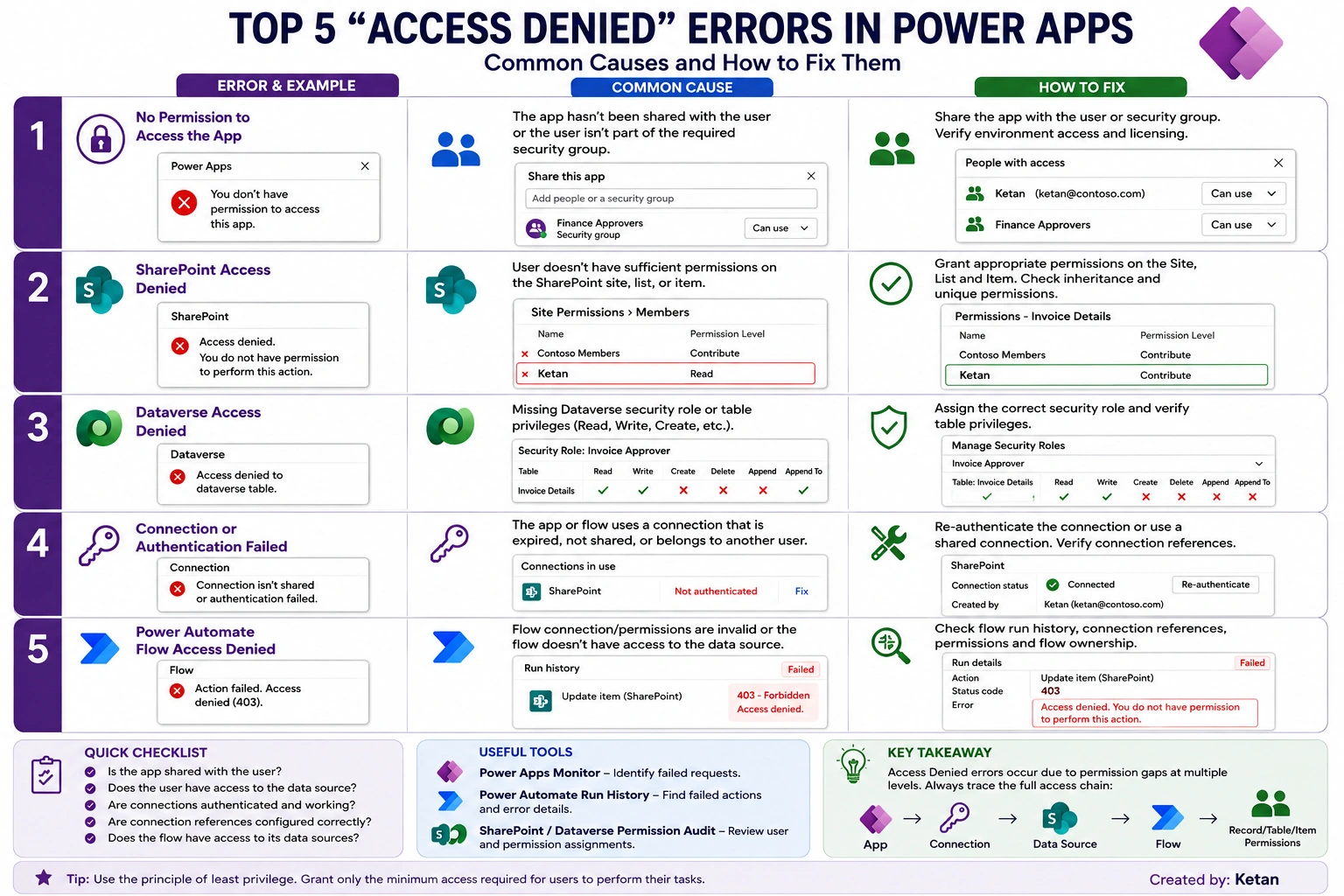
🔐 Understanding the Access Chain
Before troubleshooting, it's important to understand where permissions are applied.
                    User
                      │
                      ▼
                ┌───────────┐
                │ Power Apps │
                └─────┬─────┘
                      │
          ┌───────────┼───────────┐
          ▼           ▼           ▼
     SharePoint   Dataverse   Power Automate
          │           │           │
          ▼           ▼           ▼
       Lists       Tables      Connections
          │                       │
          ▼                       ▼
      Items/Files             Child Flows
Important: Sharing the Power App does not automatically grant access to the application's underlying data sources.
1. “You Don't Have Permission to Access This App”
🚨 What the user sees
You don't have permission to access this app.
Why does this happen?
The application exists and is published, but the user hasn't been granted access.
Common causes include:
App hasn't been shared with the user.
User isn't a member of the required security group.
User doesn't have access to the Power Platform environment.
The application was shared with the wrong Microsoft Entra ID group.
The user was recently added to a group and permissions haven't propagated yet.
✅ How to fix it
Check the application's sharing configuration.
Power Apps → Apps → Select App → Share
Verify:
User or security group
Security roles, if applicable
Environment access
Required licenses
💡 Best Practice
For enterprise applications, prefer:
Microsoft Entra ID Security Group → Power App
instead of individually sharing the application with every user.
This makes access management easier when users join, leave, or change teams.
2. “Access Denied” While Connecting to SharePoint
🚨 What the user sees
The Power App opens, but an operation such as loading, creating, updating, or deleting data fails.
For example:
Filter(
    InvoiceDetails,
    Status.Value = "Pending Approval"
)
The application may return:
Access denied
Why does this happen?
The user has access to the Power App but doesn't have sufficient permissions on the SharePoint data source.
Possible causes:
No Site permission
No List permission
Insufficient permission level
Unique item permissions
Broken permission inheritance
User removed from a SharePoint group
🔍 What should you check?
Check the complete chain:
Power Apps
    ↓
SharePoint Site
    ↓
SharePoint List
    ↓
List Item
The user needs the appropriate permission for the operation being performed.
For example:
| Operation | Typical Requirement |
|---|---|
| Read/View | Read |
| Create | Contribute/Edit |
| Update | Contribute/Edit |
| Delete | Edit/Delete permission |
⚠️ Important
Don't immediately give Full Control to solve the problem.
Instead, determine the exact operation that is failing and grant the minimum required permission.
3. “Access Denied” to a Dataverse Table
🚨 What the user sees
You don't have permission to access this data.
or
Access denied to Dataverse table.
Why does this happen?
Dataverse uses a role-based security model.
The user may have access to the application but lack privileges on the table.
Common missing privileges include:
Create
Read
Write
Delete
Append
Append To
Example
Suppose your application executes:
Patch(
    InvoiceDetails,
    SelectedInvoice,
    {
        Status: "Approved"
    }
)
The user needs appropriate Write privileges on the Dataverse table.
🔍 Troubleshooting
Check:
Power Platform Admin Center → Environment → Users → User → Security Roles
Then verify the privileges for the required table.
💡 Best Practice
Create application-specific security roles instead of giving users unnecessarily broad system administrator-level permissions.
4. Connection Isn't Shared or Authentication Failed
🚨 What the user sees
Connection isn't shared
or
Authentication failed
This scenario is especially common when moving Power Apps solutions between Dev, UAT, and Production.
Why does this happen?
A Power App or flow may depend on a connection created by another user.
For example:
Developer
   │
   ├── Creates SharePoint connection
   ├── Creates Power App
   └── Creates Power Automate Flow
                │
                ▼
             Production
                │
                ▼
              End User
The end user may not have access to the original connection.
Common causes
Connection expired
Password changed
MFA/re-authentication required
Connection belongs to another user
Connection reference is incorrect
Connection was deleted
Solution import didn't correctly map connection references
✅ Recommended approach
For solution-based applications, verify:
Solution → Connection References → Connections
Make sure every connection reference points to a valid authenticated connection.
💡 Production Best Practice
Avoid depending on a developer's personal connection for critical production applications.
Join the conversation! Your thoughts help the community grow.