

Introduction
Enhancing security is crucial for any application, and multi-factor authentication (MFA) is a powerful method to achieve this. In this article, we will walk through the process of integrating MFA using an authenticator app in an ASP.NET MVC project. Whether you're starting from scratch or adding MFA to an existing project, this guide will provide clear, step-by-step instructions to help you secure your application against unauthorized access. From setting up the project to implementing the login methods and generating QR codes, we’ll cover everything you need to create a robust authentication system.
Steps to implement Multi-Factor authentication using authenticator app
Here, I will be starting from scratch, if you have a project you may skip the setup steps. Following are the steps to implement multi-factor authentication using the authenticator app in ASP.NET MVC project -
Step 1. Set Up the project
- In the Visual Studio, click 'Create a new project' and click 'Next.'
- Select 'ASP.NET Core Web App (Model-View-Controller)' in templates and click 'Next'.
- In the 'Configure your new project' window, name your project, here I have named it 'MultiFactorAuthenticationDemo' and clicked 'Next'.
- In the Additional Information window, in Framework, choose '.NET 8' and click 'Create'.
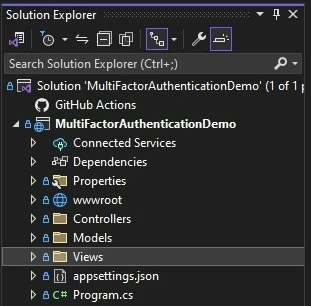
- Now, the project is created and the project structure looks like the below image.
Step 2. Install Packages
Now, let's install the required packages for our project.
- Click 'Project' and select 'Manage NuGet Packages'.
- In 'Browse', enter 'Google. Authenticator' in the search box.
- Select it and click 'Install'.
- A popup window will open, click, 'I accept'. Once installed, it will show in Packages under Dependency.
Step 3. Configure the Authentication key in Appsettings.json
Now, we will have to create an authentication key for our application. It can be any combination of characters, numbers, or special characters. I have created a demo key below.
"AuthenticatorKey": "Demo123",
Step 4. Create Session
I will be using a session to store some data like username, etc. So let's add code for the session in the program.cs
builder.Services.AddSession(options =>
{
    options.IdleTimeout = TimeSpan.FromMinutes(30);
});
// ...
app.UseSession();
Now, the session is added and is ready for use.
Step 5. Create Models
Now, let's add a model to our project.
public class LoginModel
{
   public string Username { get; set; }
   public string Password { get; set; }
}
We will use this model for storing login information like username and password.
Also, I will be using one more model which is the GlobalData model to store a bool and will be using it in the code later.
public static class GlobalData
{
    public static bool isLoggedIn { get; set; }
}
This model will store whether the user is logged in or not.
Step 6. Create a Controller and add a constructor
Let's create a controller for login and multi-factor authentication methods. I have named it 'LoginController'.
let's create a constructor and properties for it to use.
private readonly IConfiguration _configuration;
public LoginController(IConfiguration configuration)
{
    _configuration = configuration;
}
We will be using _configuration to access 'AuthenticatorKey' later on.
Step 7. Create login methods
Let's add a login method.
[HttpGet]
[Route("login")]
public IActionResult Login()
{
    GlobalData.isLoggedIn = false;
    var message = TempData["message"];
    ViewBag.Message = message;
    return View();
}
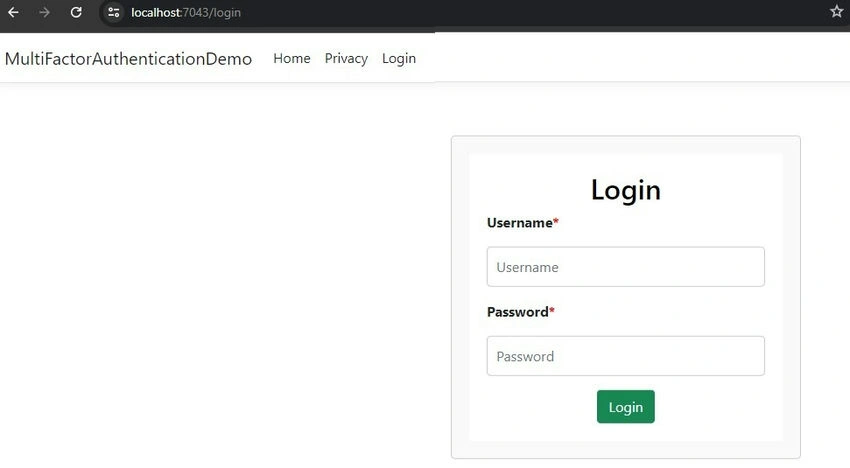
In the above code, I have created a HttpGet method to render the login view. Here, I have assigned false in 'GlobalData.isLoggedIn'. Used ViewBag to show messages on the login page, in case of top failure.
Now, let's add a post method of login.
[HttpPost]
[Route("login")]
public ActionResult Verify(LoginModel login)
{
    string? username = HttpContext.Session.GetString("Username");
    string isValidStr = HttpContext.Session.GetString("IsValidTwoFactorAuthentication");
    bool? isValidTwoFactorAuthentication = isValidStr != null ? bool.Parse(isValidStr) : (bool?)null;

    if (username == null || isValidTwoFactorAuthentication == false || isValidTwoFactorAuthentication == null)
    {
        if (login.Username == "Admin" && login.Password == "12345")
        {
            HttpContext.Session.SetString("Username", login.Username);
            return RedirectToAction("MultiFactorAuthentication");
        }
    }
    return RedirectToAction("Index");
}
In the above code, we are first checking whether there is data in session or not. If the session is null and the username and password match, then we will set the username in session and redirect to MultiFactorAuthentication for multi-factor authentication.
Step 7. Add a Multi-factor authentication method
[HttpGet]
[Route("multi-factor-authentication")]
public IActionResult MultiFactorAuthentication()
{
    if (HttpContext.Session.GetString("Username") == null)
    {
        return RedirectToAction("Login");
    }
    string? username = HttpContext.Session.GetString("Username");
    string authKey = _configuration.GetValue<string>("AuthenticatorKey");
    string userUniqueKey = username + authKey;
    // Two Factor Authentication Setup
    TwoFactorAuthenticator twoFacAuth = new();
    var setupInfo = twoFacAuth.GenerateSetupCode(
        "MultiFactorAuthenticationDemo",
        username,
        ConvertSecretToBytes(userUniqueKey, false),
        300
    );
    HttpContext.Session.SetString("UserUniqueKey", userUniqueKey);
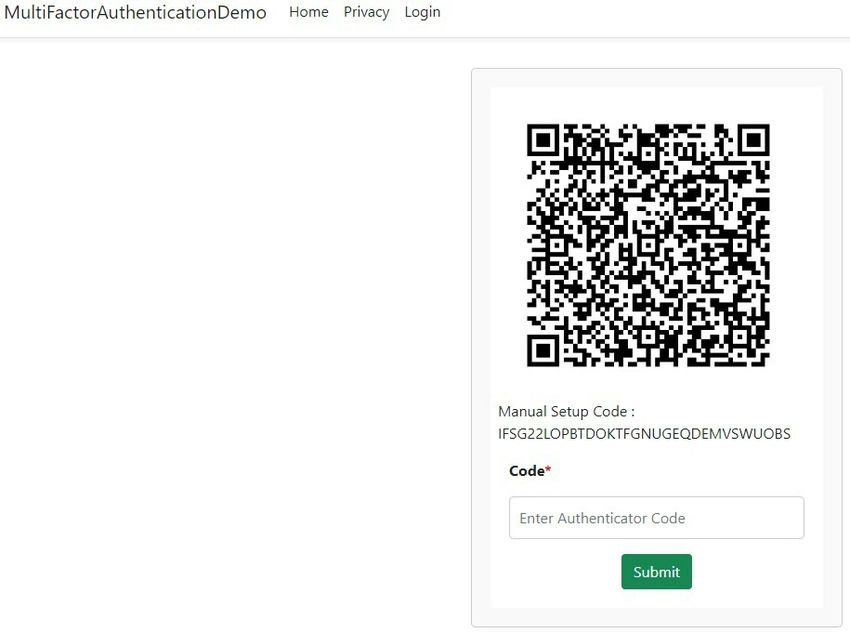
    ViewBag.BarcodeImageUrl = setupInfo.QrCodeSetupImageUrl;
    ViewBag.SetupCode = setupInfo.ManualEntryKey;
    return View();
}

Join the conversation! Your thoughts help the community grow.