

In this article, we'll learn how to manage record access in PowerApps using role-based security, where Managers can see all records and Employees can only see specific ones, by setting item-level permissions for user groups.
Goal
Manager can see 4 items on left navigation
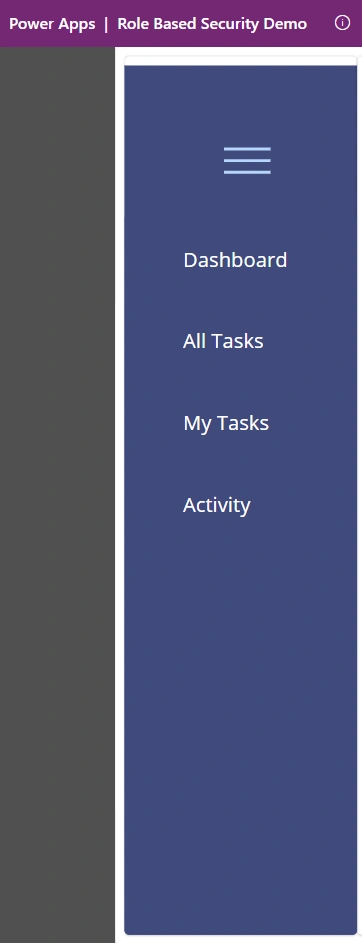
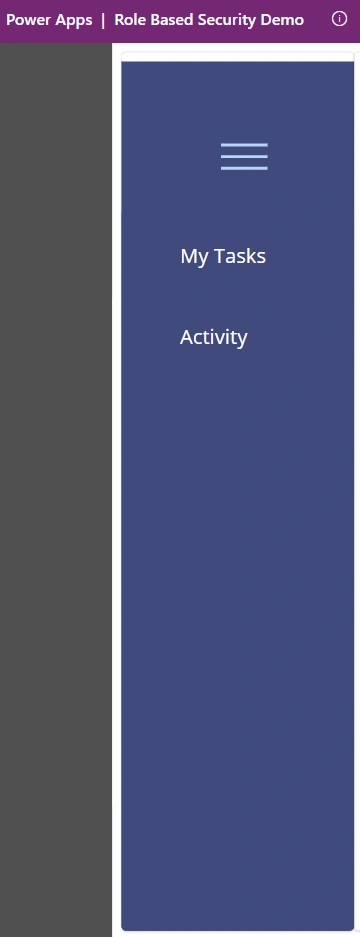
Employee can see 2 items on Left navigation
Stepwise implementation
1 - Create a SharePoint Site
Go to your SharePoint tenant URL (e.g., https://yourtenant.sharepoint.com) and create a new SharePoint site. Choose the type of site based on your needs (Team Site or Communication Site).
2- Add Test User as Member
After creating the site, go to the Site Permissions section in the SharePoint settings.
Add your test user to the site as a Member. The SharePoint URL for your site's permissions would look like this:
https://yourtenant.sharepoint.com/sites/yoursite/_settings/permissions.
3 - Create SharePoint Groups: Manager & Employee
Navigate to your SharePoint site and go to Site Permissions.
Click on Advanced Permissions Settings.
Under the Groups section, create two new SharePoint groups:
- Manager Group
- Employee Group
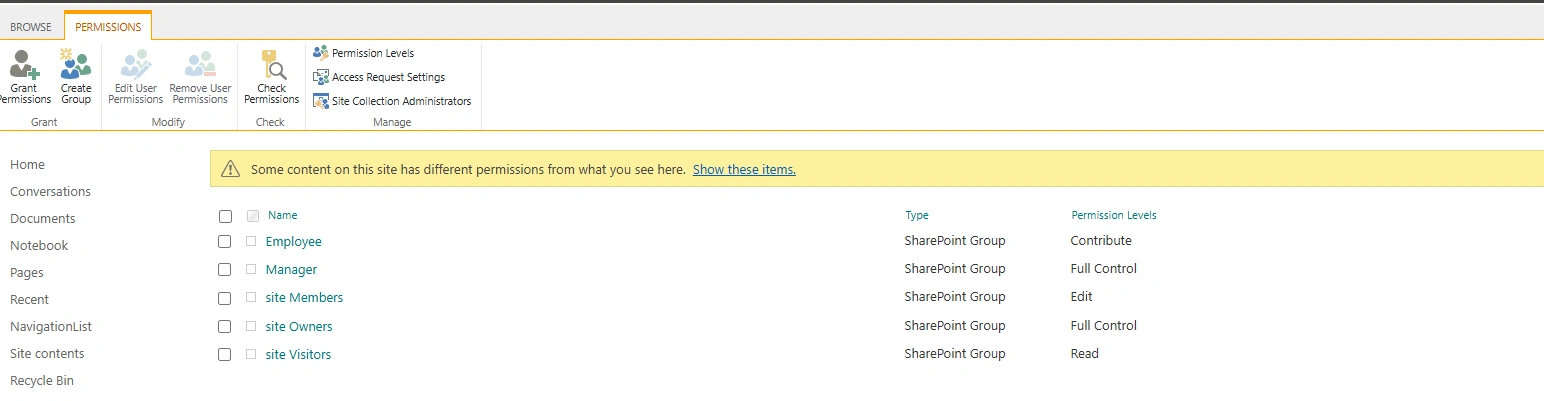
To create a new group, click Create Group, provide a name, and set the appropriate permissions.
Example URL: https://yourtenant.sharepoint.com/sites/yoursite/_settings/permissions
4 - Add Admin User to Manager Group
After creating the groups, go to the Manager Group settings and add the Admin User.
Make sure that Admin User has Full Control permissions for the site and all its records.
Example URL: https://yourtenant.sharepoint.com/sites/yoursite/_settings/permissions
5 - Add Test User to Employee Group
Go to the Employee Group settings and add the Test User.
Make sure that Test User has Contribute or a restricted permission level to only access a specific set of records in the site.
Example URL: https://yourtenant.sharepoint.com/sites/yoursite/_settings/permissions
6 - Give Item-Level Permissions to Manager Group
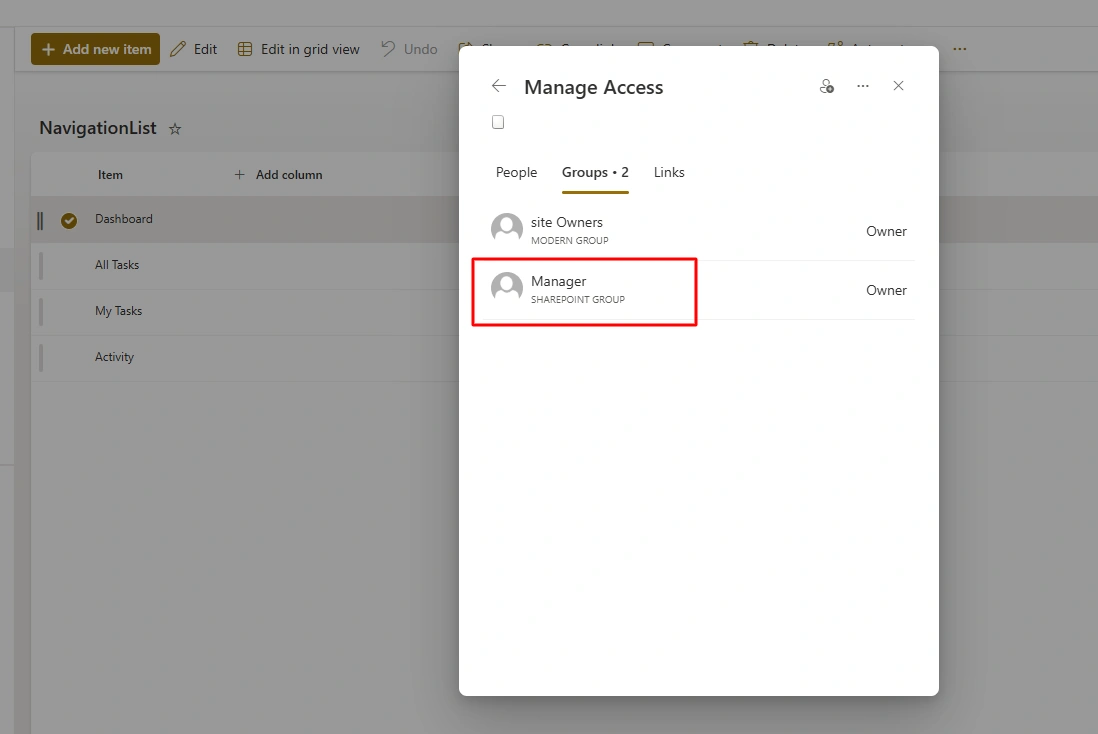
Navigate to the SharePoint list or library where the records are stored.
Go to List Settings.
Under Permissions and Management, click on Permissions for this list.
Click Stop Inheriting Permissions to customize permissions for this list.
Select the Manager Group and assign them Full Control or Read permissions for all items in the list.
This will allow the Manager group to see and manage all records in the list.
7 - Give Item-Level Permissions to Employee Group
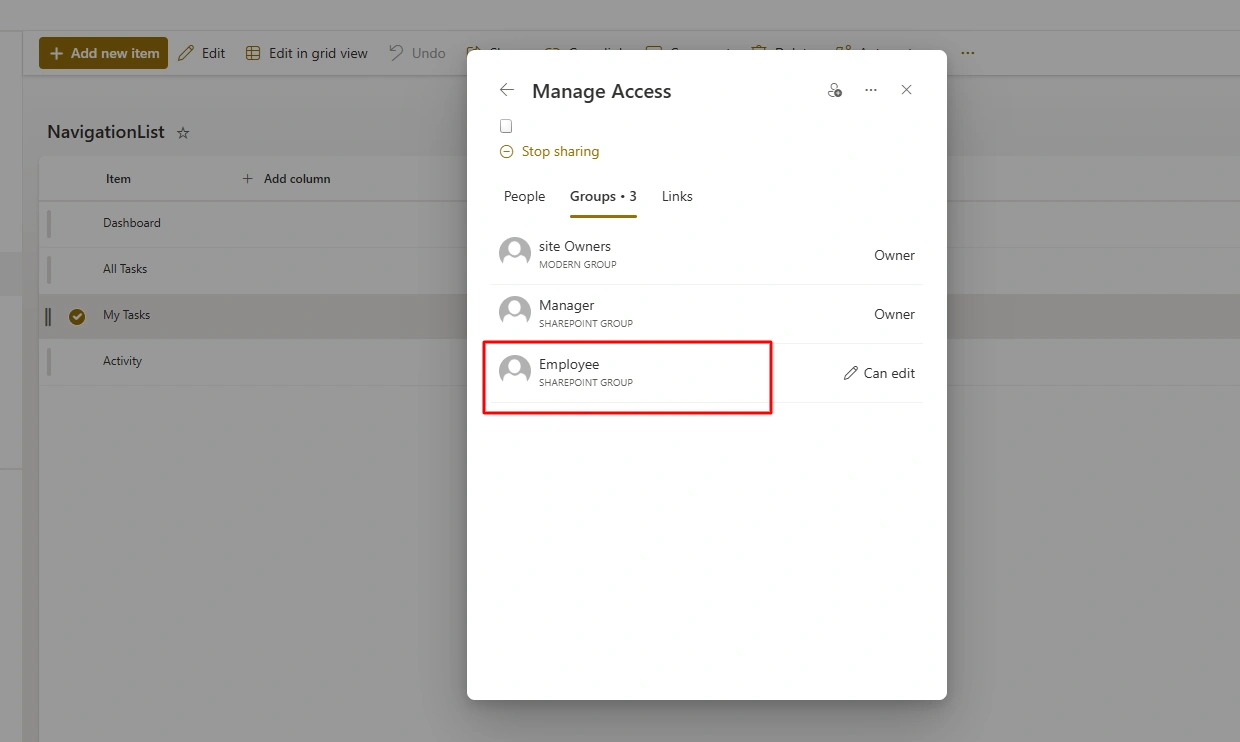
For the Employee Group, you need to set item-level permissions to restrict access to only two specific records.
Go to the SharePoint list or library.
Select the two items that the Employee Group should have access to.
For each item, click on the ellipsis (three dots) and select Manage Permissions.
Under Manage Permissions, select Stop Inheriting Permissions and assign Read or View permissions to the Employee Group.
Remove permissions for other users if necessary, to ensure only the two records are visible to the Employee Group.
Stepwise Implementation on PowerApps
1 - Create PowerApp
Open PowerApps Studio and click on Create from the left-hand menu.
Choose Canvas App and select the layout (Phone or Tablet) based on your requirement.
Name your app (e.g., Role-Based Security App) and click Create.
2 - Create Splash Screen
After your app is created, you’ll land on a blank screen. Rename this screen to Splash Screen.
Add a label or image to this screen to display a welcome message or logo.
Set a timer (optional) to automatically navigate from the splash screen to the Dashboard Screen after a few seconds. You can do this by adding a Timer control from the Insert tab.
Set the OnTimerEnd property to:
Navigate(DashboardScreen, ScreenTransition.Fade)Set the OnTimerStart property of the Timer to:
ClearCollect(
    colItems,
    NavigationList
);
3 - Create the Component with an Input Property
Select the component (e.g., a custom Gallery or List component) you want to work with.
In the component’s properties pane, click on Advanced and scroll down to the Input Properties section.
Add a new Input Property and name it something like InputItems (or any name that suits your needs).
Set the Data Type of the input property to Table. This allows the component to accept a table (like colItems) as input data.
Set items property to left navigation component to "colItems" (which we have set on onTimerStart).
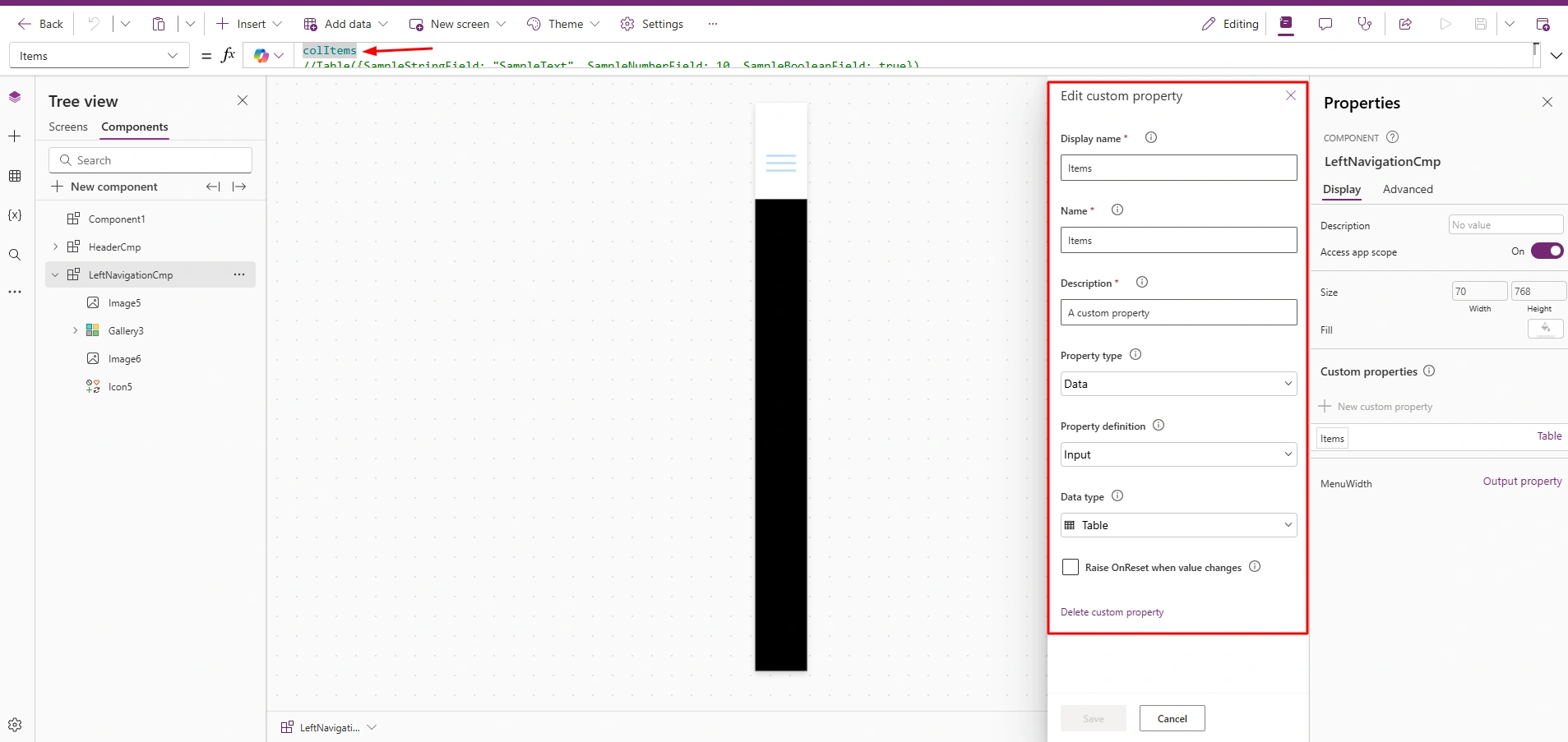
So whenever a user logs in to the app, they are navigated from the splash screen to the dashboard screen, where they can see their items based on their permissions.
Conclusion
In this article, we have explored how to implement role-based security in PowerApps, allowing Managers to view all records while Employees can access only specific items based on item-level permissions.
Join the conversation! Your thoughts help the community grow.