

Introduction
As we know people have been waiting for Windows 10. Finally, the wait is over, Microsoft has now introduced its latest operating system "Windows 10" for its users, however, it is not the final release. There are many new features available in Windows 10. As we know, this is not the final release but it works like the original Windows. Microsoft has done all the work in Windows 10 to make Windows 10 work faster. There are many features available in Windows 10 that make it more reliable, user-friendly and powerful compared to the older versions of Windows 10. As we know performance is the major criterion for any operating system. Windows 10 has already done many tasks to make Windows 10 faster.
A few years ago when users used Windows XP and Windows 10, these Windows took more time to boot. So there are booting tips available for these Windows, but when Microsoft introduced Windows 8 then for the booting it used the hybrid booting option by which Windows is booting within a few seconds. So in the Windows 10 Hybrid booting system Windows 10 also boots within a few seconds. So booting is not a problem in Windows 10, but there are some tools and tips introduced in Windows 10 and using these tools and tips we can make Windows 10 even faster.
The following are three tips for improving the performance of Windows 10. These features are the following.
- Disable animation effect and the shadow effects.
- Stop unnecessary Services.
- Manage the Windows Startup Entries.
Now we will discuss these features one by one.
All previous versions of the Windows operating system and Windows 10 have the feature of shadow effects and the animations effects. There is no doubt these features make Windows prettier but at some point, these features affect the performance of Windows. Shadow effects and animations effects make the extra load on the CPU and the memory RAM. So if you do not have a high-performance CPU and higher RAM, then definitely you have been suffering from reduced performance. So to overcome that problem we can disable the Shadow effects and the animation effects in Windows 10. it is very simple. Go with the following instructions for that.
Step 1
Disable animation effect and the shadow effects
Go to the PC icon, right-click on it, go to the property. You can also use the sysdm.cpl command in the Run (Win +R) prompt for getting the system properties windows.
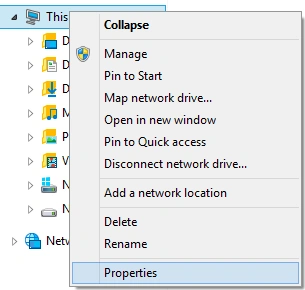 When you click on the properties you will see the window like this. Now in this window go to the Advanced System Settings as in the following picture.
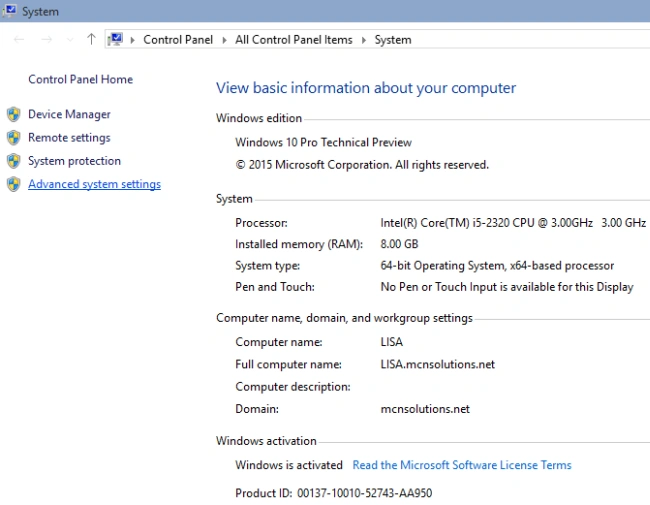 Step 2
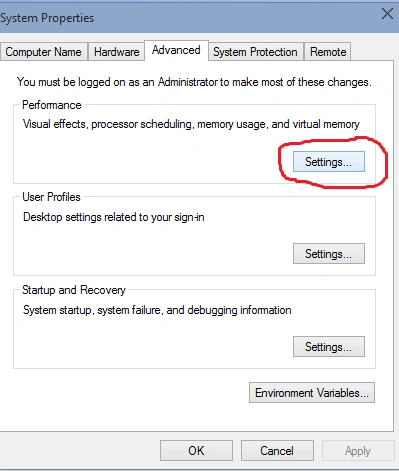
When you go to the Advanced system settings you will see a new window. In this window click on the Advanced tab and select the performance settings as in the following picture.
Step 2
When you go to the Advanced system settings you will see a new window. In this window click on the Advanced tab and select the performance settings as in the following picture.
 Step 3
Now after clicking on the settings button, a new window is shown in which there are many checkboxes available. Uncheck those checkboxes that are highlighted in the following picture.
Step 3
Now after clicking on the settings button, a new window is shown in which there are many checkboxes available. Uncheck those checkboxes that are highlighted in the following picture.
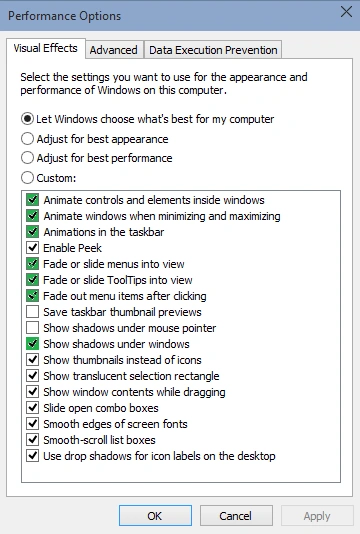 In this picture, there are seven checkboxes highlighted so please uncheck these checkboxes and click on the OK button.
If you do not want to uncheck these check boxes manually then you can choose the second option to use the radio button to Adjust for best performance.
In this picture, there are seven checkboxes highlighted so please uncheck these checkboxes and click on the OK button.
If you do not want to uncheck these check boxes manually then you can choose the second option to use the radio button to Adjust for best performance.
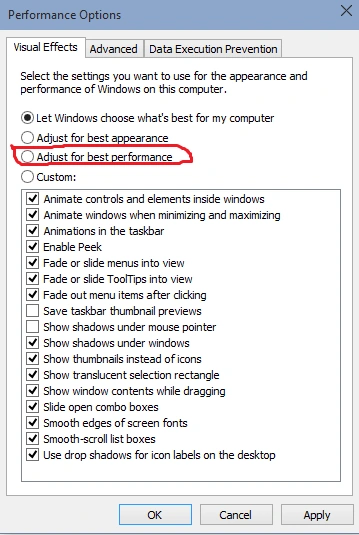 Now when you have unchecked all these seven checkboxes your animation effects and shadow effects will be disabled automatically. So after these, you will see that the performance of your system is increased and your system works faster.
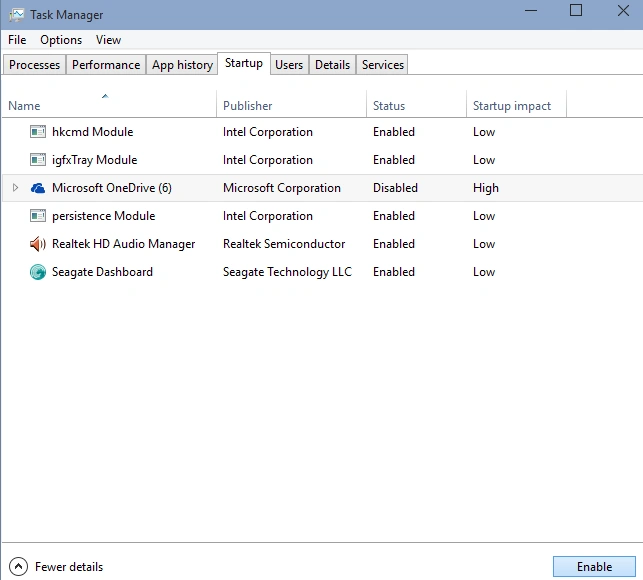
We are all very familiar and understand this, that there are many services running in the background of any operating system. These services are very important for operating systems. These services are related to network connections, but there are also running some unimportant services in the background of the system. These unnecessary services make the system performance slower. So we can disable these unnecessary applications for improving the system performance.
Here I provide some unnecessary services that are given below.
Now when you have unchecked all these seven checkboxes your animation effects and shadow effects will be disabled automatically. So after these, you will see that the performance of your system is increased and your system works faster.
We are all very familiar and understand this, that there are many services running in the background of any operating system. These services are very important for operating systems. These services are related to network connections, but there are also running some unimportant services in the background of the system. These unnecessary services make the system performance slower. So we can disable these unnecessary applications for improving the system performance.
Here I provide some unnecessary services that are given below.


John vanPosted May 22, 2020, 5:07 AM
Will disabling animation effect and the shadow effects really make so much difference? And about Onedrive: how about blocking https://onedrive.com ? Will that also increase performance (since you're actually disabling sync to connect to it)
Onkar SharmaPosted Nov 22, 2019, 7:38 AM
Nice Article...
Ammar ShaukatPosted Jan 22, 2019, 3:30 AM
Thanks , this is very helping , Is there a way to do all this stuff programmatically using a computer Programming Language like C# etc
Gowtham RajamanickamPosted Apr 12, 2015, 12:25 PM
informative
Altaf AnsariPosted Mar 17, 2015, 8:31 AM
Thank You Rizwan for these useful information
Rahul Kumar SaxenaPosted Mar 17, 2015, 1:00 AM
Enjoy W10...