

Introduction
MySQL is a popular open-source database system used around the world. It supports web apps, data systems, and business platforms. Installing MySQL 8.0 on Windows Server is simple with the MySQL Installer, which takes care of setup and needed files automatically.
This guide gives easy steps to install, set up, and check MySQL 8.0 on Windows Server.
Prerequisites
Before you start, make sure you have the following:
You are logged in as an Administrator on the Windows Server computer.
You have an internet connection (for the web installer) or have already downloaded the full installer.
Windows Server is updated with the latest updates.
The server has at least:
2 GB of RAM
200 MB of free disk space for installation
.NET Framework 4.5 or higher
Step 1: Download the MySQL Installer
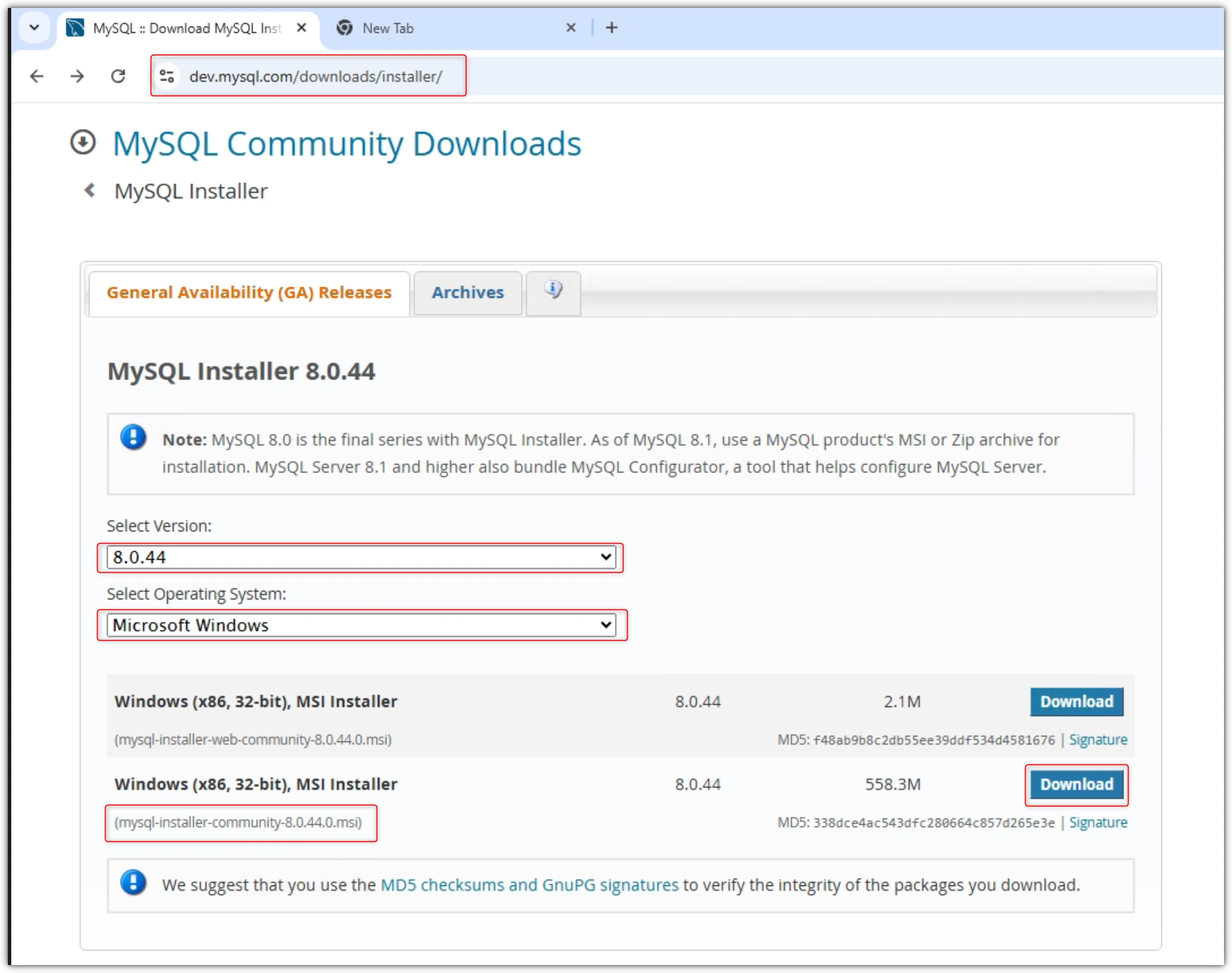
Go to the official MySQL website: https://dev.mysql.com/downloads/installer/
Choose Windows (x86, 64-bit), MySQL Installer MSI.
Select one of these options:
Web Installer (small size): Downloads the needed files during setup.
Full Installer (large size): Includes all files and works without internet.
Click Download, then run the installer after the download finishes.
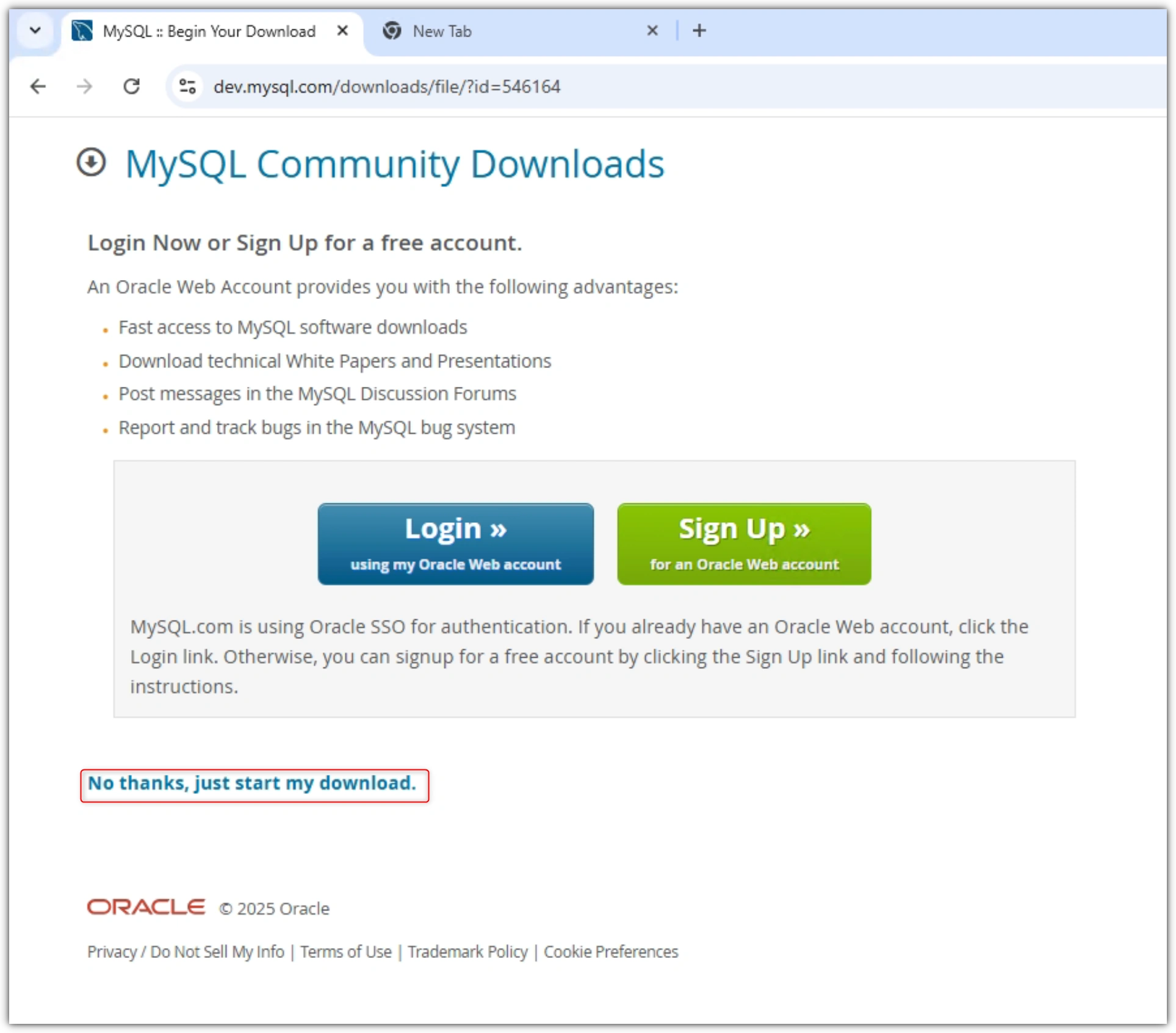
No thanks, just start my download.
Step 2: Run the Installer
Right-click the downloaded MySQL Installer and select Run as Administrator.
If a message from User Account Control (UAC) appears, click Yes to allow the changes.
Step 3: Choose Setup Type
The installer gives you different setup choices:
Server Only: Installs only the MySQL Server.
Client Only: Installs only the client tools.
Full: Installs all MySQL products.
Custom: Lets you choose what to install.
Select Full: Installs all MySQL products.
Then Click Next
Note. For most servers, choose Server Only, or Developer Default if you need tools like MySQL Workbench.
Click Next to continue.

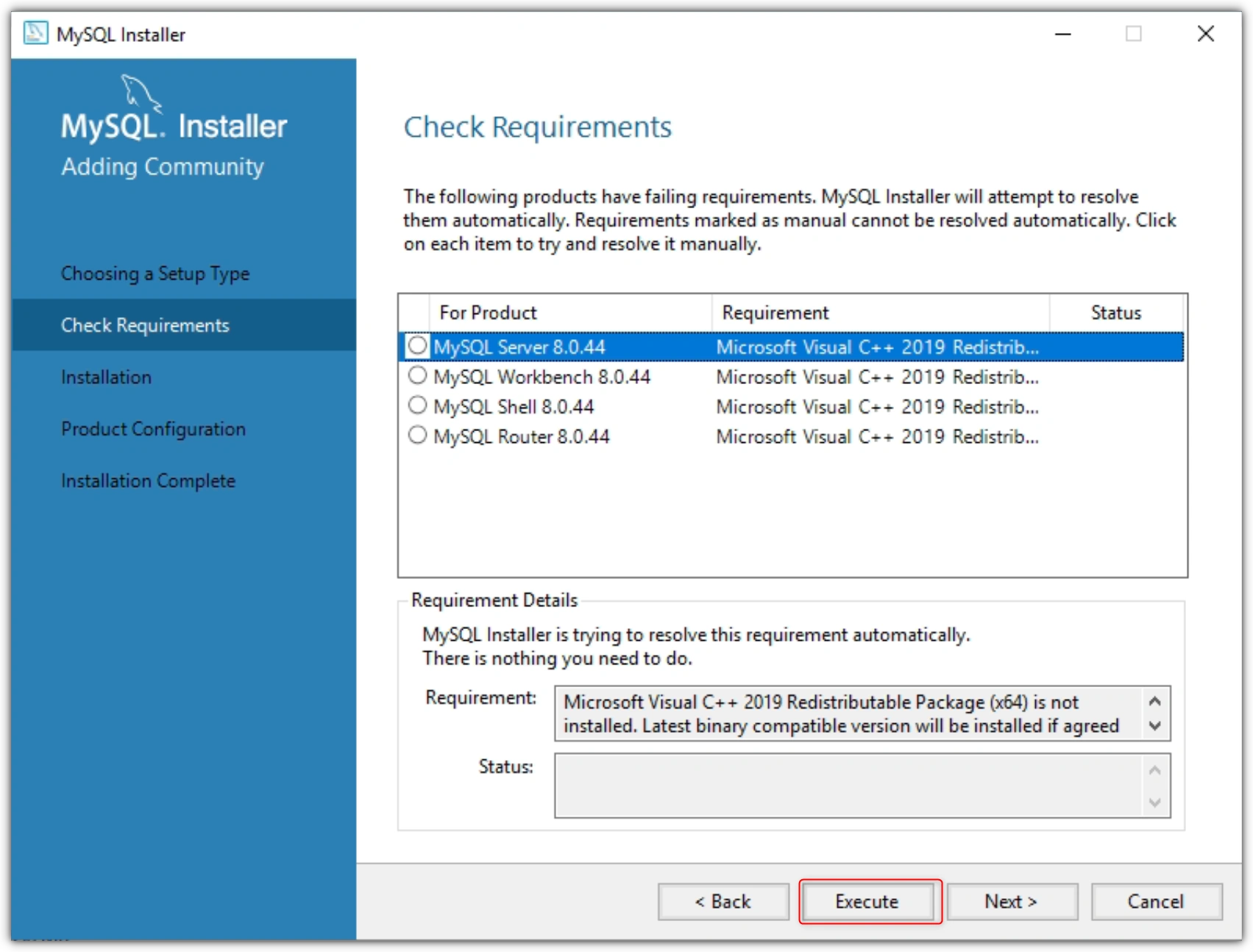
Step 4: Check for Requirements
The installer will check if your system has the needed software (like Visual C++ Redistributable or .NET Framework).
If something is missing, it will download and install it automatically.
The Visual C++ Redistributable package was not found on this server. Click Install to install the required component.
When finished, click Next.
Step 5: Begin Installation
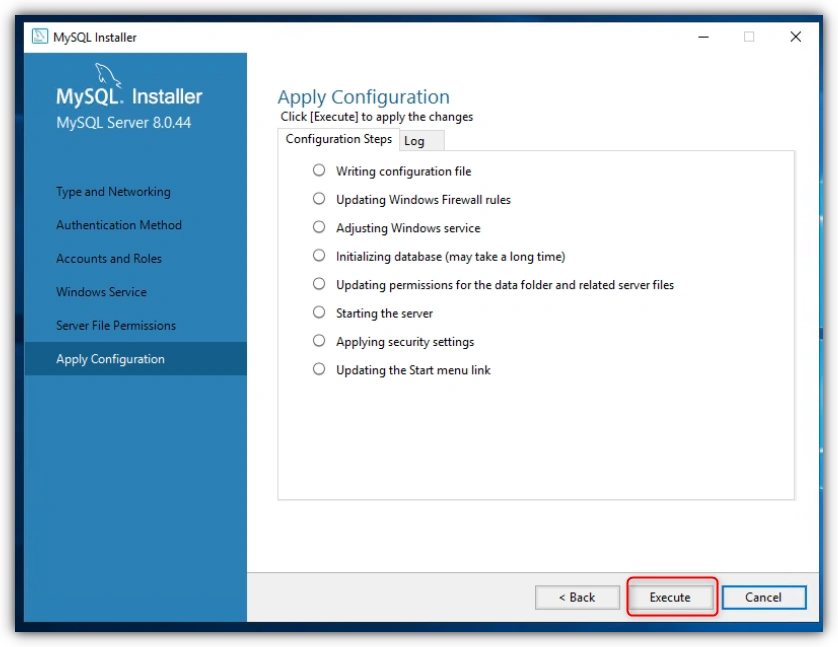
Click Execute to start installing MySQL.
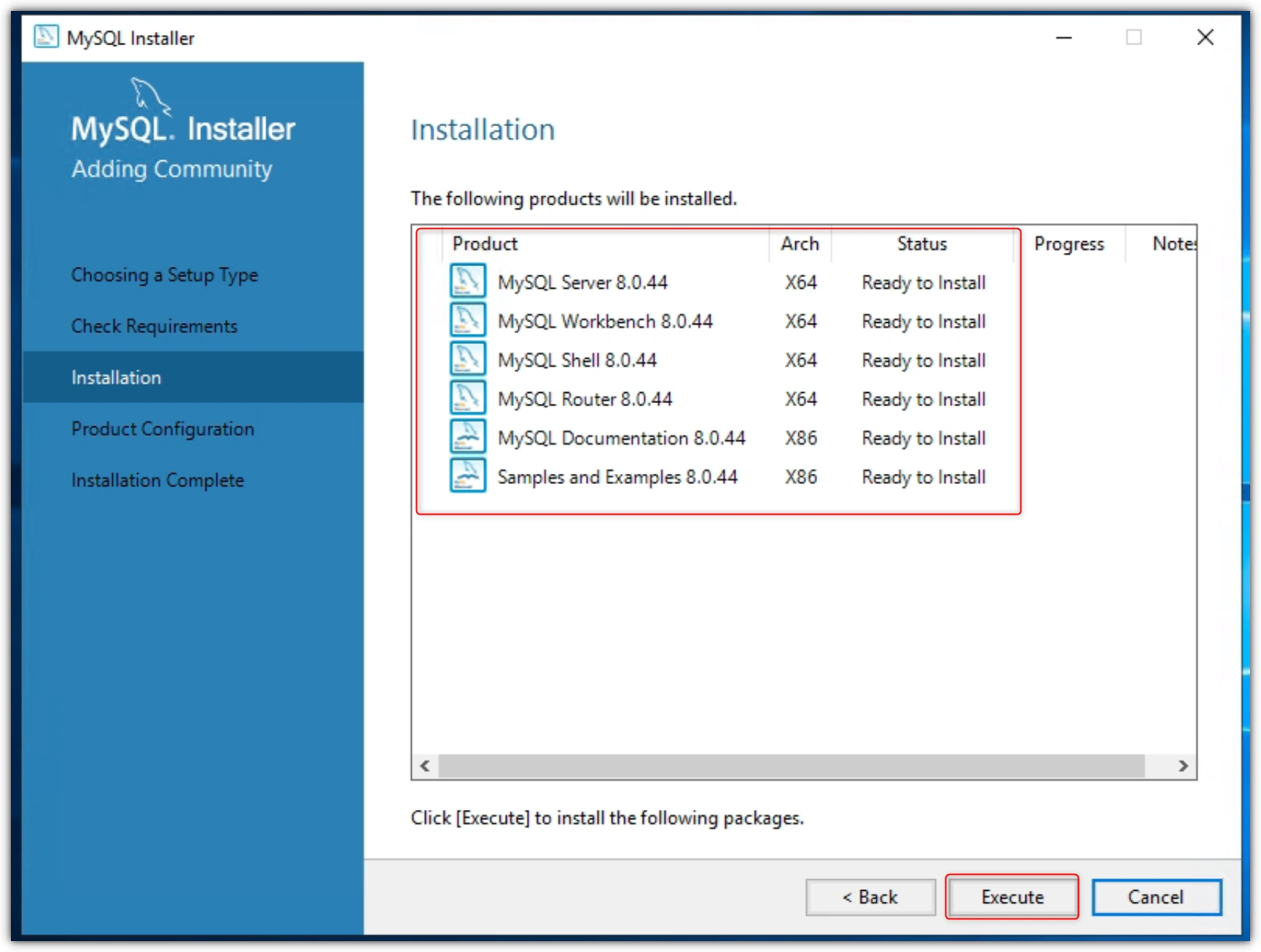
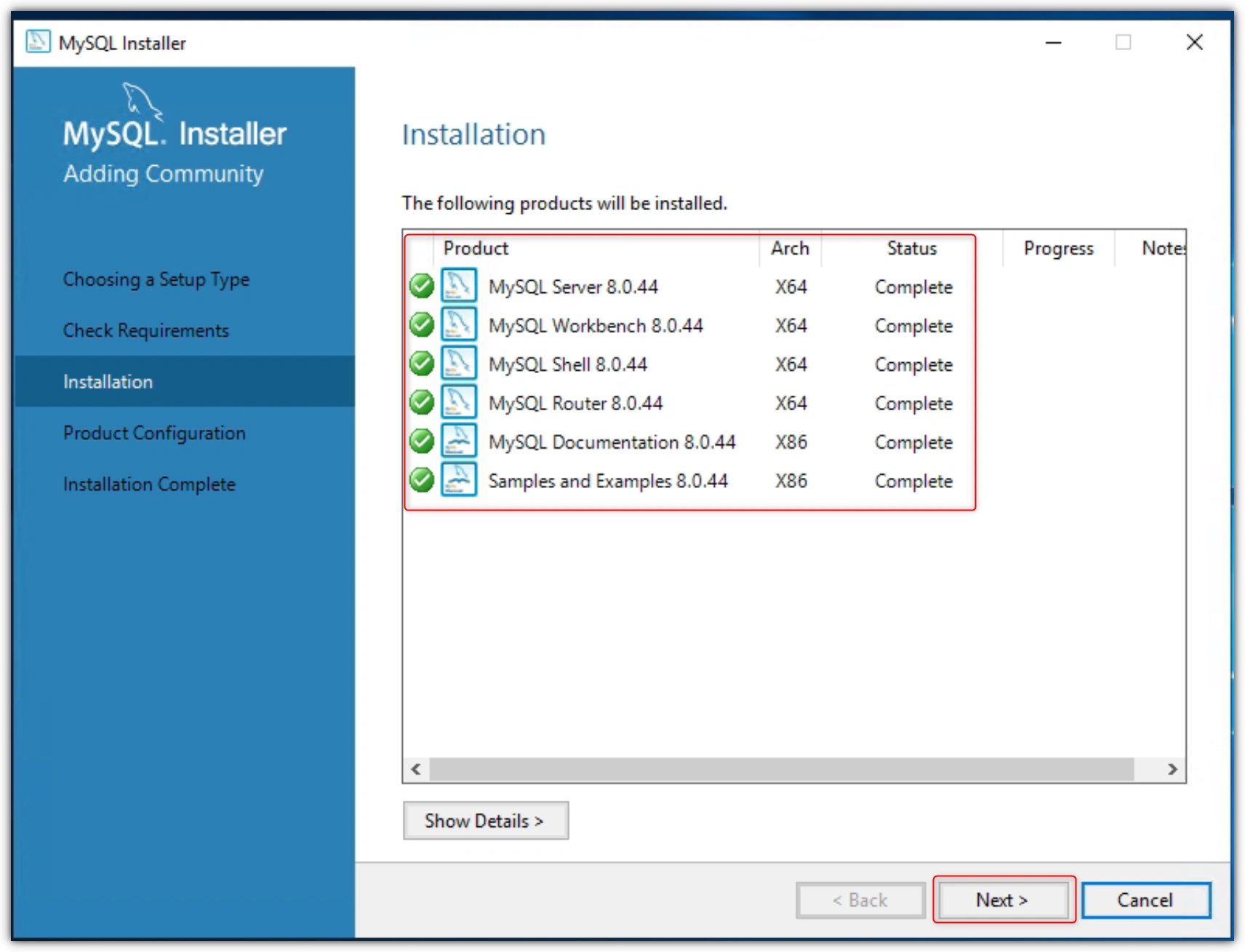
The installer will download and install all selected parts.
Wait until it finishes, then click Next.
Step 6: Configure MySQL Server
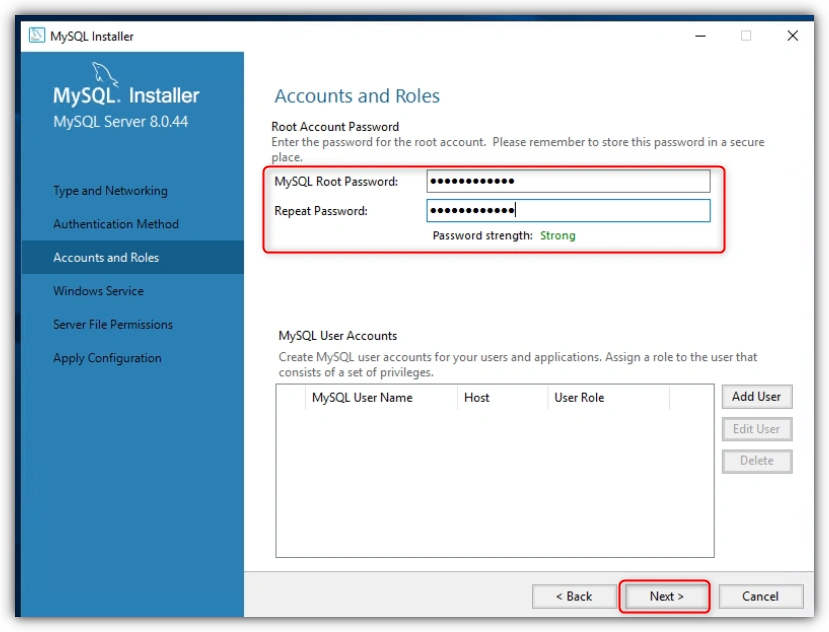
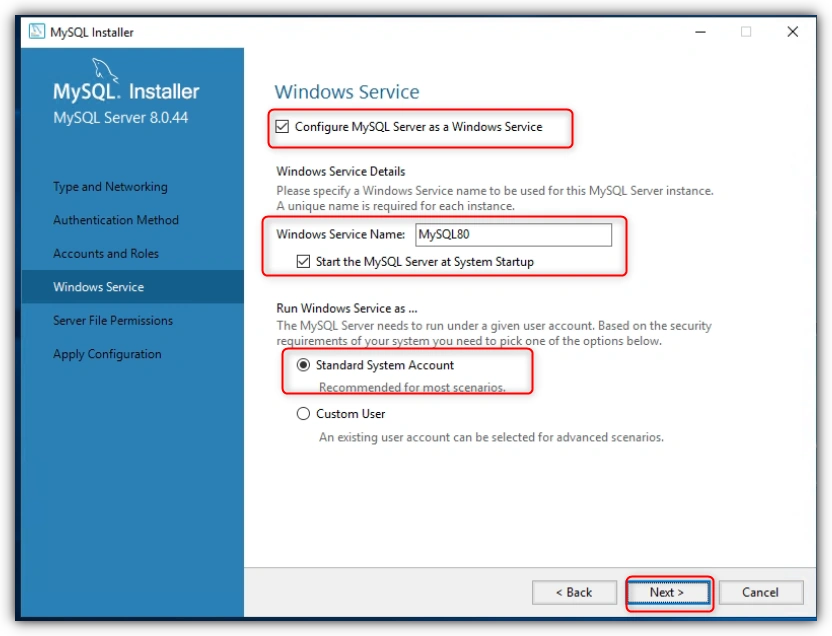
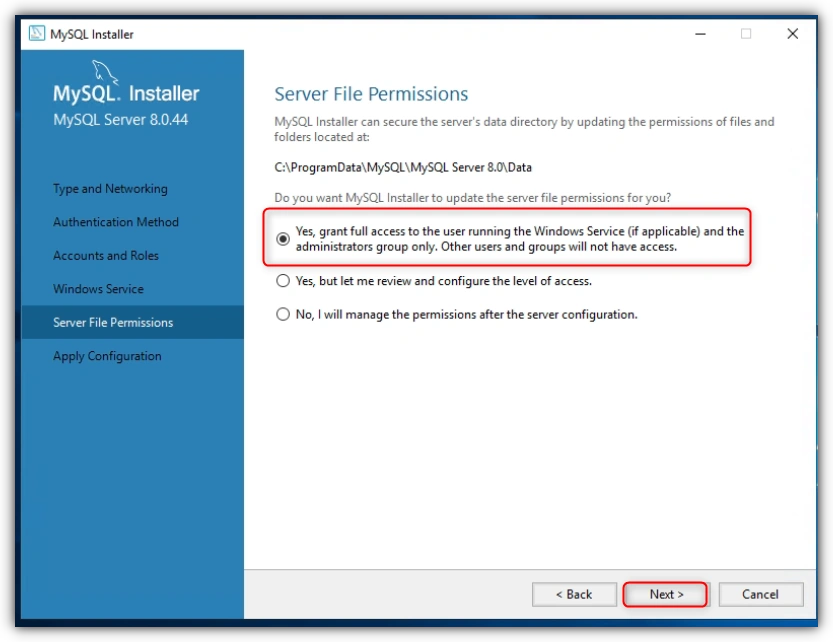
After installation, the MySQL Configuration Wizard will open automatically.
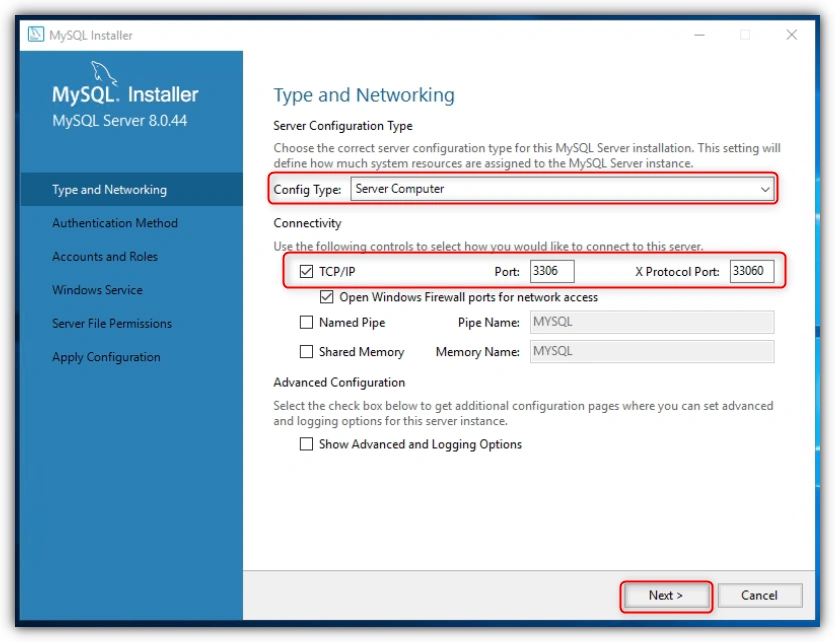
Type and Networking
Choose Standalone MySQL Server / Classic MySQL Replication.
Keep the TCP/IP port as 3306 (default).
You can check Open Firewall port for network access if you want remote access.
Click Next.
Join the conversation! Your thoughts help the community grow.