

Purpose
In this article, we'll learn how to populate records dynamically in a Word document using Power Automate.
Prerequisites
Basic knowledge of Creating Flows Power Automate and Microsoft Word
Developer tab enabled in Microsoft Word
Follow below steps to enable Developer Option in Word
Open Microsoft Word
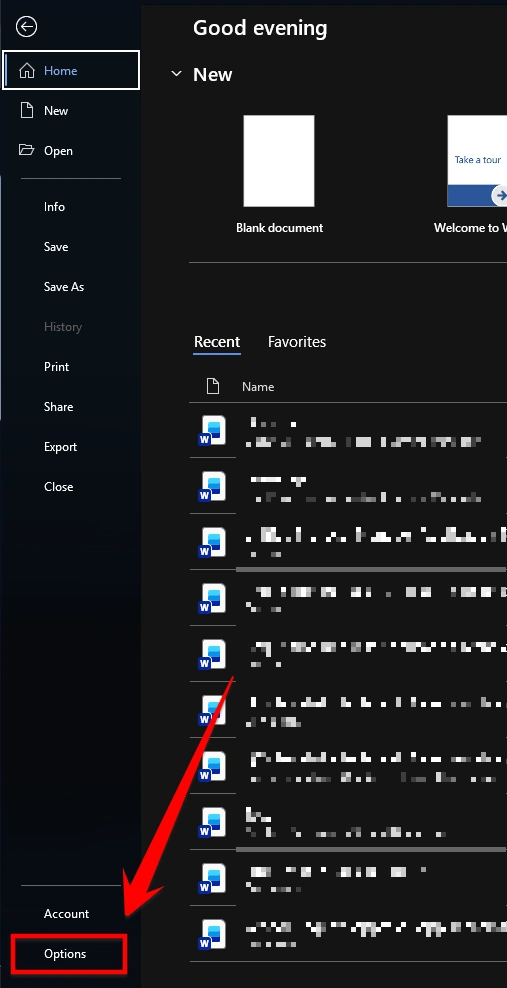
Click on the File tab (top-left corner)

Click on Options (This will open the Word Options window)
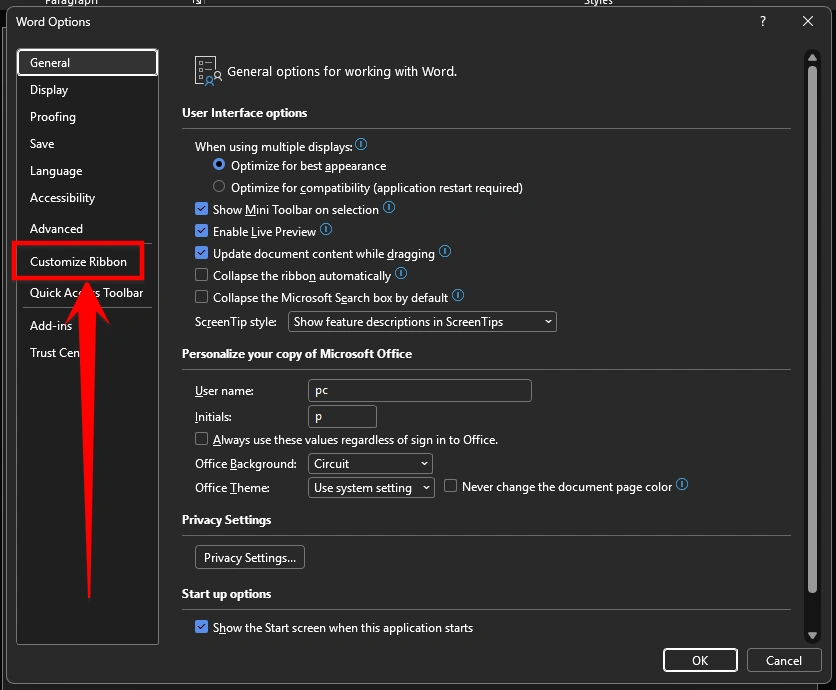
In the left panel, click on Customize Ribbon
In the right section (Main Tabs):
Find Developer and Check the checkbox next to Developer
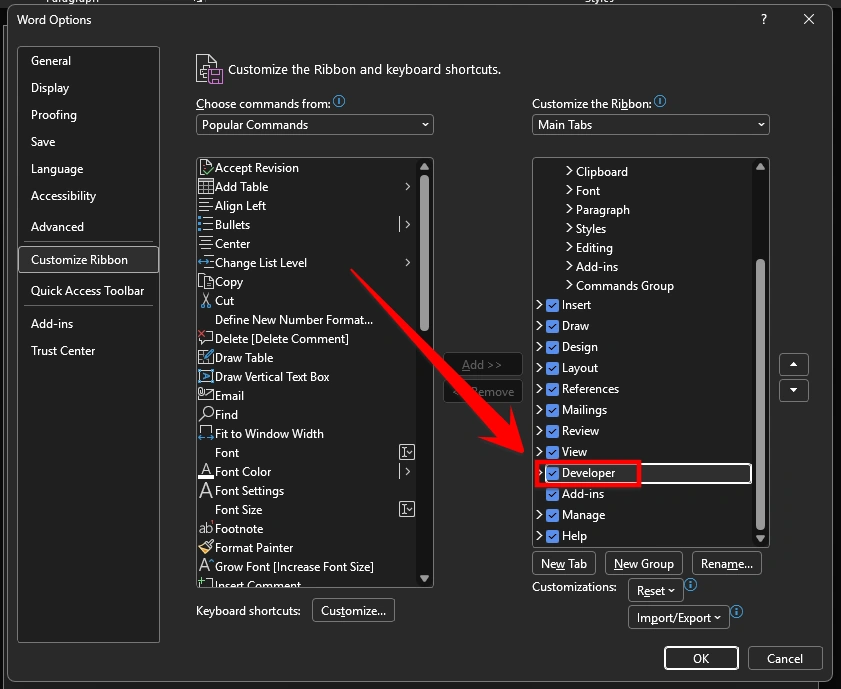
Click on OK
The Developer tab will now be visible in the top ribbon of Word and you can start using content controls for Power Automate

Example Scenario
We will create a table in Word with columns like Employee Name, Employee Email, Department, Date of Joining, etc., and populate the data using Power Automate. I have a dummy JSON with some employee data that I will use for this example, but you can use any data source like SharePoint or Dataverse.
Step 1 - Creating a Word Template
Open Microsoft Word
Create one table with 4 columns and add headers Employee Name, Employee Email, Department and Date of Joining.
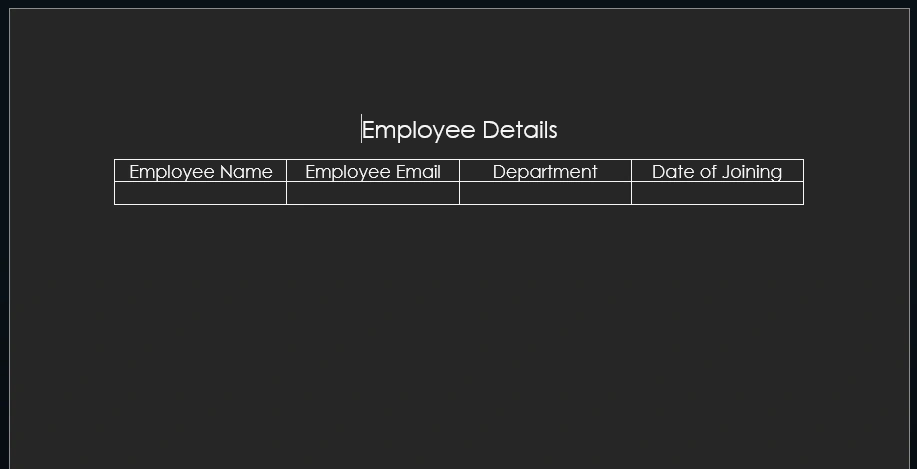
Now click on Developer Tab and you will see Controls section under it.

Add Plain Text Content Controls for all four fields.

Click on each content control and go to Properties, then set the names as below:
Employee Name - EmployeeName
Employee Email - EmployeeEmail
Department - Department
Date of Joining - DateOfJoining
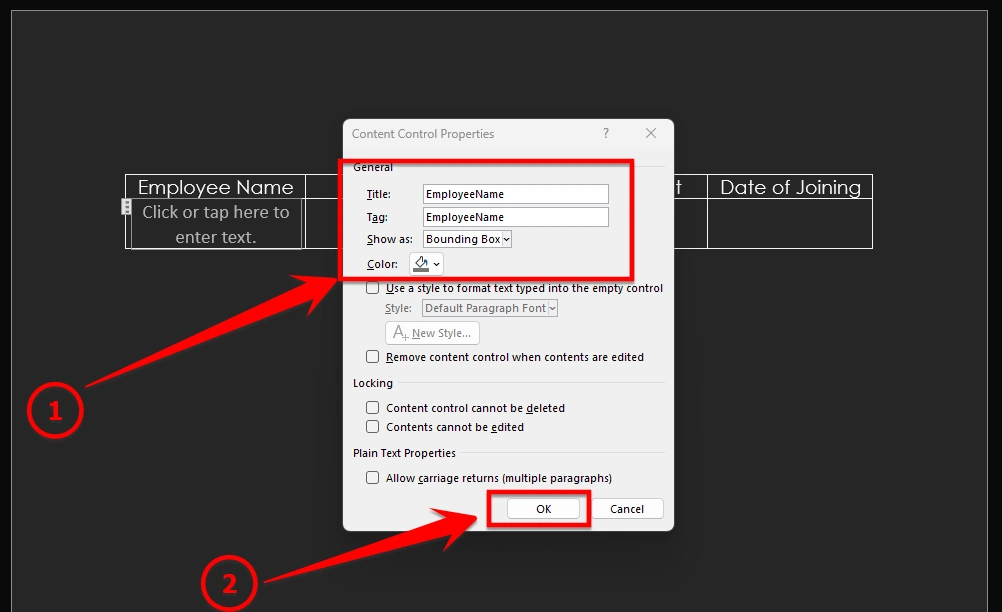
Select the entire row containing all four content controls, then click on Repeating Section Content Control from the Developer tab.
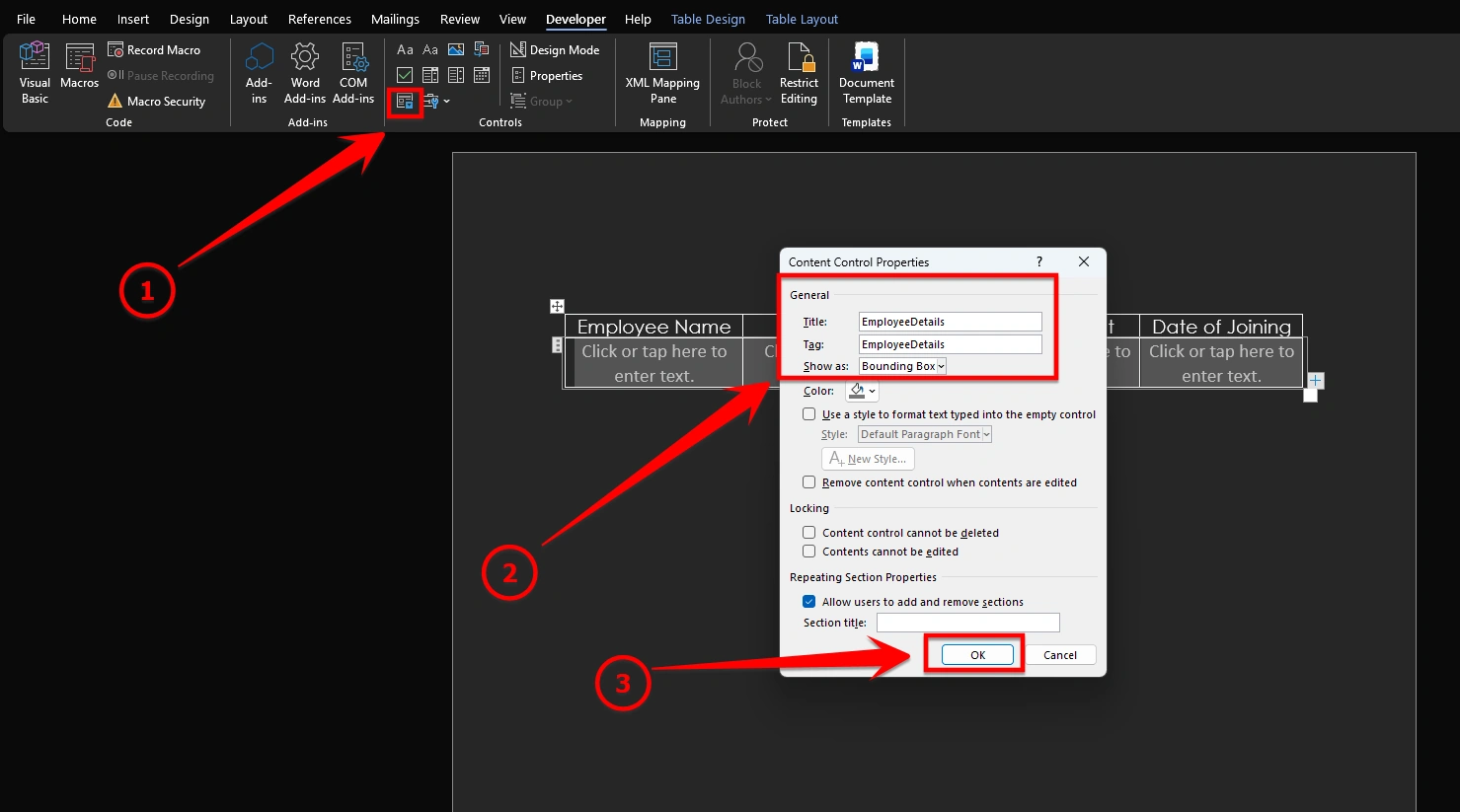
Save the Word template.
Tip: After creating the template, upload this Word file to a SharePoint Document Library or OneDrive so you can select and use it in Power Automate.
Step 2 - Create a Flow in Power Automate
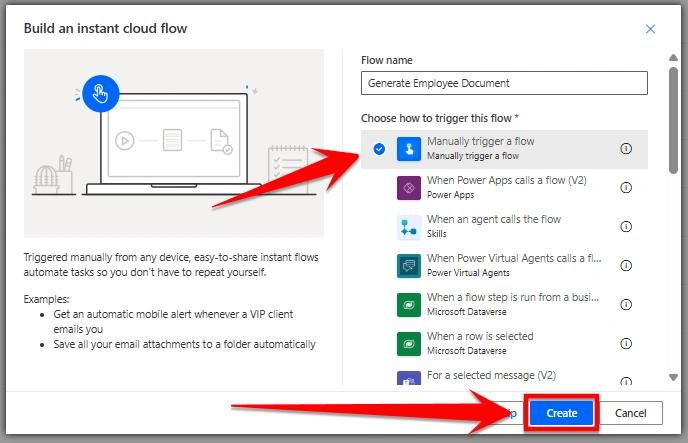
Go to make.powerautomate.com and click on Create from the left-hand menu. Select Automated cloud flow (or Instant cloud flow based on your requirement). In my case, choose the Manually trigger a flow trigger. Give your flow a name like “Generate Employee Document”, and then click on Create.
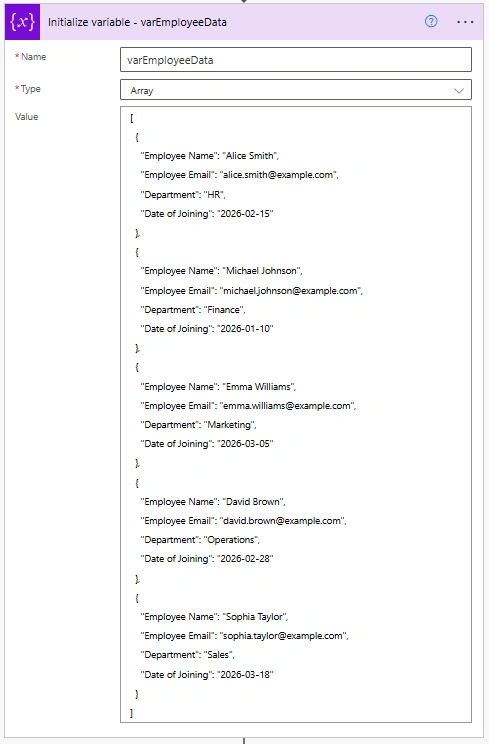
After that, click on + New step and search for Initialize variable. Select it and configure it by setting the Name as varEmployeeData and the Type as Array. In the Value field, add sample employee JSON data for testing purposes. For this example, dummy data is used, but you can replace it with your actual data based on your requirement. The data can include fields like Employee Name, Email, Department, and Date of Joining.
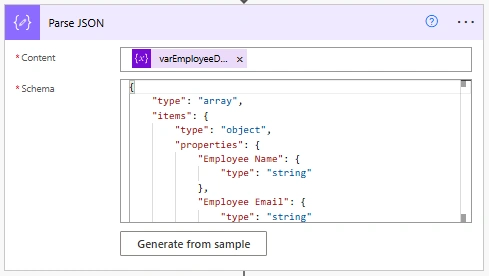
Next, click on + New step and add the Parse JSON action. In the Content field, select varEmployeeData. In the Schema section, click on Generate from sample and paste the same sample JSON to automatically generate the schema. This helps in easily using dynamic content in later steps.
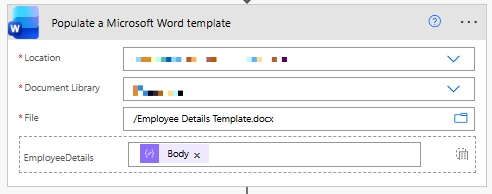
Then, click on + New step and add Populate a Microsoft Word template. Select your document location (such as SharePoint or OneDrive), choose the appropriate document library, and then select your Word template file (for example, Employee Details Template.docx). In the mapping section, map the required fields using dynamic content from the Parse JSON step, such as selecting Body or specific properties depending on your template design.
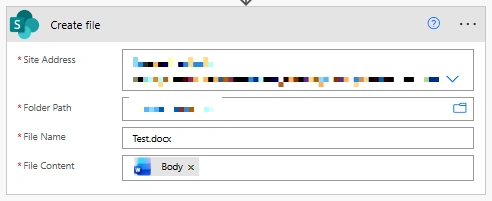
After that, click on + New step and add Create file using SharePoint or OneDrive. Select your site or storage location, set the folder path where you want to save the file, and provide a file name such as Test.docx. In the File Content field, select the output from the Word template step to ensure the generated document is saved correctly.
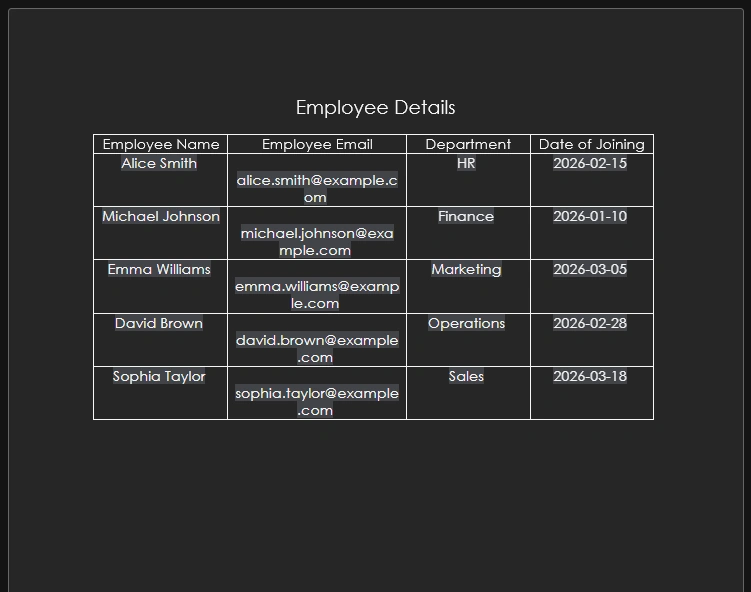
Finally, click on Save and then click on Test to run the flow and generate the document. This will create a Word file populated with the provided data.

Result
Conclusion
Using this article, you can easily create a dynamic Word document where data is automatically populated using Microsoft Power Automate. Instead of manually entering details, you can connect your data source like SharePoint, Dataverse, or JSON.
Join the conversation! Your thoughts help the community grow.