

Introduction
In this article, I will show you how to repair corrupted system files in the current image of your Windows 11 using the proper and easiest method.
When you refer to "Repair Any Corrupted System File in The Current Image," you're likely talking about using built-in Windows tools to repair system files. Two primary tools are essential for this task.
- System File Checker (SFC): Scans and replaces corrupted system files with cached copies. (Note: Here I attached my previous article How to Clean and Replace Corrupted Files in Windows 11 (c-sharpcorner.com))
- Deployment Image Servicing and Management (DISM): Repairs system image issues that might prevent SFC from working correctly.
Common Causes of Corrupted System Files
- Malware infections
- Incomplete installations or updates
- Hardware failures
- Power outages
- Software conflicts
Preventive Measures
- Keep your system updated.
- Use reliable antivirus software.
- Regularly back up your system.
- Avoid running multiple system optimization tools.
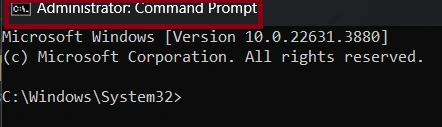
Step 1. On your computer, open the command prompt as an administrator.
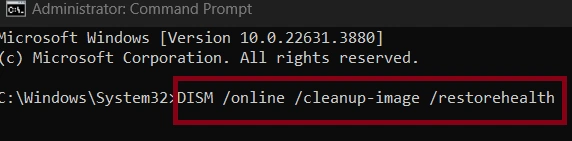
Step 2. Type DISM /online /cleanup-image /restorehealth after hit enter.
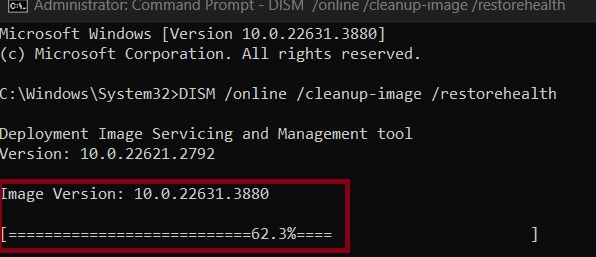
Step 3. Now here you can see our system-cleaned message appear.
Conclusion
In this article, we all clearly understand how to repair corrupted system files in the current image of your Windows 11 using the proper and easiest method. If you need clarification regarding this topic, feel free to contact me.
Lambotharan SriragavanPosted Jul 29, 2024, 1:03 PM
Great information thanks