

Let’s dive into the implementation.
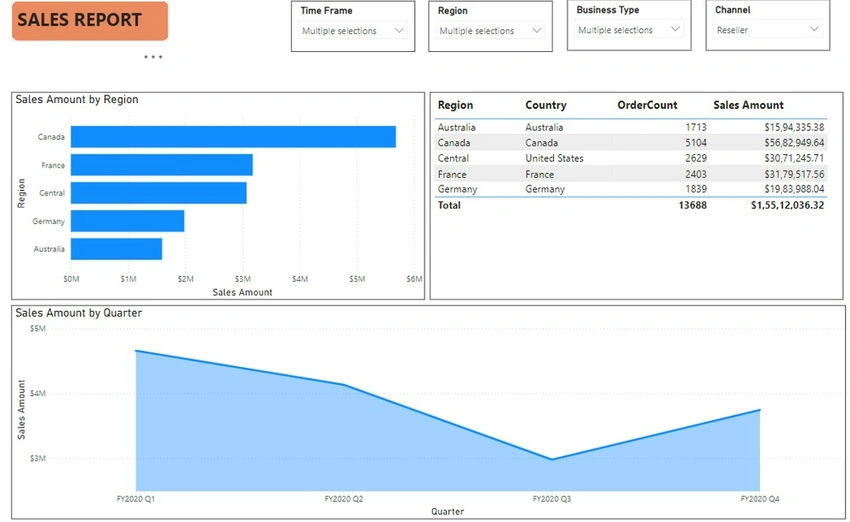
If you observe the above Power BI report, multiple filter conditions have been applied. Users are unable to see which filters are active.
Let’s go step-by-step to display the selected/filtered slicer values.
Step 1. Create a DAX Measure.
Create a DAX measure as shown in the code box below.
// Define the variable for Fiscal Year and concatenate selected values or "All" if no selection
VAR FYear =
    "Fiscal Year : "
        & IF(
            ISFILTERED('Date'[Fiscal Year]), // Check if Fiscal Year is filtered
            CONCATENATEX(
                VALUES('Date'[Fiscal Year]), // Get the selected values for Fiscal Year
                'Date'[Fiscal Year],         // Concatenate the selected values
                " , "                        // Separator for multiple values
            ),
            "All"                           // Default value if no selection
        )
        & " | " // Separator for the next part

VAR Region =
    "Region : "
        & IF(
            ISFILTERED('Sales Territory'[Region]),
            CONCATENATEX(
                VALUES('Sales Territory'[Region]),
                'Sales Territory'[Region],
                " , "
            ),
            "All"
        )
        & " | "

VAR BSType =
    "Business Type : "
        & IF(
            ISFILTERED(Reseller[Business Type]),
            CONCATENATEX(
                VALUES(Reseller[Business Type]),
                Reseller[Business Type],
                " , "
            ),
            "All"
        )
        & " | "

VAR Channel =
    "Channel : "
        & IF(
            ISFILTERED('Sales Order'[Channel]),
            CONCATENATEX(
                VALUES('Sales Order'[Channel]),
                'Sales Order'[Channel],
                " , "
            ),
            "All"
        )

// Return the concatenated string of all variables
RETURN
    FYear & "  " & Region & "  " & BSType & "  " & Channel
Step 2. Insert the new Text Box.
Insert a new text box by clicking the text box option, as shown in the image below. The new text box will be inserted into the PBI canvas.
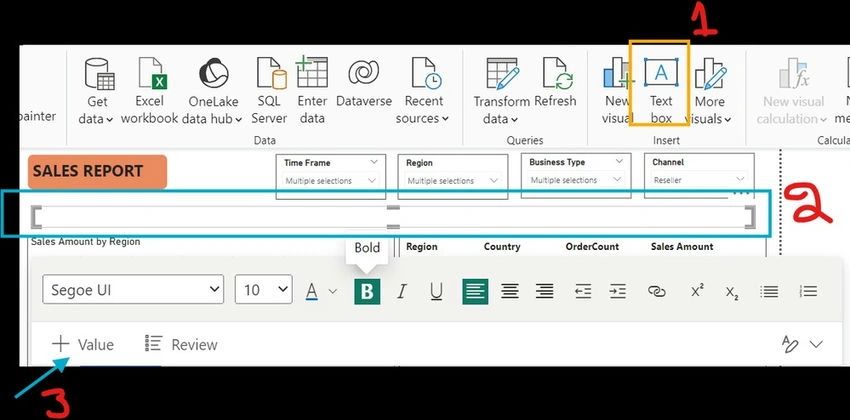
Now you can click on + Value. The moment you click on + Value, you'll be able to see the image below.
Step 3. Simply type the name of the created measure and select it in the “Ask a question about your data” feature, as shown in the Image.
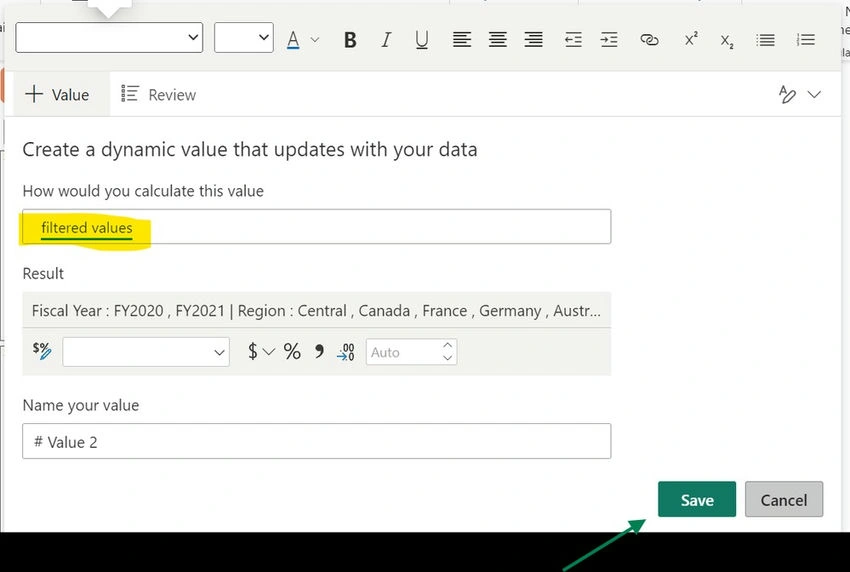
Then click the save button. Now you'll see filtered values in the text box as shown in the image below.

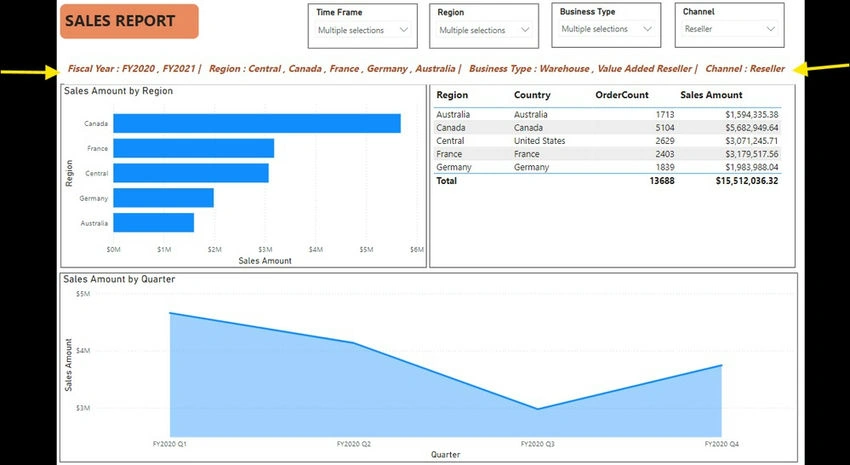
Now, let’s apply formatting options to display the slicer-selected values correctly. Finally, the slicer-selected values will be shown in the report as illustrated in the Image.
If you found this article helpful, please like, share, and save it.
Thank you!
Join the conversation! Your thoughts help the community grow.