

In this article, we will explore how to take a single large image and split it into multiple icons that can be used individually on your website. This technique is often referred to as image sprites. It allows you to load a single large image containing all the smaller icons, which can reduce the number of HTTP requests the browser makes, improving page load times.
Objective
The goal of this technique is to split a large image into multiple smaller icons that can be used in different sections of your website, such as buttons, menus, or social media icons. Each icon will be displayed by referencing a specific part of the large image using CSS.
Benefits
Reduced HTTP Requests: By using a single image for all icons, you reduce the number of HTTP requests the browser must make to load your page, improving load speed.
Efficient Use of Resources: This technique is resource-efficient because only one image is loaded.
Faster Page Loads: Fewer server requests lead to faster page load times, enhancing the user experience.
Prerequisites
Before we begin, make sure you have a large image ready that contains all the icons you want to split. The image should be evenly divided so that each icon is easily accessible via CSS positioning.
Step-by-Step Guide to Implementing Image Sprites
1. Preparing the Image
Ensure that your large image is divided into uniform sections, where each section corresponds to a single icon. Each icon can be a small square or rectangle, depending on your design.
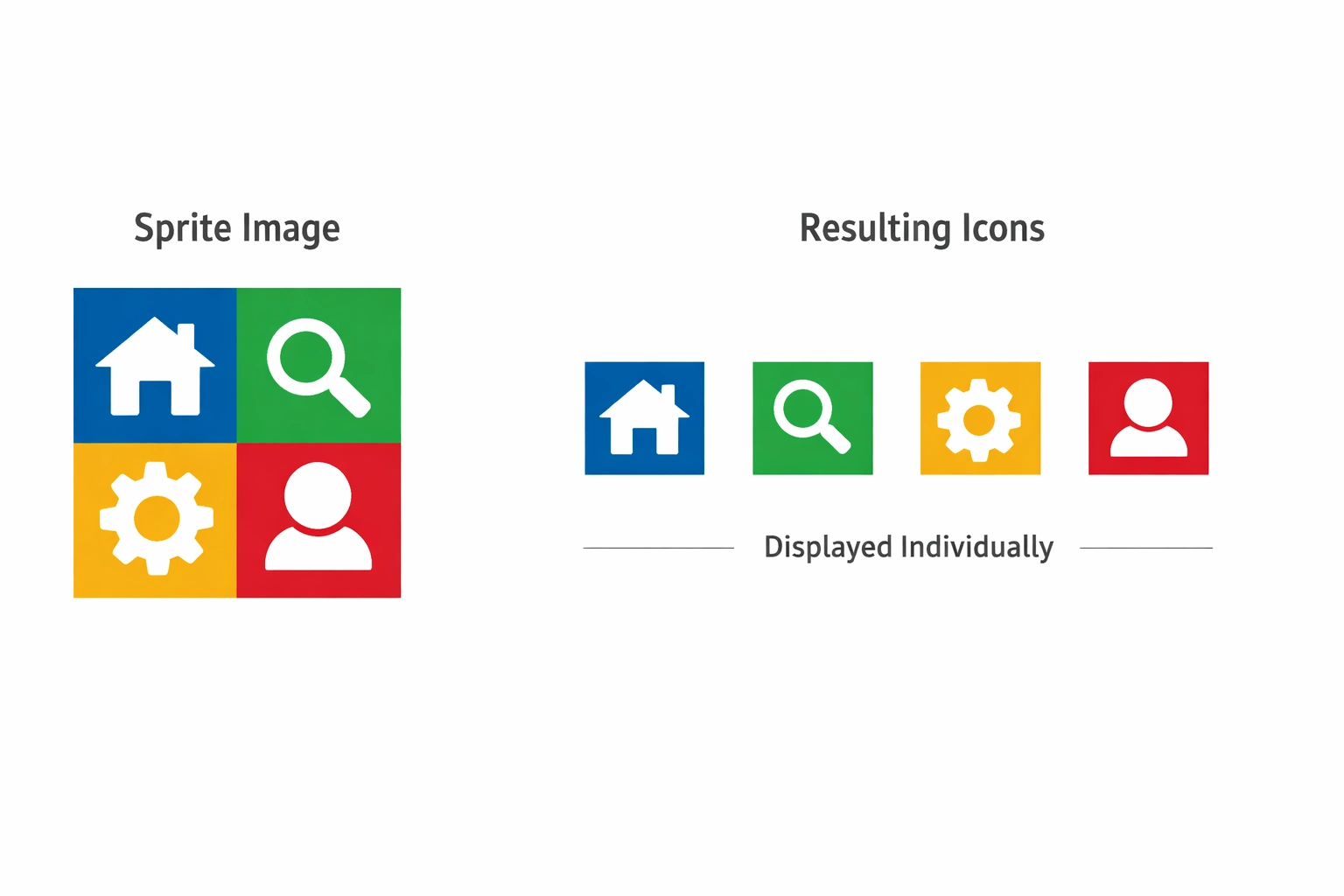
For example, let’s say you have a large image sprites.png that contains 4 icons, arranged in a 2x2 grid.
2. HTML Structure
Start by creating the HTML structure where you want to display the icons. This is where the icons will be placed, each using CSS to reference a specific part of the large image.
<div class="icon-container">
    <div class="icon home"></div>
    <div class="icon search"></div>
    <div class="icon settings"></div>
    <div class="icon user"></div>
</div>
In this example, each <div> inside the .icon-container will represent an individual icon.
3. CSS for Image Sprite
Now, we need to write the CSS that will “crop” out the appropriate section of the image for each icon. We will use the background-image property to reference the large image, and the background-position property to select the appropriate section for each icon.
.icon-container {
    display: flex;
    gap: 20px;
}

.icon {
    width: 50px;  /* Icon width */
    height: 50px;  /* Icon height */
    background-image: url('sprites.png');
    background-repeat: no-repeat;
}

/* Home Icon */
.icon.home {
    background-position: 0 0;  /* Position of the home icon in the image */
}

/* Search Icon */
.icon.search {
    background-position: -50px 0;  /* Position of the search icon */
}

/* Settings Icon */
.icon.settings {
    background-position: 0 -50px;  /* Position of the settings icon */
}

/* User Icon */
.icon.user {
    background-position: -50px -50px;  /* Position of the user icon */
}
Explanation of CSS Properties:
background-image: This property sets the image to be used as the background for each icon. In this case, it's the large imagesprites.png.background-position: This property defines which part of the large image should be displayed for each icon. For example,background-position: 0 0;will display the section at the top-left of the image.widthandheight: These define the size of each individual icon. They should match the size of each section of the large image.background-repeat: no-repeat;: Ensures that the image doesn’t repeat itself when it's smaller than the container.
4. Testing the Result
Once you've applied the CSS, your icons will appear as individual items but are actually all using one large image. The browser will only load one image, and each icon will be displayed using the appropriate section of the large image.
Here’s an example of how the layout might look:
Conclusion
Using image sprites to split a large image into many icons is an efficient technique that reduces the number of HTTP requests made by the browser, thus improving page load times. It’s a great way to optimize your website, especially when dealing with many small images that can be grouped into a single larger file.
By following the steps outlined in this article, you should now be able to implement this technique and use one large image to serve multiple icons. This method not only speeds up your site but also ensures that your code remains organized and efficient.
Reduced HTTP Requests: By using one large image, fewer requests are made, improving page speed.
Easy to Implement: With just a few lines of CSS, you can create icons from a single image.
Great for Web Performance: This technique enhances the performance of your website by minimizing image loading times.
This technique is especially useful when dealing with icon-based websites or applications.
Join the conversation! Your thoughts help the community grow.