

In my previous article I explained the Azure Traffic Manager, how to configure it and how it works. Now in this article I will explain Azure SQL Data Sync. I am assuming you have a basic understanding of SQL Server and SQL Azure Databases. Although this feature is still in the preview stage, it's very important for Disaster Recovery Concepts.
Data Sync Services
Sync Services is provided by Microsoft Azure where you can keep a SQL Azure database synchronized with another database. You can take a backup of a database from one region to another region. There is a simple procedure you need to follow to configure this service. If not a complete database then you can at least keep selected tables or selected rows of tables synchronized.
This service provides the following two ways to synchronize:
- Synchronize a SQL Azure database from one SQL Azure server to another SQL Azure server.
- Synchronize a SQL Azure Database from an Azure Server to a Local Server database.
Here we will first see a way to synchronize databases. How to synchronize a SQL Azure database from one server to another sever (SQL Azure Server).
Prerequisites for this demo: Create two SQL Azure databases with two regions (data centers).
- Once you login into Azure Portal go to the SQL Database tab. Here you will find four options Sync (this service is in the preview) Image 1.1. Here you will find a list of Sync services that are already created.
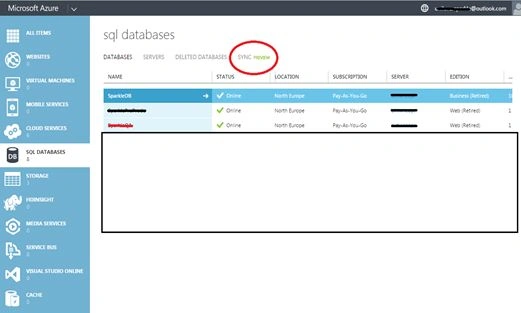
Image 1.1
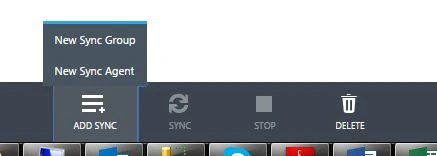
- To create a new service click on the option Add Sync. There are the following two options:
- New Sync Group: Synchronize SQL Azure database from one Azure server to another Azure server
- New Sync Agent: Synchronize SQL Azure database from one server to a local on-premises server
- Need the following details
Name: Sync Group Name
Region: It's an available datacenter list where you need to create your Sync group.
(Select the region where your source database server is present.)
Click on "Next".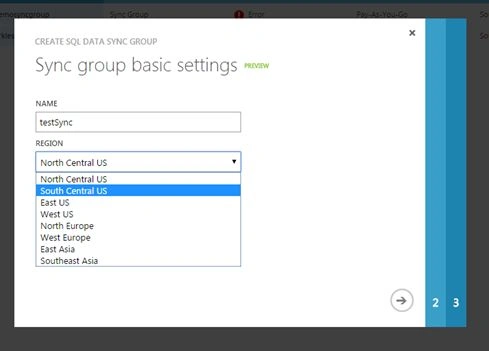
- Here is the Hub and Reference database. Hub is basically the main (Source) database and the reference database is where the Hub is synchronized with this database. Enter the following details.
Hub Database: You will get a list of databases with different servers; select one database as the Hub.
Hub User Name: Login user name of selected Hub database.
Hub Password: Login password of selected Hub database.
Conflict Resolution: If conflicts happen between this hub and the source database then it will go with the selected database. (The Hub wins: the Hub data will be accepted.)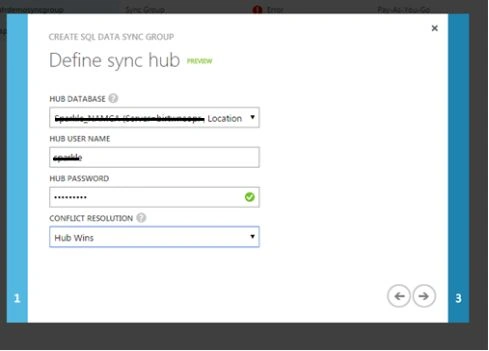
- Add a reference database, enter the following details :
Reference Database: You will get a list of databases with different servers; select one database as the reference.
Reference User Name: Login user name of the selected Reference database.
Reference Password: Login password of the selected Reference database.
Sync Direction: Select Sync Direction Hub to reference or Reference to Hub. You can select Bi-Direction to synchronize both databases with each other.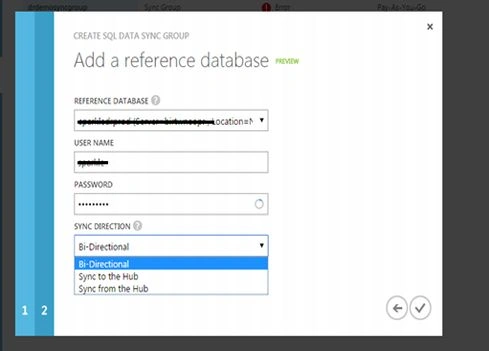

Abhijit KakadePosted Dec 22, 2014, 1:14 AM
Thanks Vithal ..
Vithal WadjePosted Dec 21, 2014, 10:13 PM
good start keep it up