
What is the Test Lab?
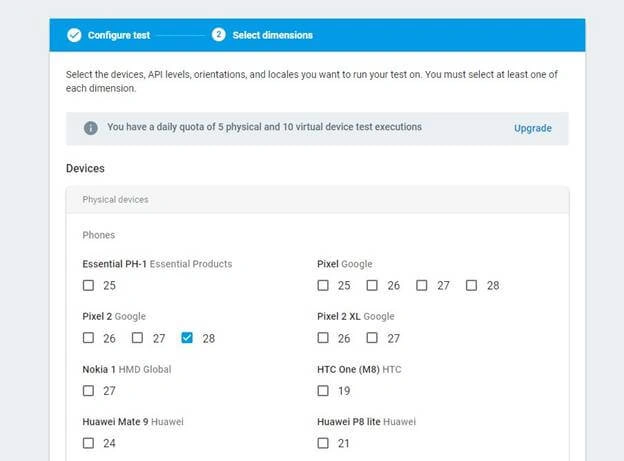
Test Lab provides us the functionality to test our Apps on a pool of Android devices. It provides the environment to upload APK and select devices to run. We do not need to have a physical device to run our app and test it. As there is a lot of variation on Android devices and sometimes the app's behavior changes on a newer version of Android devices. To test this behavior, we can run a test on Test Lab instead of buying that particular Android device and running the app on it.
How to use Test Lab
The test lab provides a type of test called the Robo Test. It is an intelligence test that runs automatically on the APK we uploaded but does not log in and deep dive into the app until we provide the credentials.
How to make a particular test case and run it on Test lab
First, create a firebase console account by going on this link https://console.firebase.google.com and creating a project if not created already. Go to the test lab under the Quality section.
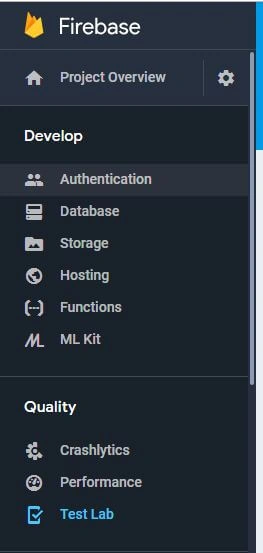
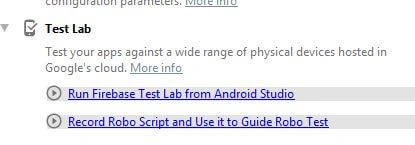
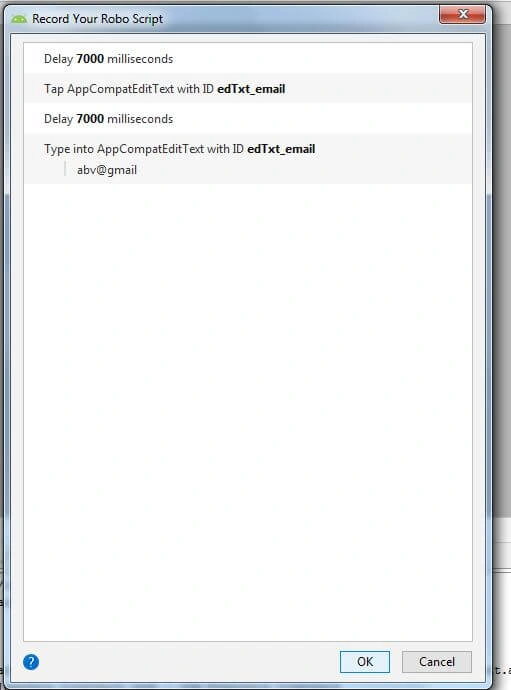
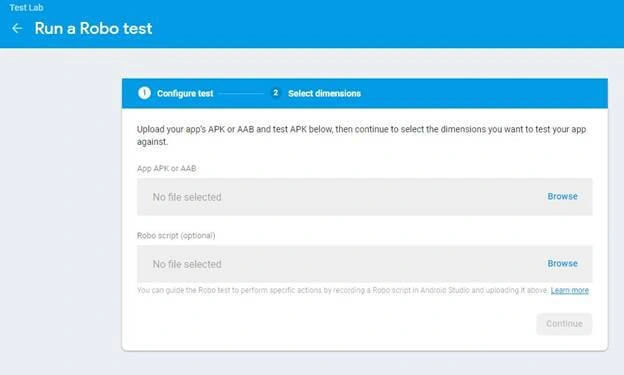
Click on Test Lab and a new window will open on the right side. Upload app APK here and the first time, the test runs on the latest Android device automatically. But it will be a generic test and not a deep dive test of the app and not your desired test. To run a test of your desired functionality, you need to record a Robo Script and use that with the app APK. I am going to explain step by step how to record a Robo Script from Android Studio and run that on Test Lab.
Step 1
Open Android Studio.
Step 2
Open the desired project in Android Studio.
Step 3
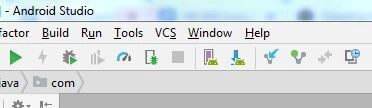
Click on the Tool in the Top Menu Bar, and click on Firebase.
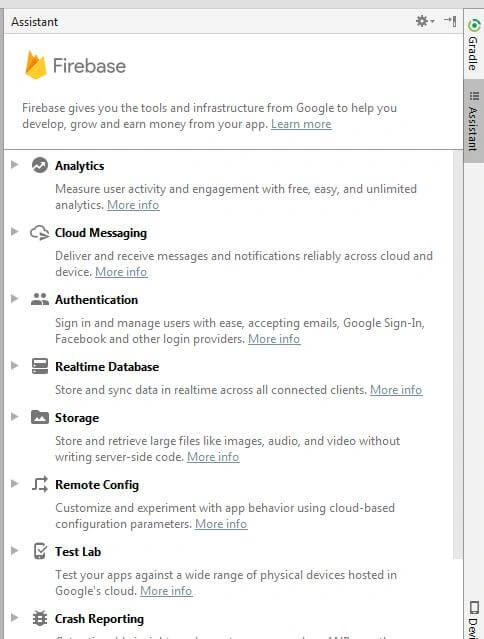
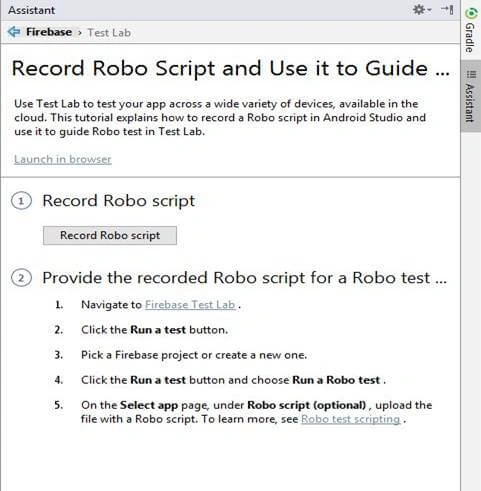
A Firebase Assistant will open on the right side.
Join the conversation! Your thoughts help the community grow.