

In my previous article, What Is Power BI Desktop, I have explained about Power BI Desktop and its functionalities. Today I am going to show you how to use this tool to create reports and dashboards.
I have also mentioned the link for downloading this application in the previously mentioned link. After downloading and installing this tool, open it in your personal computer. After opening this tool it will look like the below image.
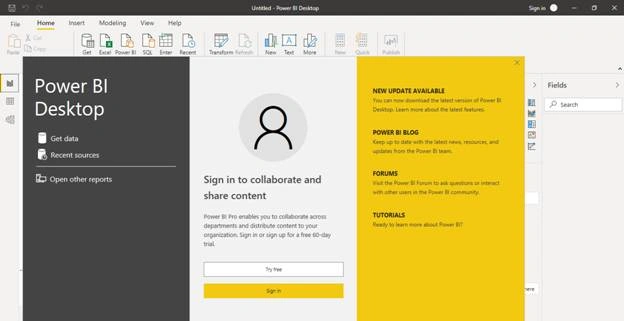
Once you open this tool the two windows will open as shown in the above image. You can click on the (x) button of the first window or you can click in here also. If you cut this window then you will also be able to login to the second window. After logging in by any one of them your tool will be shown like the below image.
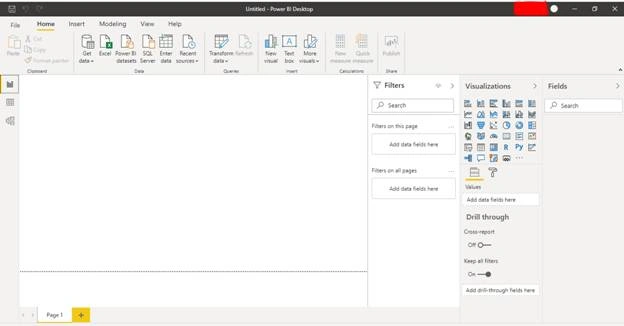
Note
You can use Power BI Desktop without logging in. Login is required if you want to publish your report, otherwise you can use all of its functionality with out login to the tool.
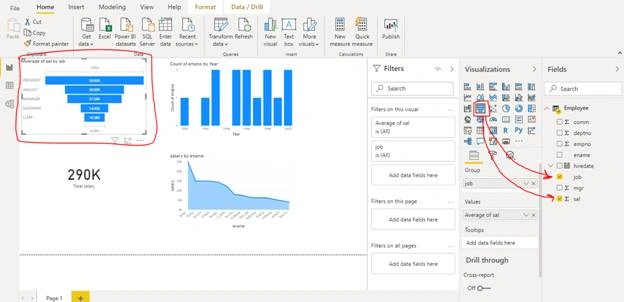
Power BI Desktop is very easy to use. It is used to ‘Load data’, ‘Transform data’, ‘Create report’ and ‘Share report’. Let's see how you can use this tool to load, transform and create reports.
How to Load Data in Power BI Desktop
To load data into power bi desktop, go to the ‘Home’ tab of this tool. Here you get the option ‘Get data’, click on it and you can see multiple sources from where you can load the data for example File, Database, Power Platform, Azure, Online Services and other.
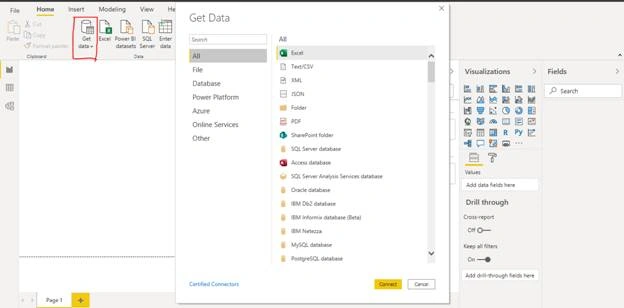
You can select your source and load data. I have already written articles about loading data from ‘Excel’, ‘Text/CSV’, ‘Folder’, ‘SQL Serer database’ and ‘Web’. Below are the links of those articles:
How to Transform Data in Power BI Desktop
There are two ways to transform data in Power BI Desktop.
- While Loading Data
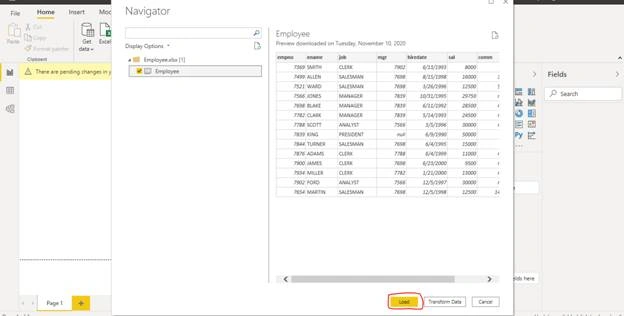
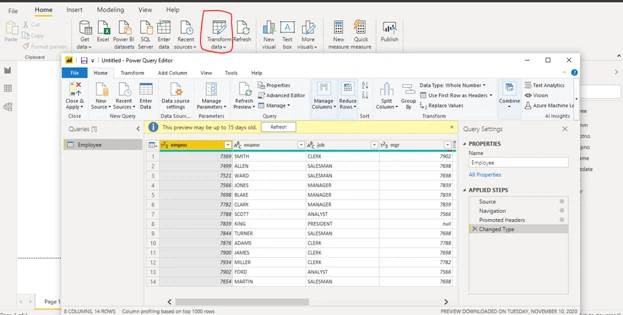
While you're loading the data into Power BI, you can see the ‘Transform Data’ Button. I am loading the data from Excel and in the below image you can see that option.
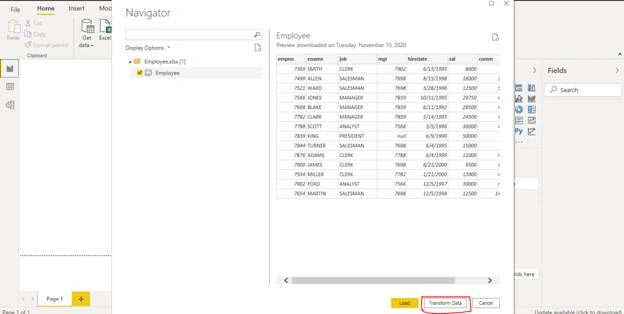
If you click on it a ‘Power Query Editor’ window will open. Check the below article about that.
Use Append Queries Feature In Power BI
- After Loading
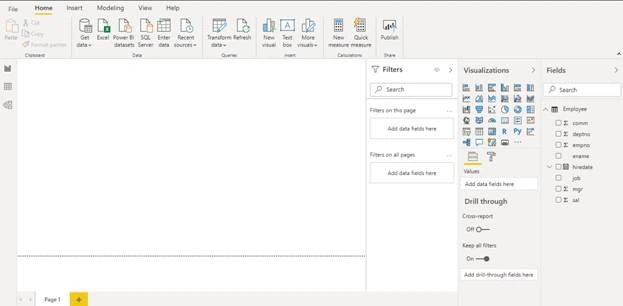
You can also transform the data once it loads. After loading the data your table will look like the below image.
Aktham MahmoudPosted Nov 27, 2020, 2:13 PM
Nice; are you agree with me if I have great experience in .net and sql so is not required for me to use powerPi to analyzing data and show statistics. I think this environment designed for persons need to learn small steps to work with data so my openion PowerPi mixing between (Advanced Excel concepts with MSSQL )Or SQL management,