

Introduction
iCloud allows users to store data such as music files on remote computer servers for download to multiple devices such as iPhones, iPods, iPads, and personal computers running Mac OS X or Microsoft Windows. It works by remembering your device's settings, apps, home screen layouts, ring tones and text messages, so all of that information is available if you upgrade or replace your iPhone or iPad.
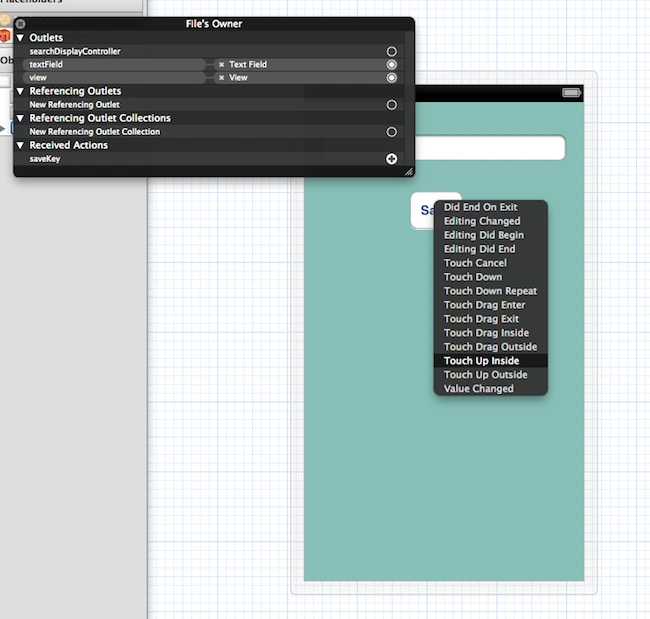
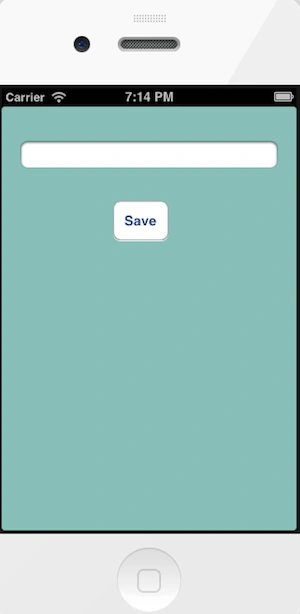
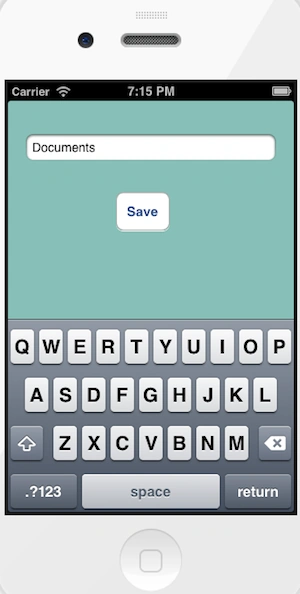
In this article I will create a single-view application. Here we add an entitlement plist file for storage. In xib we add a text field and button from outlets.
To better understand, use the following instructions.
Step 1
Open Xcode by double-clicking on it.
Step 2
Create a New XCode Project by clicking on it.
Step 3
Now "Select Single View Application" and click on "Next".
Step 4
Now provide your Product Name and Company Identifier.
Step 5
Select the location where you want to save your project and click on "Create".
Step 6
Now we write the code.
AppDelegate.h
#import <UIKit/UIKit.h>
@class iCloudKeysViewController;
@interface iCloudKeysAppDelegate : UIResponder <UIApplicationDelegate>
@property (strong, nonatomic) UIWindow *window;
@property (strong, nonatomic) iCloudKeysViewController *viewController;
@end
AppDelegate.m
#import "iCloudKeysAppDelegate.h"
#import "iCloudKeysViewController.h"
@implementation iCloudKeysAppDelegate
- (void)dealloc
{
[_window release];
[_viewController release];
[super dealloc];
}
- (BOOL)application:(UIApplication *)application didFinishLaunchingWithOptions:(NSDictionary *)launchOptions
{
self.window = [[[UIWindow alloc] initWithFrame:[[UIScreen mainScreen] bounds]] autorelease];
// Override point for customization after application launch.
self.viewController = [[[iCloudKeysViewController alloc] initWithNibName:@"iCloudKeysViewController" bundle:nil] autorelease];
self.window.rootViewController = self.viewController;
[self.window makeKeyAndVisible];
return YES;
}
- (void)applicationWillResignActive:(UIApplication *)application
{
// Sent when the application is about to move from active to inactive state. This can occur for certain types of temporary interruptions (such as an incoming phone call or SMS message) or when the user quits the application and it begins the transition to the background state.
// Use this method to pause ongoing tasks, disable timers, and throttle down OpenGL ES frame rates. Games should use this method to pause the game.
}
- (void)applicationDidEnterBackground:(UIApplication *)application
{
// Use this method to release shared resources, save user data, invalidate timers, and store enough application state information to restore your application to its current state in case it is terminated later.
// If your application supports background execution, this method is called instead of applicationWillTerminate: when the user quits.
}
- (void)applicationWillEnterForeground:(UIApplication *)application

Join the conversation! Your thoughts help the community grow.