

Introduction
Consider a scenario in which you are working on a large Farm and when troubleshooting it's required to do an IISRESET. Doing it manually is a boring task. You can run a PowerShell script to do it. This article outlines how to do an IISRESET using a PowerShell script.
IISRESET
An IIS Reset does 2 important things concerning SharePoint:
- It recycles all your application pools at one go and clears the memory objects.
- It reloads all DLLs from the Global Assembly Cache (GAC) in the Farm servers.
When you do an IISreset, your web sites and applications become unavailable, all sessions connected to your web server are dropped and you lose any existing state in your applications. Changes to the metabase can be lost. Your web sites and applications will be unavailable until the affected internet services are restarted.
The IISreset command stops and restarts the IIS Admin Service, the Windows Process Activation Service (WAS), and the World Wide Web Publishing Service (WWW Service).
Consider the preceding items before performing an IISRESET in a production environment.
Code block
The following piece of code helps in performing an IISRESET throughout the Farm.
- $global:timerServiceInstanceName = "Microsoft SharePoint Foundation Timer"
- $farm = get-spfarm
- foreach($server in $farm.Servers)
- {
- foreach($instance in $server.ServiceInstances)
- {
- # If the server has the timer service then stop the service
- if($instance.TypeName -eq $timerServiceInstanceName)
- {
- [string]$serverName = $server.Name
- write-host "Performimg IISRESET on the server " $serverName -fore magenta
- IISRESET $ServerName /noforce
- write-host "IISRESET performed on the server " $servername -fore green
- write-host "IIS status for server " $serverName
- IISRESET $serverName /Status
- }
- }
- }
- $LogTime = Get-Date -Format yyyy-MM-dd_hh-mm
- $LogFile = ".\PerformIISRESETPatch-$LogTime.rtf"
- # Add SharePoint PowerShell Snapin
- if ( (Get-PSSnapin -Name Microsoft.SharePoint.PowerShell -ErrorAction SilentlyContinue) -eq $null ) {
- Add-PSSnapin Microsoft.SharePoint.Powershell
- }
- $scriptBase = split-path $SCRIPT:MyInvocation.MyCommand.Path -parent
- Set-Location $scriptBase
- write-host "TESTING FOR LOG FOLDER EXISTENCE" -fore yellow
- $TestLogFolder = test-path -path $scriptbase\Logs
- if($TestLogFolder)
- {
- write-host "The log folder already exist in the script location" -fore yellow
- $clearlogfolder = read-host "Do you want to clear the log folder (y/n)"
- if($clearlogfolder -eq 'y')
- {
- write-host "The user choosen to clear the log folder" -fore yellow
- write-host "Clearing the log folder" -fore yellow
- remove-item $scriptbase\Logs\* -recurse -confirm:$false
- write-host "Log folder cleared" -fore yellow
- }
- else
- {
- write-host "The user choosen not to clear the log files" -fore yellow
- }
- }
- else
- {
- write-host "Log folder does not exist" -fore yellow
- write-host "Creating a log folder" -fore yellow
- New-Item $Scriptbase\Logs -type directory
- write-host "Log folder created" -fore yellow
- }
- #moving any .rtf files in the scriptbase location
- $FindRTFFile = Get-ChildItem $scriptBase\*.* -include *.rtf
- if($FindRTFFile)
- {
- write-host "Some old log files are found in the script location" -fore yellow
- write-host "Moving old log files into the Logs folder" -fore yellow
- foreach($file in $FindRTFFile)
- {
- move-item -path $file -destination $scriptbase\logs
- }
- write-host "Old log files moved successfully" -fore yellow
- }
- start-transcript $logfile
- $global:timerServiceInstanceName = "Microsoft SharePoint Foundation Timer"
- $farm = get-spfarm
- foreach($server in $farm.Servers)
- {
- foreach($instance in $server.ServiceInstances)
- {
- # If the server has the timer service then stop the service
- if($instance.TypeName -eq $timerServiceInstanceName)
- {
- [string]$serverName = $server.Name
- write-host "Performimg IISRESET on the server " $serverName -fore magenta
- IISRESET $ServerName /noforce
- write-host "IISRESET performed on the server " $servername -fore green
- write-host "IIS status for server " $serverName
- IISRESET $serverName /Status
- }
- }
- }
- write-host ""
- write-host "SCRIPT COMPLETD" -fore green
- stop-transcript
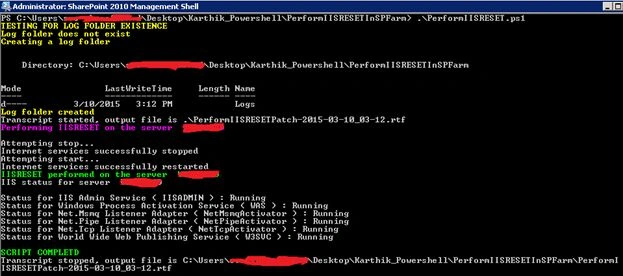
- Download and copy the script to the SharePoint server.
- Navigate to the script path.
- Execute the script.
Conclusion
Thus this article outlines how to do an IISRESET using a PowerShell script.
Karthik Muthu KaruppanPosted Apr 30, 2015, 11:07 AM
thanks
Vijay SPosted Apr 30, 2015, 3:42 AM
Good one
Karthik Muthu KaruppanPosted Mar 15, 2015, 11:47 PM
Thanks Gowtham
Gowtham RajamanickamPosted Mar 14, 2015, 4:39 AM
good one..