

Introduction
We just saw that the picture password can be added for additional account security for Account Settings in Windows 10 in the previous article. This article is in continuation with that and shows how to set an image password in Windows 10.
Now we will have a look at how to create picture passwords.
Firstly, click the "Add" button under "Picture password:"
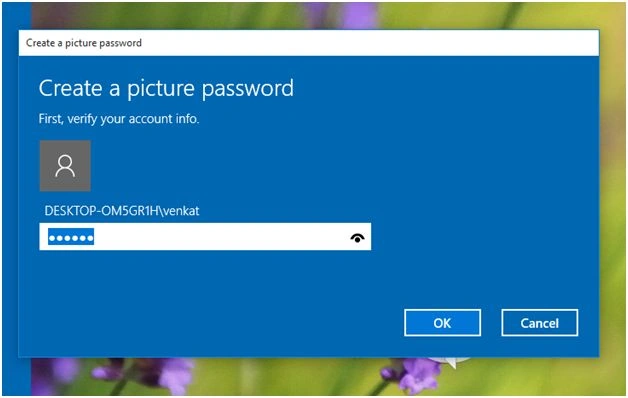
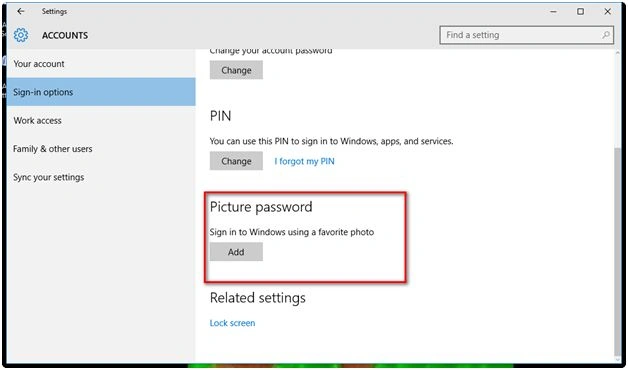 Provide your windows login password as in the following screenshot. This is to be done for account verification.
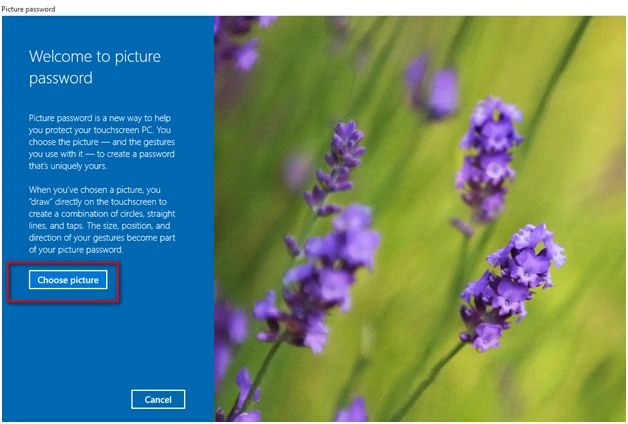
 Choose a picture for creating a password by clicking "Choose picture" as in the following screenshot:
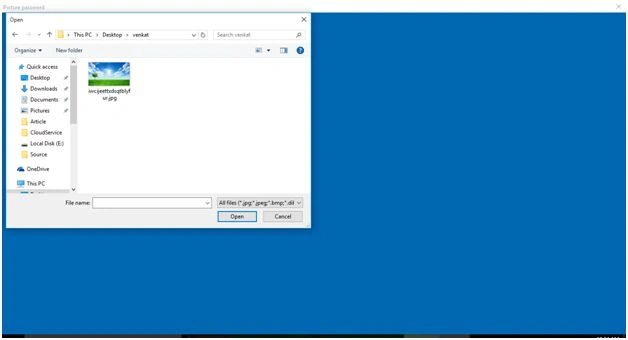
 Select the desired picture.
 Click "Use this picture" button to confirm the selected picture. Here's the screenshot showing the same.
 Provide three gestures for your picture by choosing the desired place in the picture. Here in the screenshot, you can see the description for drawing three gestures:



 Now after providing confirmation, finish the wizard.
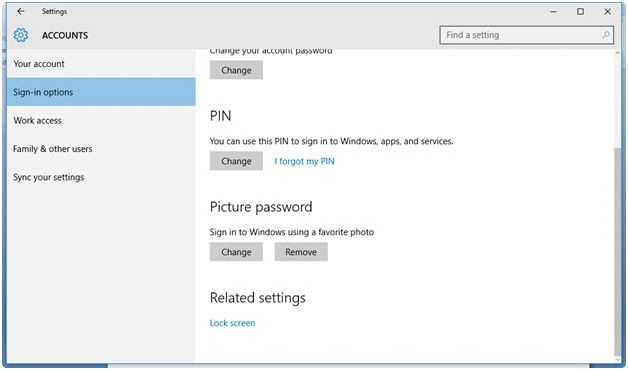
 Now as you can see in the following screenshot, the picture password is added and the Add button is replaced with Change and Remove buttons.
Read more articles on Windows 10
Summary
In this article, we learned about Image Password In Windows 10.
Jithil JohnPosted Feb 12, 2016, 3:15 AM
Good one
Sibeesh VenuPosted Feb 12, 2016, 12:37 AM
Nice Share
Mohammed IbrahimPosted Feb 11, 2016, 1:14 PM
nice
Yashwant VishwakarmaPosted Feb 11, 2016, 4:47 AM
nice article , thanks for sharing !!
Shubham KumarPosted Feb 11, 2016, 2:39 AM
nice