

Introduction
Enterprise authentication is rarely about writing code first - it is about establishing trust between systems.
In this article, we will build a complete SAML-based Single Sign-On integration between:
A .NET 10 MVC application (Service Provider)
Microsoft Entra ID (Identity Provider)
Instead of jumping between portals and code randomly, we will follow a structured flow:
Create the MVC application (to generate launch URL)
Configure Microsoft Entra Enterprise Application
Integrate SAML middleware
Test authentication
Implement proper logout
Support both Metadata URL and XML file approach
By the end, you will have a fully working SAML implementation.
Part 1 — Create the MVC Application (We Need the URL First)
Before touching Azure, we need the application's base URL.
Step 1 — Create a New MVC Project

Screenshot 01.png
(Create a new project → ASP.NET Core Web App MVC)
Click:
Create a new project
Select → ASP.NET Core Web App (Model-View-Controller)
Step 2 — Configure Project
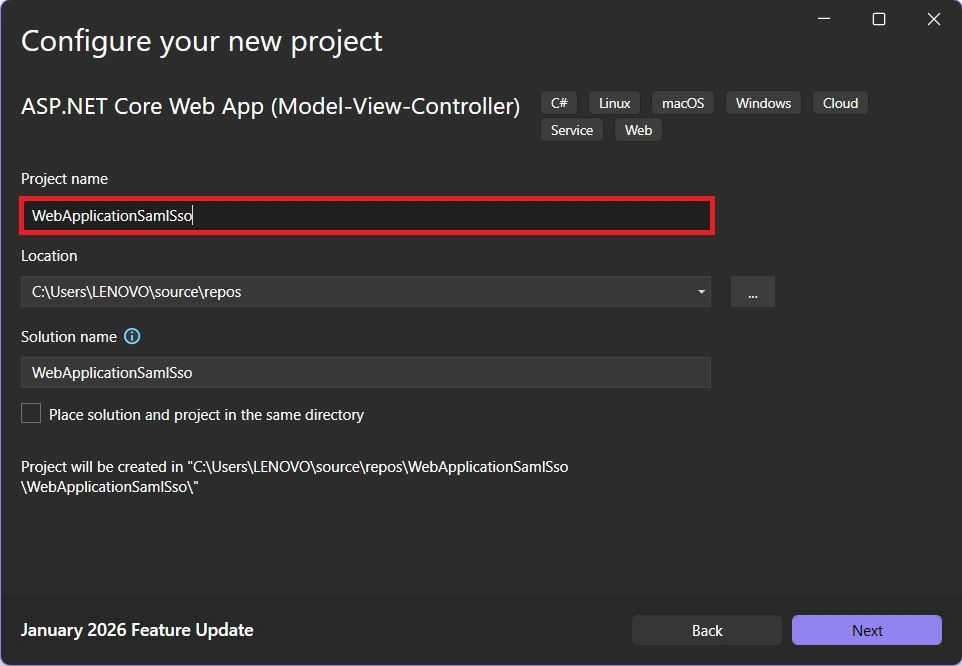
Screenshot 02.png
Project name: WebApplicationSamlSso

Screenshot 03.png
Select:
Framework: .NET 10.0 (LTS)
Authentication type: None
Enable HTTPS: ✔
Click Create.
Step 3 — Run the Application Once
Launch the app.
Your HTTPS URL will look like:
https://localhost:7136This URL is important. (Note: Port could be different)
We will use it in Azure SAML configuration.
Part 2 — Create Enterprise Application in Microsoft Entra
Now we move to:
https://entra.microsoft.comStep 4 — Navigate to Enterprise Applications

Screenshot 04.png
Path:
Home → Entra ID → Enterprise apps → New application
Step 5 — Create Your Own Application

Screenshot 05.png

Screenshot 06.png
Search: Microsoft Entra SAML Toolkit
Click:
Create your own application
Select:
Integrate any other application you don't find in the gallery (Non-gallery)
Click Create.
This creates a Service Principal inside your tenant.
Step 6 — Enable SAML

Screenshot 07.png
Inside the app:
Single sign-on → Select SAML
Step 7 — Configure Basic SAML Settings

Screenshot 08.png
(Overview screen before editing)
Click Edit under Basic SAML Configuration.
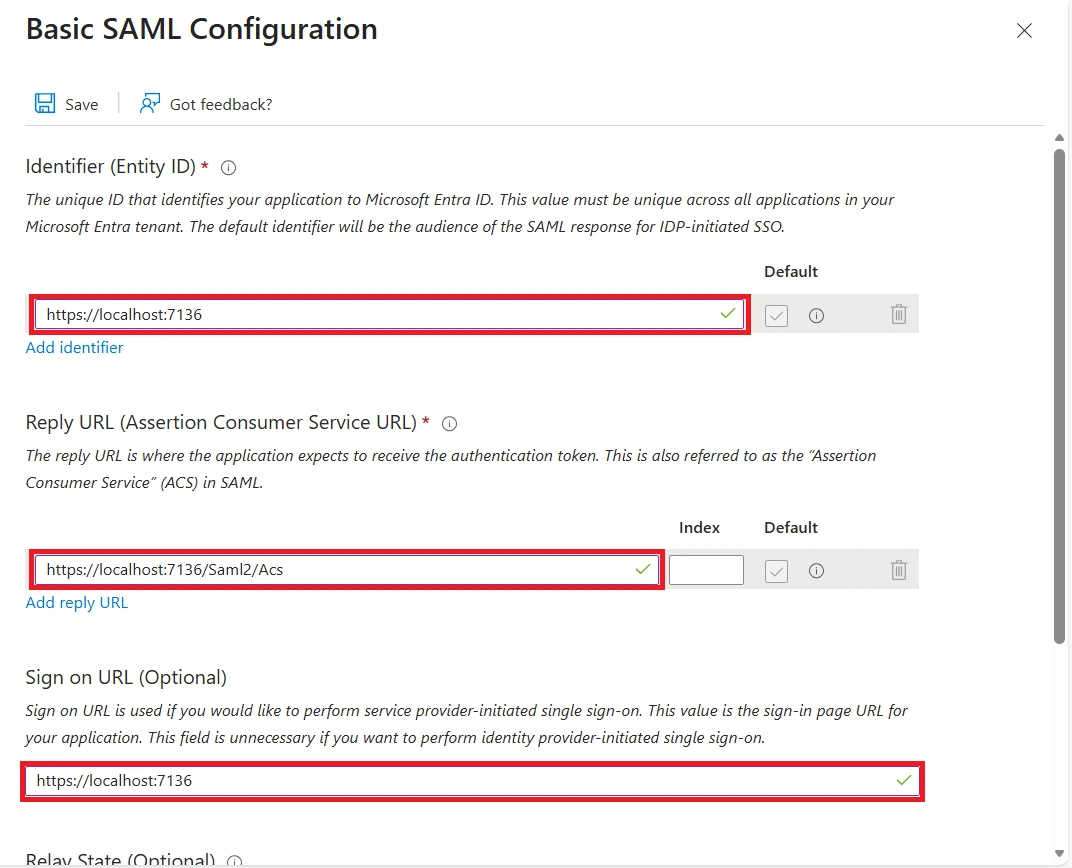
Screenshot 09.png

Screenshot 10.png
Now configure:
Identifier (Entity ID)
https://localhost:7136Reply URL (ACS)
https://localhost:7136/Saml2/AcsSign On URL
https://localhost:7136Relay State (Optional)
https://localhost:7136/Home/PrivacyLogout URL
https://localhost:7136/Saml2/LogoutSave changes.
Step 8 — Assign Users
SAML will not work unless users are assigned.
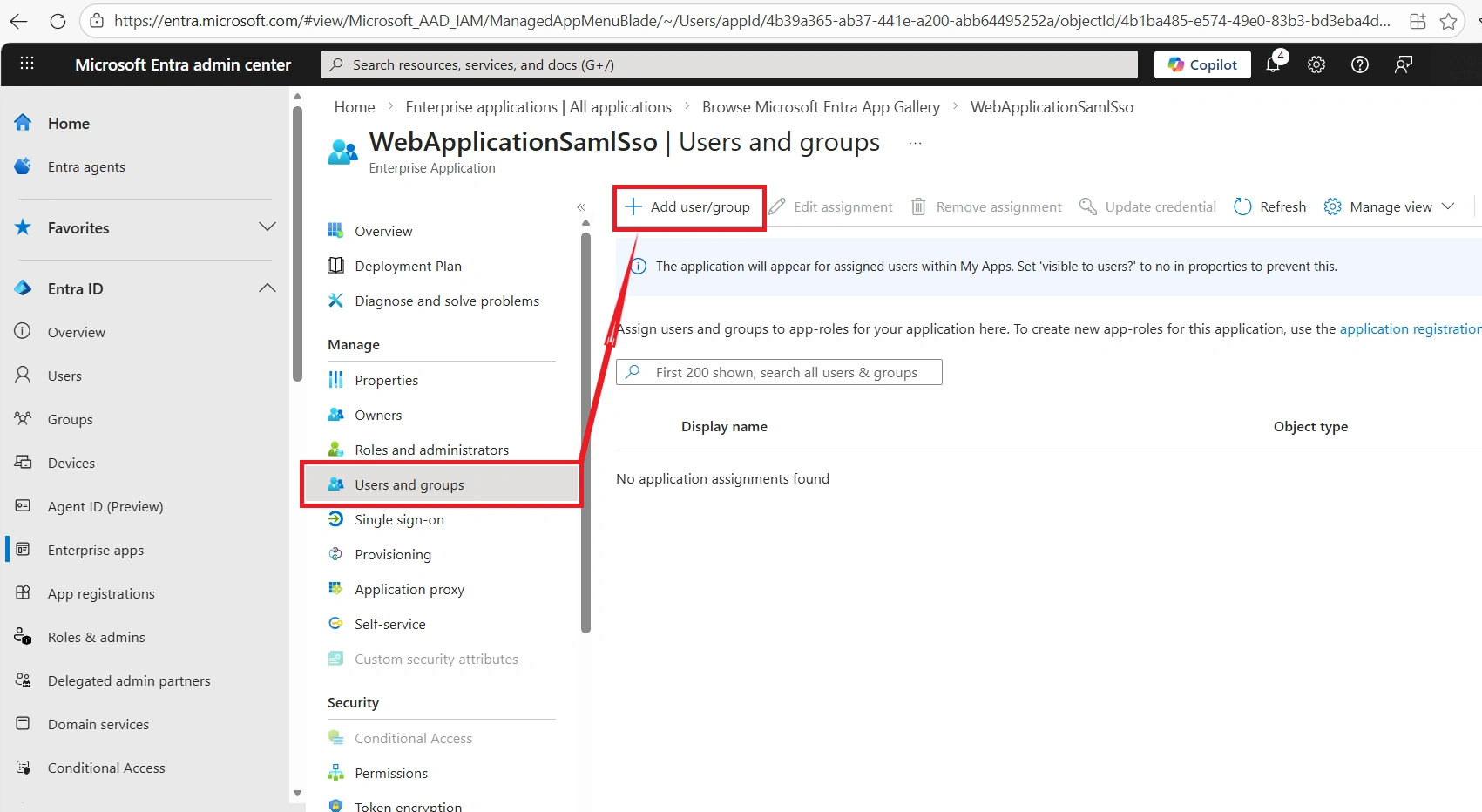
Screenshot 11.png
Go to:
Users and groups → Add user/group
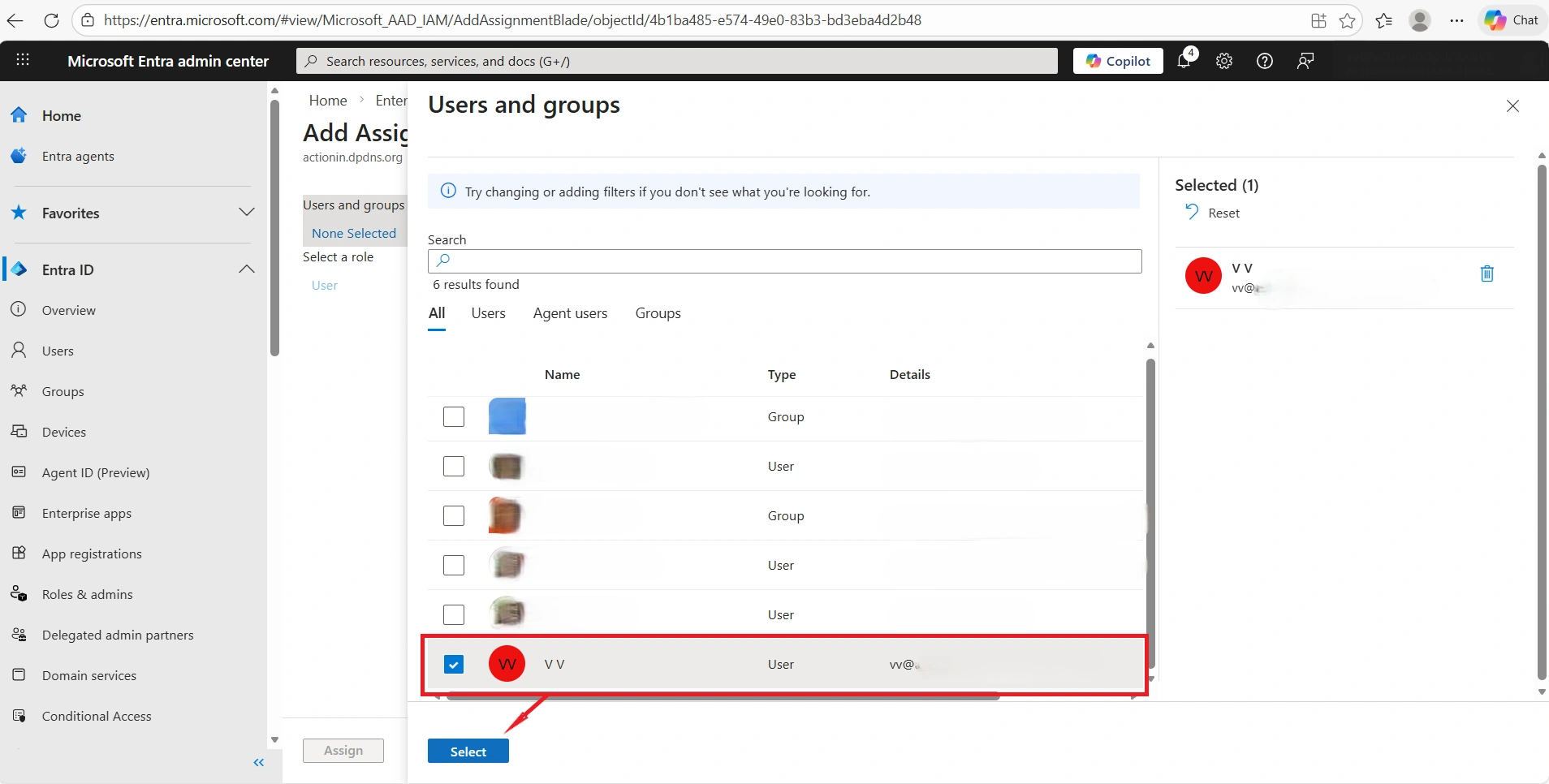
Screenshot 12.png
Select a user → Click Assign.
Without this step, login will fail.
Step 9 — Download Metadata (Optional XML Approach)
Scroll to:
SAML Signing Certificate
Download:
Federation Metadata XML
Now Azure configuration is complete.
Part 3 — Integrate SAML in .NET Application
Step 10 — Install NuGet Package

Screenshot 13.png
Install:
Sustainsys.Saml2.AspNetCore2
Step 11 — Configure Program.cs
Open Program.cs and add:
builder.Services.AddAuthentication(options =>
{
    options.DefaultScheme = "Cookies";
    options.DefaultChallengeScheme = Saml2Defaults.Scheme;
})
.AddCookie()
.AddSaml2(options =>
{
    options.SPOptions.EntityId =
        new EntityId("https://localhost:7136");

    options.IdentityProviders.Add(
        new IdentityProvider(
            new EntityId("https://sts.windows.net/YOUR-TENANT-ID/"),
            options.SPOptions)
        {
            MetadataLocation =
            "https://login.microsoftonline.com/YOUR-TENANT-ID/federationmetadata/2007-06/federationmetadata.xml",
            LoadMetadata = true
        });
});
Ensure:
app.UseAuthentication();
 app.UseAuthorization();
Alternative — Using Downloaded XML File
Instead of metadata URL, you can place XML file inside a folder (e.g., /Saml) and change one line:
MetadataLocation = "Saml/FederationMetadata.xml";That's the only difference.
Step 12 — Protect a Controller
Add:
[Authorize]
 public IActionResult Privacy()
 {
    return View();
 }
Run:
https://localhost:7136/Home/PrivacyYou should be redirected to Microsoft Entra login.
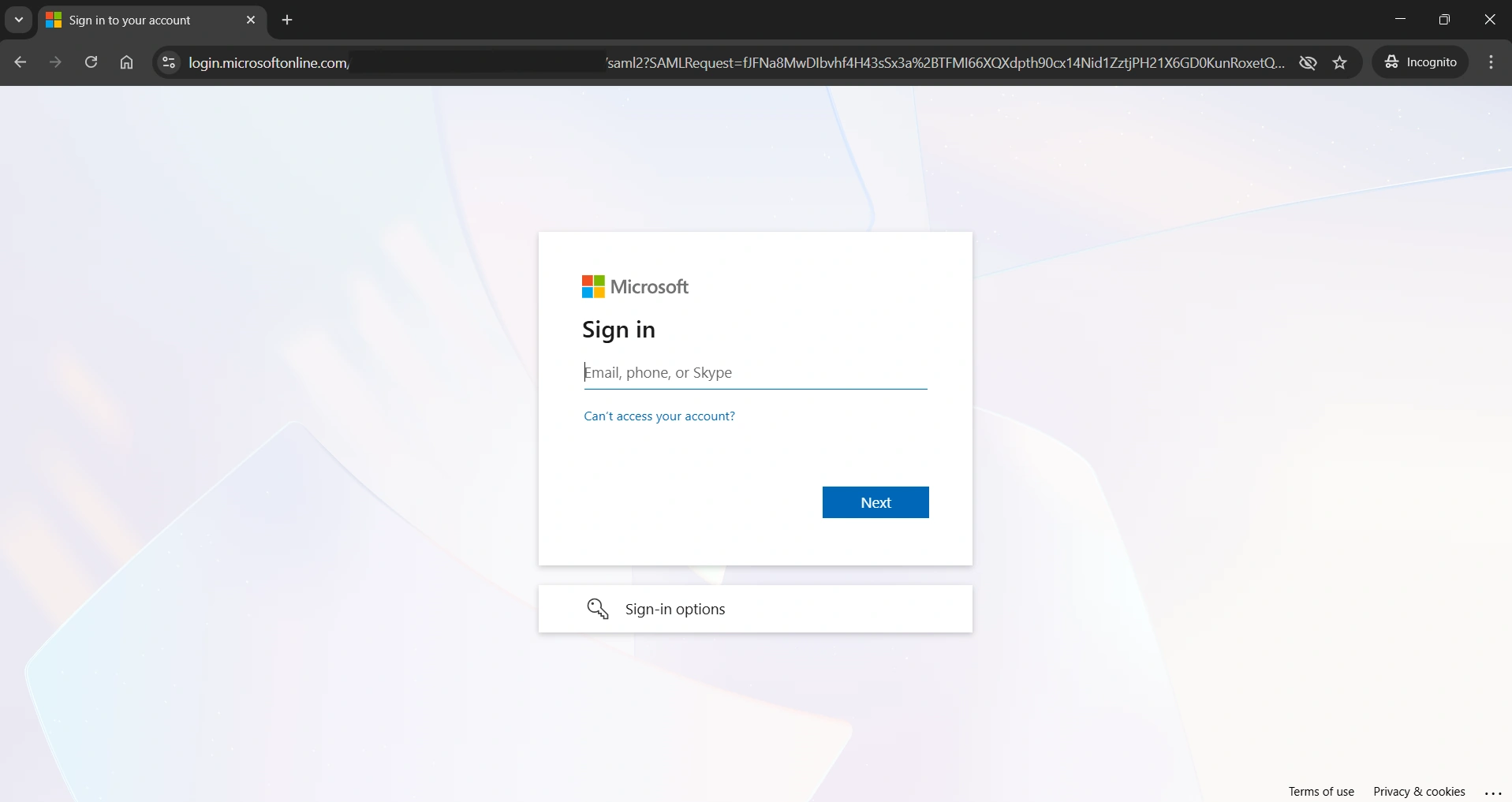
Screenshot 14.png

Screenshot 15.png
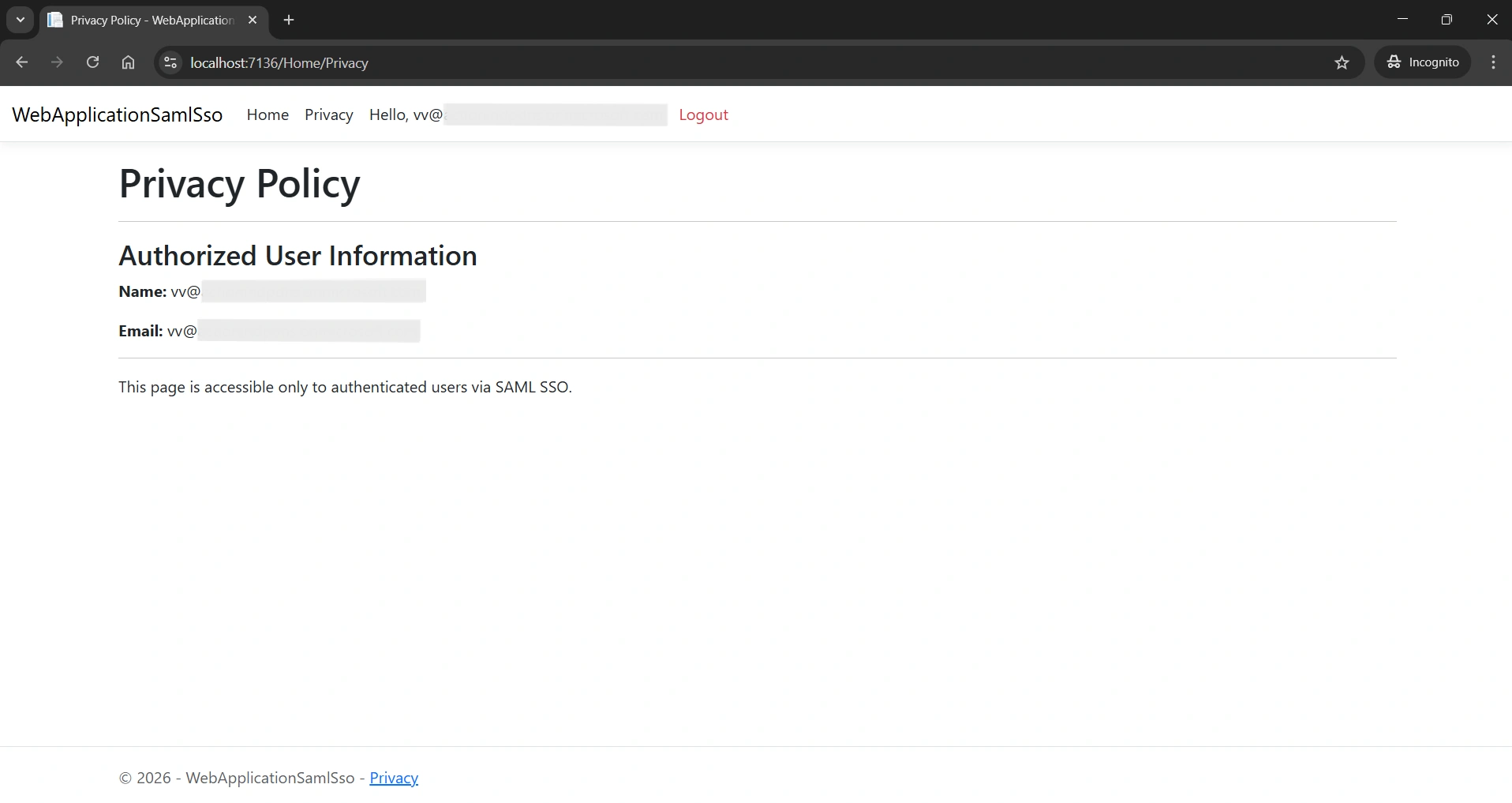
Screenshot 16.png
Step 13 — Implement Proper Logout
Create AccountController:
[Authorize]
[HttpPost]
public IActionResult Logout()
{
    return SignOut(
        new AuthenticationProperties
        {
            RedirectUri = "/"
        },
        "Cookies",
        Saml2Defaults.Scheme
    );
}
This clears:
✔ Application cookie
✔ Entra session
Final Flow Summary
User accesses protected route
App redirects to Entra
Entra authenticates user
Sends signed SAML assertion
App validates and issues cookie
User gains access
Logout clears both sessions
Soumyadip MajumderPosted Feb 20, 2026, 1:09 PM
Great article ??