
Introduction
In Power Apps, users often need to quickly find specific records from large datasets. To support this, Power Apps provides the Search() function, which allows filtering records based on a text input across one or more columns. This article explains how to implement a dynamic search feature using a collection as a data source and a gallery to display filtered results.
What Is the Search() Function in Power Apps?
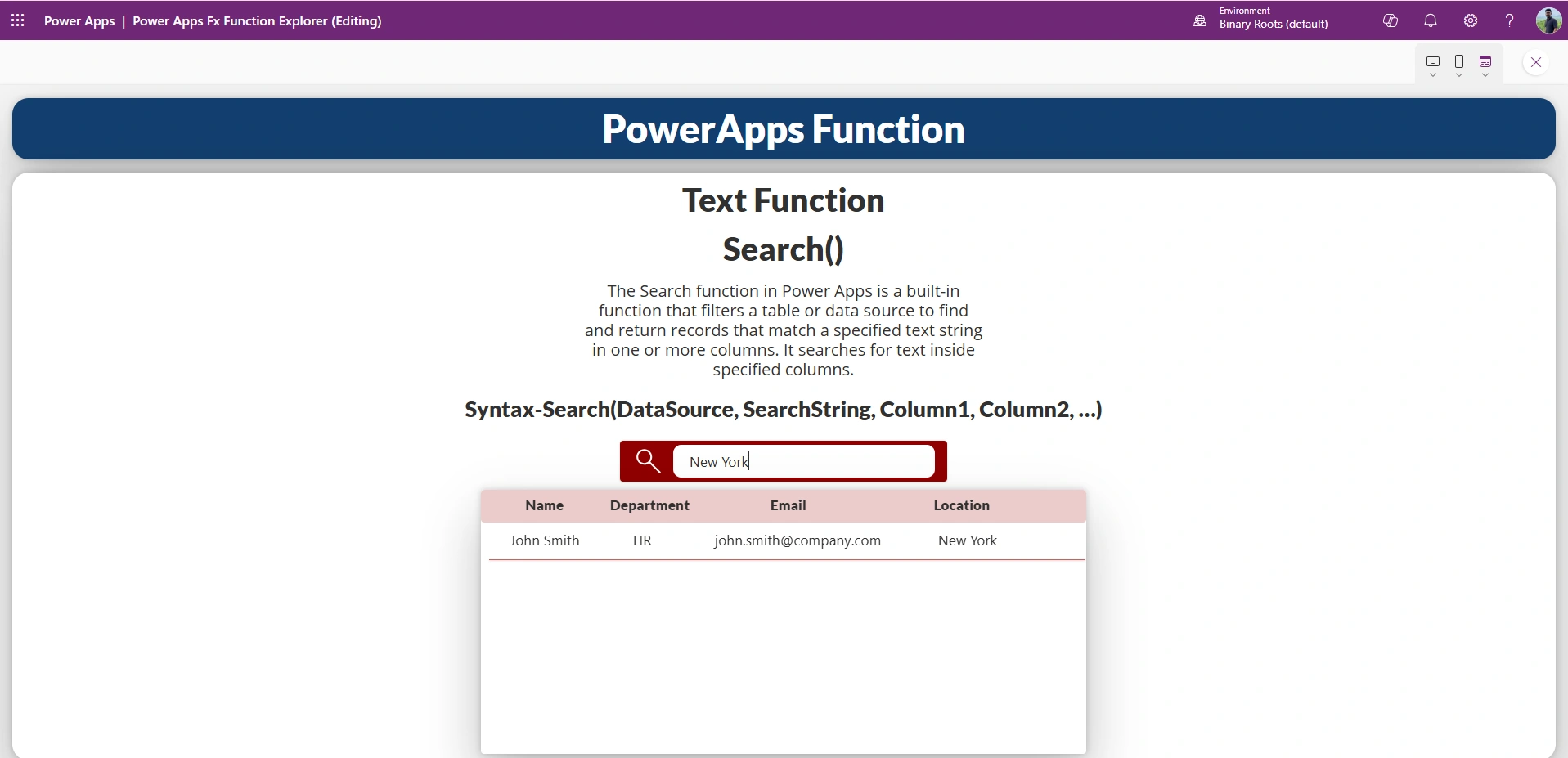
The Search() function filters a table and returns records that contain the search text in specified columns.
Syntax
Search(DataSource, SearchText, Column1, Column2, ...)
Parameters
DataSource – Table or collection to search from
SearchText – Text entered by the user (usually from a Text Input control)
Column1, Column2, … – Columns where Power Apps will search the text
The function performs a case-insensitive partial match, making it ideal for user-friendly search experiences.
Step 1: Creating Sample Data Using a Collection (OnStart)
Instead of connecting to SharePoint or Dataverse, we can use a local collection for learning and testing.
In App → OnStart, use:
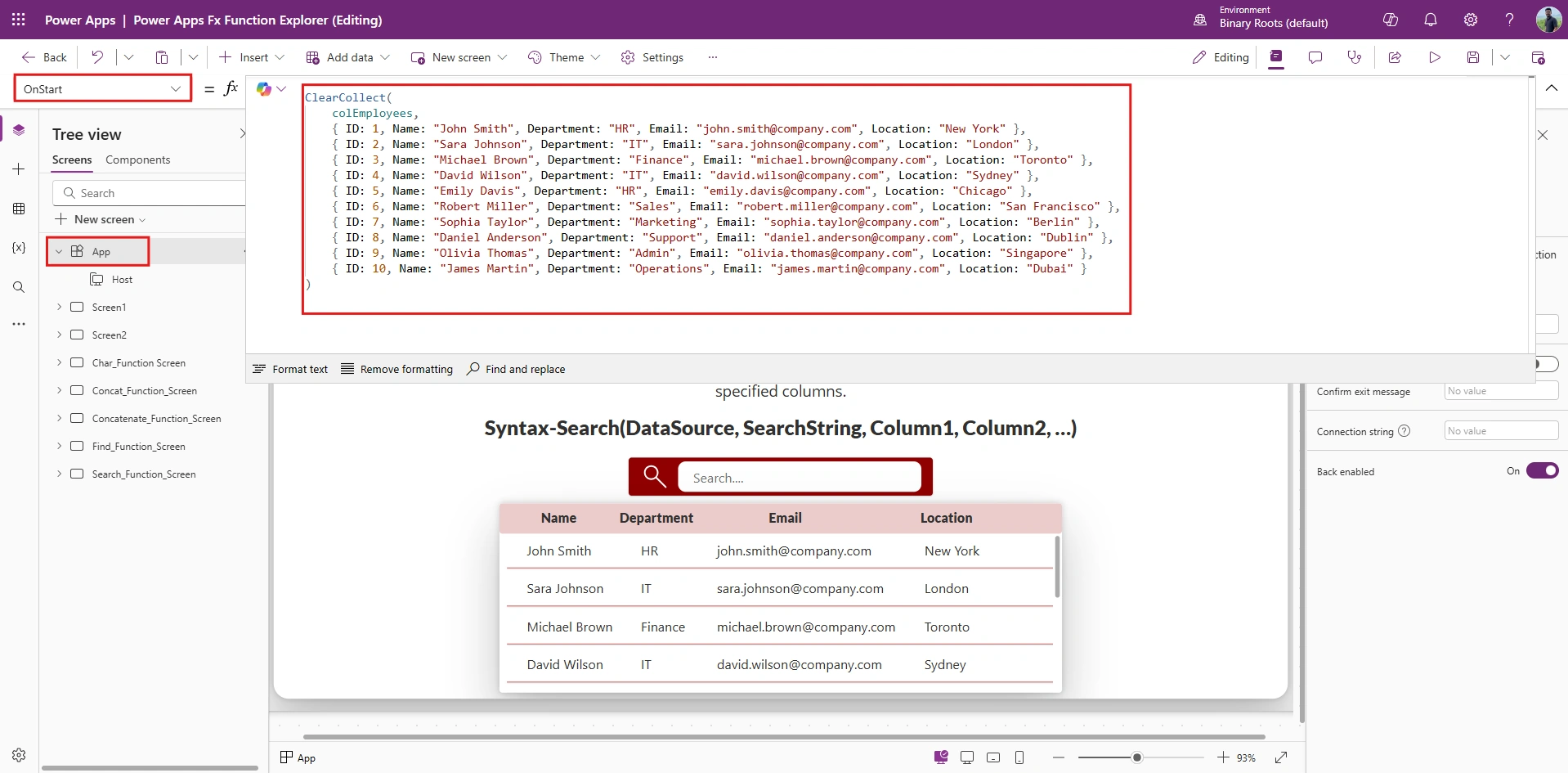
ClearCollect(
    colEmployees,
    { ID: 1, Name: "John Smith", Department: "HR", Email: "[email protected]", Location: "New York" },
    { ID: 2, Name: "Sara Johnson", Department: "IT", Email: "[email protected]", Location: "London" },
    { ID: 3, Name: "Michael Brown", Department: "Finance", Email: "[email protected]", Location: "Toronto" },
    { ID: 4, Name: "David Wilson", Department: "IT", Email: "[email protected]", Location: "Sydney" },
    { ID: 5, Name: "Emily Davis", Department: "HR", Email: "[email protected]", Location: "Chicago" },
    { ID: 6, Name: "Robert Miller", Department: "Sales", Email: "[email protected]", Location: "San Francisco" },
    { ID: 7, Name: "Sophia Taylor", Department: "Marketing", Email: "[email protected]", Location: "Berlin" },
    { ID: 8, Name: "Daniel Anderson", Department: "Support", Email: "[email protected]", Location: "Dublin" },
    { ID: 9, Name: "Olivia Thomas", Department: "Admin", Email: "[email protected]", Location: "Singapore" },
    { ID: 10, Name: "James Martin", Department: "Operations", Email: "[email protected]", Location: "Dubai" }
)
After adding this, run the app once so the collection gets created.
Step 2: Add Search Text Input Control
Insert a Text Input control and name it:
txtSearch_1This control will capture what the user types to search for employees.
Step 3: Display Data Using a Gallery
Insert a Vertical Gallery and set its layout to:
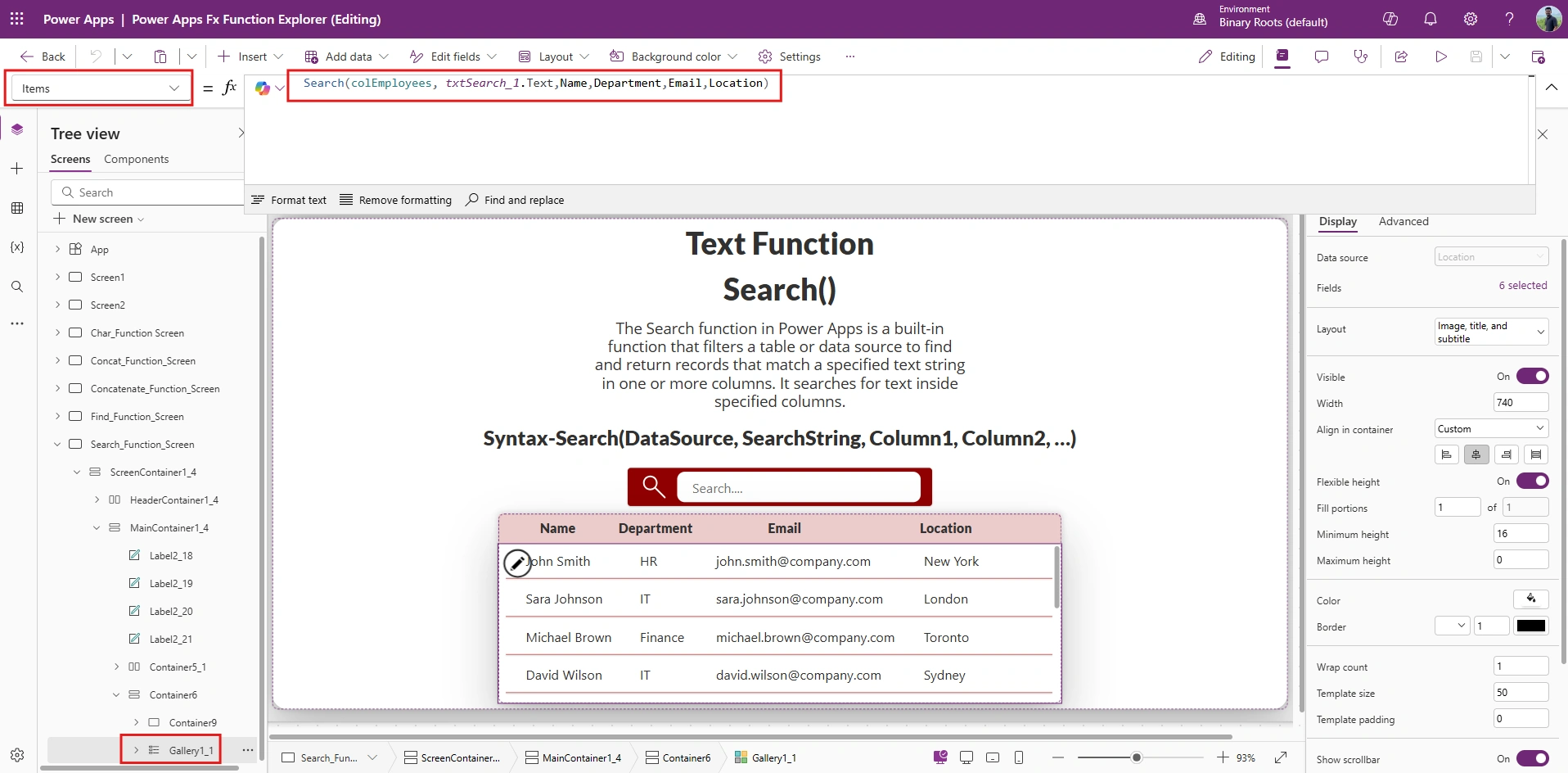
Bind fields like:
Title → Name
Subtitle → Department
Add labels for Email and Location if needed
Step 4: Apply Search Formula to Gallery Items
Set the Items property of the gallery:
Search(
    colEmployees,
    txtSearch_1.Text,
    Name,
    Department,
    Email,
    Location
)
Join the conversation! Your thoughts help the community grow.