Overview
Yeoman Generator for Microsoft Teams is a useful development toolkit for Microsoft Teams development. It uses TypeScript, React and node as primary technologies.The generator allows you to simply create and scaffold projects for Microsoft Teams features.
In this article, we will create a Bot using Yo Teams.
Prerequisites
Install Yeoman, Gulp global command line interface and Typescript compiler globally using NPM.
npm install yo gulp-cli typescript --global
Install generator-teams globally using NPM.
npm install generator-teams --global
To install preview versions of the generator, run below command.
npm install generator-teams@preview --global
Register Bot in Azure
Firstly, we need to register Bot in Azure to get the App Id and secret and configure the endpoint URL.
- Open MS Azure Portal
- Click Create a resource.
- Search Bot.
- Select Bot Channels Registration.
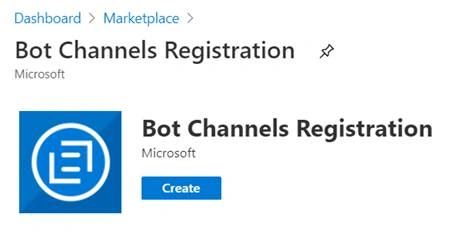
- Click Create.
- Fill in the details to create Bot channels registration.
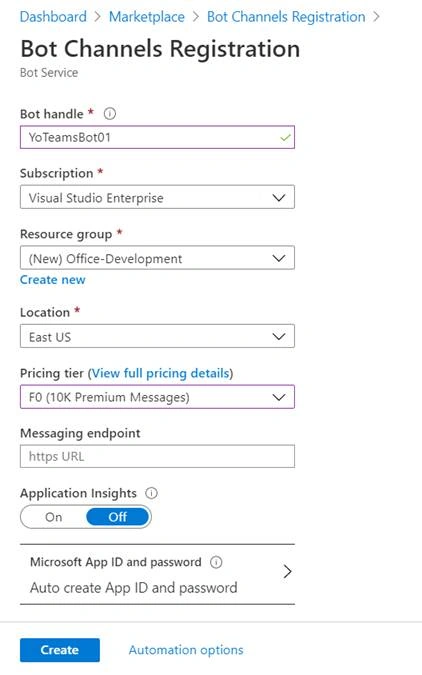
- Click Create.
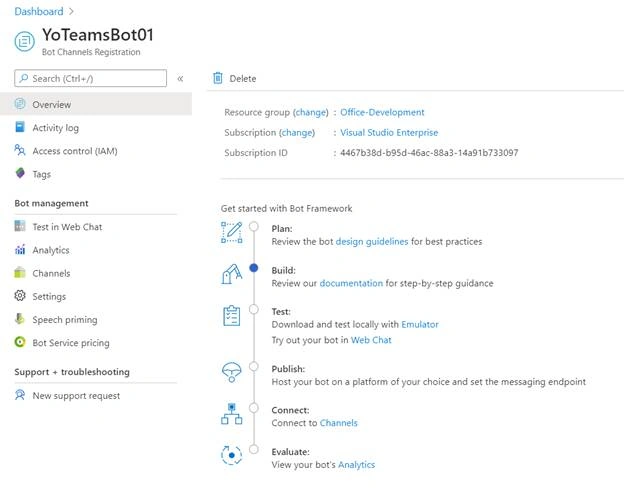
- The new Bot channels registration is ready.
Get the App Id and secret
- From left menu, click Settings.
- Add Messaging endpoint as ngrok URL.
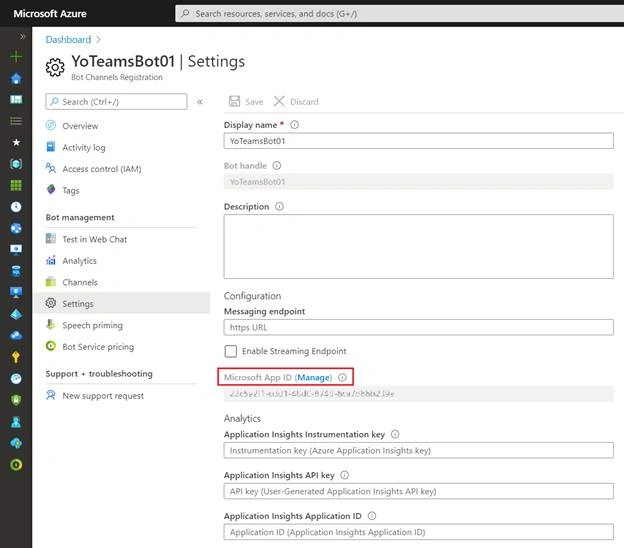
- Click Microsoft App ID (Manage).
- Under Certificates & secrets, create New client secret.
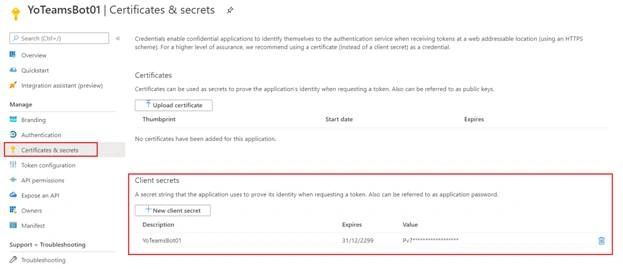
- Note down the values for future reference.
Configure MS Teams Channel
- From the left menu, click Channels.
- Click Configure Microsoft Teams Channel.
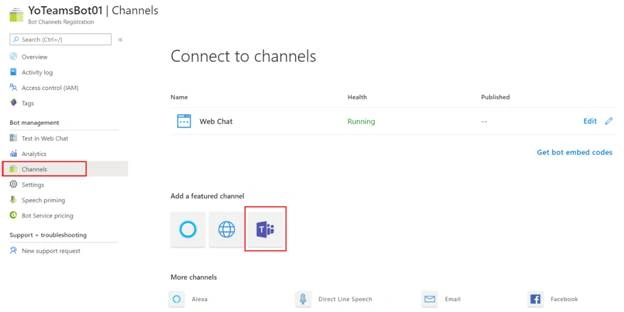
- Follow the instructions to configure MS Teams channel.
Yo Teams to scaffold the solution
We will generate a Bot solution using Yo Teams.
- On the command prompt, type the below command.
yo teams
- Follow the wizard to set up the bot solution.
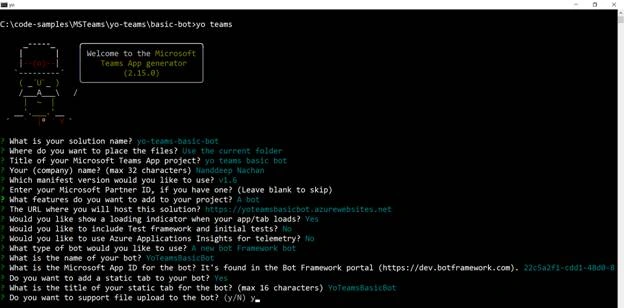
- On the command prompt, type code . to open the solution in visual studio code.
- Follow README.md to configure your Bot in Azure.
- In the .env file, configure application ID and client secret.
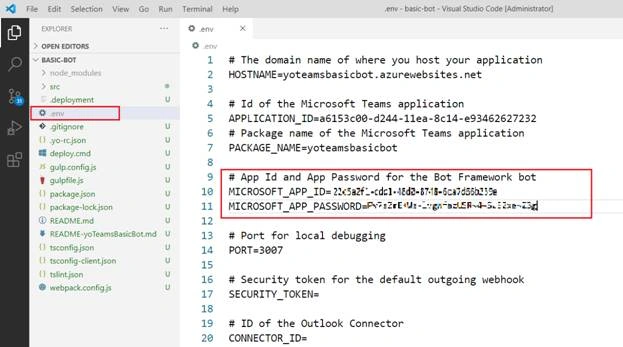
Understand the source code
The file “src\app\yoTeamsBasicBot\YoTeamsBasicBot.ts” implements actual logic of your Bot. The onMessage event helps to evaluate text from user.
The folder “src\app\yoTeamsBasicBot\dialogs\” contains the dialogs being used by Bot to respond to the user. We can also use the Adaptive Cards to send messages to the user.
Test the Bot
- On the command prompt, run the bot solution.
gulp ngrok-serve
- In the Azure Portal, open our Bot Channels Registration.
- Under Settings, update the Messaging endpoint, as per generated by ngrok.
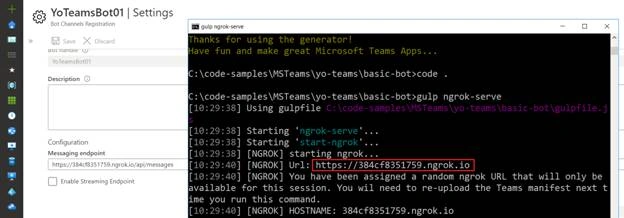
- In the browser, open here.
- In the next browser tab, open localhost:3007, which is default local endpoint listening for request for your custom bot.
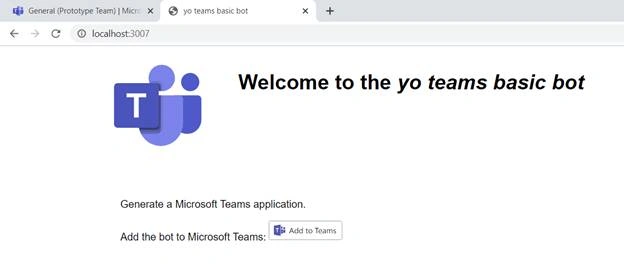
- ClickAdd to Teams.
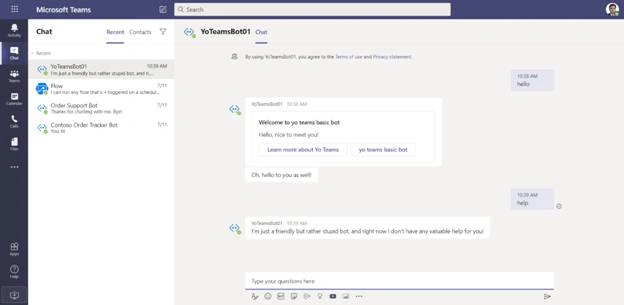
- Test the bot by sending messages.
Deploy Bot on Azure
Follow the instructions from README.md, section “Deploying to Azure using Git” to deploy the Bot on Azure.
- Open Azure Portal.
- Create Web App.
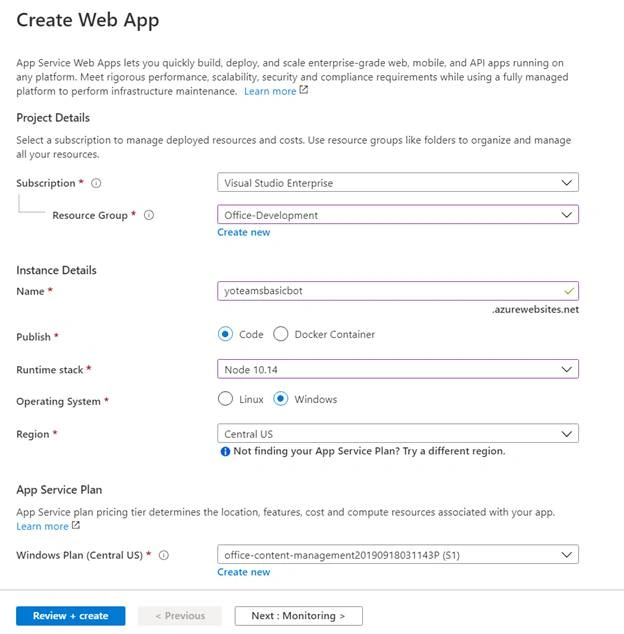
- Add the following keys in the Configuration > Application Settings.
|
Name
|
Value
|
|
WEBSITE_NODE_DEFAULT_VERSION
|
8.10.0
|
|
SCM_COMMAND_IDLE_TIMEOUT
|
1800
|
- Go to Deployment Center.
- Choose Local Git as source and App Service build service as the Build Provider.
- Choose *Local Git* as source and *App Service build service* as the Build Provider
- Click on *Deployment Credentials* and store the App Credentials securely
- In your tab folder initialize a Git repository using `git init`
- Build the solution using `gulp build` to make sure you don't have any errors
- Commit all your files using `git add -A && git commit -m "Initial commit"`
- Run the following command to set up the remote repository: `git remote add azure https://<username>@yoteamsbasicbot.scm.azurewebsites.net:443/yoteamsbasicbot.git`. You need to replace <username> with the username of the App Credentials you retrieved in _Deployment Credentials_. You can also copy the URL from “Options” in the Azure Web App.
- To push your code use to Azure use the following command: `git push azure master`, you will be asked for your credentials the first time, insert the Password for the App Credential. Note that you should update the Azure Web Site application setting before pushing the code as the settings are needed when building the application.
- Wait until the deployment is completed and navigate to https://yoteamsbasicbot.azurewebsites.net/privacy.html to test that the web application is running
- Repeat step 11 for every commit you do and want to deploy
Summary
Yeoman Generator for Microsoft Teams is a useful development toolkit for Microsoft Teams development. Using yo teams, we can easily build bots for MS Teams.


Join the conversation! Your thoughts help the community grow.