

Introduction
In this article, we will see how to import large data sets into Dataverse table using Dataflows. This is useful when you need to move bulk data from Excel, CSV, or other sources into Dataverse tables in a structured and automated way, such as for migrating records, loading master data, or setting up a new Power Apps solution.
Before we start the implementation, let’s first understand what a Dataflow is.
A Dataflow is a feature in the Power Platform that is used to bring data from different sources such as Excel, CSV, SharePoint, or databases into Dataverse. It allows you to clean, transform, and map the data before storing it in Dataverse tables. In simple words, Dataflow helps you move large amounts of data into Dataverse in a proper and structured way.
Prerequisite: You should know how to create a table in Dataverse before importing data.
For this article, I have attached an Excel file that contains sample financial data. I have used this file to demonstrate the data import process. You can download the same file and follow along with the steps in this article.
Steps to Import Large Data Sets into Dataverse Using Dataflows
Step 1: Prepare the Excel File
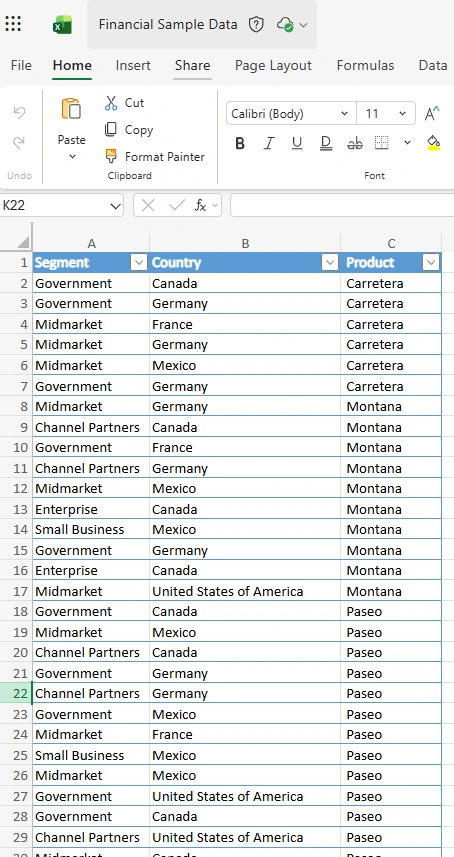
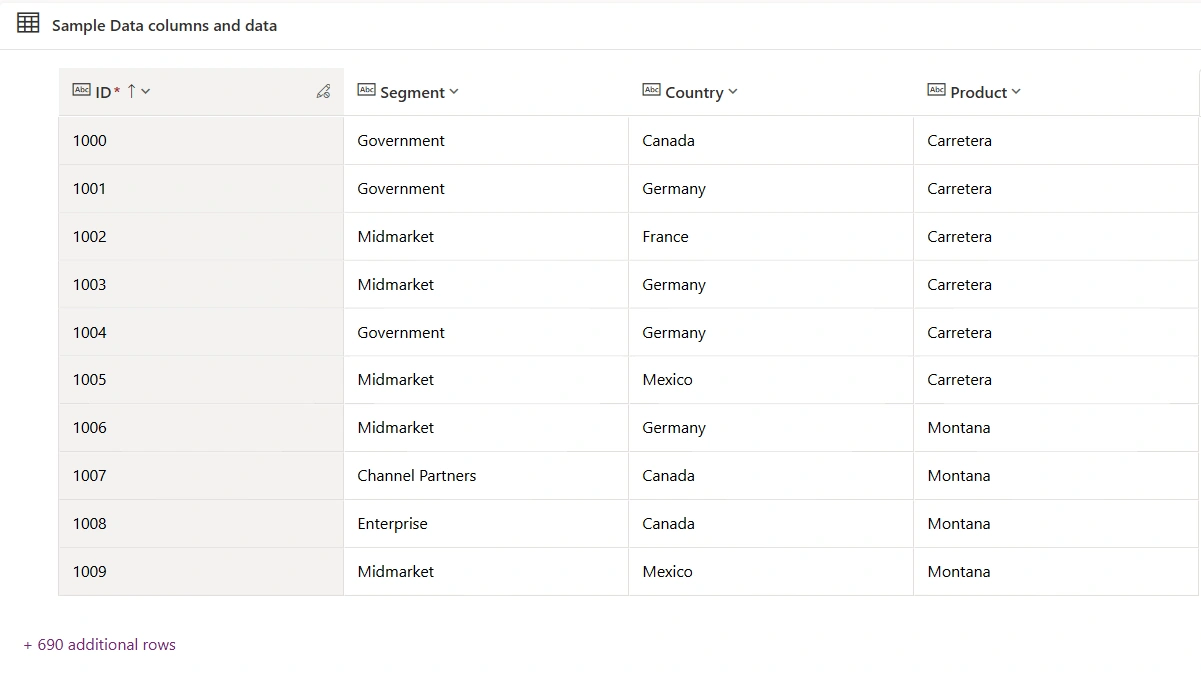
In the Excel file, I have around 700 records of financial Sample data that I want to import into a Dataverse table using Dataflow. This file will be used as the source for loading data into Dataverse.
Step 2: Open Dataflows
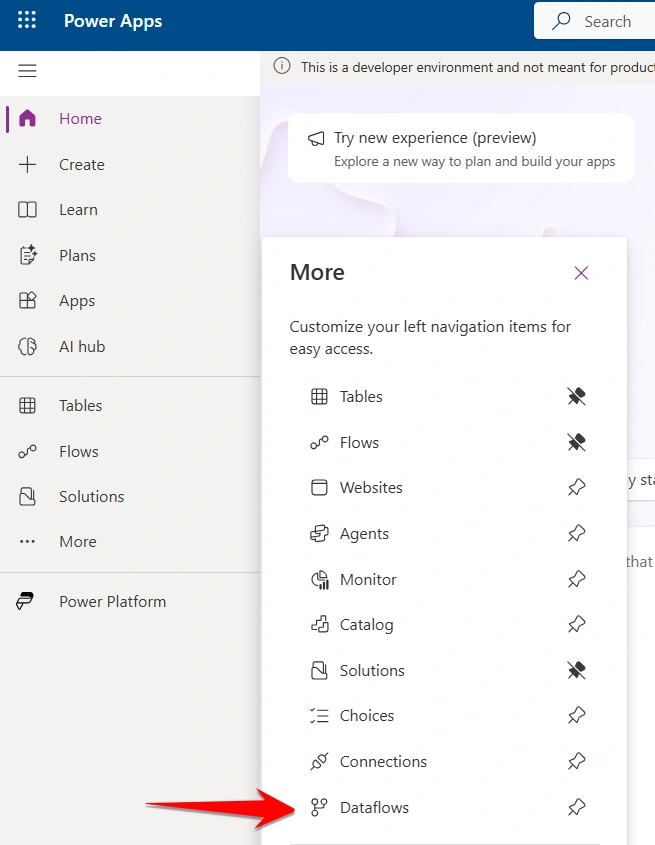
Go to https://make.powerapps.com/. and from the left menu, click More, and then select Dataflows.
Step 3: Create a New Dataflow
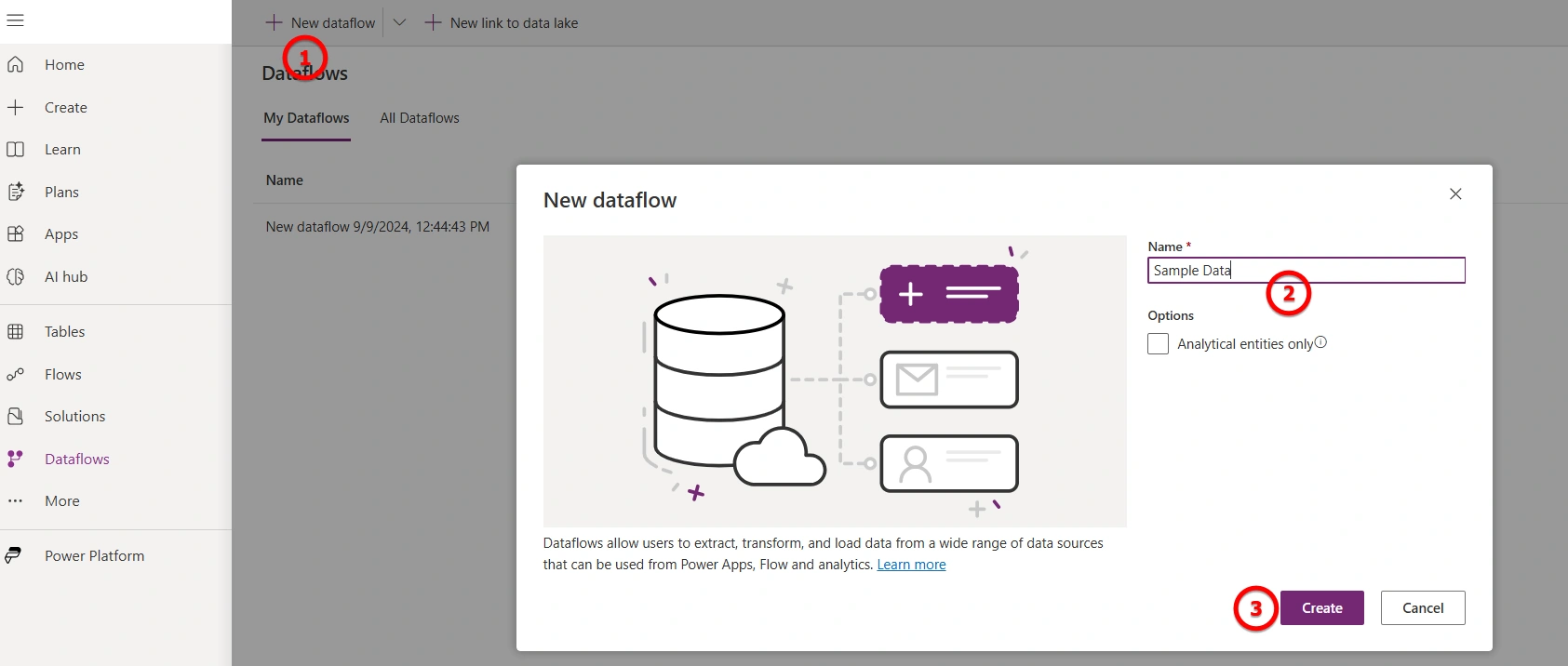
Click on New Dataflow, enter a name for the Dataflow as per your choice, and then click Create.
Step 4: Select the Data Source
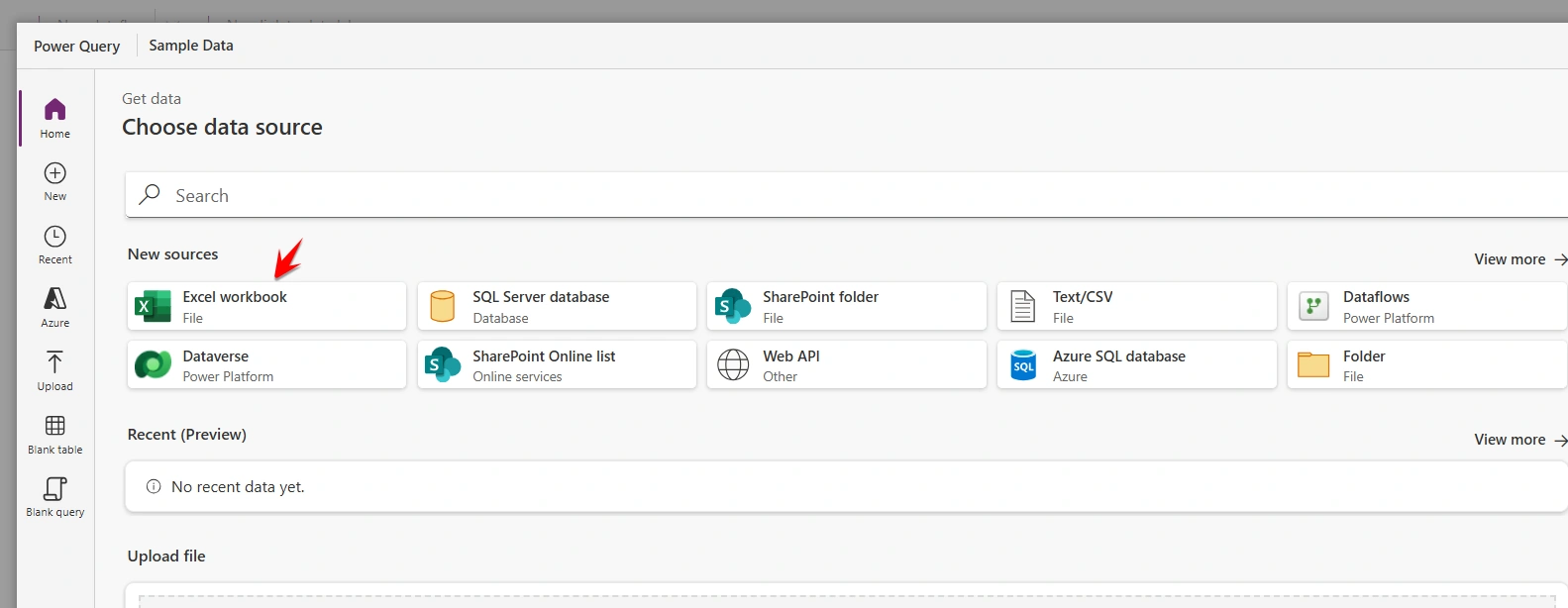
Now choose the data source from where you want to import data into the Dataverse table. In this article, I am using an Excel file, so I selected Excel Workbook. You can choose any other source based on your requirement.
Step 5: Upload the Excel File
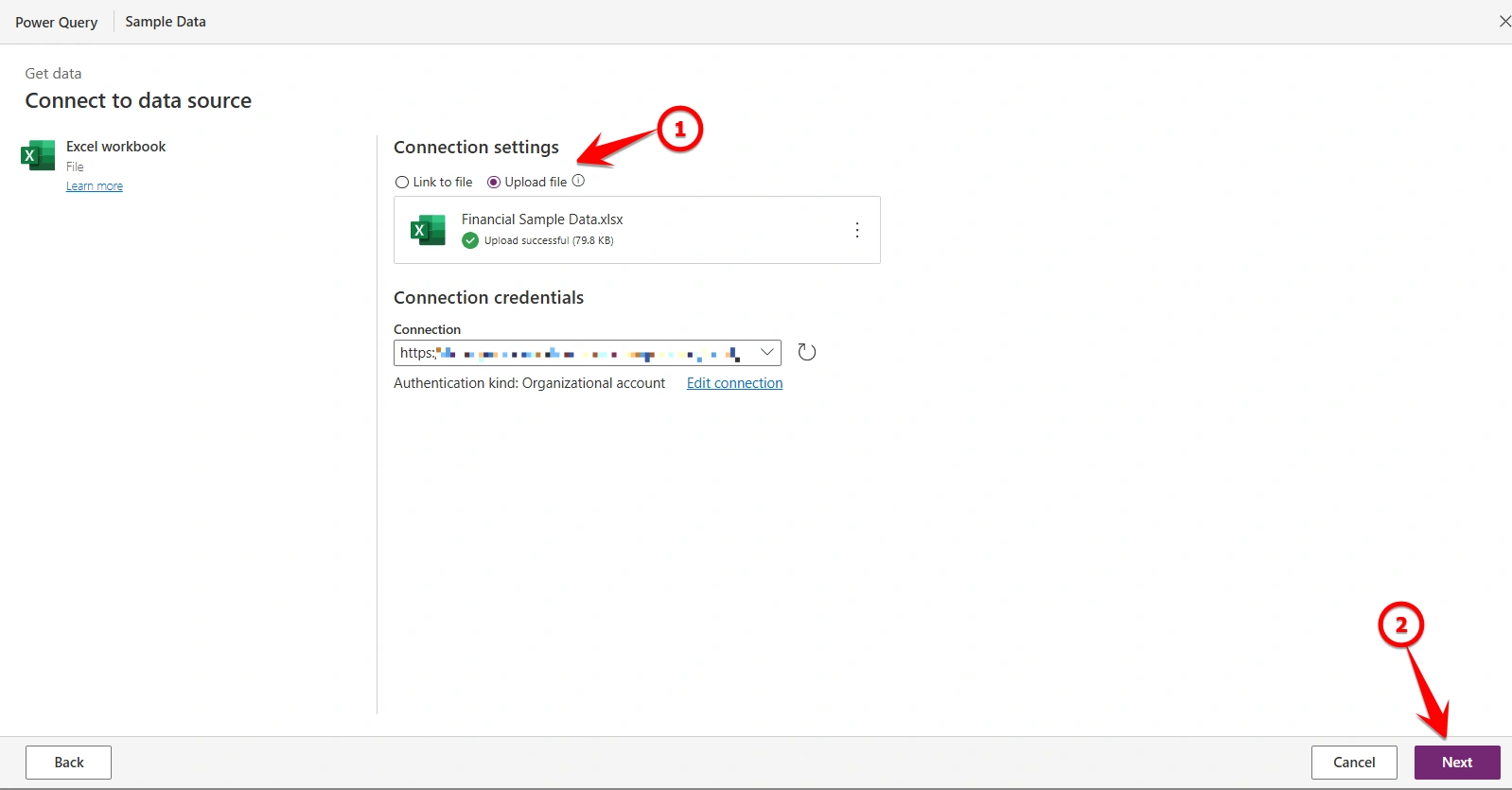
After selecting Excel Workbook, you will see two options under connection settings. One is Link to file, where you can provide a file path or URL. The other is Upload file, where you can directly upload the file from your system.
In this article, I am using the Upload file option. After uploading the file, if it asks for sign-in, just log in with your account to create the connection.
Once everything is ready, simply click on Next to continue.
Step 6: Select the Excel Table
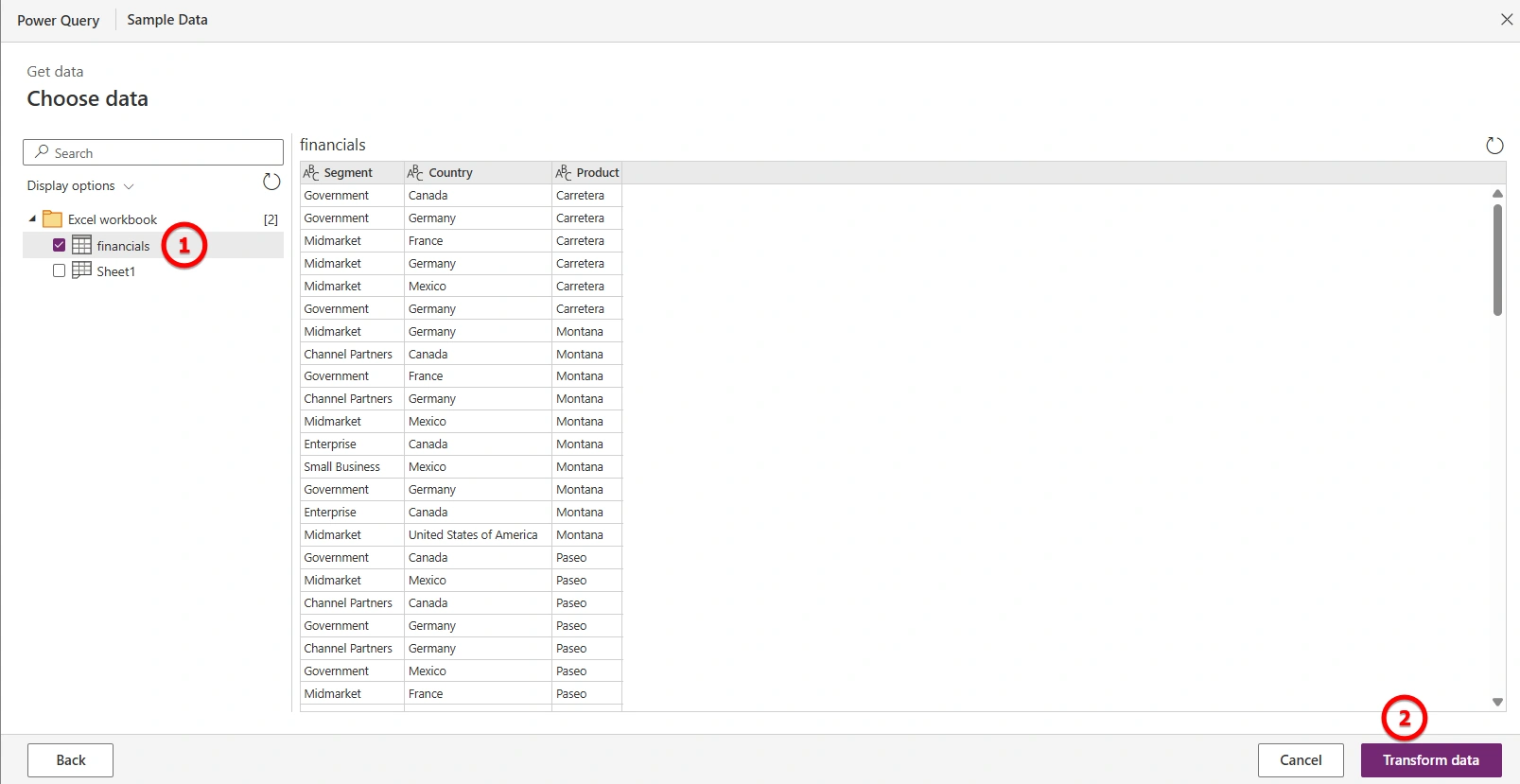
Now select the Excel table that contains your data. In my case, it was the Financials table. After selecting it, click on Transform data.
Step 7: Preview and Filter Data
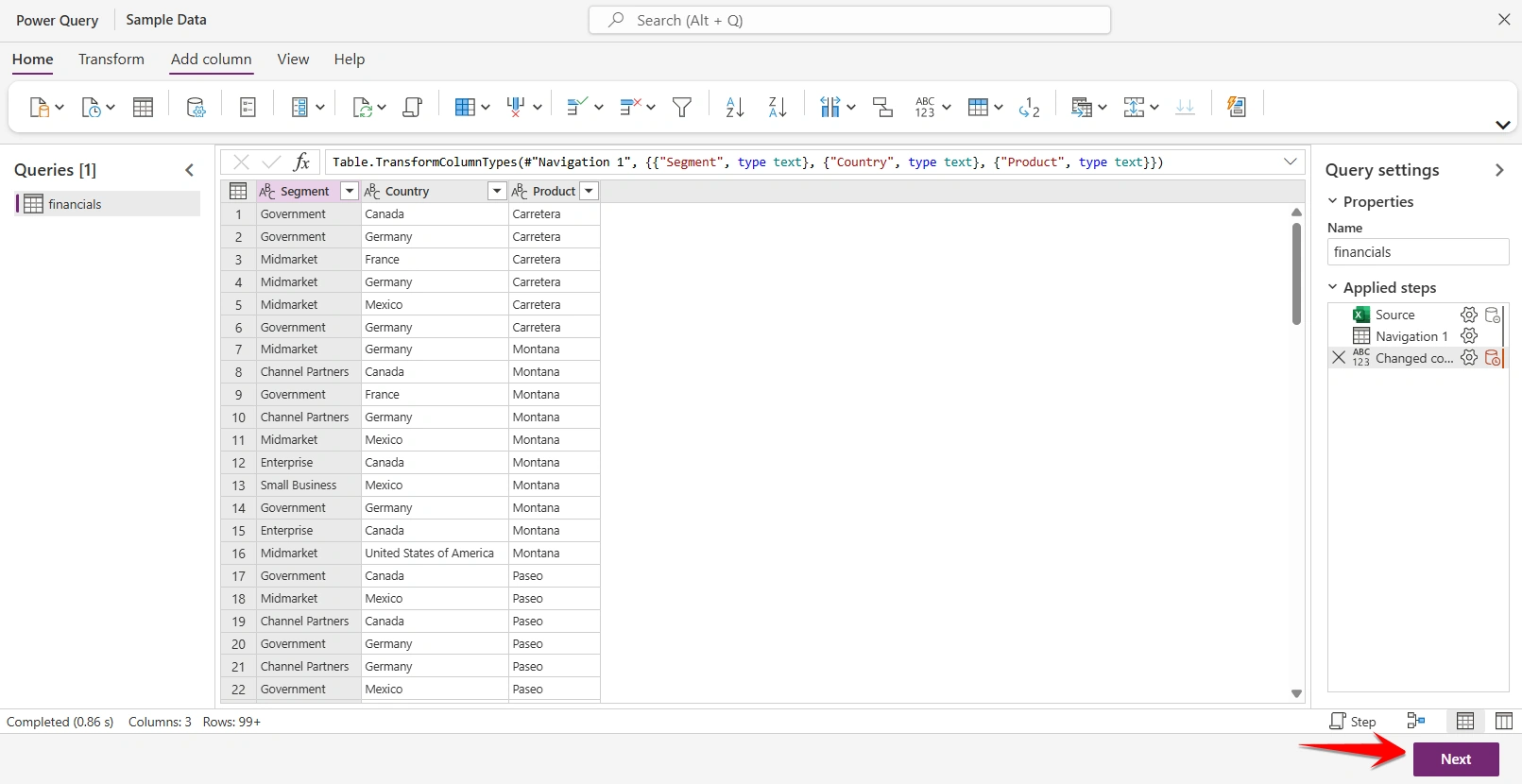
You will see a preview of your data in Power Query. If you want, you can filter or transform the data before importing it into your Dataverse table. For this example, I want to import all the data, so I will simply click Next.
Step 8: Create a Dataverse Table
Before choosing the table for importing data, make sure you have created a Dataverse table with all the necessary fields you want to import. This makes sure every column in your source file matches a column in the Dataverse table.

Step 9: Choose Destination Table
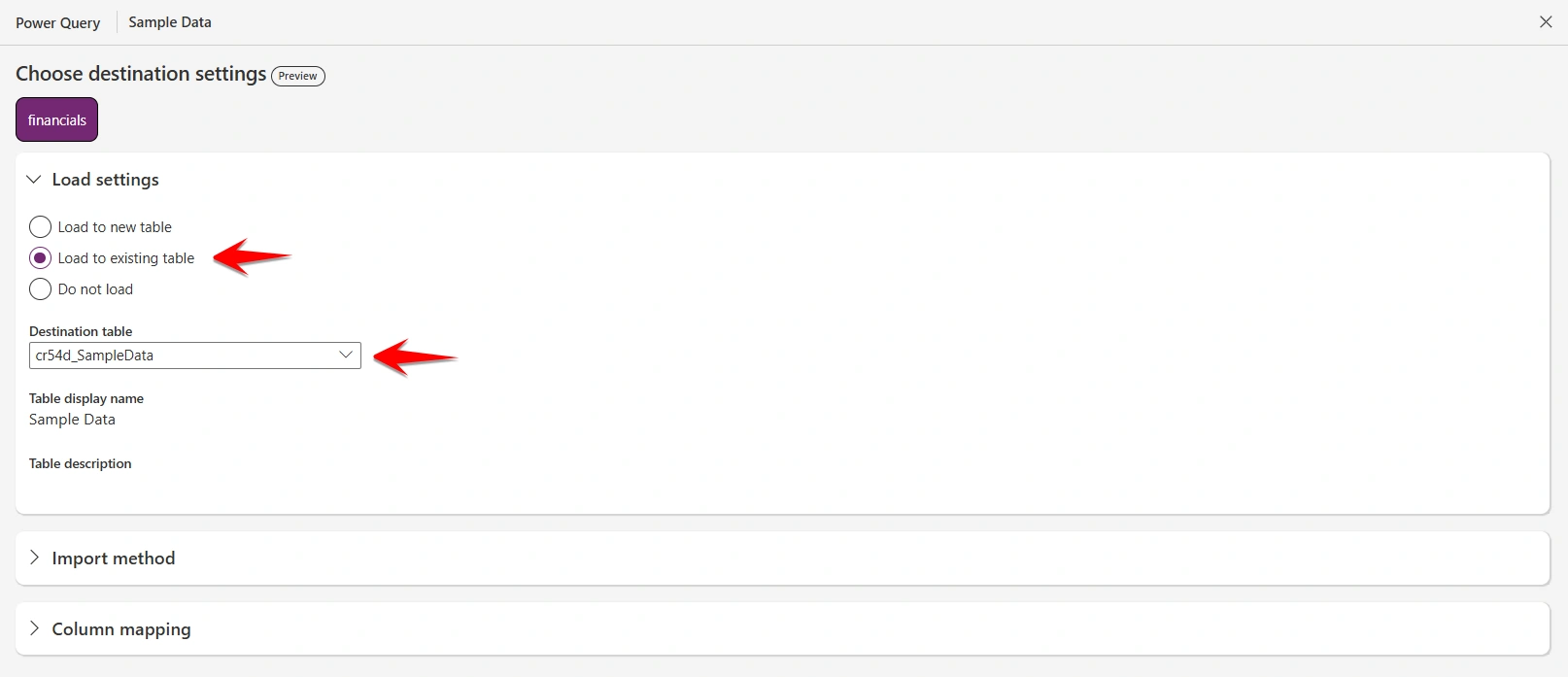
Now, select where you want to load your data. You can either load it into a new table or an existing table. In this example, I am using an existing table that we created earlier. Then, select the table from the dropdown to import your data.
Step 10: Select Import Method
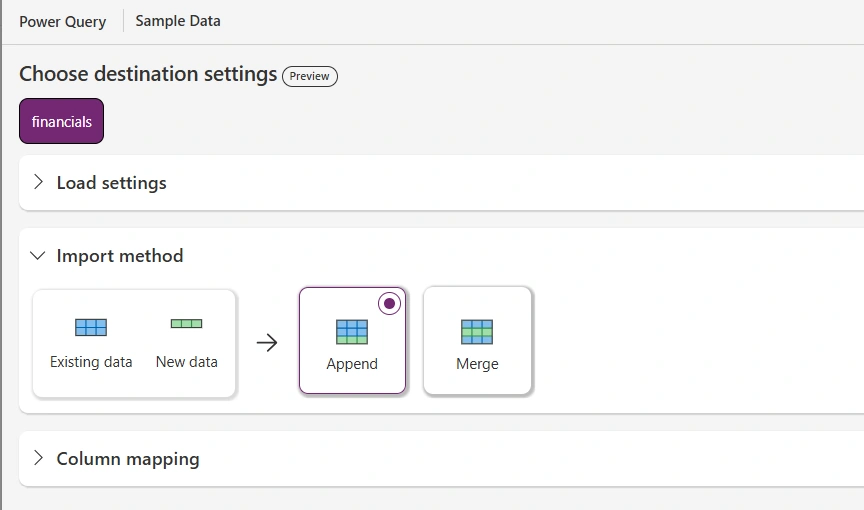
There are basically 2 methods:
Append: Adds new data to the table without touching the existing records.
Merge: Updates existing records if there’s a match and adds any new records.
In this example, we will use Append to simply add all the new data to our table.
Step 11: Map Columns
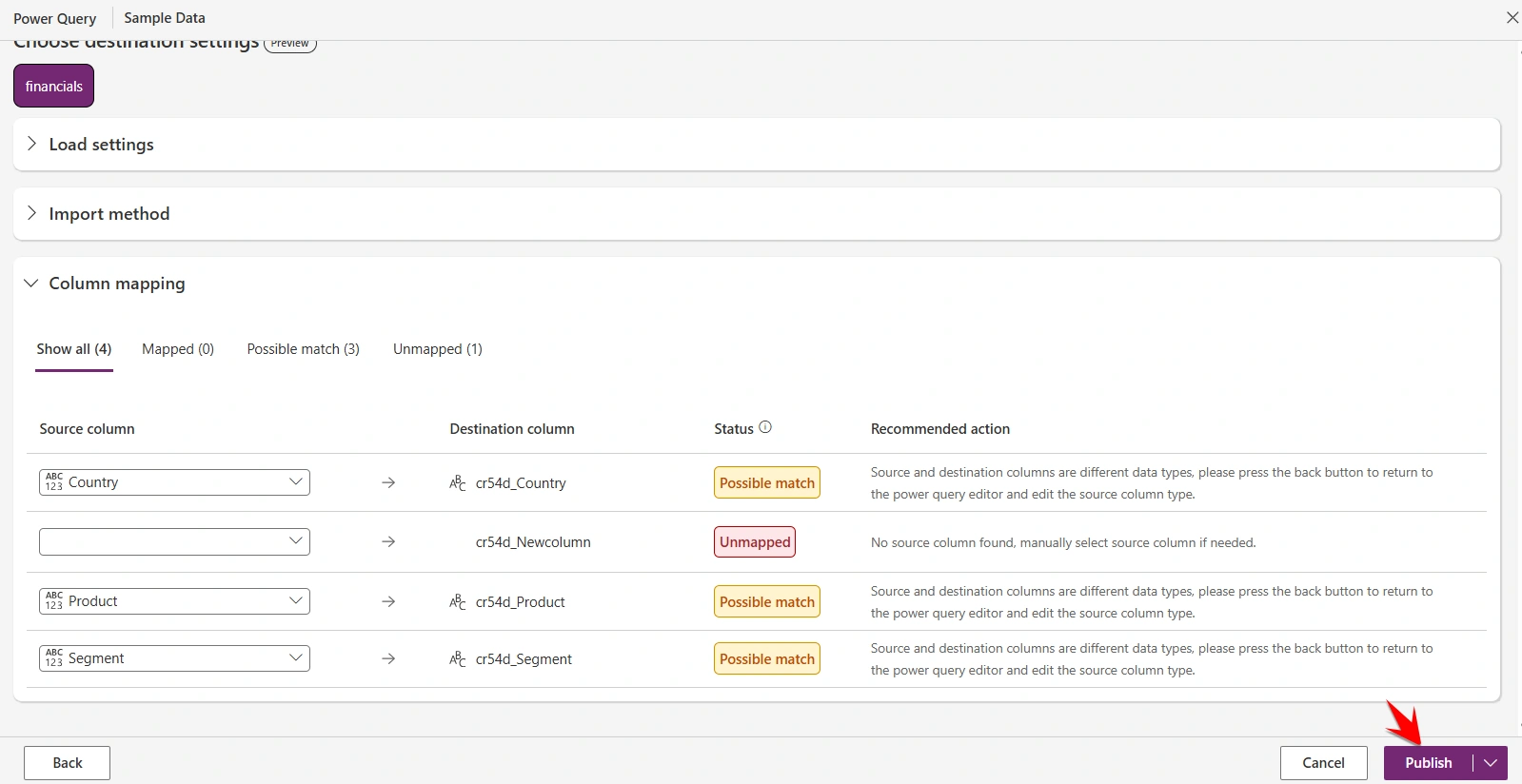
Now, match each column from your Excel file to the corresponding field in your Dataverse table. Once everything is mapped correctly, click Publish to start importing your data.
Step 12: Check Dataflow Status
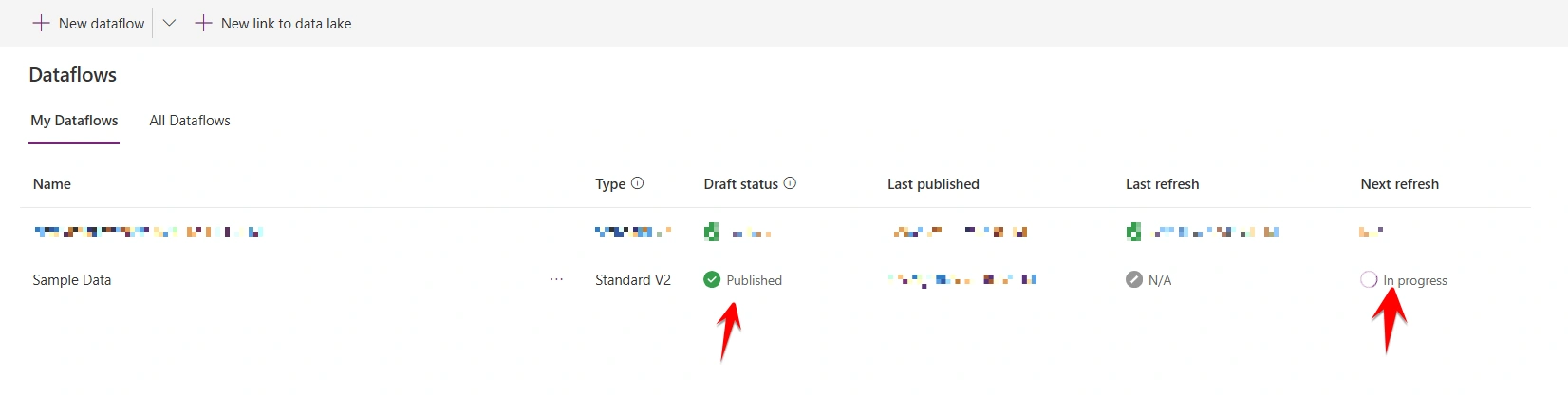
Wait for a few minutes and monitor the status of your Dataflow. Once the data import is complete, the Draft status will show Published, and your data will be successfully imported in your table.
Step 13: Check Refresh Duration
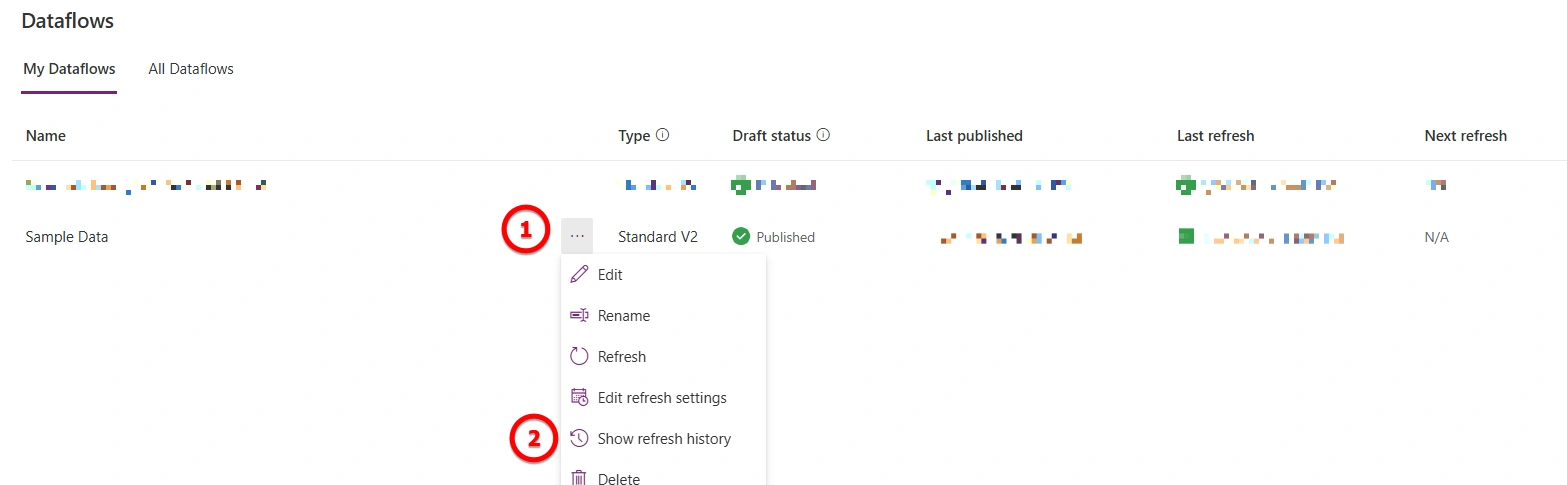
You can see how long it takes to import data in your Dataflow. To do this:
Go to the Dataflow you created.
Click the three dots (…) next to it.
Select Show refresh history.
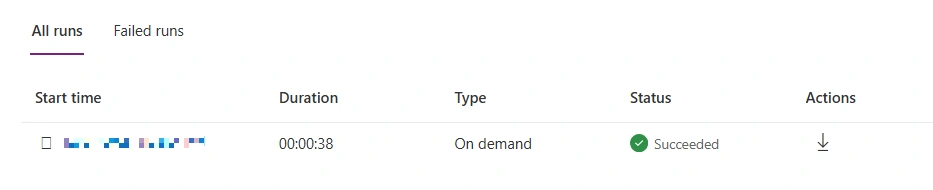
You’ll see details like Start time, Duration, and Status for each refresh. This helps you monitor your data import process.
Output
Go to your Dataverse table, and you will see that around 700 records have been imported in just 38 seconds.
Conclusion
That’s it! By following these steps, you can easily and quickly import large data sets into a Dataverse table using Dataflows.
Join the conversation! Your thoughts help the community grow.