

Below are the components used in this document
- Azure Cosmos DB
- Power Automate
Introduction
Let me first give some brief description about Azure Cosmos DB for those who don’t know much about it. Azure Cosmos DB is a fully managed service that take away the problems associated with scaling a distributed database. Hence we don’t have to worry about managing Virtual Machines, hardware provisioning, setup and configuration, capacity, replication, software patching or cluster scaling etc. For more details you can read the MS Doc here.
Some time back I got a requirement to insert some data into Cosmos DB whenever a button was clicked on a Power App Form. This was achieved using Power Automate connecting to Azure Cosmos DB to insert the data. In my example, I already had Cosmos DB created. In case you need help with creating the database and performing any other operations on that database like putting the index, unique keys etc, you can refer the same MS docs mentioned above. Below is the step by step way to insert data to Azure Cosmos DB.
Open Power Automate and create a new Flow
NOTE
In case you already have a Power Automate created, you can ignore this step.
Step 1
Browse to https://india.flow.microsoft.com and provide your Office 365 account details to login
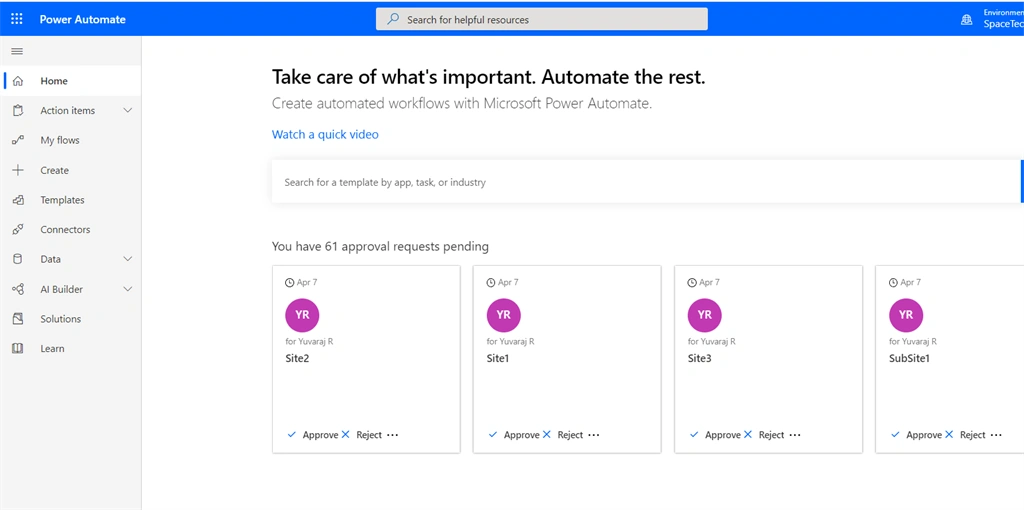
Step 2
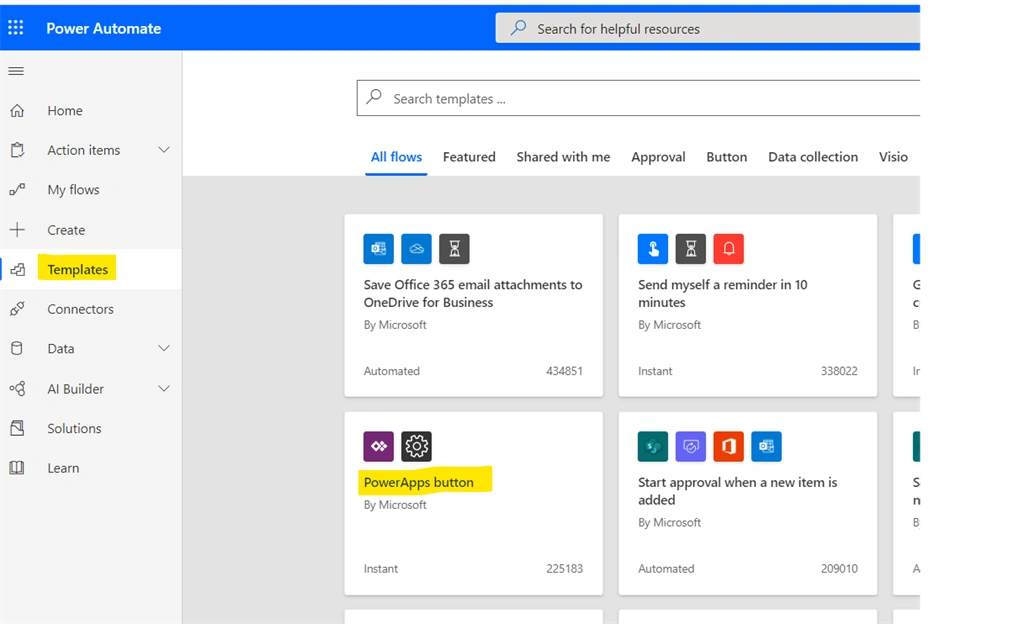
Select either a “Templates” to start your Flow or you can search for the template. For my example I am selecting “Templates” from left navigation highlighted with yellow color in below image and then selecting Power Apps button, as trigger point for my Flow is a button click from Power Apps. You can select the template based on your requirements.
Step 3
Empty Flow would be opened.
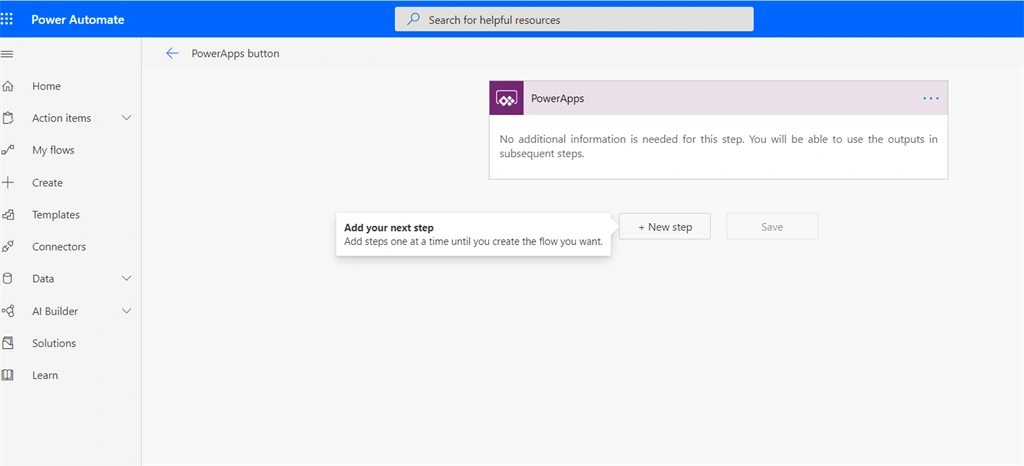
Power Automate to insert data to Cosmos DB
Step 1
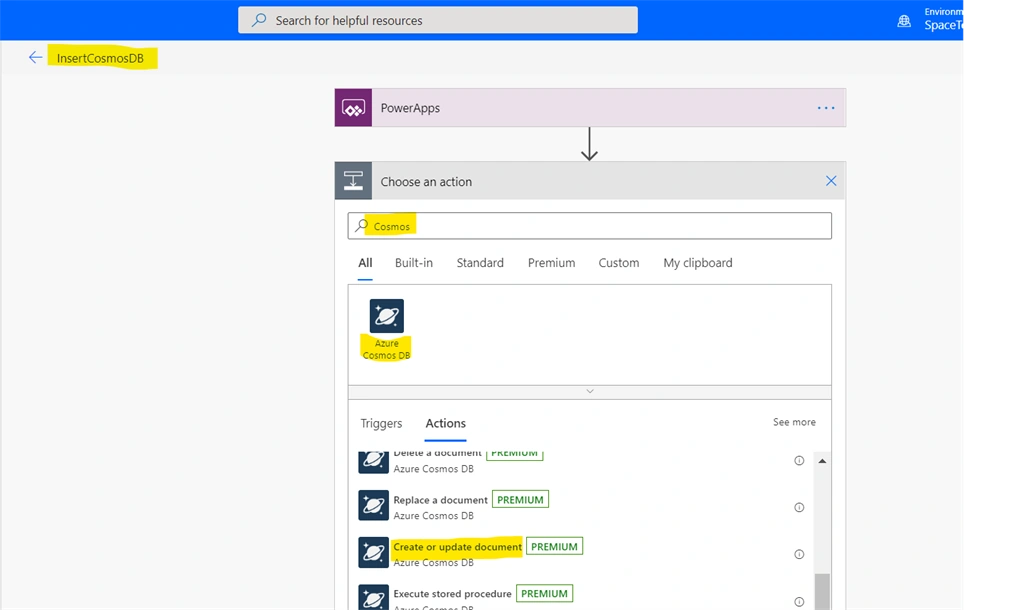
Name your Flow with the appropriate meaning. Add a new Step “Create or Update document”. In case you are not able to find it, then you should search for “Cosmos” and under that you would be able to select “Create or Update document” Step as shown in the below screen shot.
Step 2
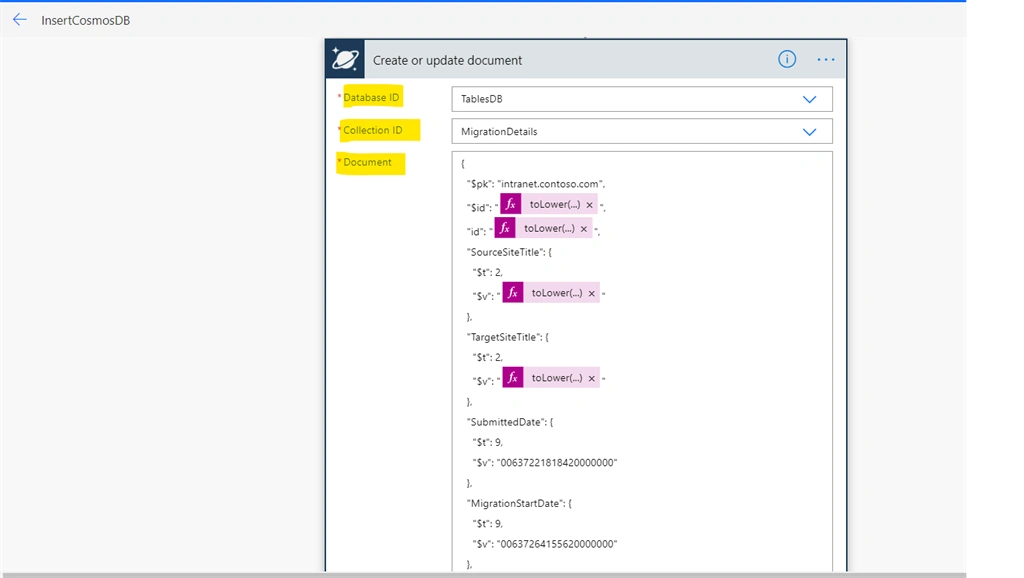
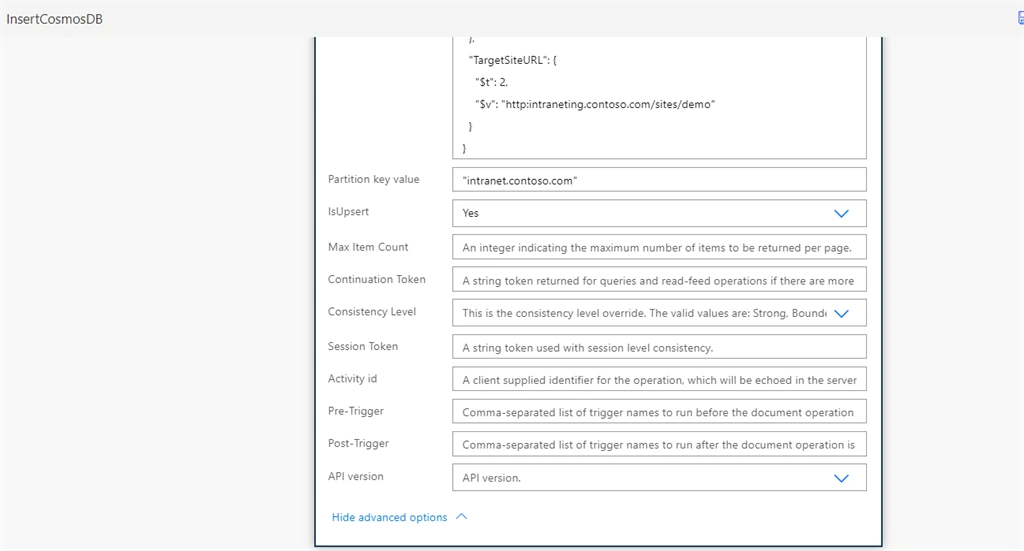
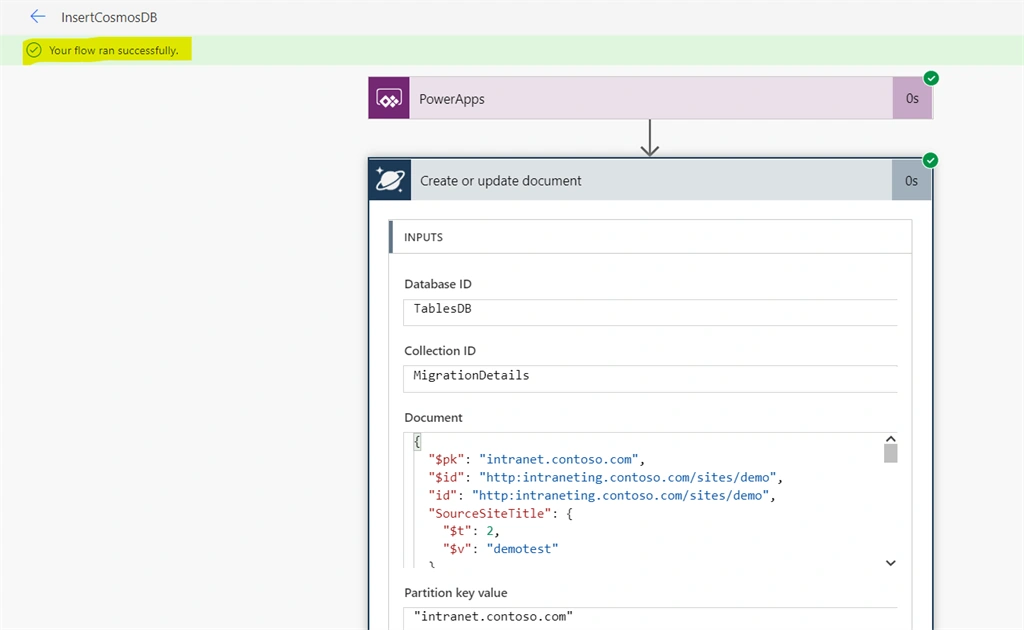
Now once you add the step, you will need to fill the mandatory field values. The most important field is “Document”. When it comes to Cosmos DB, every data which gets stored in it, is considered as a JSON object. So we would need to create a JSON object of the data which needs to be inserted in Azure Cosmos DB. In my example: I have few text fields and few DateTime fields. My JSON object looks like below. Create your JSON object according to your Cosmos DB Column structure.
Join the conversation! Your thoughts help the community grow.