

Introduction
Amazon Amplify provides an open-source library for developing cloud-powered operation-enabled mobile & Web applications. These applications are using these libraries to interact with backends. Amplify libraries are powered by Amazon Cloud, it offers a pluggable model for all apps which can be extended to use other providers.
In my previous articles, I briefly explained Amazon web services amplify. Refer to this article for a better understanding,
In this article, I will explain how to install & configure AWS Amplify CLI for mobile application development.
Prerequisites
- PC or Laptop
- Stable internet connection (512 Kbps minimum)
- AWS Console Account
Step 1
Amazon Amplify needs a basic requirement for installing Amplify CLI on your computer. You need to install Nodejs and Git.
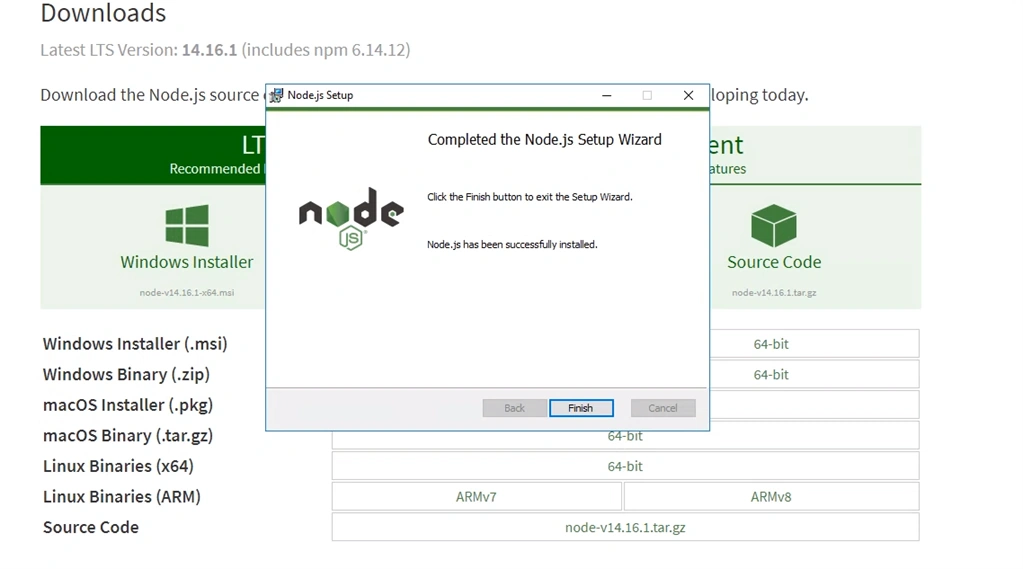
First, download and install NodeJS,
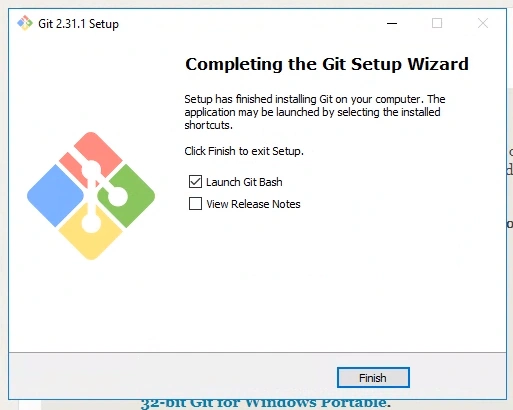
Next, download and install Git,
Step 2
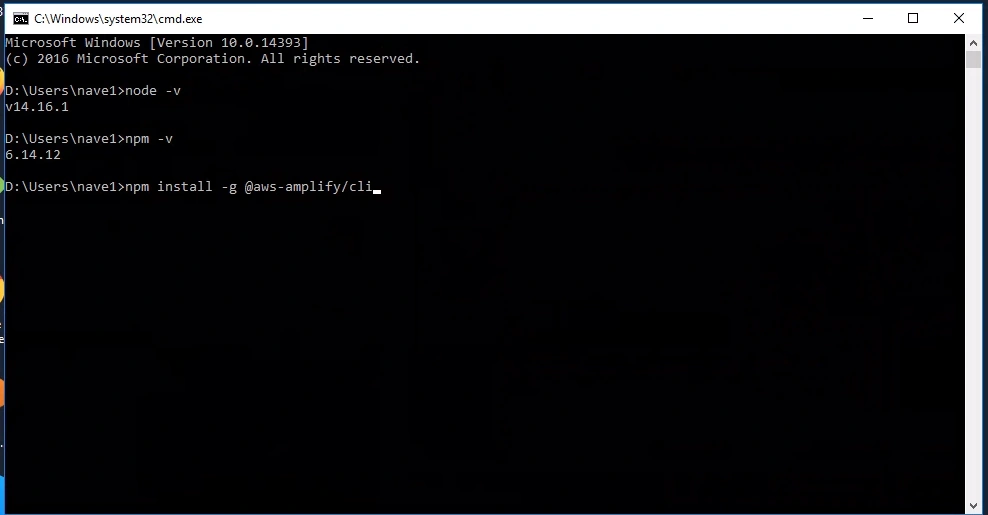
Check both NodeJS and npm versions in your system by using the Command-line interface with this command.
- node -v
- npm -v
Step 3
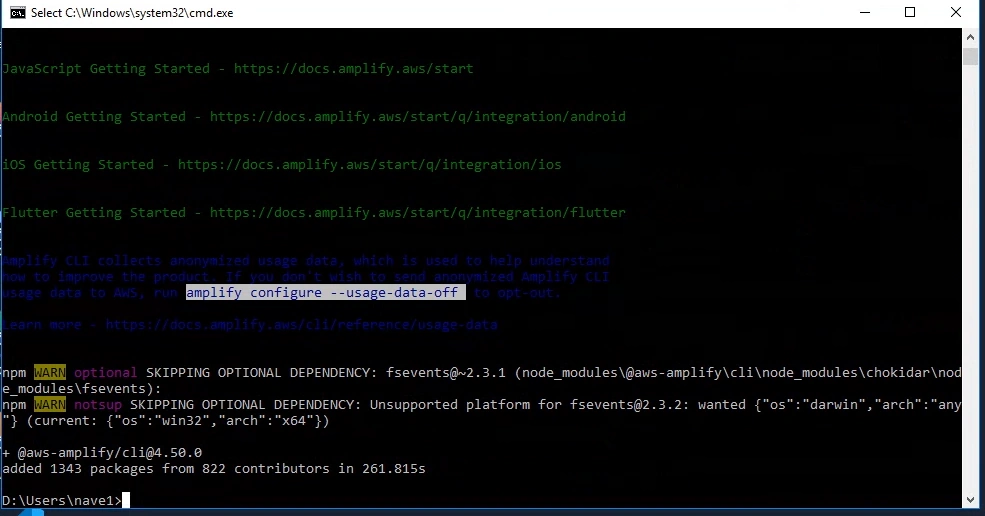
After successful installation of npm & git, you continue to install AWS Amplify CLI. Now run the below command in your command-line interface.
npm install -g @aws-amplify/CLI
Step 4
After successful installation of AWS Amplify CLI, let’s get started to configure CLI with AWS Console.
Execute this command in CLI,
amplify configure
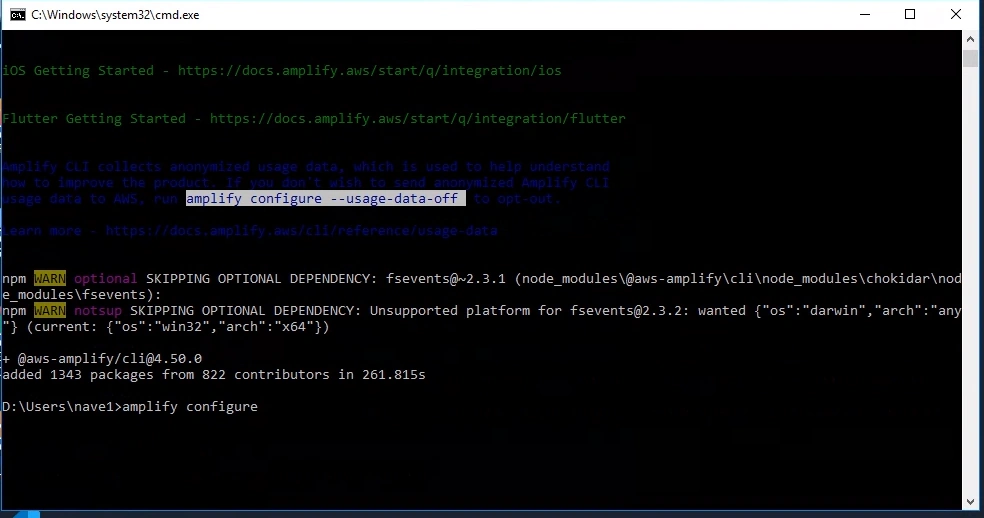
After executing this command, AWS CLI asks you to log in to your AWS Admin account. It automatically redirects to the AWS login page. Use your valid username & password.
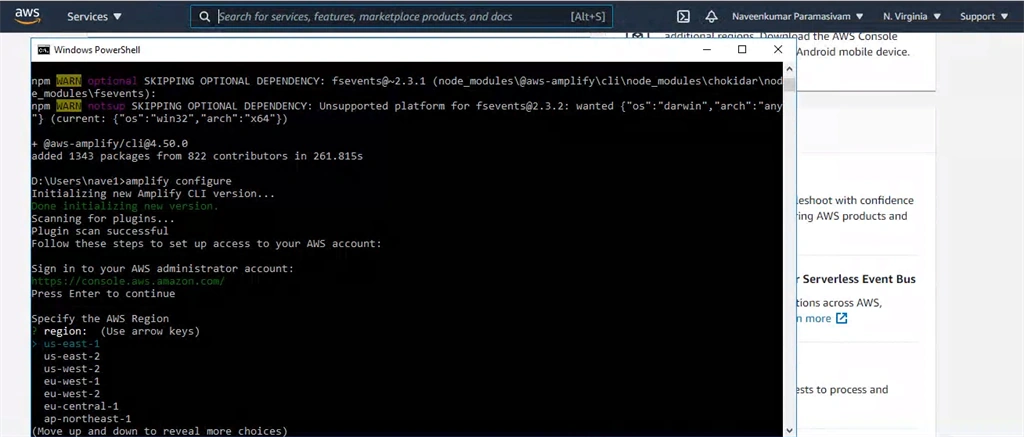
Step 5
After successful login, you need to select your region.
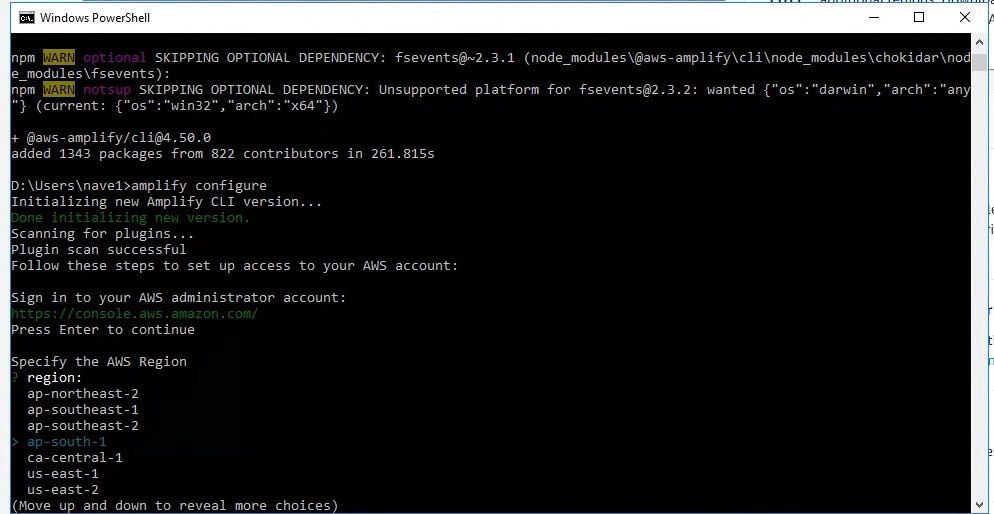
Step 6
The region is selected, set user name for IAM users to access amplify. Enter a unique name and press enter.
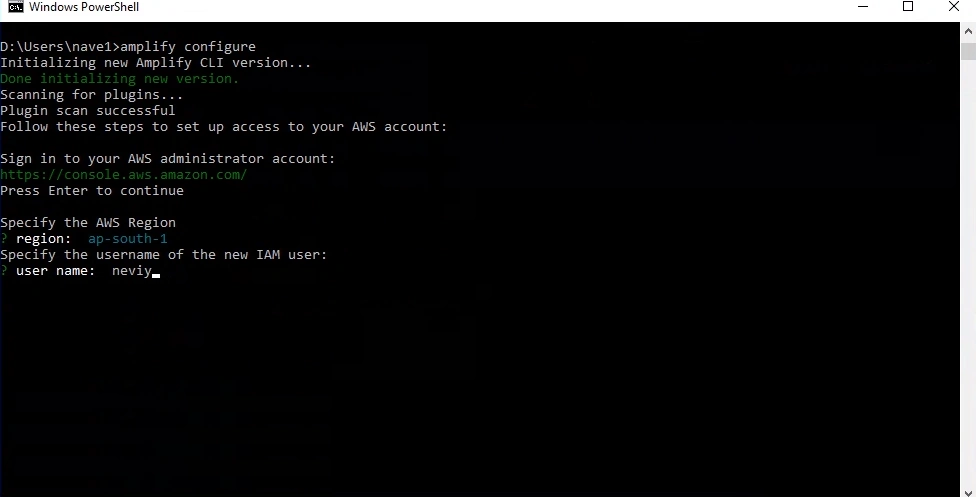
Step 7
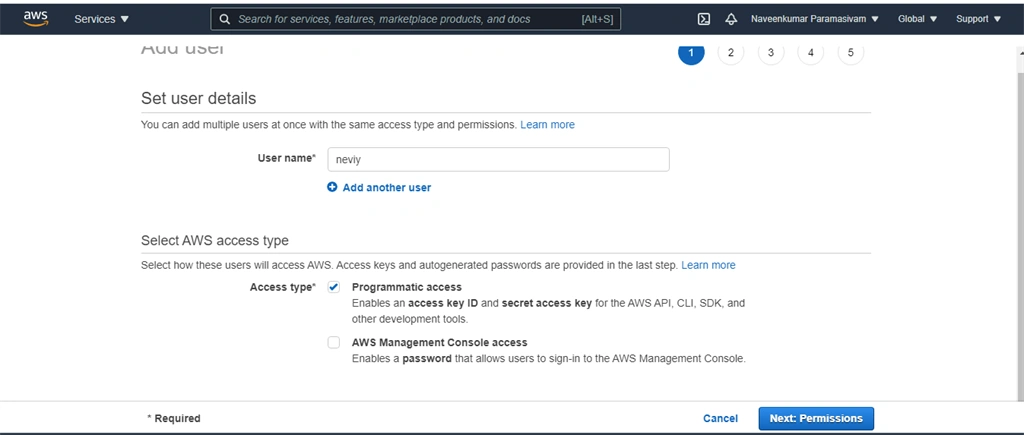
AWS amplify CLI opens the browser for IAM user Settings. No need to press the next button for permission settings.
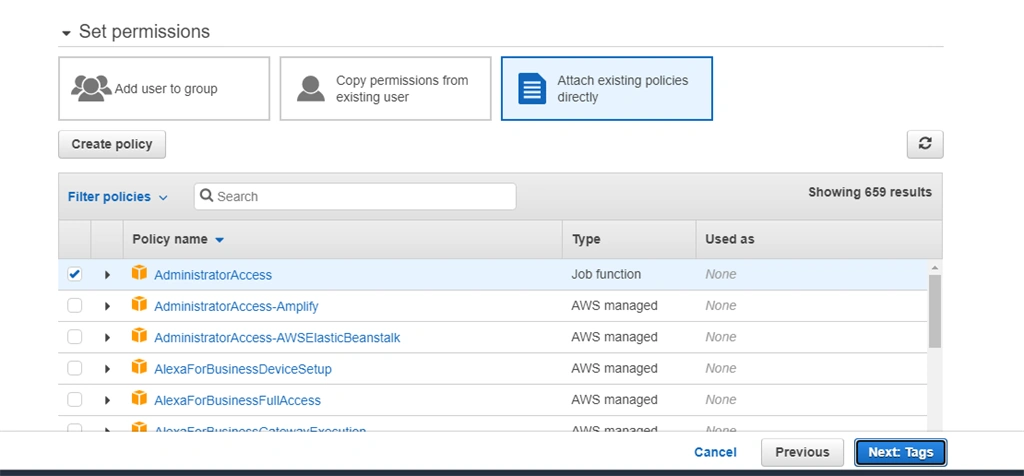
Attach admin access for this given user and click next and next.
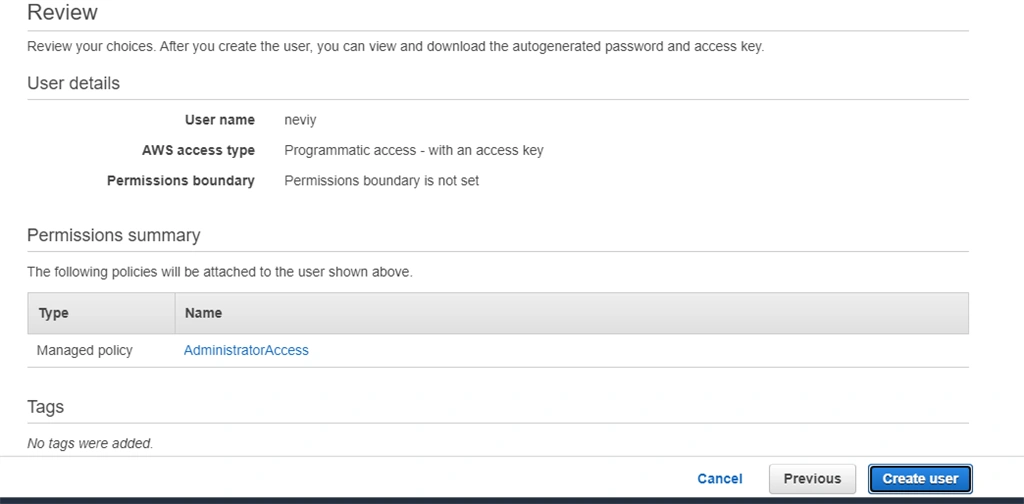
On the final review page, please check all of your given information. Now we click on the Create User button.
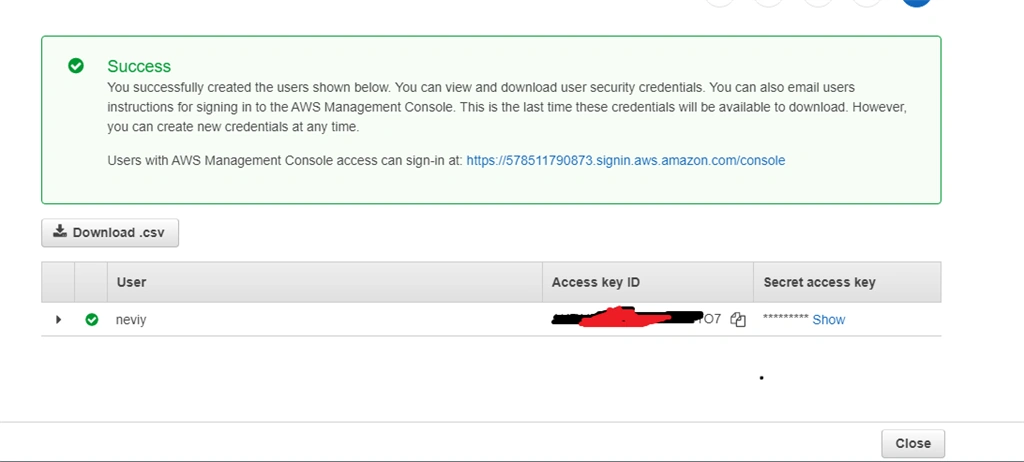
Finally, your IAM user access key & Secret access key is generated. Store these credentials using any word processors. (Keep safe & don’t share with anyone).
Step 8
Back to our AWS Amplify CLI, AWS CLI asks for an access key and secret key. Copy and paste both the keys and press enter.
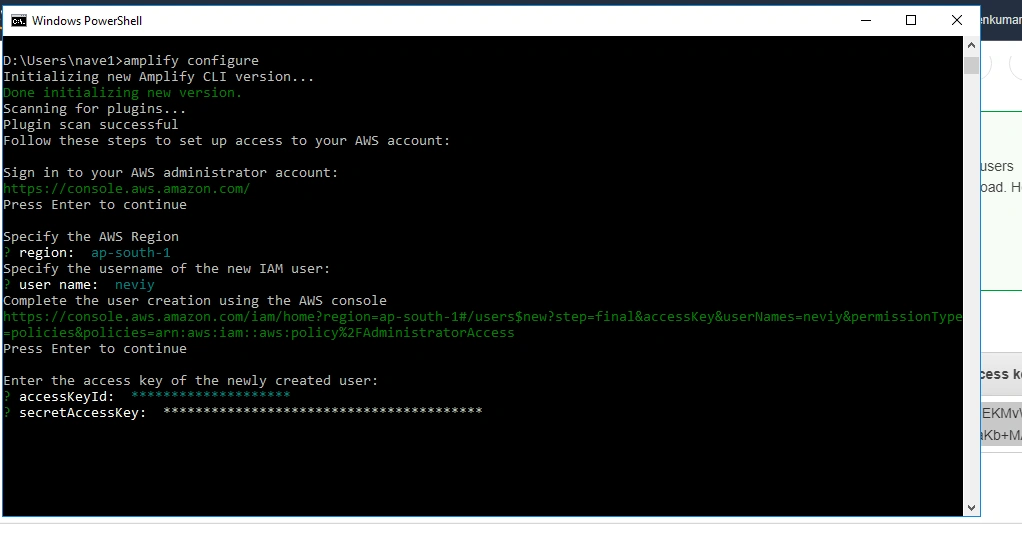
Step 9
Set the profile name on your local computer. Press enter to make default as a profile name.
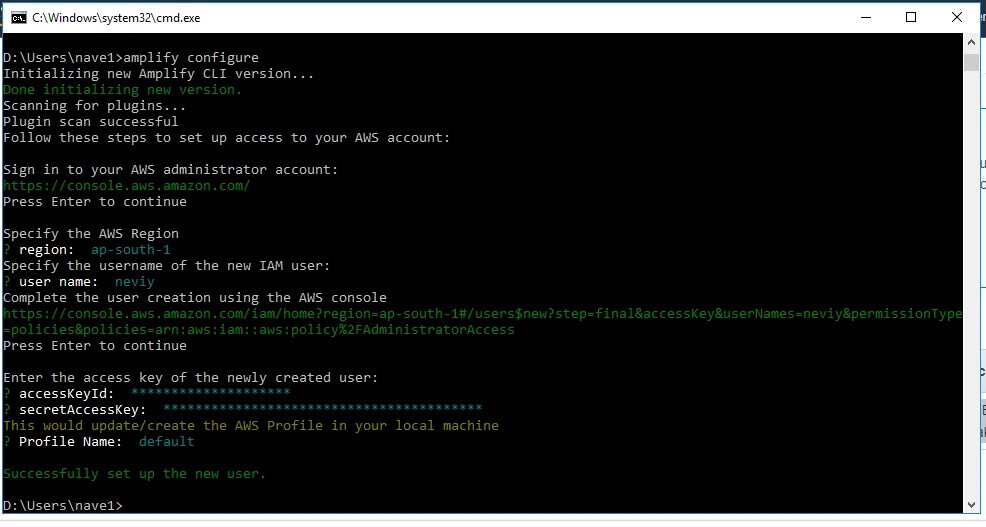
Finally, we successfully set up our AWS amplify CLI with user credentials.
Conclusion
In this article, you learned about configuring AWS Amplify CLI in computer systems.
Join the conversation! Your thoughts help the community grow.