


In SharePoint mode a report server is installed as part of a SharePoint server farm. The report server processing, rendering, and management features are represented by a SharePoint application server running the Reporting Services SharePoint shared service and one or more Reporting Services service applications. A SharePoint site provides the front-end access to report server content and operations.
For more details read the MSDN Article.
Procedure for installing SQL Server Reporting Services 2012 in SharePoint Integrated Mode
- Run the SQL Server Installer

- Click on the installation, and then click on "New SQL Server Stand-alone Installation or add feature to an existing installation".

- Click "OK"

- Click "Next"
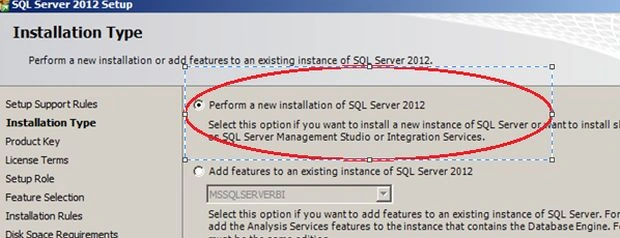
- Select "Perform a New installation"

- If you don't have a key then select "Evaluation", it doesn't matter because the Reporting Services Add-in is a free feature. And click "Next".
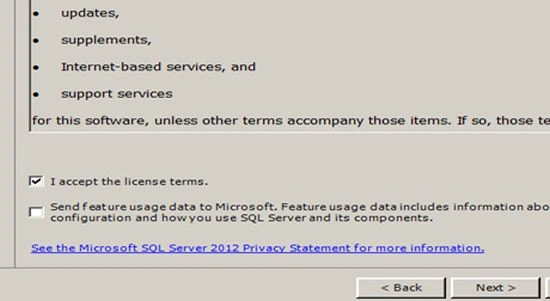
- Accept the license and click "Next".

- Select "SQL Server Feature Installation"

- Select "Reporting Service - SharePoint" and "Reporting Service Add-in for SharePoint Products" then click "Next".
- Click "Next" on a couple more screens until it reaches the Ready To Install screen.

- Verify the feature and click on the "Install" button of the Ready to Install Screen.

- Verify the Completion report and restart the Server.
Join the conversation! Your thoughts help the community grow.