

Jupyter Notebook is a widely used open-source web application that allows you to create and share live code, equations, visualizations, and narrative text documents. It’s a tool beloved by data scientists, researchers, and developers for its interactive capabilities. Running Jupyter Notebook on Docker adds a layer of flexibility by isolating the environment, ensuring consistency across systems, and simplifying dependency management. This article provides a step-by-step guide to installing Jupyter Notebook on Docker, complete with an example and a clear explanation.
What is Docker and Why Use It for Jupyter Notebook?
Docker is a containerization platform that packages applications and their dependencies into lightweight containers. These containers run consistently across different environments, eliminating the "it works on my machine" problem.
Using Docker for Jupyter Notebook offers several advantages
- Isolation: Each container runs in a separate environment, avoiding dependency clashes.
- Reproducibility: You can easily share your environment setup with others by sharing the Docker image.
- Simplicity: It’s straightforward to deploy and manage Jupyter environments.
- Flexibility: Multiple versions of Jupyter can coexist on the same system.
Prerequisites
Before proceeding, ensure you have:
- Docker Installed: Download and install Docker from the official site.
- Basic Docker Knowledge: Familiarity with running Docker commands will be helpful.
- A Stable Internet Connection: Required to pull images from Docker Hub.
Step 1. Install Docker
If Docker is not already installed on your machine, follow these steps:
- Visit the Docker Desktop page.
- Download the installer suitable for your operating system (Windows, macOS, or Linux).
- Follow the installation instructions and start Docker after installation.
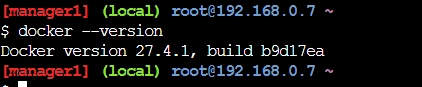
To verify Docker is installed, open a terminal or command prompt and run:
docker --version
You should see the Docker version number displayed.
Step 2. Pull the Jupyter Docker Image
Docker Hub hosts prebuilt images for Jupyter Notebook. These images include everything you need to run Jupyter out of the box.
- Open your terminal or command prompt.
- Pull the
jupyter/base-notebookimage from Docker Hub:docker pull jupyter/base-notebook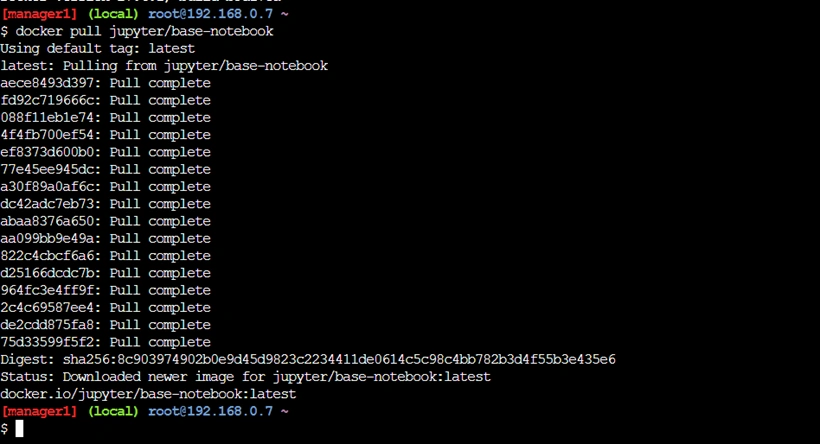
Alternatively, you can choose specialized images like:
jupyter/minimal-notebook: Includes essential tools for data science.jupyter/scipy-notebook: Adds scientific libraries like NumPy and SciPy.jupyter/datascience-notebook: Packed with popular data science libraries such as pandas, scikit-learn, and TensorFlow.
For example:docker pull jupyter/scipy-notebook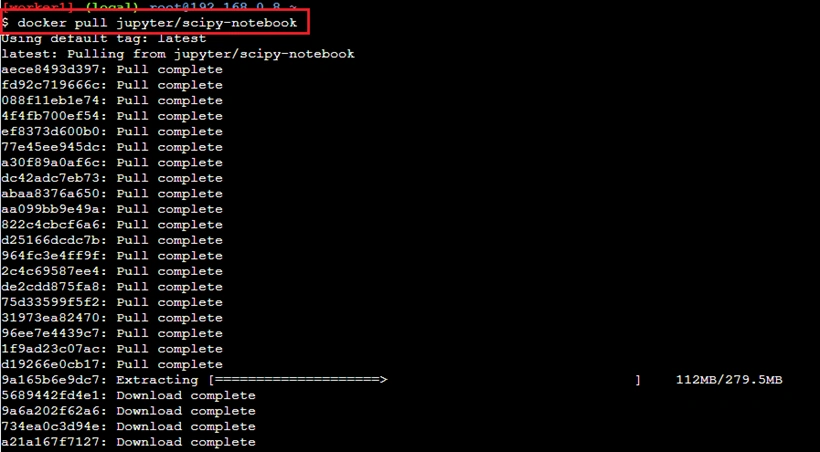
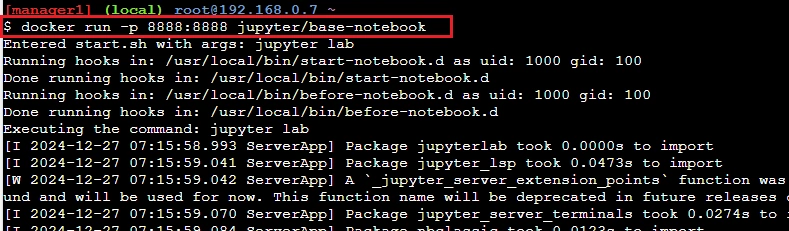
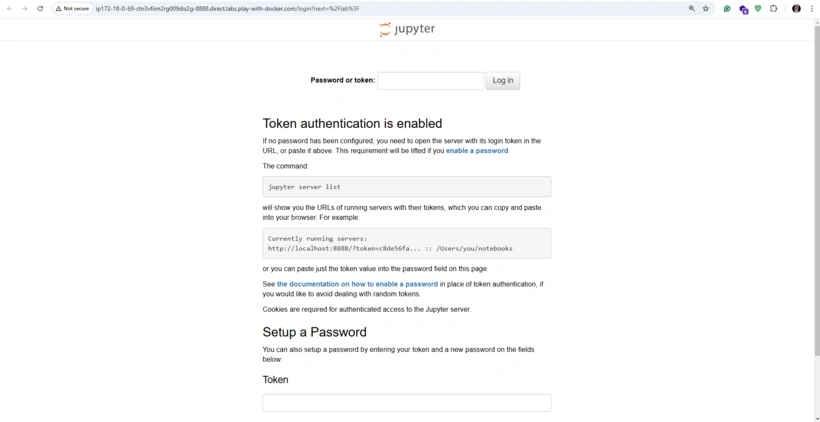
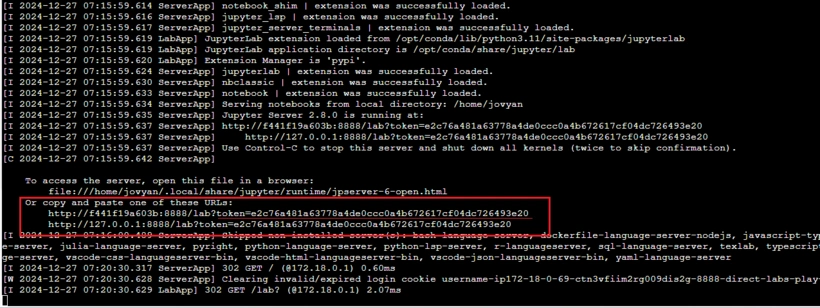
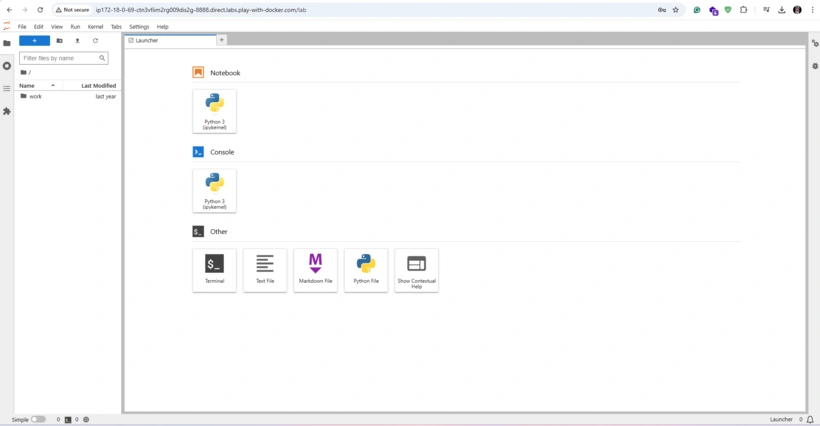
Step 3. Run the Jupyter Notebook Container
After pulling the Docker image, you can run the Jupyter Notebook container. Here’s how:



Join the conversation! Your thoughts help the community grow.