

Introduction
In modern web development, creating interactive and user-friendly interfaces is crucial for enhancing user experience. One common requirement is the integration of dynamic calendars for scheduling, event management, and planning purposes. "Integrating FullCalendar in .NET Core Applications with JavaScript" is your ultimate guide to achieving this. FullCalendar is a powerful JavaScript library that provides a full-featured calendar interface, while .NET Core offers a robust backend framework for building scalable web applications.
This guide will walk you through the process of integrating FullCalendar into your .NET Core application, from the initial setup to advanced customization. You will learn how to use JavaScript to create responsive and interactive calendars, manage events, and customize the calendar's appearance to fit your specific needs. Whether you are developing a simple scheduling tool or a complex event management system, this tutorial will equip you with the knowledge and skills to seamlessly blend FullCalendar with .NET Core, resulting in a polished and functional calendar solution for your web application.
Step 1. Create the calendar view
Create a View for the Calendar
Create a new Razor view named Calendar.cshtml in the Views/Home directory and include the FullCalendar setup.
Initialize the JS and CSS file as the below attachment.
<div class="col-lg-5 ">
    <div class="w-100 m-t-6 task-calendar">
        <div class="card mb-0">
            <div class="card-header">
                <div>
                    <h5>Task Calendar</h5>
                    <span class="d-inline-block calender-date"></span>
                </div>
                <div>

                    <!-- Status badges will be dynamically appended here -->
                </div>
            </div>


            <div class="card-body p-3">
                <div class="table-scrol">
                    <table class="table table-bordered mb-0 tblTaskDetails">
                        <thead>
                            <tr>
                                <th>Sl#</th>
                                <th>Activity</th>
                                <th>Region</th>
                                <th>Mines</th>
                            </tr>
                        </thead>
                        <tbody>
                        </tbody>
                    </table>
                </div>
            </div>
        </div>
    </div>
</div>
Step 2. Write the Javascript code
<script type="text/javascript">
document.addEventListener('DOMContentLoaded', function () {
    var calendarEl = document.getElementById('calendar');

    var calendar = new FullCalendar.Calendar(calendarEl, {
        initialView: 'dayGridMonth',
        headerToolbar: {
            left: 'prev,next today',
            center: 'title',
            right: 'dayGridMonth,timeGridWeek,timeGridDay'
        },
        events: function (fetchInfo, successCallback, failureCallback) {
            $.ajax({
                url:"@Url.Action("FetchCalenderData", "User")",
                method: 'GET',
                dataType: 'json',
                success: function (response) {
                    if (response.status === "Successful") {
                        // Aggregate events by date and status
                        var aggregatedEvents = {};
                        response.data.forEach(function (item) {
                            var date = item.actionDate;
                            var status = item.actionStatus;

                            if (!aggregatedEvents[date]) {
                                aggregatedEvents[date] = {};
                            }
                            if (!aggregatedEvents[date][status]) {
                                aggregatedEvents[date][status] = 0;
                            }
                            aggregatedEvents[date][status]++;
                        });

                        // Transform aggregated data into FullCalendar event format
                        var events = [];
                        for (var date in aggregatedEvents) {
                            for (var status in aggregatedEvents[date]) {
                                events.push({
                                    title: status + ' (' + aggregatedEvents[date][status] + ')',
                                    start: date,
                                    extendedProps: {
                                        status: status,
                                        statusCount: aggregatedEvents[date][status]
                                    }
                                });
                            }
                        }

                        successCallback(events);
                    } else {
                        console.log('Error: Data status is not successful');
                        failureCallback();
                    }
                },
                error: function (jqXHR, textStatus, errorThrown) {
                    console.log('Error: ' + textStatus);
                    failureCallback();
                }
            });
        },
        eventClick: function (info) {
            var status = info.event.extendedProps.status;
            var clickedDate = info.event.start;

            /*Date Formating For Send To DB for Filter*/
            const CurrentDateForDB = new Date(clickedDate);
            const year = CurrentDateForDB.getFullYear();
            const month = String(CurrentDateForDB.getMonth() + 1).padStart(2, '0');
            const day = String(CurrentDateForDB.getDate()).padStart(2, '0');
            const ClickedformattedDate = `${year}-${month}-${day}`;
            /*END*/

            var options = { day: 'numeric', month: 'short', year: 'numeric' };
            var formattedDate = clickedDate.toLocaleDateString('en-US', options);
            // Make an AJAX call with the status name
            $.ajax({
              url: "@Url.Action("FetchActivityDtlsByStatus", "User")",
                method: 'GET',
                data: { ActivityStatus: status, ActivityDate: ClickedformattedDate },
                success: function (response) {
                    console.log(response);

                    if (response.status === "Successful") {
                        var tbody = $('.tblTaskDetails tbody');
                        tbody.empty(); // Clear existing rows

                        response.data.forEach(function (item, index) {
                            var row = '<tr>' +
                                '<td>' + (index + 1) + '</td>' +
                                '<td>' + item.activiTyName + '</td>' +
                                '<td>' + item.regionName + '</td>' +
                                '<td>' + item.minesName + '</td>' +
                                '</tr>';
                            tbody.append(row);
                        });


                        if (clickedDate) {
                            $('.calender-date').text(formattedDate);
                        } else {
                            $('.calender-date').text('No Date Clicked');
                        }

                        // Clear existing status badges
                        $('.card-header div:nth-child(2)').empty();

                        // Display all unique statuses
                        var statusColors = {
                            'Approved': 'text-bg-success',
                            'Open': 'text-bg-primary',
                            'InProgress': 'text-bg-warning'
                        };

                        var uniqueStatuses = [...new Set(response.data.map(item => item.activityStatus))];
                        uniqueStatuses.forEach(function (status) {
                            var badgeClass = statusColors[status] || 'text-bg-secondary'; // Default color if status is not mapped
                            var statusBadge = '<h5>Status</h5><span class="badge ' + badgeClass + ' calender-status">' + status + '</span>';
                            $('.card-header div:nth-child(2)').append(statusBadge);
                        });

                    } else {
                        alert('Error: Data status is not successful');
                    }
                },
                error: function (jqXHR, textStatus, errorThrown) {
                    console.log('Error: ' + textStatus);
                }
            });


        }
    });

    calendar.render();
});
</script>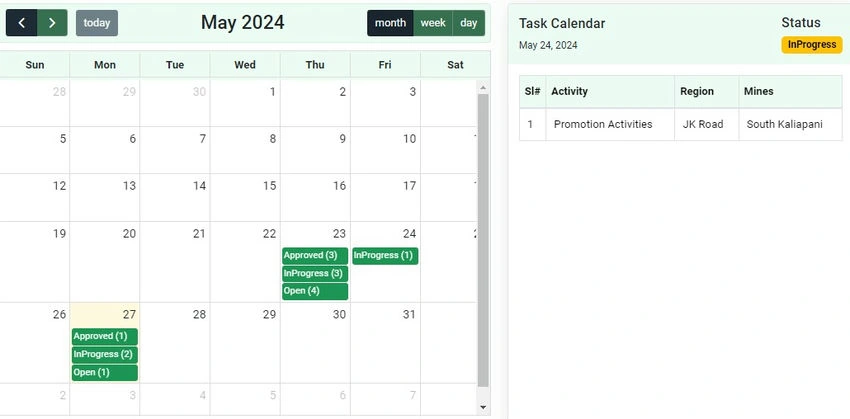
Join the conversation! Your thoughts help the community grow.