

Introduction
In this article, I am introducing you to migration of your code for changes in the Model Class. I described the working process of CRUD Operations and how to work with the LocalDB in MVC5 in my earlier article, so now in here you will learn to work with Entity Framework Code First Migration that will help you to convert any type of change in the Model Class and the change will implement the database also.
In that context, here I am describing my work in two main parts as given below:
- Migration in Entity Framework Code First
- Adding New Property
Migration in Entity Framework Code First
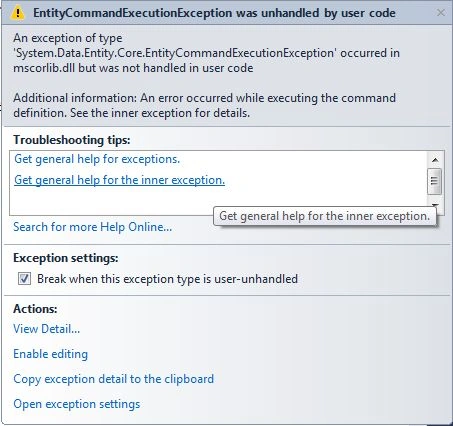
The Entity Framework Code First approach creates your database automatically, as you did in my previous article, a table will be automatically added to the database by the Code First that is helpful to record the schema of database synchronization with the related model class. Entity Framework throws an error, the database is not synchronized with the class.
Let's proceed to the procedure.
Step 1: At first, delete your mdf file located in your "App_Data" Folder in Solution Explorer.

Step 2: Debug your application to ensure that there are no errors.
Step 3: Go to "Package Manager Console" in the "Library Package Manager".
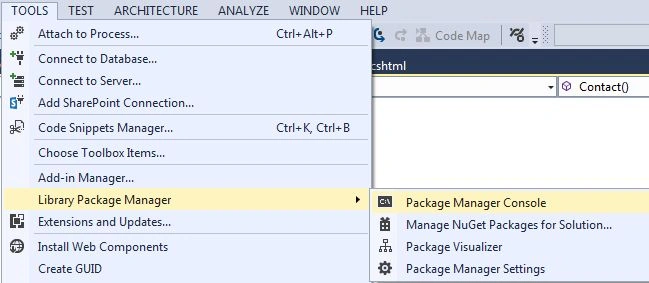
Step 4: In the Package Manager Console window enter the following command:
Enable-Migrations -ContextTypeName MvcCricket.Models.CricketerDBContext
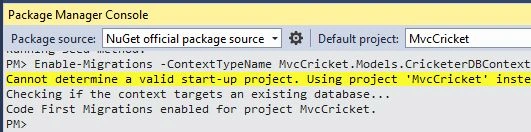
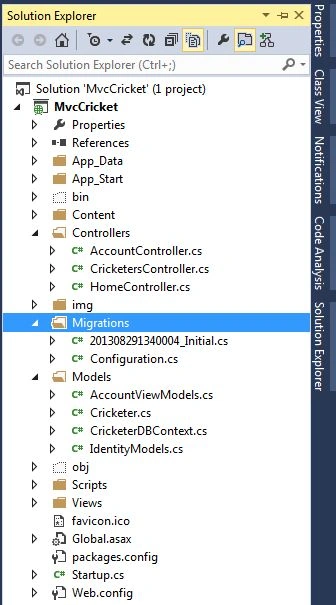
So, what does it do? It creates a "Configurations.cs" file in the new folder (named Migrations folder) in your Solution Explorer. Check it out here:
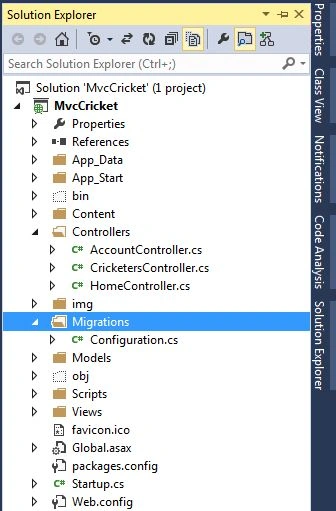
Step 5: As you know, your database mdf file has been deleted, so open your "Configuration.cs" file to insert some cricketers details.
Replace the code in Seed Method with the following code:
- protected override void Seed(MvcCricket.Models.CricketerDBContext context)
- {
- context.Cricketers.AddOrUpdate(i => i.Name,
- new Cricketer
- {
- Name = "Sachin Tendulkar",
- ODI = 463,
- Test = 198
- },
- new Cricketer
- {
- Name = "Saurav Ganguly",
- ODI = 311,
- Test = 113
- },
- new Cricketer
- {
- Name = "Rahul Dravid",
- ODI = 344,
- Test = 164
- },
- new Cricketer
- {
- Name = "Ricky Ponting",
- ODI = 375,
- Test = 168
- },
- new Cricketer
- {
- Name = "Wasim Akram",
- ODI = 356,
- Test = 104
- },
- new Cricketer
- {
- Name = "Jacques Kallis",
- ODI = 321,
- Test = 162
- },
- new Cricketer
- {
- Name = "Sanath Jayasuriya",
- ODI = 445,
- Test = 110
- }
- );
- }
Note: You will receive an error when you create Cricketer, please resolve it by adding the following library:
using MvcCricket.Models;
Step 6: Build your application
Step 7: Now, you need to start the migration, called Initial Migration. For this you need to create a DbMigration class. What does it do? The Migration class you create helps to create a database, this is the reason for deleting your database mdf file.
In that context, go to your Package Manager Console and enter the following command:
add-migration Initial
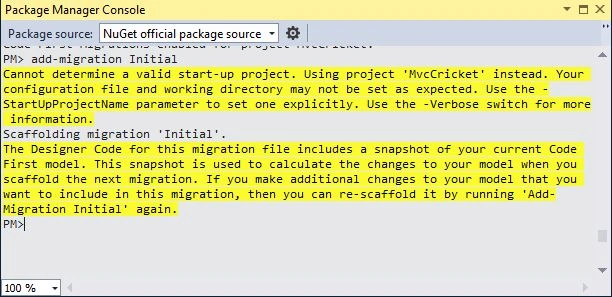
The add-migration Initial command creates a new class file in your Migration folder. The new class named "(DataStamp)_initial.cs code" helps to create a schema for the database. This file's code implements the Cricketers table in your Cricketer database.
Step 8: Enter the following command in your Package Manager Console:
update-database

Note: If you receive an error then you need to ensure that the mdf file is deleted permanently from the App_Data folder. Otherwise you can go to the SQL Server Object Explorer, expand the localDb server and in the Database option ensure that the mdf file is deleted.
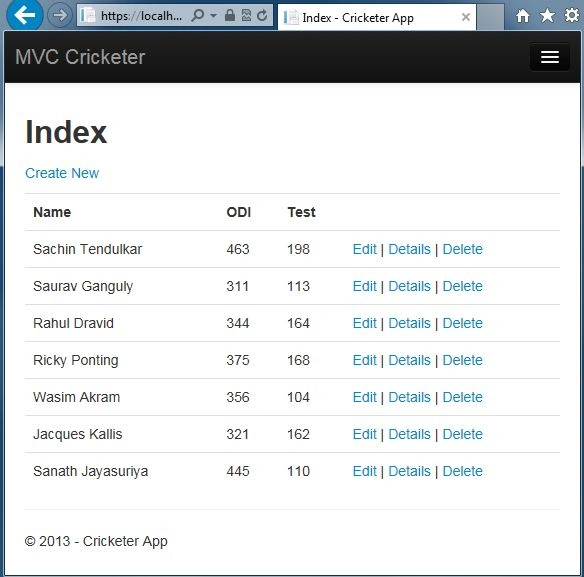
Step 9: Debug your application. You can see your Cricketers Details (that you inserted into "Configuration.cs") in your index file of Cricketers.
Adding New Property
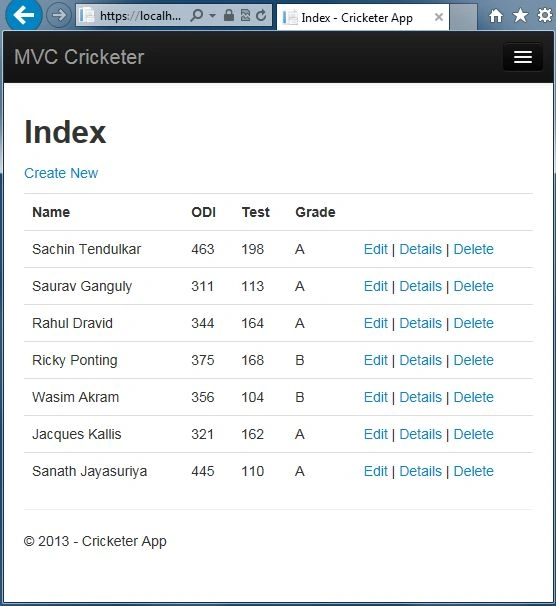
We have mainly three properties in our CricketerDBContext. Let's add a new Grade property to our context. For adding the new property, please follow the procedure given below.
Step 1: Open your "Cricketer.cs" file and add the following property:
- public string Grade { get; set; }
Your Cricketer.cs file will now look like the following code:




rahul jainPosted Aug 17, 2018, 2:55 PM
Up to the point. Exactly what I was looking for.Saved my time. Thank you sir.
Satheesh ShanmugamPosted May 26, 2018, 12:44 AM
Well explained.. Great!!.. Could you please explain in detail to add new column before an existing column using code first migration. If there is any links to refer please share me..