

What is Git?
Git is a free, open-source, distributed version control system used to manage and track changes in source code or data across software projects of any size - from small repositories to very large enterprise systems. It helps developers collaborate efficiently by maintaining a complete history of code changes, allowing multiple people to work on the same project simultaneously without conflict.
Why Version Control?
Version control systems (VCS) are essential tools for modern software development. They help track, manage, and synchronize changes made by multiple contributors, ensuring data integrity and traceability.
Key Benefits
• Tracks all changes: Every modification to a file is recorded, allowing you to view, revert, or compare previous versions at any time.
• Eliminates file duplication: version control maintains a single authoritative version of each file.
• Maintains complete history: Each file's full evolution can be audited, making it easy to understand what changed, when, and by whom.
• Facilitates teamwork: Developers can work on separate features or fixes in isolated branches without interfering with others.
Basic Git Concepts
Working Directory: The workspace on your computer where you make changes to project files. Git doesn't track these changes until you explicitly stage them.
Staging Area (Index): A temporary area where you prepare and organize changes before committing. It acts as a 'draft' zone.
Local Repository: Your personal copy of the project's complete history stored on your local machine. It includes all commits, branches, and tags.
Remote Repository: A version of the project stored on a server (e.g., GitHub, GitLab). It enables collaboration by allowing users to push and pull changes.
Branches: Independent lines of development used to create new features or fix bugs without affecting the main codebase.
Pull Request (PR): A formal proposal to merge changes from one branch into another, usually reviewed and discussed by team members.
Merge: The process of integrating changes from one branch into another, combining their histories.
Installing Git
On Windows:
Download the official Git installer from https://git-scm.com/downloads .
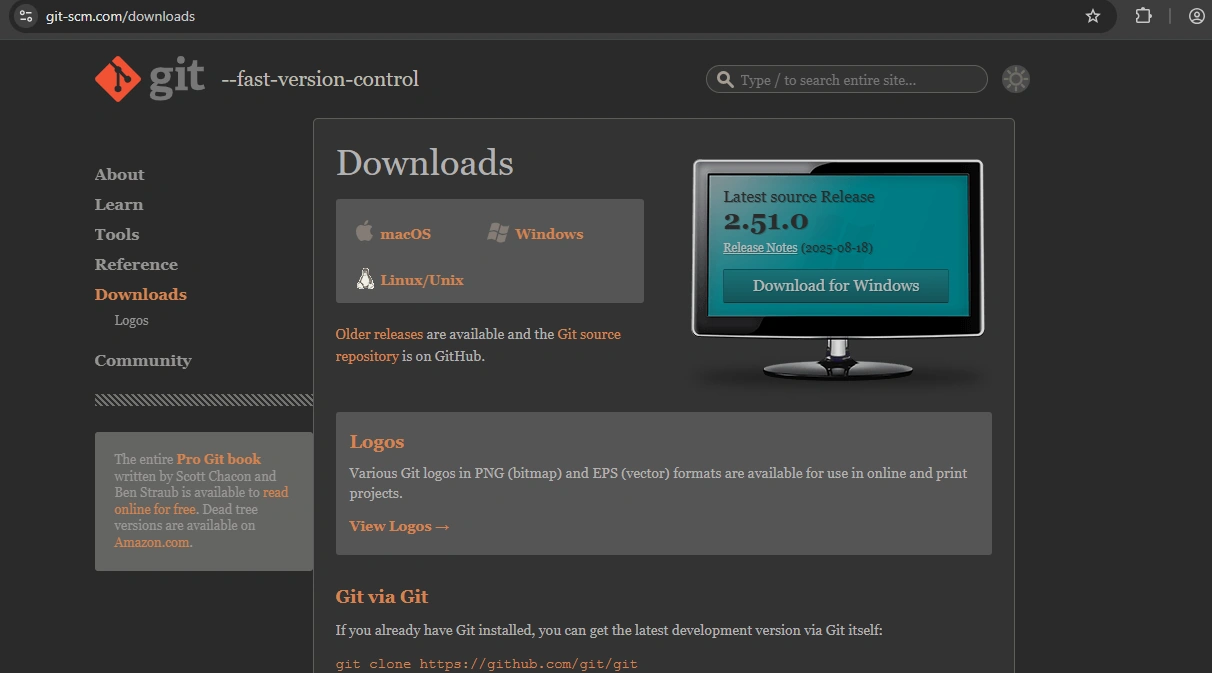
Run the installer and follow the setup wizard.
Accept default settings and ensure the default branch name is set to main (recommended).
Complete installation and verify by running
git --versionin the terminal.

Configuring Git
After installation, configure your user identity to associate commits with your name and email:
git config --global user.name "Your Name"
git config --global user.email "[email protected]"

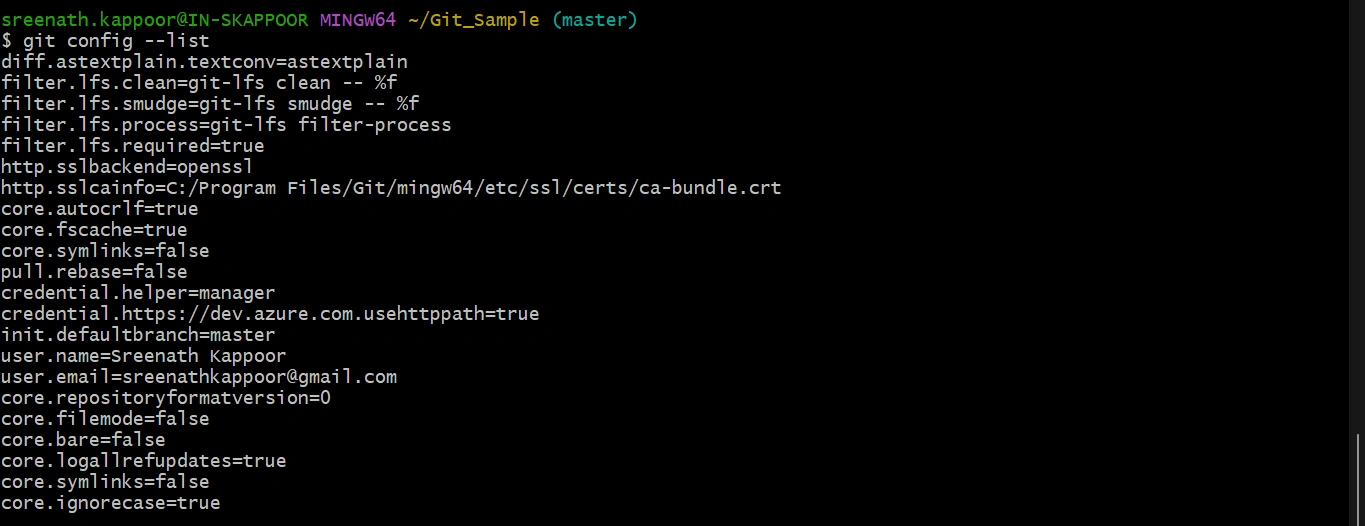
To view all configuration settings:
git config –list
Basic Terminal and Git Commands
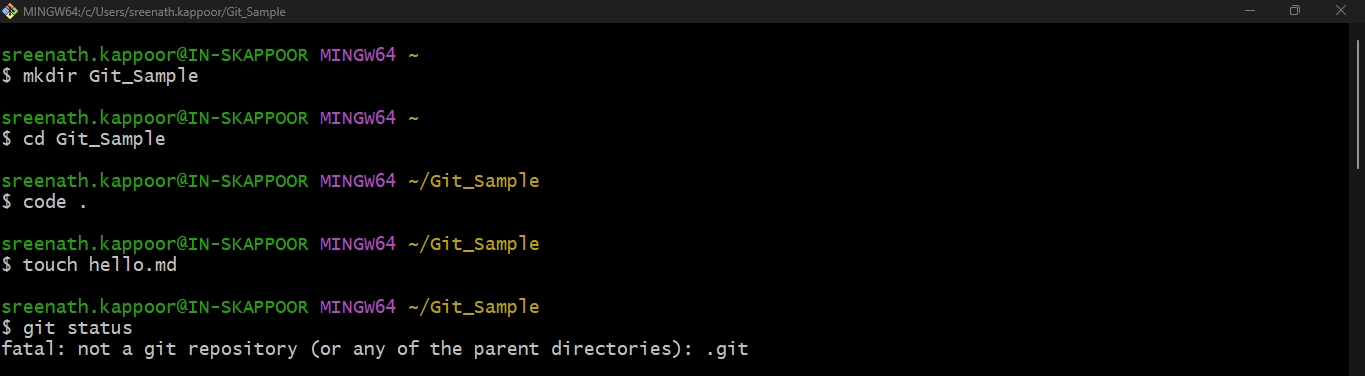
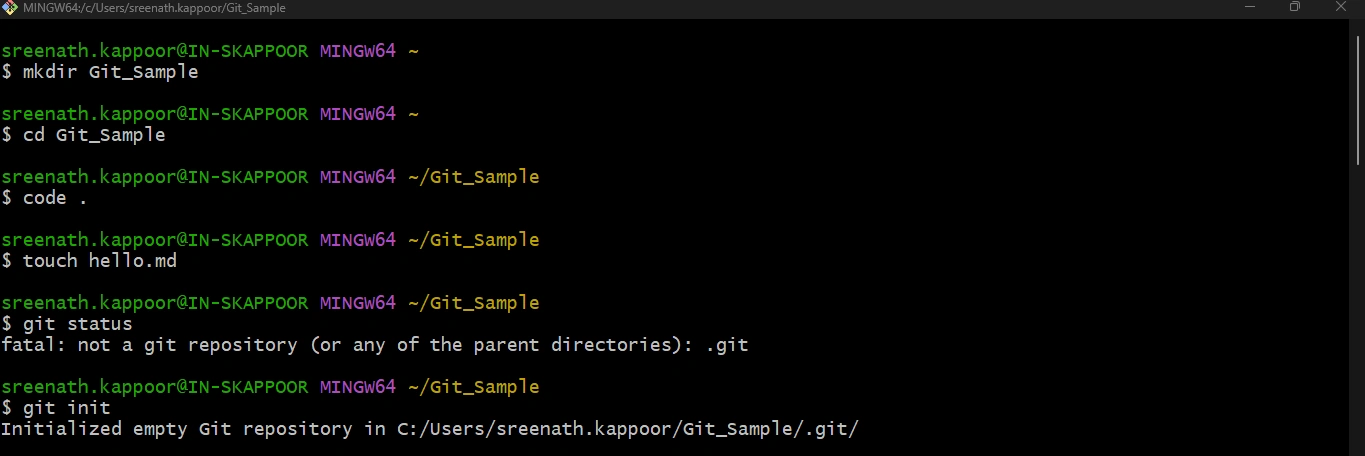
Creating a New Folder and Navigating:
mkdir Git_Sample
cd Git_Sample

To open the folder in VS Code. Use


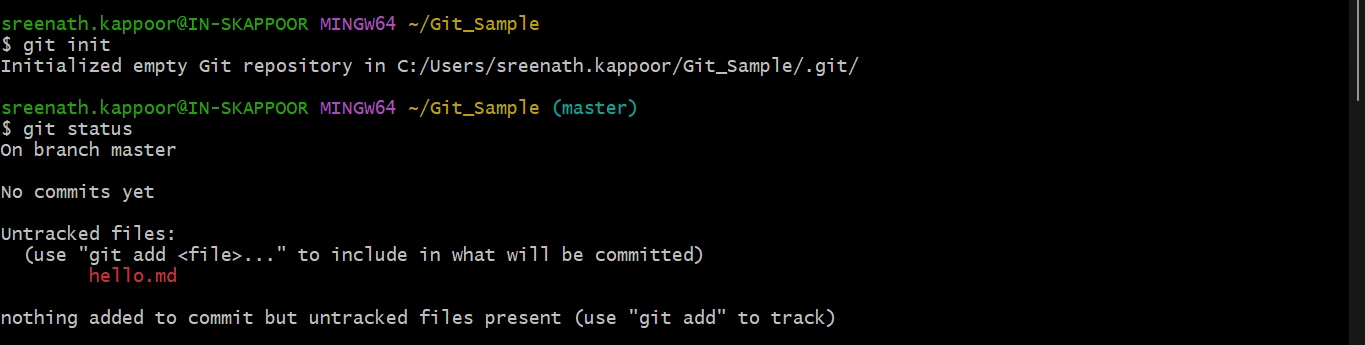
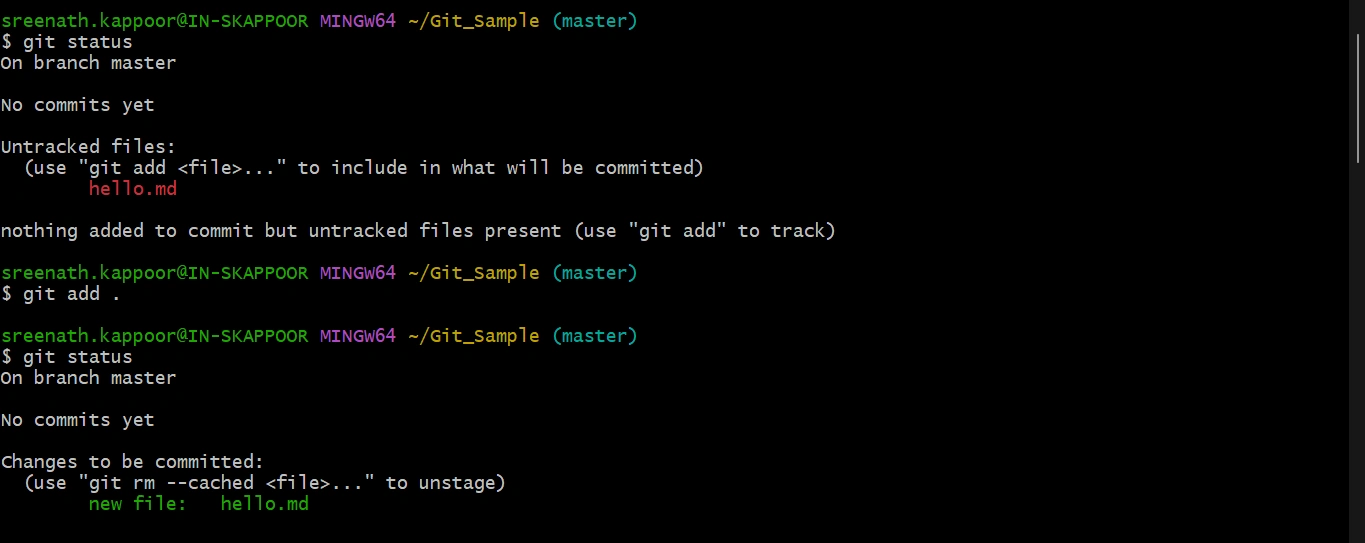
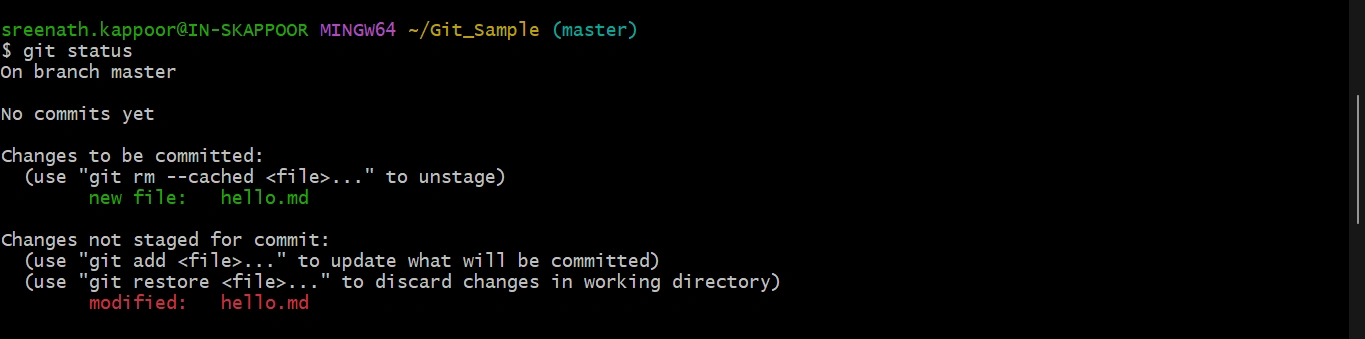
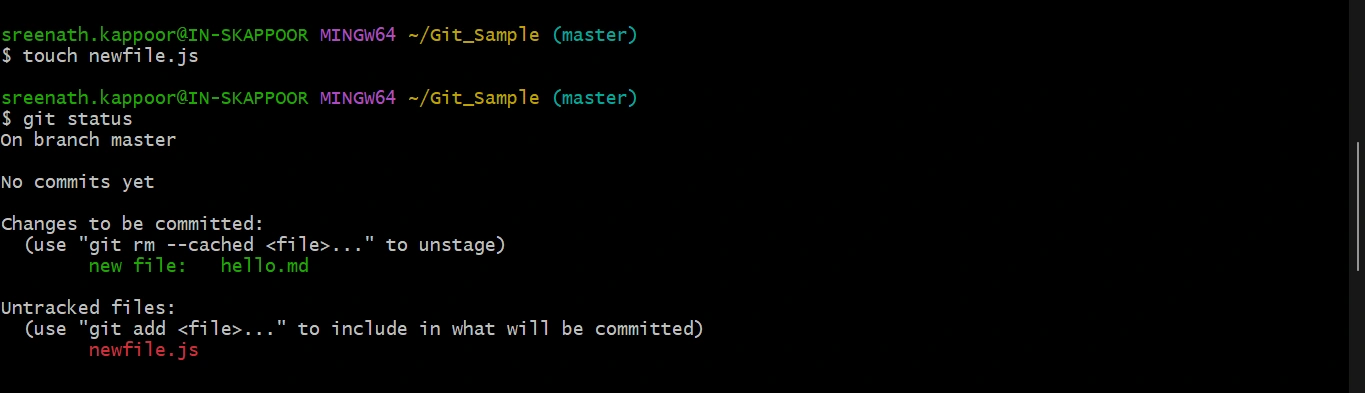

Join the conversation! Your thoughts help the community grow.