

Introduction
Today we'll learn about Model Binding in MVC applications. Model Binding allows you to map and bind the HTTP request data with a model. If you want to work with the form data, Model Binding makes it easier because the requested data is submitted automatically into a data model that we specify. The Default Binder is used to do this, if we go deep intp this.
In that context, you'll learn here the model biding working with the various types of models such as:
- No Binding
- Binding with Simple Types
- Binding with Class Types
- Binding with Class Properties
Before Getting Started
You must be familiar with the knowledge of MVC or you can refer to Getting Started with MVC. Here, I am developing an application on Visual Studio 2013 using MVC 5 Project Template. So, start with the following points:
- Open Visual Studio 2013 and click on "New Project"
- Select the ASP.NET Web Application and enter the name to it
- Select the MVC project template to develop the application
No Binding
In this section we'll see how form data is to be used without no Model Binding. So, follow the procedure below.
Step 1: Scaffold a new MVC empty controller named "ModelBinding".
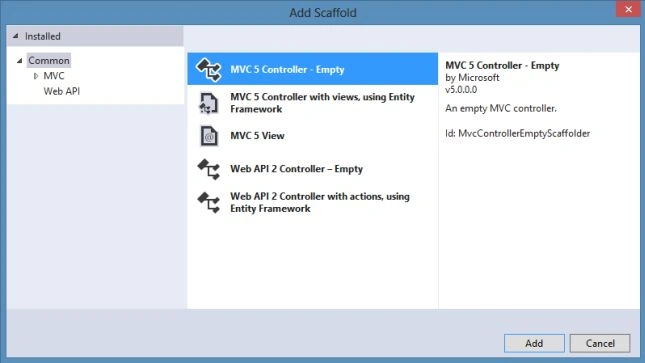
Step 2: Modify the Index() method with the following code:
- public ActionResult Index()
- {
- if (Request.Form.Count > 0)
- {
- string ID= Request.Form["StudentID"];
- string FirstName = Request.Form["StudentFirstName"];
- ViewBag.Message = "Your Student retrieved successfully with an ID" + " " +ID+ "!!";
- }
- return View();
- }
Step 3: Generate the view named Index and replace the code with the following code:
- @{
- ViewBag.Title = "Index";
- }
- <h2>Index</h2>
- @using (Html.BeginForm())
- {
- <div class="form-horizontal">
- <h4>Enter Details</h4>
- <hr />
- <div class="form-group">
- @Html.Label("ID:", new { @class = "col-md-2 control-label" })
- <div class="col-md-10">
- @Html.TextBox("StudentID")
- </div>
- </div>
- <div class="form-group">
- @Html.Label("Name:", new { @class = "col-md-2 control-label" })
- <div class="col-md-10">
- @Html.TextBox("StudentFirstName")
- </div>
- </div>
- <div class="form-group">
- <div class="col-md-offset-2 col-md-10">
- <input type="submit" value="Submit" class="btn btn-default" />
- @ViewBag.Message
- </div>
- </div>
- </div>
- }
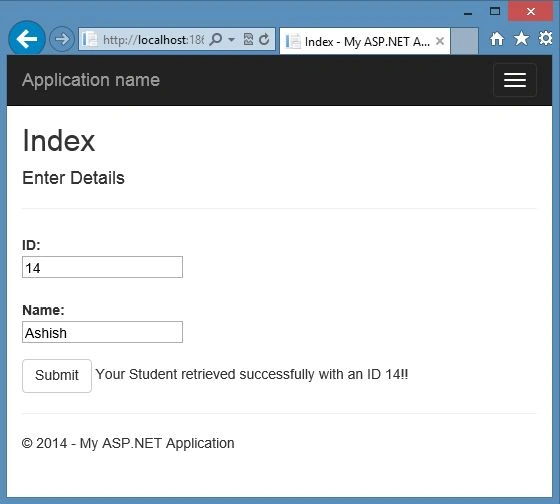
Step 4: Run the application and open the Index view of your controller. Enter some data and you can see the following screenshot while clicking on "Submit".
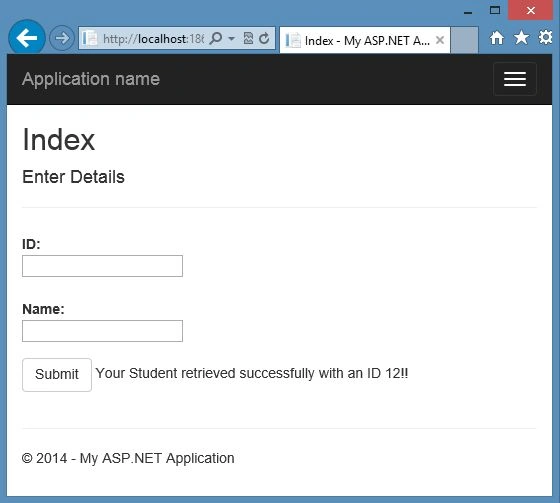
Binding with Simple Types
As you know the DefaultBinder object handles the default Model Binding. The MVC provides the System.Web.Mvc.DefaultModelBinder that is used to work with the simple types or classes and collections. Let's see how it works.
Step 1: Modify the Index() in your controller with the following code:
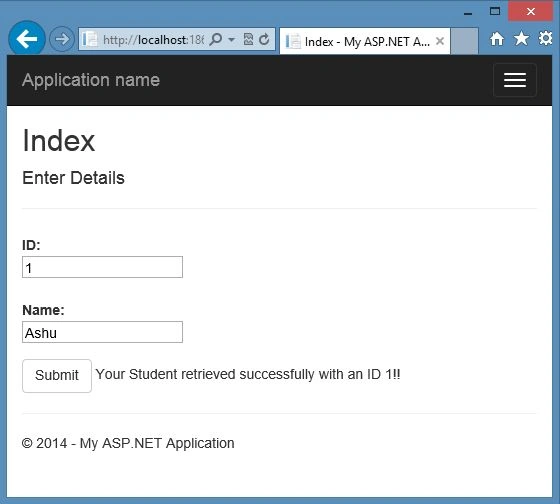
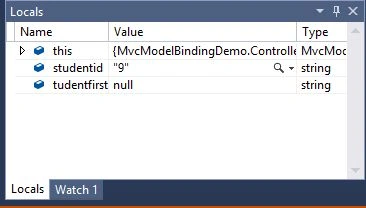
Priyanka KalePosted Feb 14, 2018, 3:00 AM
I've noticed that while I can override by model with the ModelBinderAttr, but the default model type is invoked for things like arrays of your models. What is the best way to override the ModelBinder for arrays?
Sharath KurupPosted Oct 25, 2016, 3:08 AM
After creating class properties I use list<classname> to assign values from sqldatareader to display values in view. It gives an error of "object not set to an instance" or "nullreferenceerror". When I created class objects and implemented in above method it works. Is it appropriate to create class and properties then class objects. Is there any other way to display data in view from Stored Procedure without EF.
Ritesh SinghPosted Aug 9, 2016, 8:29 AM
Nice
Asfend YarPosted Mar 12, 2016, 3:09 PM
good
Sr KarthigaPosted Feb 21, 2016, 11:19 PM
nice one
Sr KarthigaPosted Feb 21, 2016, 11:19 PM
Nice explanation