

In my previous article on Microsoft Azure Cognitive Services, we saw how to register for Microsoft Cognitive Services and how we can use Face and Emotional APIs. In this article, we will see how we can use Translator Speech API and what its features are.
As per Microsoft,
Microsoft Translator Speech API is a cloud-based automatic speech translation (also known as machine translation) service. The API enables developers to add end-to-end, real-time, speech translations to their applications or services.
Reference - https://azure.microsoft.com/en-us/services/cognitive-services/translator-speech-api/
Features
There are 3 tasks that we can perform with Translator Speech API.
- Extend the reach of applications
We can run our application across mobile, desktop, and web applications and can translate (to-and-from) ten languages using the open REST interface of Translator Speech API. - Transcribe and translate real-life conversation
We can add speech translation to our apps using the translation of real-life conversation. - Adapt to the application needs
Based on requirements, we can use one or more available outputs from the API, such as - partial transcriptions as you speak, partial text translations, final transcriptions, final text translation, or audio text-to-speech translation.
Assuming you have Azure Portal account, now we will see the settings in Azure Portal for Translator Speech API.
Click “AI+Cognitive Services” and select “Translator Speech API”. This will open a screen with a legal disclaimer. Read it carefully and click "Create".
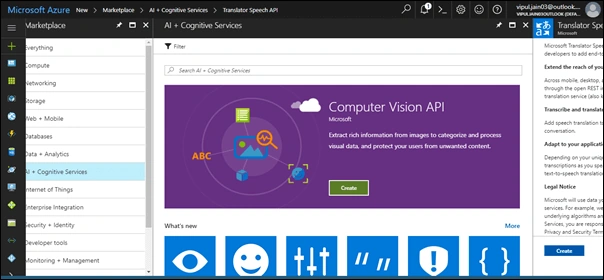
It will open a form having the following fields.
- Name
- Subscription
- Resource Group
- Resource Group Location
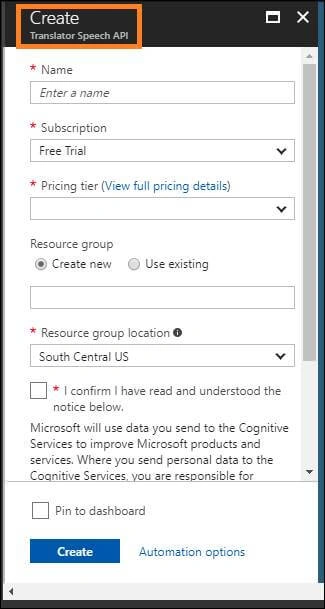
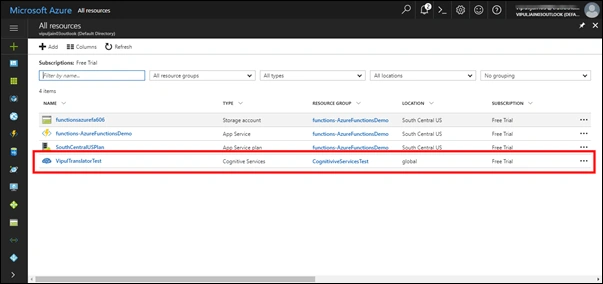
Once all the details are filled, click on the "Create" button and you can see the created resource under “All Resources” (I have created it with the name VipulTranslatorTest, as shown below).
Click "Overview" which will list all the details associated with the Translator Speech API. (Endpoint is the base URL of RESTful Translator Speech API provided by Microsoft).
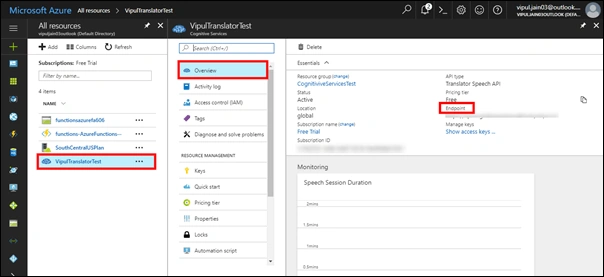
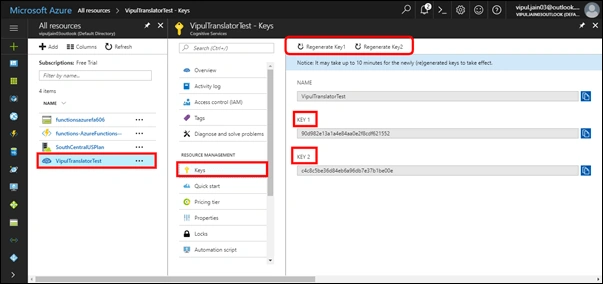
Click on "Keys" under Resource Management. This will show the details of Key 1 and Key 2, which will be required in the application to use Translator Speech API.
We can also regenerate the keys by clicking "Regenerate Key" option available.
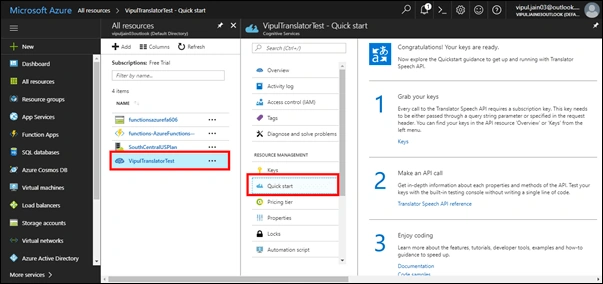
For a quick introduction to Translator Speech API, click on "Quick Start" as shown below.
Summary
In this article, we saw how we can generate Translator Speech API Keys using Microsoft Azure Cognitive Services.
Join the conversation! Your thoughts help the community grow.