

We can use JSOM for keyword query search in SharePoint 2013. I’ll explain the basics of this using CEWP and jQuery.
Prerequisites: Search should be configured and working in the system.
Solution
- Create a web part page in your SharePoint 2013 or Office 365 SharePoint Site.
- Add Content Editor web part on the page.
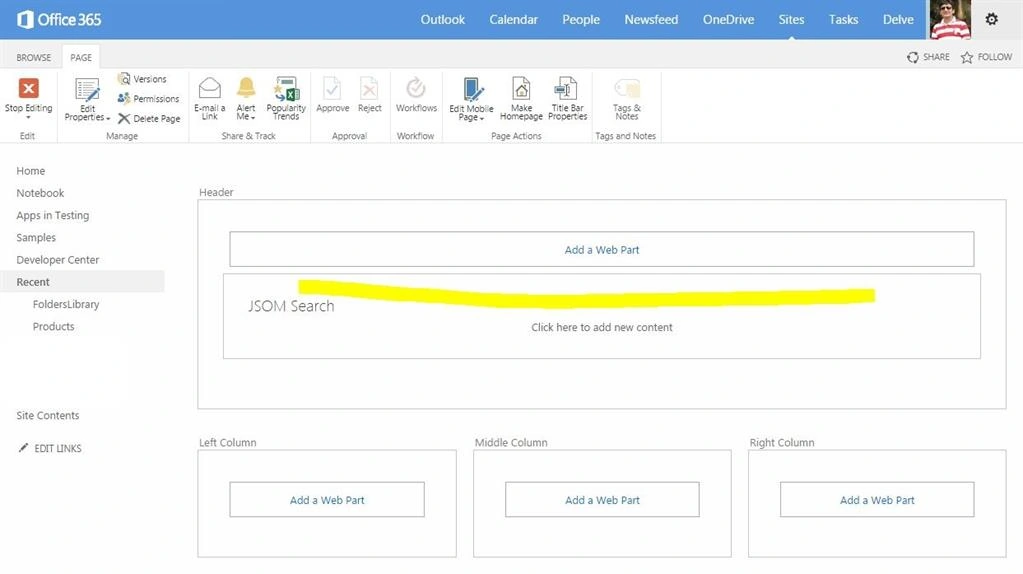
Figure 1: JSOM Search
- Open any text editor/visual studio and write JS file ‘Search_JSOM.js’, code is shown here:
- <script src=”//ajax.googleapis.com/ajax/libs/jquery/1.11.1/jquery.min.js”></script>
- <script type=”text/javascript” src=”/_layouts/15/sp.runtime.debug.js”></script>
- <script type=”text/javascript” src=”/_layouts/15/sp.js”></script>
- <script type=”text/javascript” src=”/_layouts/15/SP.RequestExecutor.js”></script>
- <script type=”text/javascript” src=”/_layouts/15/SP.search.js”></script>
- <style>
- table.sresult, th.sresult , td.sresult {
- border: 1px solid grey;
- border-collapse: collapse;
- padding: 5px;
- }
- table.sresult tr:nth-child(odd) {
- background-color: #f1f1f1;
- }
- table.sresult tr:nth-child(even) {
- background-color: #ffffff;
- }
- </style>
- <script type=”text/javascript”>
- $(function ()
- {
- var results;
- $(“#btnSearch”).click(executeSearch);
- $(“#btnSearch”).button();
- });
- //SERCH FUNCTION
- function executeSearch(event)
- {
- var appweburl = _spPageContextInfo.siteAbsoluteUrl;
- var clientContext = new SP.ClientContext(appweburl);
- var keywordQuery = new Microsoft.SharePoint.Client.Search.Query.KeywordQuery(clientContext);
- keywordQuery.set_queryText($(“#searchTextBox”).val());
- var searchExecutor = new Microsoft.SharePoint.Client.Search.Query.SearchExecutor(clientContext);
- results = searchExecutor.executeQuery(keywordQuery);
- clientContext.executeQueryAsync(onQuerySuccess, onQueryFailed);
- }
- function onQuerySuccess(sender, args)
- {
- $(“#result_box”).empty();
- var table = $(“
- <table class=’sresult’>”, { ID: “resultsTable” });
- table.append($(“
- <thead>”)
- .append($(“
- <td>”).text(“Title”))
- .append($(“
- <td>”).text(“Path”))
- .append($(“
- <td>”).text(“Owner”))
- .append($(“
- <td>”).text(“Modified”)));
- $.each(results.m_value.ResultTables[0].ResultRows, function ()
- {
- table.append($(“
- <tr>”)
- .append($(“
- <td>”).append(this.Title))
- .append($(“
- <td>”).append(this.Path))
- .append($(“
- <td>”).append(this.Author))
- .append($(“
- <td>”).append(this.Write)));
- });
- $(“#result_box”).append(table);
- }
- function onQueryFailed(sender, args) {
- $(“#result_box”).empty();
- $(“#result_box”).text(“Error: ” + ‘Request failed. ‘ + args.get_message() + ‘\n’ + args.get_stackTrace());
- }
- </script>
- <div>
- <label for=”searchTextBox”>Search: </label>
- <input id=”searchTextBox” type=’text’ style=”width: 200px”></input>
- <input id=”btnSearch” type=’button’ style=”width: 100px” value=”Search”></input>
- <br/>
- <div id=”result_box”></div>
- </div>
JS explained
JS starts with required script references (jQuery, sp.js, sp.search.js etc.) and style for search results table. Followed by javascript function ‘executeSearch’ to get client context, read ‘keyword’ and then execute search query on keyword. ‘onQuerySuccess’ function will handle success case and create a table with search results that will be displayed on the page. ‘onQueryFailed’ will display error message if ‘executeQueryAsync’ fails. Finally a text box to provide ‘keyword’, button to search and div for search results are added as html.
Now upload this ‘Search_JSOM.js’ to site assets or any other library of SharePoint site.
Edit Content Editor Web part on page and provide URL of ‘Search_JSOM.js’ file as Content Link. Save the page, it will look like the following:
JS starts with required script references (jQuery, sp.js, sp.search.js etc.) and style for search results table. Followed by javascript function ‘executeSearch’ to get client context, read ‘keyword’ and then execute search query on keyword. ‘onQuerySuccess’ function will handle success case and create a table with search results that will be displayed on the page. ‘onQueryFailed’ will display error message if ‘executeQueryAsync’ fails. Finally a text box to provide ‘keyword’, button to search and div for search results are added as html.
Now upload this ‘Search_JSOM.js’ to site assets or any other library of SharePoint site.
Edit Content Editor Web part on page and provide URL of ‘Search_JSOM.js’ file as Content Link. Save the page, it will look like the following:
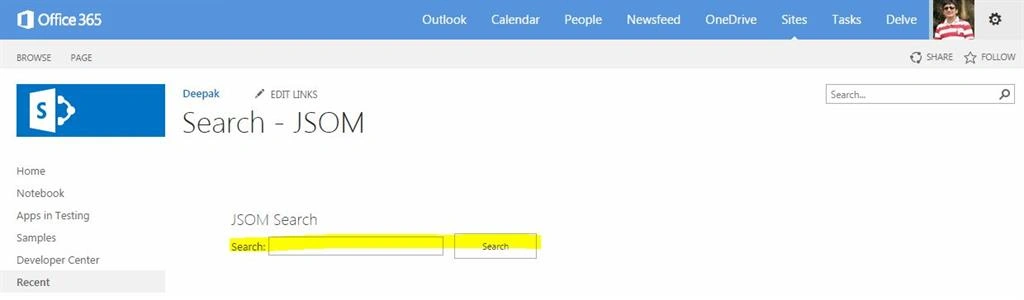
Figure 2: Content Editor
Enter a valid text that exists in SharePoint and already crawled, and click on search button; relevant results will be displayed as a table.
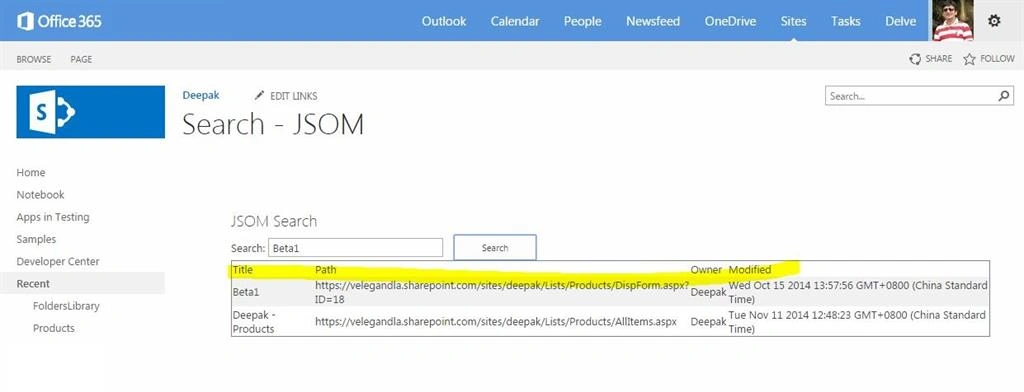
Figure 3: Valid Text
Namita BhoiPosted Apr 10, 2018, 4:56 AM
Hi Deepak, Thanks for the post. My requirement is after getting the result collection, I have to download the same to a LAN folder. Please help how to get that.
Venkateswarulu SammitiPosted Oct 11, 2017, 6:13 AM
<!DOCTYPE html><html> <head> <style type="text/css"> #arsite-cse-box-1 .cse .gsc-control-cse, #arsite-cse-box-1 .gsc-control-cse { background-color: transparent; border: 0; } #table01{ width: 400px;} input[type=text]:focus { border: solid 1px #060606 !important; } input[type=button]:hover { border: solid 1px #060606 !important; background-color: #1a6600 !important; } #searchBox{ background-color: white; font-size: 16px; font-family: Arial, sans-serif; border: 1px solid #BBB; height: 20px; width: 220px; margin-left: 19px; margin-right: -11px; } #searchBtn{ font-family: Arial, sans-serif; font-size: 11px; color: #fff; font-weight: bold; padding: 0 8px; height: 27px; min-width: 54px; background-color: #cccccc; border: 1px solid #ccc; border-radius: 2px; -moz-border-radius: 2px; -webkit-border-radius: 2px; } ::-webkit-input-placeholder { font-size: 8pt !important; color:#bfbfbf !important; } ::-moz-placeholder { font-size: 8pt !important; color:#bfbfbf !important;} :-ms-input-placeholder { font-size: 8pt !important; color:#bfbfbf !important;} input:-moz-placeholder { font-size: 8pt !important; color:#bfbfbf !important;} </style> </head> <body> <script type="text/javascript"> function RedirectUrl2() { var cs = document.getElementById("searchBox").value; var url = ''; url = "FilterName=search&FilterMultiValue=*" + cs + "*"; javascript:displayLayover("/Lists/iPeople/iPeople.aspx?" + url); }; </script> <script> (function() { var cx = '014834489925281405835:dcnobxf-xqk'; var gcse = document.createElement('script'); gcse.type = 'text/javascript'; gcse.async = true; gcse.src = 'https://cse.google.com/cse.js?cx=' + cx; var s = document.getElementsByTagName('script')[0]; s.parentNode.insertBefore(gcse, s); })(); </script> <table id="table01"> <tr> <td style="text-align: center;"><a href="https://www.google.com" target="_blank"> <img src="https://iportal.ahi-carrier.gr/SiteAssets/google_small.png" width="55" height="55"></img></a> </td> <td> <div id="arsite-cse-box-1"> <gcse:search></gcse:search> <div> </td> </tr> <tr> <td style="text-align: center;"><a href="https://iportal.ahi-carrier.gr/SitePages/iPeople.aspx"> <img src="https://iportal.ahi-carrier.gr/SiteAssets/SitePages/iPeople/iPeople.png" width="55" height="55"></img></a> </td> <td> <div onkeydown="javascript:if (event.keyCode == 13) return RedirectUrl2()"> <input id="searchBox" type="text" placeholder="Search iPeople by Name or No." onfocus="this.placeholder = ''" onblur="this.placeholder = 'Search iPeople by Name or No.'" autocomplete="off"/> <input id="searchBtn" onclick="return RedirectUrl2();" type="button" value="Search"/> </div> </td> </tr> </table> </body> </html>
Venkateswarulu SammitiPosted Oct 11, 2017, 6:11 AM
In "Search" box i had search the data if data come but i have selected the country name i search the data is empty why
Venkateswarulu SammitiPosted Oct 11, 2017, 6:10 AM
I have a one doubt bro
Santhakumar MunuswamyPosted Sep 12, 2015, 3:12 AM
Thanks for nice article:)
Harshad PansuriyaPosted Sep 11, 2015, 3:10 AM
NIce Share
Jacob RobinsonPosted Sep 10, 2015, 10:41 AM
Nice One..
RakeshPosted Sep 10, 2015, 9:36 AM
Good Share sir
Karthikeyan KPosted Sep 10, 2015, 8:31 AM
Good one sir...Thanks for sharing
Pankaj Kumar ChoudharyPosted Sep 10, 2015, 8:08 AM
Nice Article Sir......
Sibeesh VenuPosted Sep 10, 2015, 8:07 AM
Nice Share
Rajeesh MenothPosted Sep 10, 2015, 7:38 AM
Nice Share
Prasham SabadraPosted Sep 10, 2015, 7:38 AM
Good one. Thanks for sharing!