Introduction
In my last article, we saw the controls to design our Windows Store application. In this article, we will follow the layout design guidelines provided by Microsoft for Windows Store applications. All the images for this article are taken from MSDN.
As a developer, we have to follow all the aspects of application development. For example, there is a wide range of monitor screens available in today's market. We must be careful to ensure our application looks good to the end-user by maintaining the application UI layout. In this article, we will go through some interesting and required points which we need to keep in mind while developing Windows Store applications.
What is Layout?
As a developer, I hope you understand what Layout is. The layout means the sizing and positioning of an application's objects and controls on the UI surface of our application. Applications usually consist of visual objects and controls to do something on it. Whenever we are thinking about layout then we must have at least one container control and inside that container control, we have some child objects/controls which built our application UI surface. As we know in the market there are various sizes of devices available. To provide a great application for the end-user we must ensure our application provides a great user experience for various devices. Since Microsoft has suggested multiple kinds of layouts we will see those layouts in the following.
Fixed Layout/Absolute Layout
From word fixed it is clear that it is a fixed layout and cannot be resized according to the screen. If we are targeting an application with a fixed size, for example, games, then we can use this fixed layout. Applications with a fixed layout cannot adapt to the screen size. This layout is designed using fixed pixel sizes. In applications like games this layout is often used because in that kind of application there are maximum-sized images and they are also limited in other words we are not adding some extra content to the application.
Dynamic/Adaptive Layout
As the name indicates, dynamic/adaptive means if the screen size changes then the objects available in the UI are also resized automatically. For Windows Store applications we have such built-in controls provided by Visual Studio which have this mechanism by default. Whenever the application changes the screen size then the controls and objects (Grid, LIstview, etc.) are automatically adapted to that screen size.
From the preceding discussion, I hope you are clear about the layout concept. Next, we will discuss what you should do when developing your Windows Store application.
View State
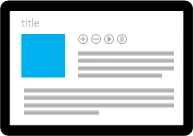
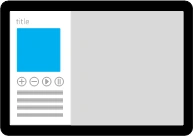
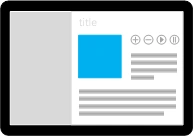
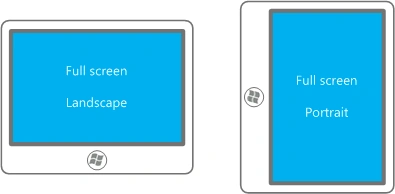
When you are developing your Windows Store application, take care of view state. View state refers to how your application will be displayed by the user on their devices. The user can act in three possible ways with your application. We will discuss those acts of the user.
Full View


Join the conversation! Your thoughts help the community grow.