

Introduction
In this article we will see how to create a layout for a view in MVC.
- Step 1
Create a MVC project from the "Empty" template.
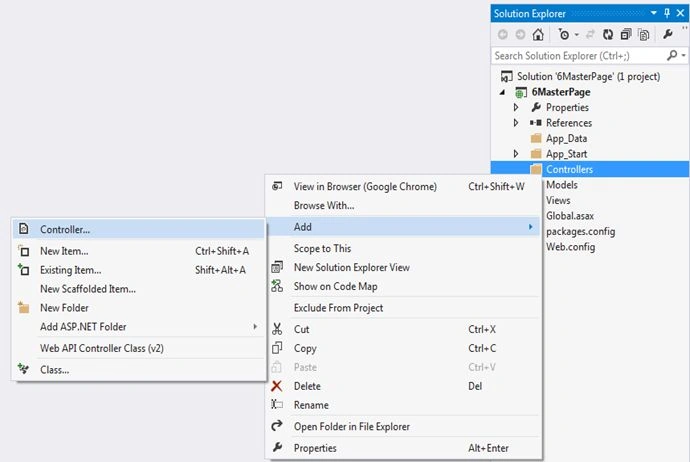
- Step 2
Select "MVC 5 Controller - Empty" to add an empty controller. Click on the "Add" button.

- Step 3
Name the controller as in the following:
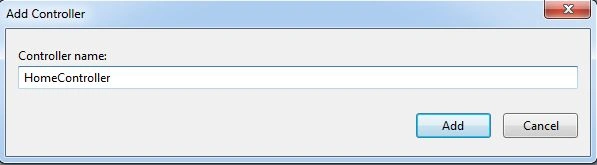
- Step 4
Right-click on "Index" and select "Add View...".

- Step 5
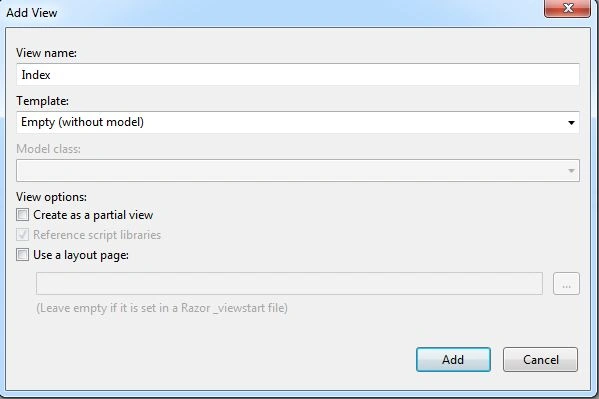
Name the view and select "Empty (without model)" as the template.
Click on the "Add" button.
- Step 6
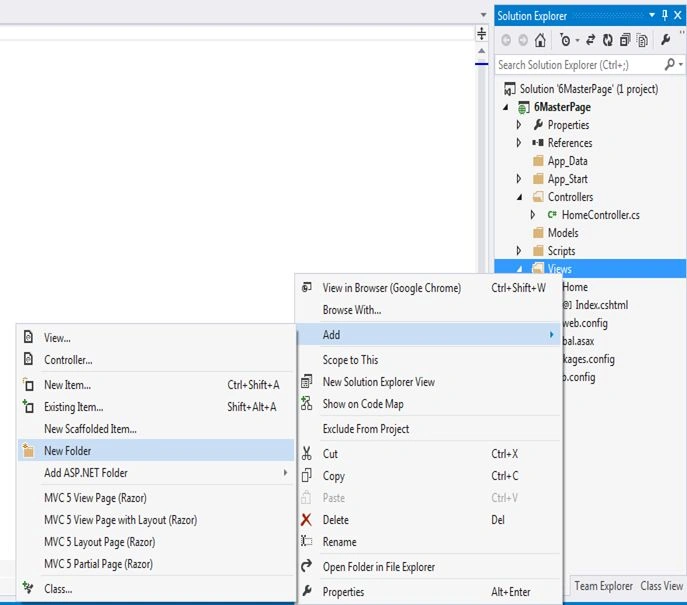
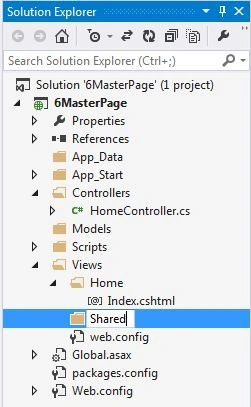
Right-click on "Views" and select "Add" >> "New Folder".
- Step 7
Name the folder as "Shared", this will create "Shared" folder under the view.
- Step 8
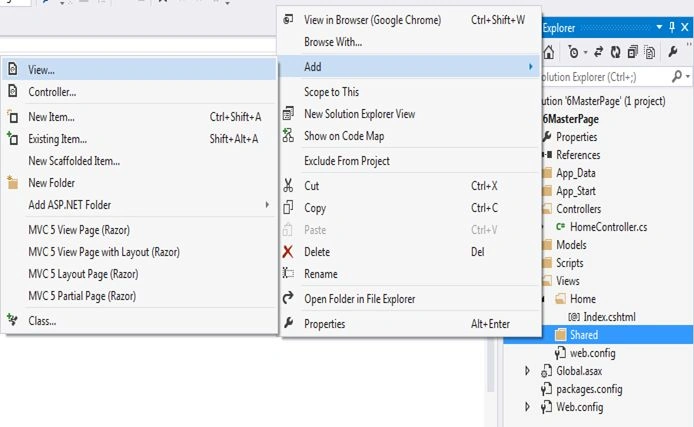
Right-click on the "Shared" folder and select "Add" >> "View…"
- Step 9

- Step 10
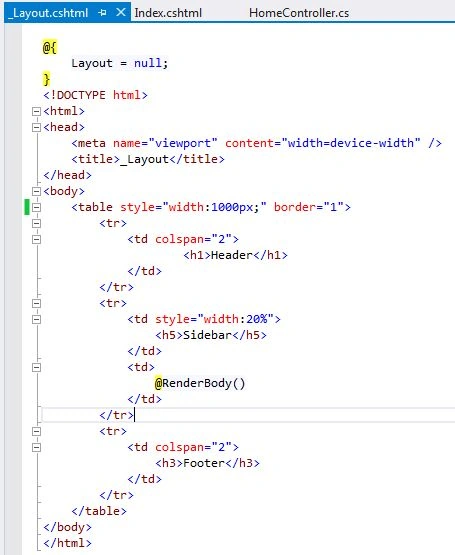
Design your desired layout in _Layout.cshtml.
Here we create a header, footer, side bar and content area. The header, footer and side bar should be shown in all pages, so we create them in _Layout.cshtml. The variable portion of the site is the content area, where content is changed dynamically. In ASP.NET we use a "ContentPlaceHolder", in the same way in MVC we use "RenderBody()".
- Step 11
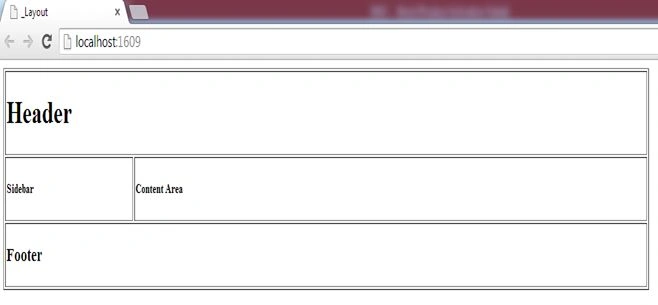
Attach a layout page to Index.cshtml. Set the link of _Layout.cshtml in Index.cshtml.
Add the content in the body part of Index.cshtml.

- Step 12
Lalit RaghavPosted Jun 24, 2015, 4:47 AM
Thanks Mr Akshay Patel
Gourav DwivediPosted Aug 2, 2014, 7:21 AM
I m waiting for some more tutorial for MVC...thanks in advance :)
Gourav DwivediPosted Aug 2, 2014, 7:20 AM
Nice