

In multinational organizations where everything is based on huge databases, there is always a chance of hardware failure. When that happens we need a backup server to which we can shift the data flow in and out. Transactional replication is the process that will update both servers simultaneously.
- Publisher
- Subscriber
- Distributor Database
Note: Dear readers, please ensure that you have installed the Microsoft Server operating system with SQL Server 2008 R2.
Configuring the Distribution Database
Step 1: Connect to the Microsoft SQL Server 2008 R2 Management Studio.
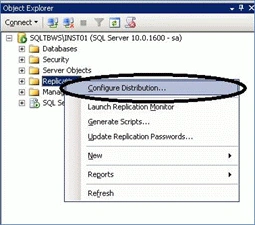
Step 2: Right-click on the "Replication" node and select "Configure Distribution" as shown in the screen capture below:
Step 3: It will open a new window on the screen as shown in the screen capture below:
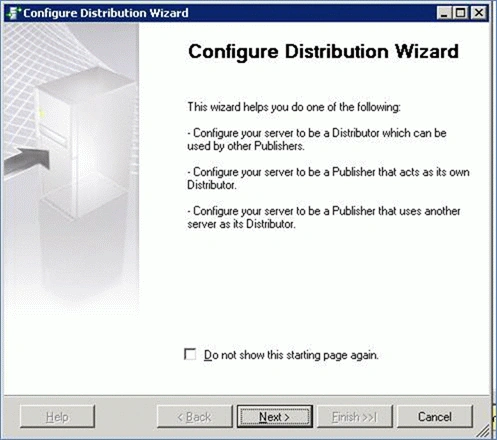
Step 4: Click the "Next" button.
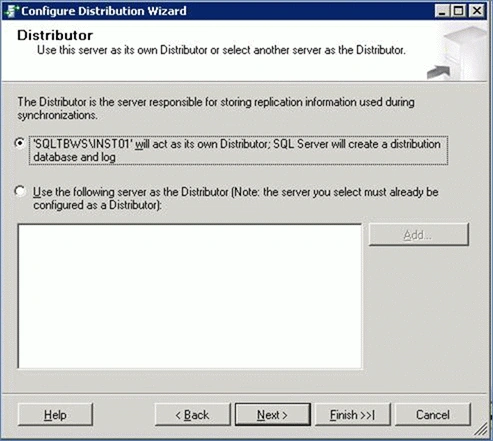
Step 5: In this phase we have selected the first option as shown in the picture.
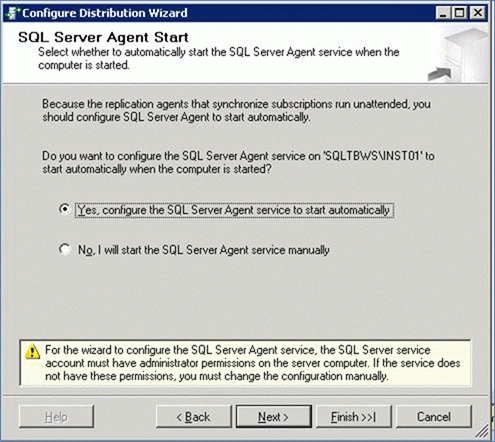
Step 6: Now we will select the "Yes" option and click the "Next" button.
Step 7: A new window appears on the screen as shown in the screen capture below:
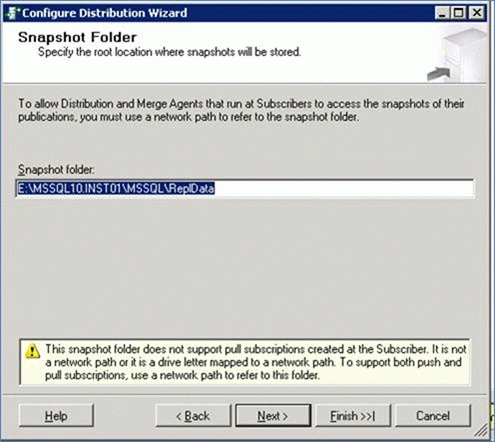
As you can see in the preceding screen capture, you are asked where the Snapshot folder should reside on the Server. Let us first understand what the Snapshot folder exactly is.
Step 8: A new window appears as shown in the screen capture below:
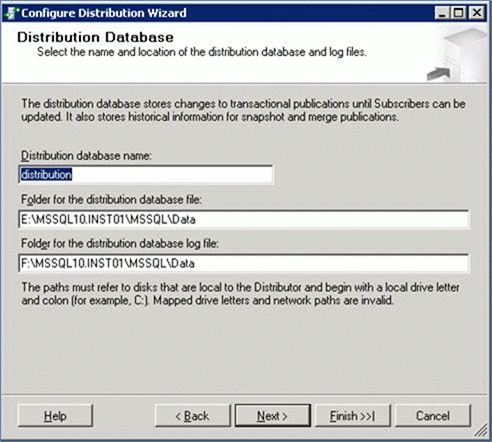
As you can see in the preceding screen capture, it displays information such as what will be the distribution database name, the location where the data and the log file will reside.
Step 9: A new window appears as shown in the screen capture below:
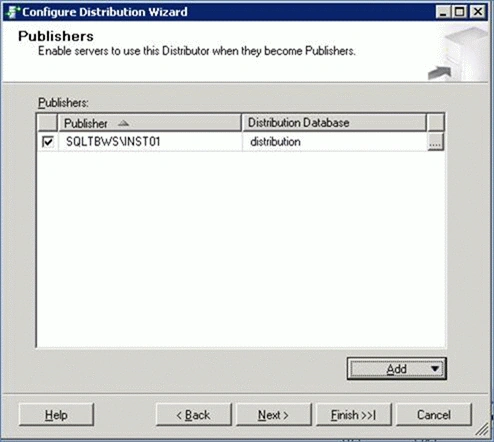
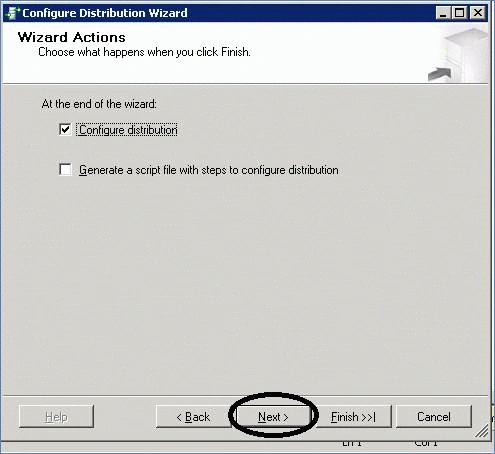
Step 10: Click on the "Next>" button as shown in the screen capture below:
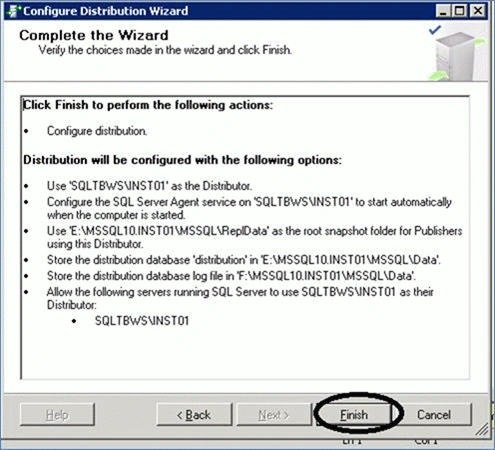
Step 11: Click on the "Finish" button as shown in the screen capture below:
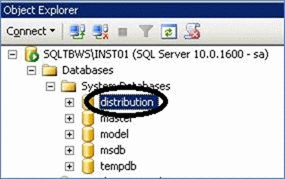
Step 12: Once done, a new database named "Distribution" gets created. In order to confirm it, just expand the System Database node and you will be able to view the distribution database, please refer to the screen capture below:
Publisher
Step 1: Dear reader, first of all we need to create to two databases, one on the main server and the other is on the backup server. In this example we will create two databases.
- Main database
- Secondary database
Both of these databases must have the same table structures.
Step 1: This exercise must be done on the Main Server.
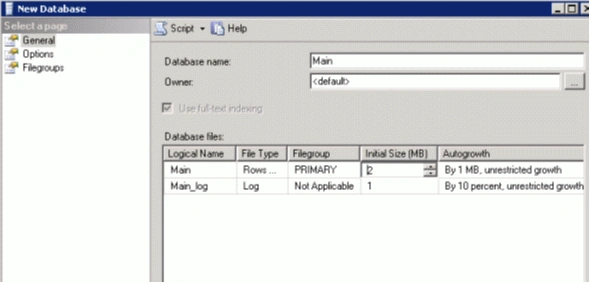
Step 2: Create the table on the main server.
CREATE TABLE [dbo].[Client_Profile](
[CPR_Client_Id] [varchar](16) NOT NULL,
[CPR_Client_Name] [varchar](100) NULL,
CONSTRAINT [PK_Client_Profile] PRIMARY KEY CLUSTERED
(
[CPR_Client_Id] ASC
)WITH (PAD_INDEX = OFF, STATISTICS_NORECOMPUTE = OFF, IGNORE_DUP_KEY = OFF,
ALLOW_ROW_LOCKS = ON, ALLOW_PAGE_LOCKS = ON, FILLFACTOR = 80) ON [PRIMARY]
) ON [PRIMARY]
Step 3: This exercise must be done on the Backup Server.
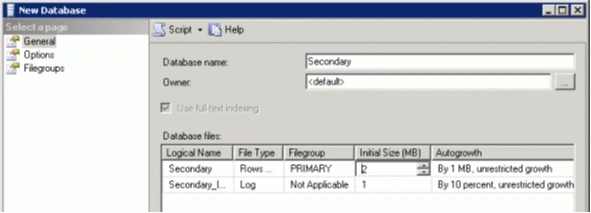
Step 4: Create the following table on the backup server.
CREATE TABLE [dbo].[Client_Profile](
[CPR_Client_Id] [varchar](16) NOT NULL,
[CPR_Client_Name] [varchar](100) NULL,
CONSTRAINT [PK_Client_Profile] PRIMARY KEY CLUSTERED
(
[CPR_Client_Id] ASC
)WITH (PAD_INDEX = OFF, STATISTICS_NORECOMPUTE = OFF, IGNORE_DUP_KEY = OFF,
ALLOW_ROW_LOCKS = ON, ALLOW_PAGE_LOCKS = ON, FILLFACTOR = 80) ON [PRIMARY]
) ON [PRIMARY]
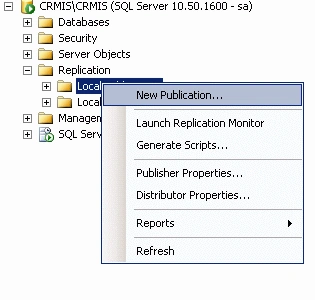
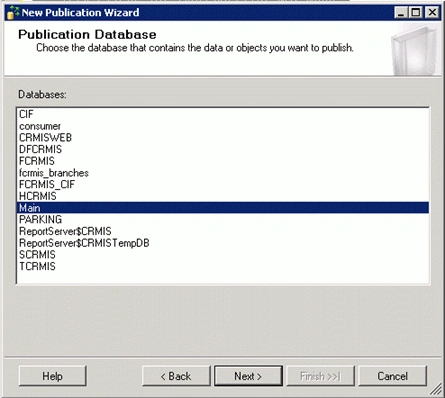
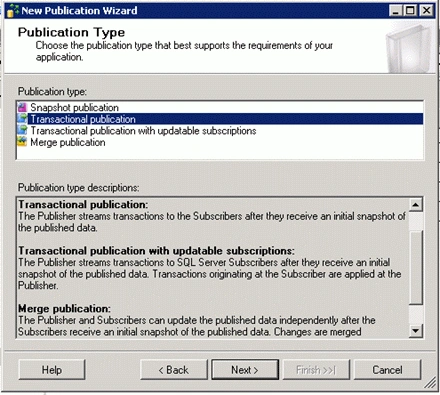
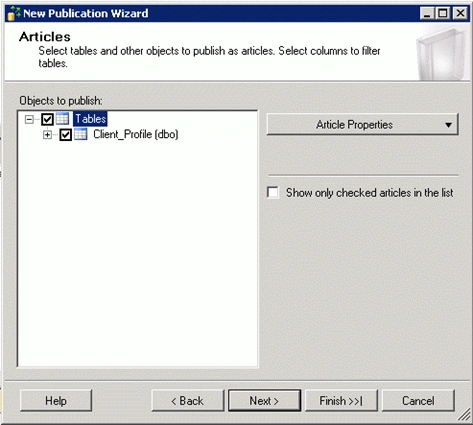
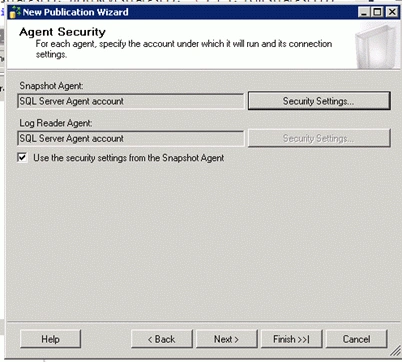
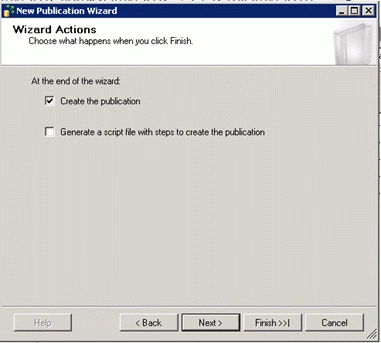
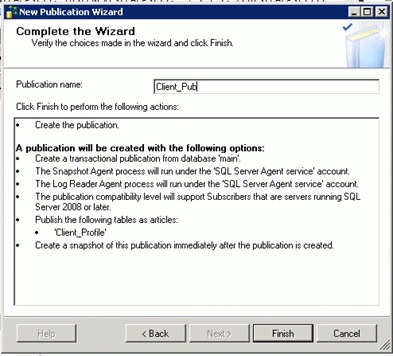
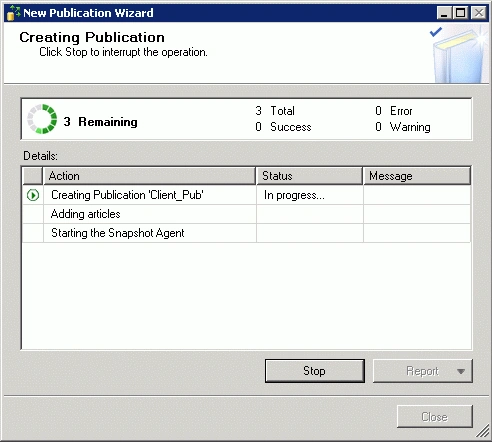
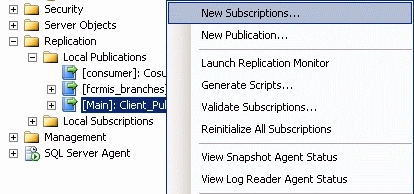
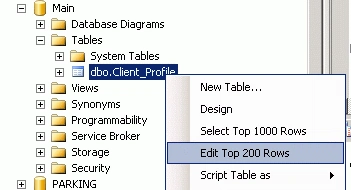
Step 5: Click on new publication
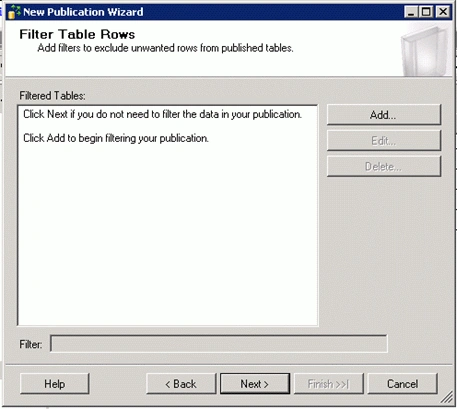
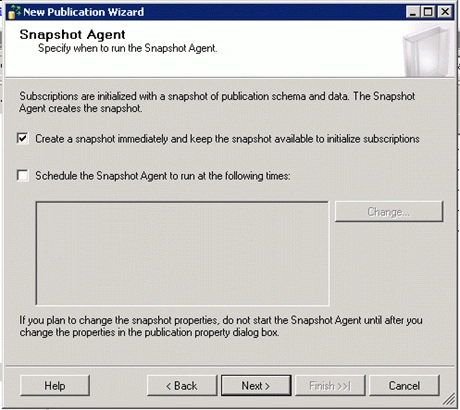
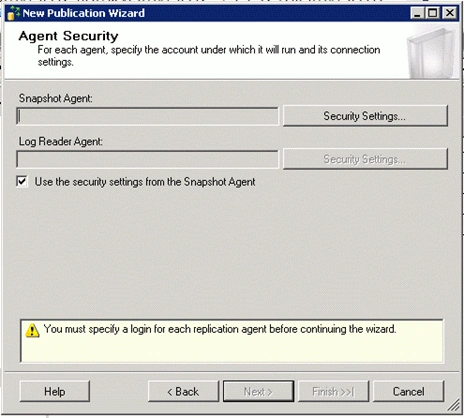
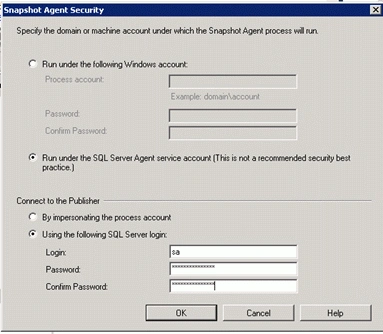
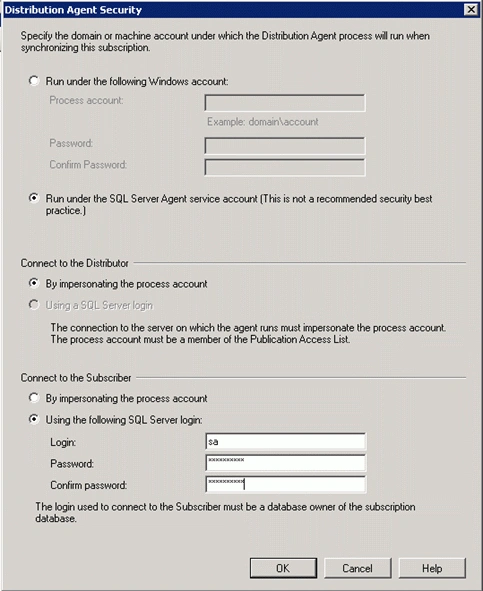
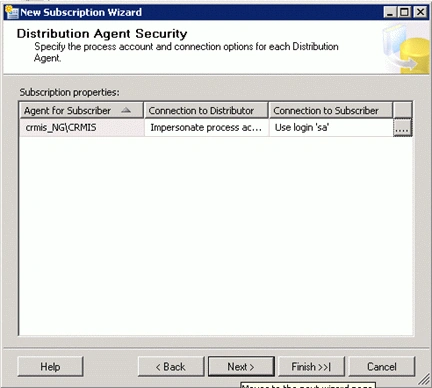
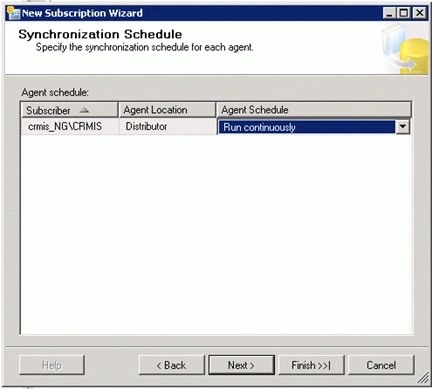
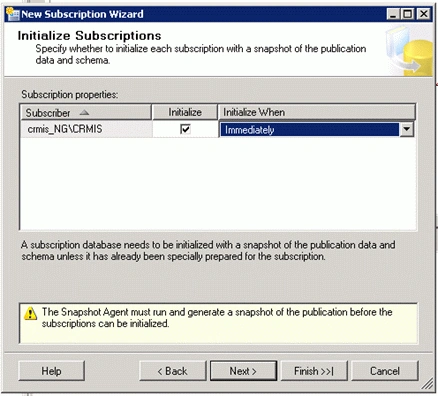
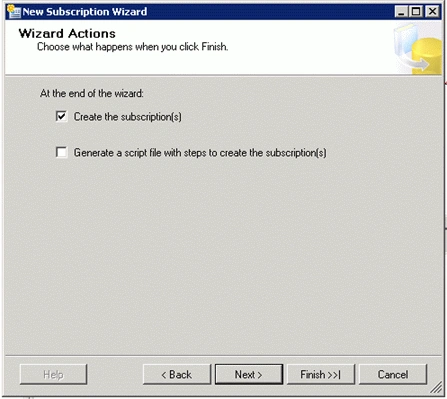
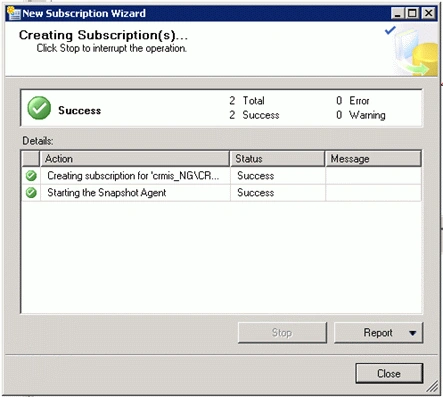
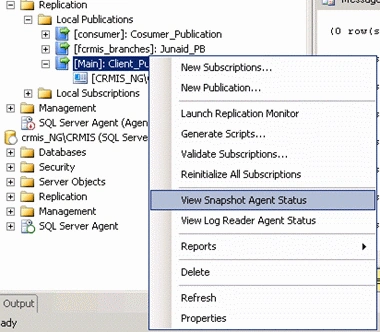
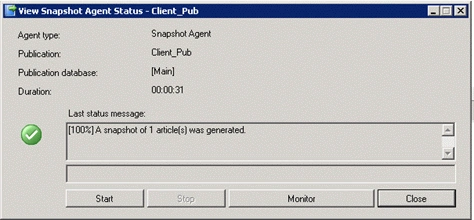
Join the conversation! Your thoughts help the community grow.