

Introduction
This is the second article in the Azure devops learning series. In this article, I will be covering Azure devops pipelines build and release pipeline. If you want to learn how to setup you project and devops account read my article:
CI/CD pipelines basics
The "CI" in CI/CD refers to continuous integration, which is an automation process to build, test, and merge to a shared repository. The CD in CI/CD refers to continuous deployment and is automatically releasing a developer’s changes from the repository to production, where it is usable by customers.
A CI/CD pipeline is a series of steps that must be performed in order to deliver a new version of software. The steps that form a CI/CD pipeline are distinct subsets of tasks grouped into what is known as a pipeline stage. Typical pipeline stages include,
- Build - The stage where the application is compiled.
- Test - The stage where code is tested. Automation here can save both time and effort.
- Release - The stage where the application is delivered to the repository.
- Deploy - In this stage code is deployed to production.
Azure Devops
Azure devops provide complete tool chain to manage, automate and deploy your build very easily and effectively.
Benefits of azure devops
- Any language any platform
- Containers and Kubernetes
- Very Extensible
- Deploy to any cloud
- Free for open source
Pipeline- Build CI
After login to the Azure devops and navigating to your project you will be able to see the left menu.
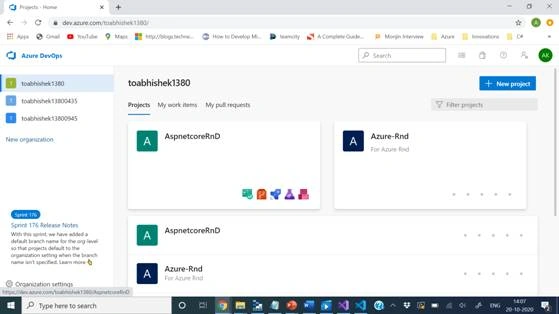
Click on the pipeline and you can see multiple option to choose from, click on the pipeline. You will see the below page after clicking on pipeline option from menu. In my case I have added a test project AspnetcoreRnDfor article which is web application using asp.net core 3.1.
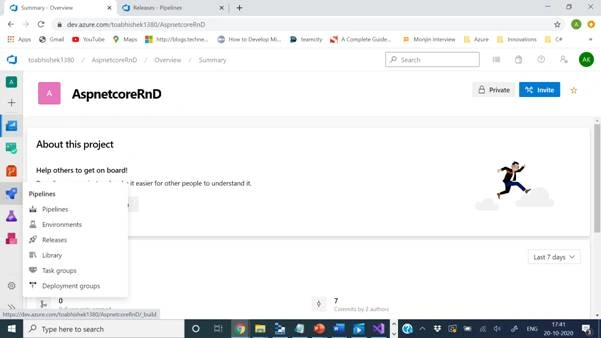
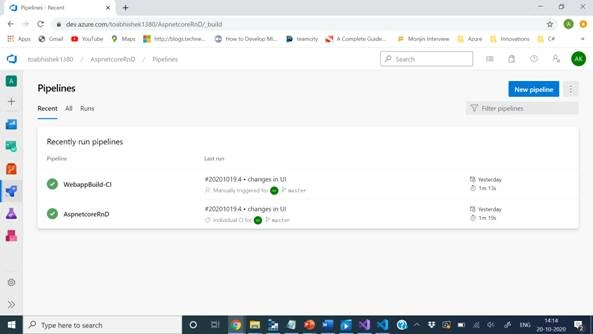
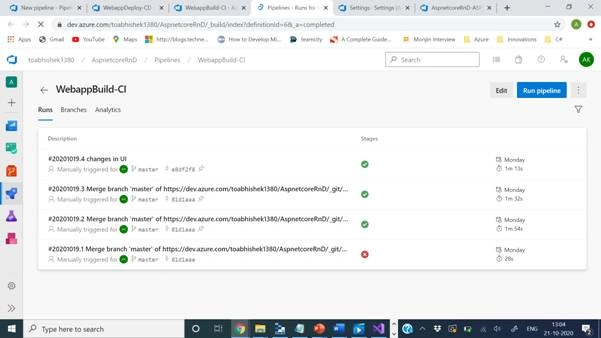
After clicking on the pipeline option from the menu you will be able to see a dashboard with an existing list of build pipelines. Here below you will be able to see two build pipelines.
Build pipeline is the tool chain which collects the latest changes from the repository and the branch and create a package to a location which can later pick up the release pipeline.
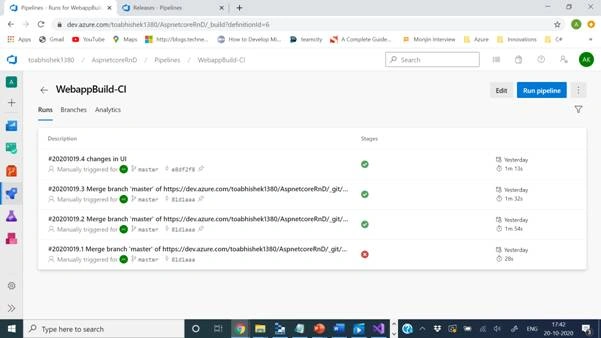
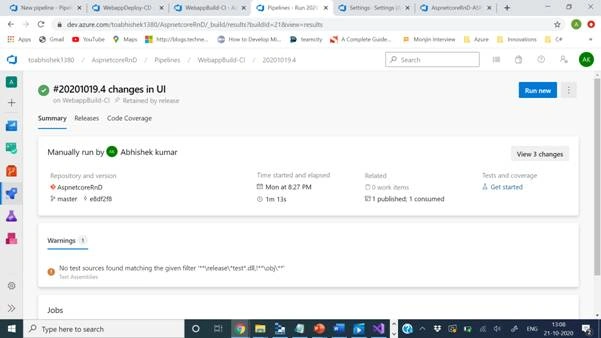
There is the option of creating a new pipeline or you can open the existing one from the list, there you can see the list of runs that pipeline has done previously, either pass or fail.
You can open the pipeline by clicking on edit the existing pipeline and this will be the interface where the list of tasks is, and every task has certain actions to perform.
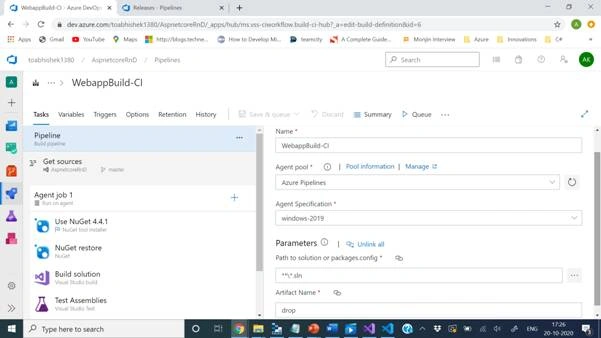
Let’s choose the option to create a new build pipeline by clicking on New Pipeline.
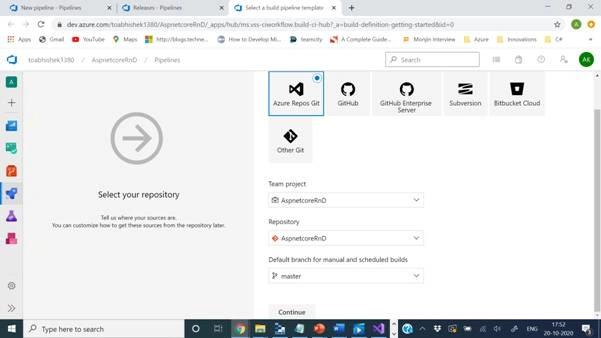
Below is the first screen. It will come with list of different pre-configured options of choosing repository and source control system. In my case I have chosen Azure Repos Git for collecting the latest changes.
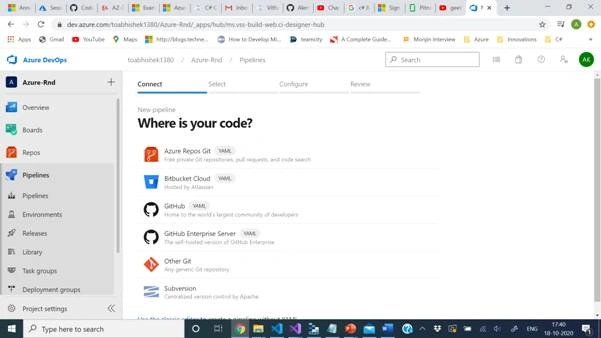
First question it asks is where is your code, meaning Azure devops need to know the repository address from where it can check the latest code to generate a build package for your deployment pipeline.
There is another option of opening classic Edition without YAML file fromwhere you can choose the repo, project and branch.
Next screen is where there is an option of choosing a remplate from the list or Empty one. Azure devops is the toolchain which gives you power to deploy any code from any language to any platform and Microsoft has created a lot of templates to start with. If you like to use your own then go for Empty job or YMAL one. In my case as my test app was in asp.net core 3.1 so I have chosen the below selected option from the list.
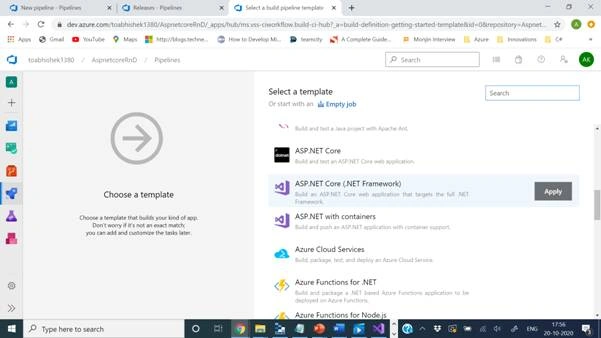
After applying this Template your page will look as below.
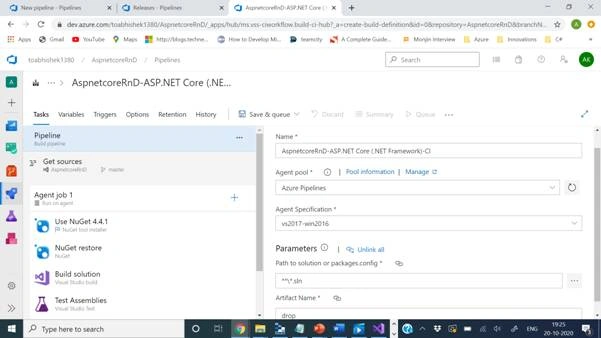
Task
You can setup you task where are multiple options with pipeline configurations
- Name
- Agent pool
- Agent Specifications
- Parameters
- Artifact Name
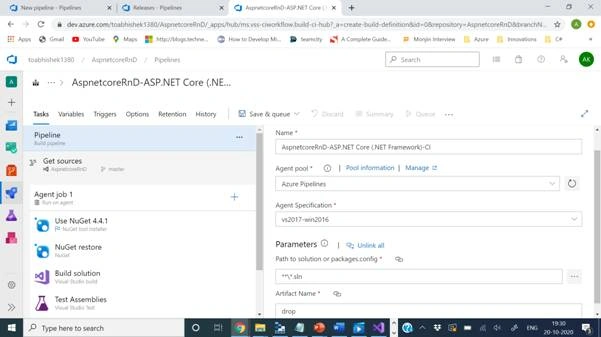
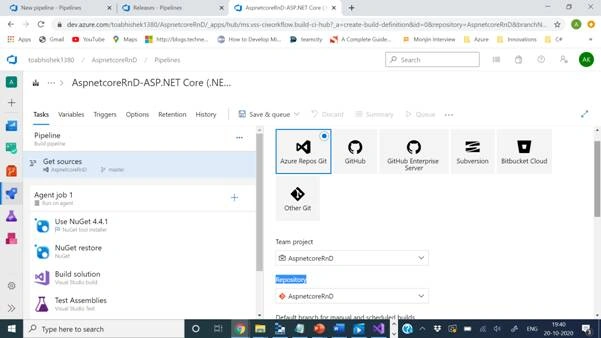
From here we can choose to change project, repository or branch from which we want build to be deployed.
Agent Job
Display name which you can change and agent pool which is by default <inherit from pipeline> I have kept it as it is, you can have your agent pool setting like the hosted one which you want to secure or manage.
NuGet tool installer
Acquires a specific version of NuGet from the internet or the tools cache and adds it to the PATH. Use this task to change the version of NuGet used in the NuGet tasks.
Nuget Restore
Restore, pack, or push NuGet packages, or run a NuGet command. Supports NuGet.org and authenticated feeds like Azure Artifacts and MyGet. Uses NuGet.exe and works with .NET Framework apps. For .NET Core and .NET Standard apps, use the .NET Core task.
Visual Studio build
Build with MSBuild and set the Visual Studio version property
Visual Studio Test
Run unit and functional tests (Selenium, Appium, Coded UI test, etc.) using the Visual Studio Test (VsTest) runner. Test frameworks that have a Visual Studio test adapter such as MsTest, xUnit, NUnit, Chutzpah (for JavaScript tests using QUnit, Mocha and Jasmine), etc. can be run.
Index sources and publish symbols
Index your source code and publish symbols to a file share or Azure Artifacts symbol server
Publish build artifacts
Publish build artifacts to Azure Pipelines or a Windows file share
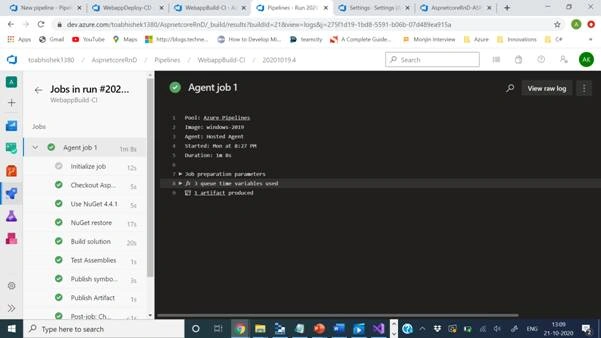
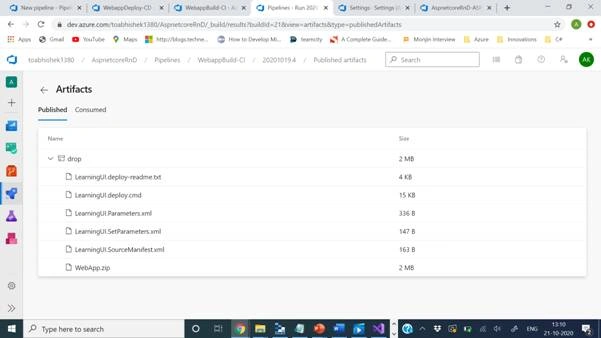
These are basic step which will restore the dependencies, build your project, run the test and generate and publish the build with a version at shared drop location
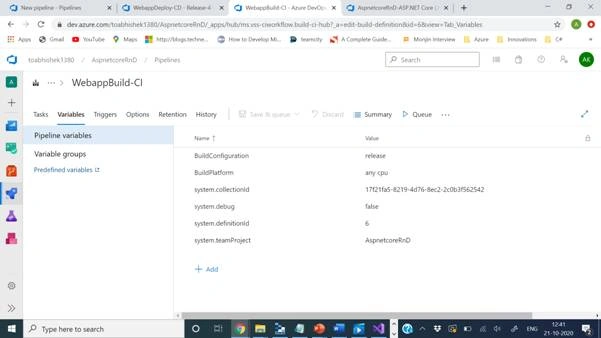
Variables
There is an option of Variables you can set up. I am going to cover the variables later in this article.
- Pipeline
- Variable groups
Jaimin ShethiyaPosted Dec 24, 2020, 12:32 PM
Nice one sir :)
Hamid KhanPosted Oct 27, 2020, 7:23 AM
Very Very Good explanation...........