

In this article we can explore the Leave Approval Scenario without using Workflows.
Scenario
The following are the users of the system:
- Manager (The Manager)
- Employee1 (An Employee)
- Employee2 (Another Employee)
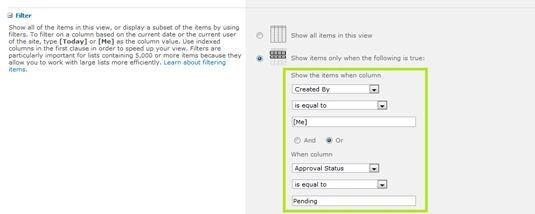
An employee can apply for a leave using the list named Leaves. The Manager has the right to approve or reject a leave application. The employees should not see the applications of other employees. How to do that?
Solution
We can have 2 approaches for a solution here:
- Use List Content Approval
- Use Approval Workflow
For simplicity's sake we are using the List Content Approval feature. The Workflow based solution can be used for more complicated scenarios.
The following are the steps involved in List Content Approval solution.
Create New Users
Create 3 new users for our purposes. If you are using the Windows 7 operating system then go to Control Panel > Users Accounts item.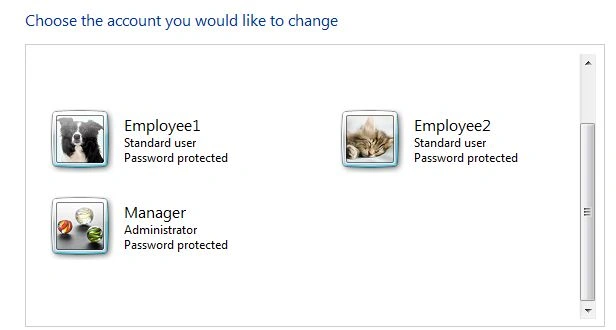
If you are using a Windows Server operating system then use the Active Directory section of the Server Manager application to add the new users.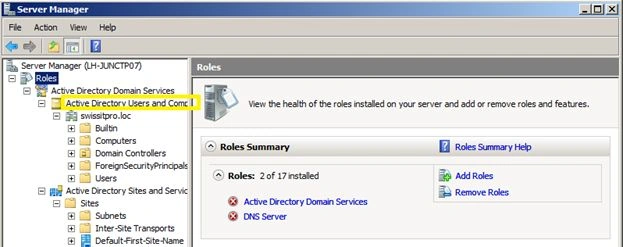
Create New Site Collection
After creating the users, create a new Site Collection from Central Administration. Set the Manager as the Primary Site Collection Administrator.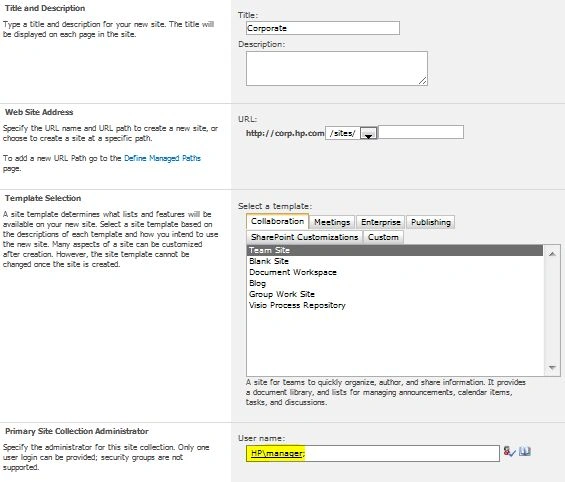
Note: Adding as Primary Site Collection Administrator makes the manager user into the Site Owners group in Site Permissions. The Owners should have permissions to change the settings for lists, views etc.
Assign Site Permissions
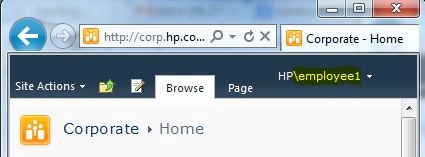
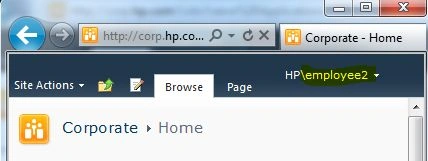
After creating the site collection, open the new site using the URL. Sign in as the user manager.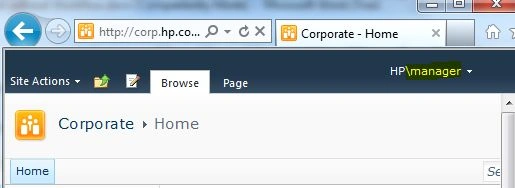
Go to Site Actions > Site Permissions and open the Members group.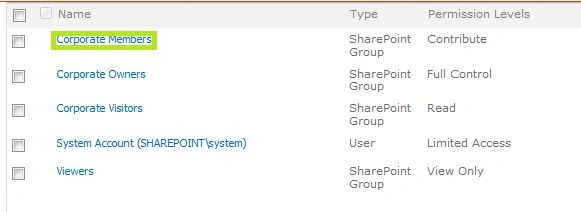
Add the other 2 users (employee1, employee2) into this group using the New > Add Users menu item. After adding the 2 users the list should look like: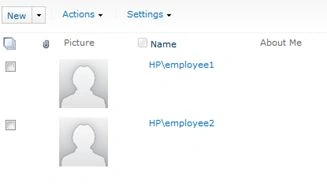
Now these users should be able to view the lists and libraries inside the site collection.
Create New List
Now perform the following:
- Open the Site Collection using URL
- Sign in as the Manager user
- Create a custom list named Leaves
- Add the following columns into the List:
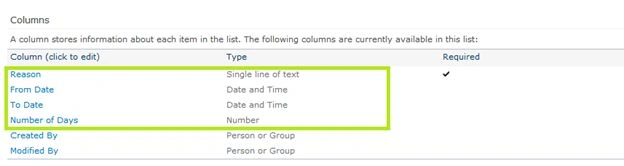
You can see that the Created By and Modified By columns are automatically added and represents our employee who applied for the leave.
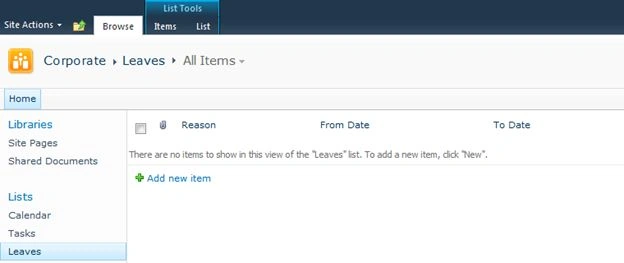
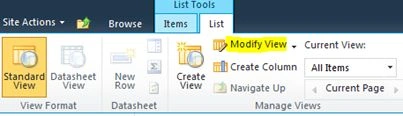
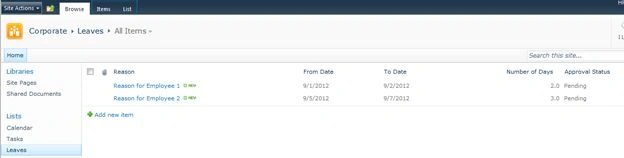
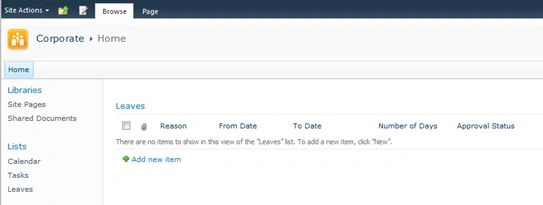
The following is the default view of the List:
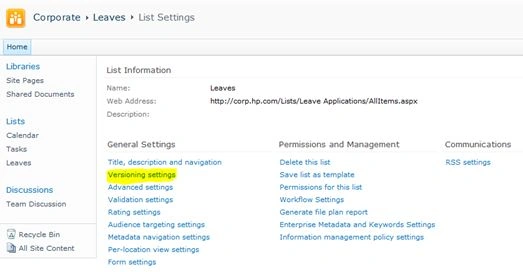
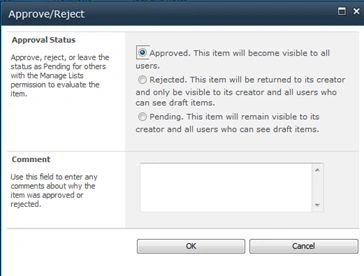
Enable Content Approval
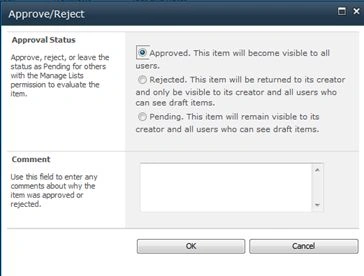
This is the core part of the article and we are going to enable the Content Approval feature of SharePoint 2010. On enabling this feature the List item will have:
- A new column named Approval Status (Pending, Approved, Rejected)
- A notification send to Manager when an item is created for Approval
- A notification send to Employee when an item is Approved or Rejected






Jean PaulPosted Sep 3, 2012, 2:25 PM
You are Welcome my dear Venkatesh!
Venkatesh KumarPosted Sep 3, 2012, 8:39 AM
Using content approval instead of workflow is simple and good idea. Thanks for sharing.