

Overview
Thank you to those who sent emails and commented on the previous article. It's always nice to know the information being presented is useful.
This is the second half of our article on TreeView and ListView controls in .NET. The previous article dealt with the creation of the main window and the TreeView control. In this article we will expand the coding to utilize a ListView control. What we will be doing is presenting a directory tree in the left side of our page using the TreeView control. When we select a directory we want the right side of the screen to display the contents of that directory using the ListView control we will add now.
To refresh we left screen with the following display
Let's begin updating the existing project with our ListView control.
ListView Control
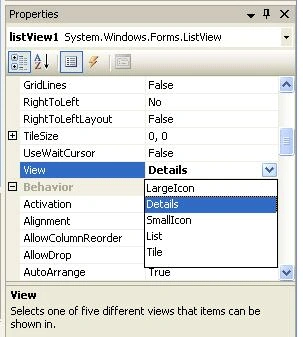
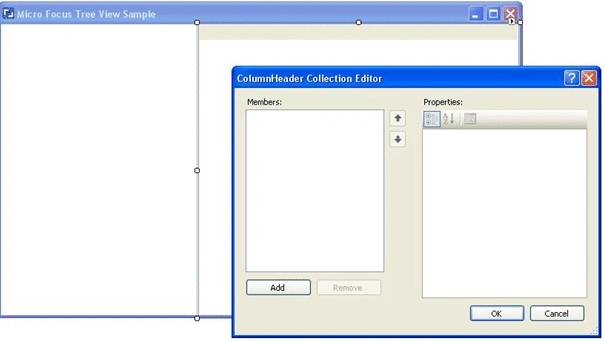
We begin by dragging a ListView control from the Toolbox onto the right side of our form and sizing it appropriately. Your screen should look similar to the following: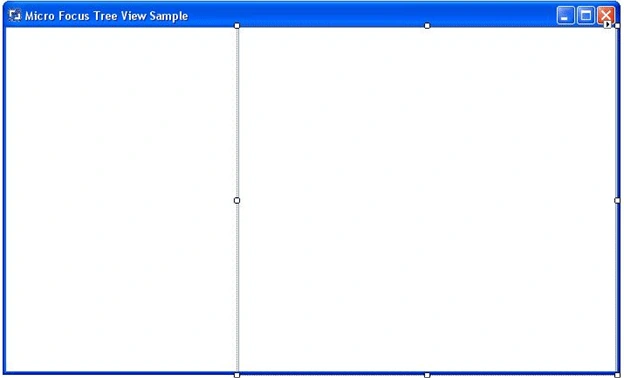
I used the default properties of the control. That's the last control we have to add to our form. The remaining pieces of the puzzle are all code based.
The NodeMouseClick Event
When a node in the TreeView is clicked it generates an event which starts the process of displaying the contents in our ListView control. The event is called the NodeMouseClick and we need to build a method to handle that event. To begin with, select the TreeView, right mouse click and select Properties. If you are working with the default installation of Visual Studio the properties window will be displayed in the lower right corner of Visual Studio. We however aren't interested in modifying the properties of the TreeView, we want to create an event. Select the Events tab and the display will be updated to show the events associated with a TreeView control as below. Using the slider locate the 'NodeMouseClick' event. Notice there is no entry for the method name. 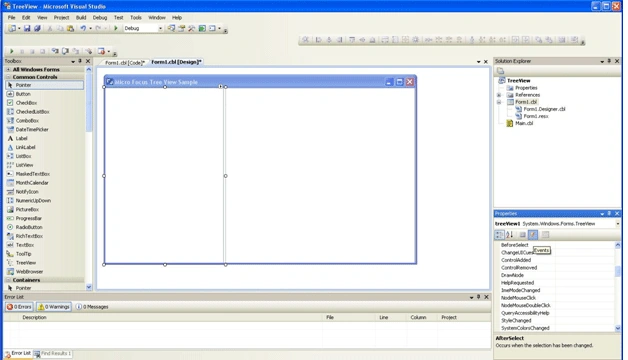
Double click on the 'NodeMouseClick' event and a new method will be created
I updated the method signature by inserting a return after the word 'object' to make it easier to read in the article.
We'll begin by creating some Working-Storage variables. Our completed Working-Storage Section looks like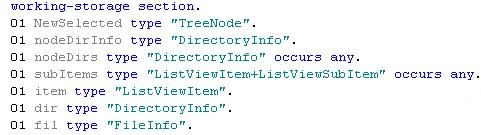
The variables are defined as
| Variable | Definition |
| NewSelected type "TreeNode" | The tree node being selected |
| nodeDirInfo type "DirectoryInfo" | The directory information of the node being selected |
| nodeDirs type "DirectoryInfo" occurs any | An array of sub-directories present in the selected node |
| subItems type "ListViewItem+ListViewSubItems" occurs any | An array of the items contained in the sub-directories found in the node selected |
| item type "ListViewItem" | The item being explored |
| dir type "DirectoryInfo" | Directory information for the folder being parsed |
| fil type "FileInfo" | The file information for the item being parsed |



Sr KarthigaPosted Feb 14, 2016, 12:24 AM
Good one
Rick MalekPosted Jul 19, 2010, 10:09 AM
Manuel, I have to apologize for my earlier comment. Visual COBOL is 100% backward compatible. Any project made with a previous version of Micro Focus .NET COBOL should be upgradeable to Visual COBOL. I just tested the ListView project out with Visual COBOL and it worked fine. If your example did not work please email me and we'll take a look at what's going on. My apologies for the earlier in-correct post.
MANUEL GUEVARAPosted Jul 15, 2010, 2:24 PM
I download this sample and does not works, I have trial version of visual cobol.