

Introduction
Magnifier Tool is a very useful tool for users and it is provided by Windows 10 also.
Step 1
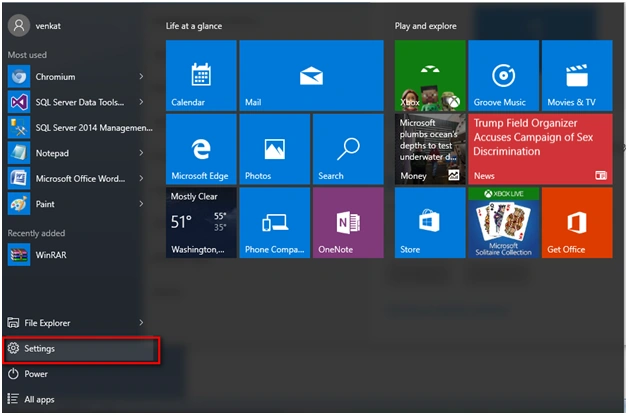
Go to Settings option in Windows 10.
Step 2
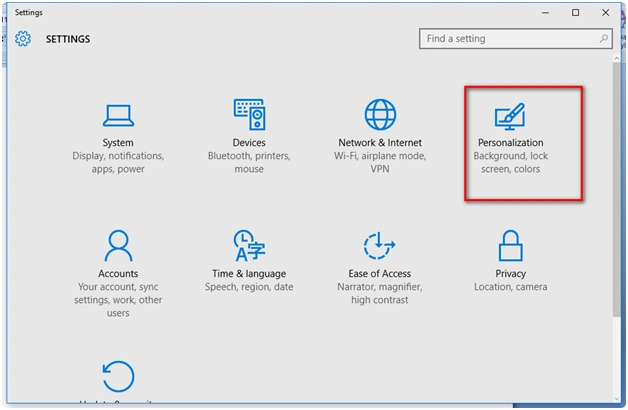
Under "Settings" tab go to "Personalization" option.
Step 3
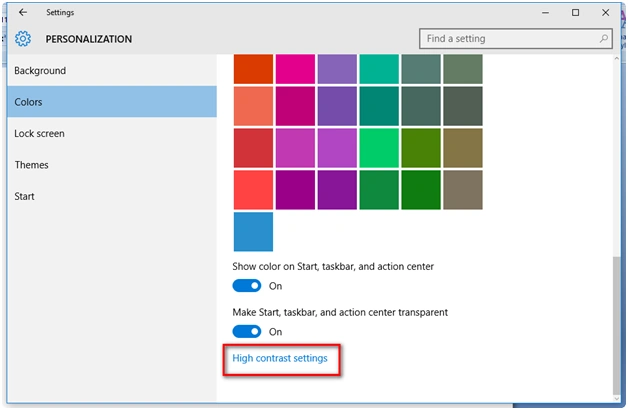
Under "Settings" tab, go to Personalization, then Colors and click "High contrast settings".
Step 4
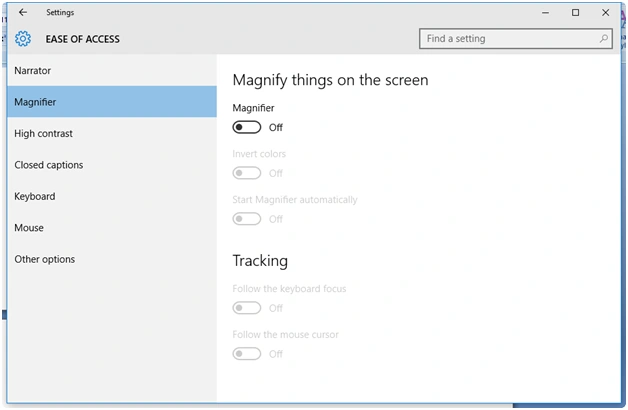
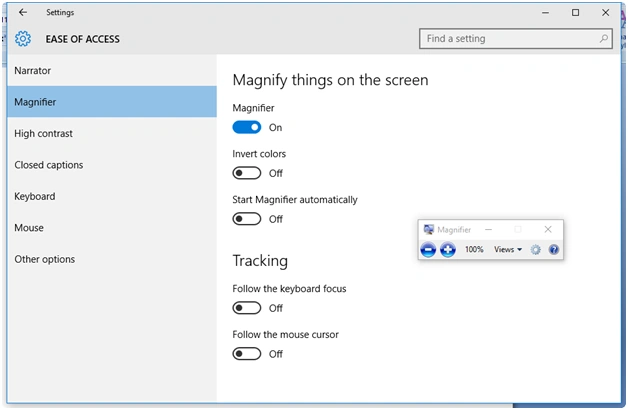
You can see the option "Ease of Access", here Magnifier option is available and you can set the option to "On" and "Off".
Step 5
Switch it "On", you can see the Magnifier window as in the following screenshot:
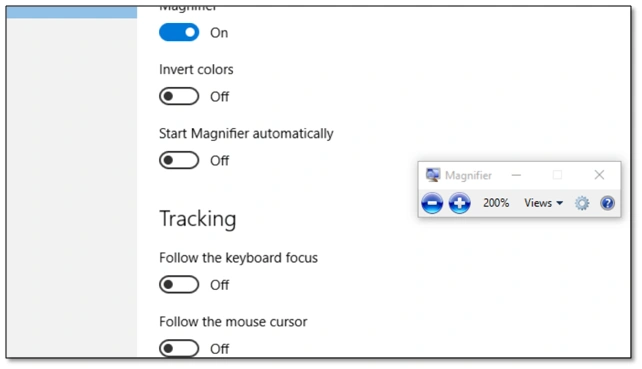
Clicking the "+" button you can see the Magnification is made into 200% and the screen options are made 200%.
Step 7
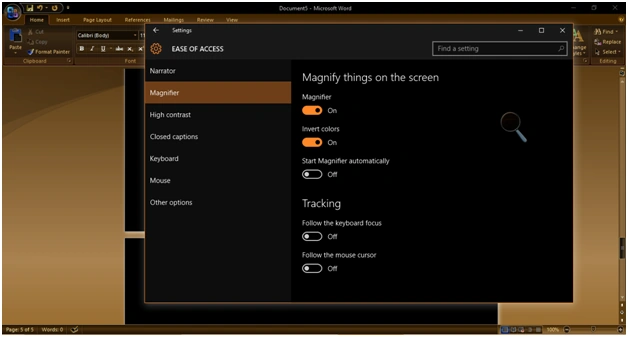
There is another option "Invert colors" and you can see the entire window changed into a brownish color.
Step 8
Making it off, the screen reverts back to the original color.
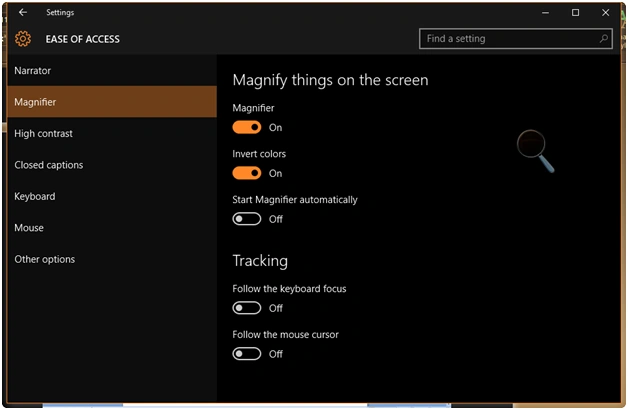
Under Tracking option, you are able to track down the keyboard focus and also the mouse cursor in Magnifier tool.
Read more articles on Windows 10:
Summary
In this article, we learned about Magnifier Tool in Windows 10.
Raja TPosted Feb 21, 2016, 11:14 PM
Thanks for sharing
Saineshwar BageriPosted Feb 21, 2016, 11:06 PM
Nice one
Sibeesh VenuPosted Feb 21, 2016, 9:25 AM
Nice Share
Gowtham KPosted Feb 20, 2016, 12:17 PM
Thanks for sharing
Midhun Jo AntonyPosted Feb 20, 2016, 10:19 AM
nicely said..useful information.
Shubham KumarPosted Feb 20, 2016, 6:10 AM
nice