

Introduction
As web developers with a 'traditional' VB or C# asp / .net background, we are quite blessed with the sheer breadth of infrastructure, components, libraries and tooling given to us not only by Microsoft by default, but also by the wider projects in open source made available by the many generous members of the wider .net community. This is of course not to say that other development communities surrounding other technologies are not as vast and wonderful - simply that in my experience (and it is *my experience*, yours may/will differ!). In any case, despite the deep well of resources in our development platform niche, sometimes we find something more suitable for use across the fence in a different environment than we are used to. Such was the case when I went looking for an eLearning solution I could integrate into a large .net project I am involved with, when I found the perfect solution for my needs, but it was developed in NodeJS and not my preferred platform of C# .net. This is the first in a series of short articles that will describe the background to my solution for integrating an online training/eLearning platform developed in Azure with MongoDB into my .net project running on Azure.
The article will cover the following topics,
- Publishing a NodeJS app to Azure (this article)
- Installing and testing the eLearning platform locally (coming soon)
- Replicating a MongoDB database in Azure CosmosDB (coming soon)
- Uploading and publishing the eLearning platform to Azure (coming soon)
Background
The beauty of the cloud in general, and Azure in particular, is the ability to run numerous different technologies together in the same virtual space, and have them all connect easily, despite them having different hosting and environment requirements. Sure, we need to configure this thing, and setup the other thing, but in general its a heck of a lot easier than the way things used to be! Before this project I have never had the need to deploy a NodeJS solution on Azure, so the first step was to work through it step by step and find any ‘gotchas’. There are two things I needed to take care of. My starting point is to see what is needed to get a simple 'hello world' style Node app published and working in Azure.
Getting started
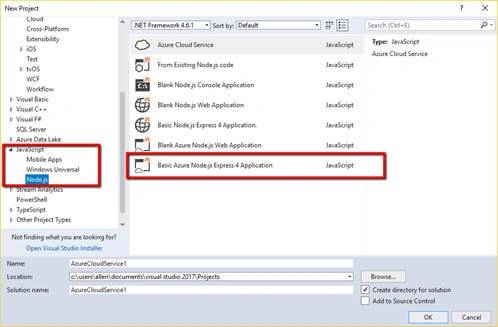
For this simple example, we are going to assume a fresh project. In Visual Studio, create a new project, and for the type, select 'New NodeJS project for Azure'.
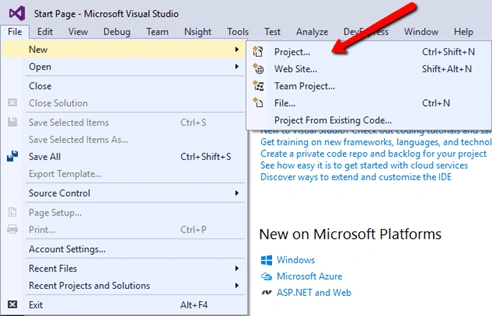
Using VS 2017, select from menu ‘file new project’.
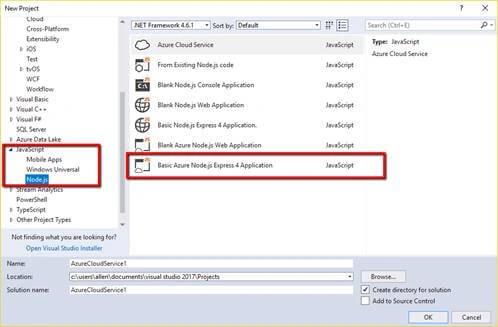
In the JavaScript section, look for ‘Basic Azure Node.JS Express Application. It should look something like this,
Before we even get started, here’s a small gotcha … due to the wonderful new install workflow in Visual Studio 2017 (and it is, I mean that!), it may be the case if you selected a basic minimum installation that NodeJS was not installed. If that’s the case it will be missing in your project templates – note in the screenshot below there is no mention of NODE-JS anywhere to be found.
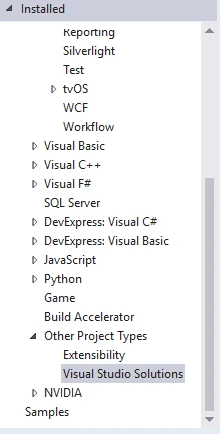
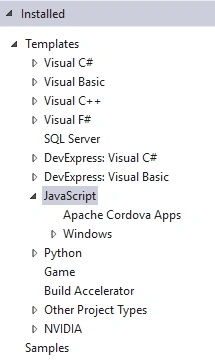
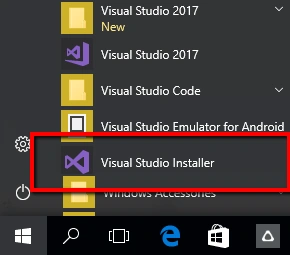
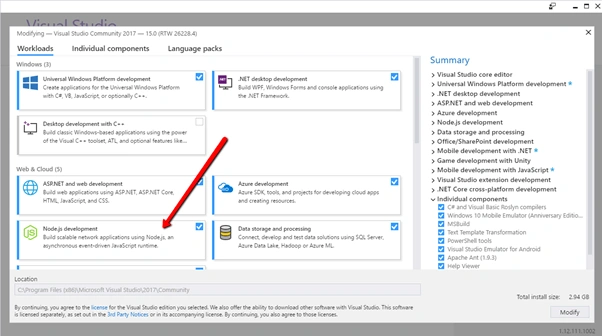
To get the base requirements installed, you need to run the Visual Studio installer, and select the NodeJS tooling from that and install. Depending on your choice of components to install, it would take a while, so go enjoy a nice cup of tea 😊
The most important requirement for us is the ‘Node.js development’ tooling.
Ok, after that small interlude, let's pick up where we left off and create a new Node.js Express project.
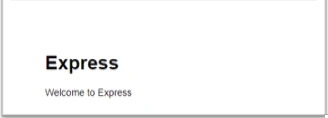
‘Express’ is a very popular Node.js web framework that acts as a very lightweight way of displaying web pages with Node. Here is a very simple example
- const express = require('express')
- const app = express()
- app.get('/', function (req, res) {
- res.send('Hello World!')
- })
- app.listen(3000, function () {
- console.log('Example app listening on port 3000!')
- })



Join the conversation! Your thoughts help the community grow.