

Microsoft Entra ID (formerly Azure AD) provides multiple ways to enforce Multi-Factor Authentication (MFA). While Conditional Access is the recommended modern approach, it requires Microsoft Entra ID P1 or P2 licenses. For organizations without these premium licenses, per-user MFA remains the only built-in option for enforcing MFA across the organization.
This article demonstrates how to manage per-user MFA settings using the Microsoft Entra PowerShell Beta module, both for single users and bulk operations overcoming the limitations of the Microsoft Entra admin center.
Admin Center Limitations
The Microsoft Entra admin center has a significant limitation when managing per-user MFA:
Maximum of 50 users per batch when enabling/disabling MFA
Manual selection required for each batch
No native bulk import from CSV files
Time-consuming for organizations with hundreds or thousands of users
Prerequisites
Global Administrator or Authentication Administrator role
No Conditional Access required this method works with Entra Free licenses
Required permissions: Policy.ReadWrite.AuthenticationMethod
Important: Per-user MFA is the only built-in MFA enforcement method available to organizations without Entra ID P1 or P2 licenses. Conditional Access requires premium licensing.
Installation of PwerShell Module
Install-Module Microsoft.Entra.Beta.SignIns -Scope CurrentUser -Force -AllowClobber

Connect to Microsoft Entra
Connect-Entra -Scopes 'Policy.ReadWrite.AuthenticationMethod'
Enable MFA for a Single User
Update-EntraBetaUserAuthenticationRequirement -UserId '[email protected]' -PerUserMfaState 'enabled'
Check MFA Status
Get-EntraBetaUserAuthenticationRequirement -UserId '[email protected]'

Disable MFA for a Single User
Update-EntraBetaUserAuthenticationRequirement -UserId '[email protected]' -PerUserMfaState 'disabled'
Enforce MFA (Requires Pre-registered Methods)
Update-EntraBetaUserAuthenticationRequirement -UserId '[email protected]' -PerUserMfaState 'enforced'
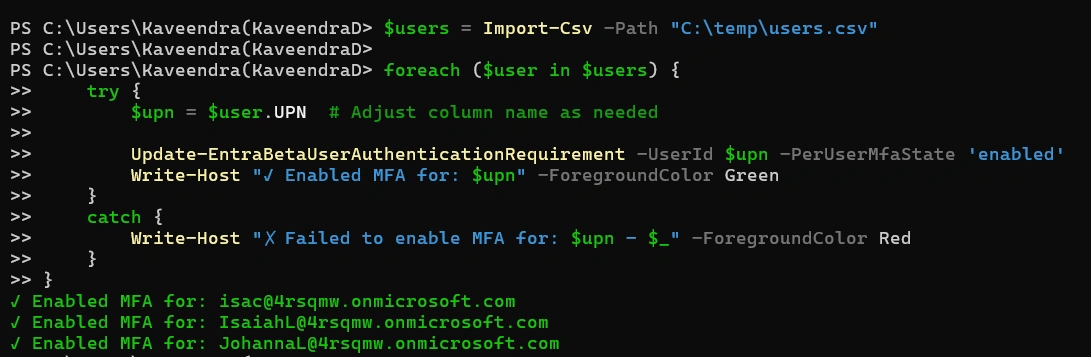
Bulk Operations with CSV
UPN
# Import CSV and enable MFA
$users = Import-Csv -Path "C:\path\to\your\users.csv"
foreach ($user in $users) {

    try {
        $upn = $user.UPN  # Adjust column name as needed
        Update-EntraBetaUserAuthenticationRequirement -UserId $upn -PerUserMfaState 'enabled'
        Write-Host "✓ Enabled MFA for: $upn" -ForegroundColor Green
    }

    catch {
        Write-Host "✗ Failed to enable MFA for: $upn - $_" -ForegroundColor Red
    }
}
Conclusion
For organizations without Conditional Access (requiring Entra ID P1/P2), per-user MFA is the essential method for enforcing multi-factor authentication. While the Microsoft Entra admin center limits you to 50 users per batch, PowerShell provides a powerful alternative that can handle unlimited users, import from CSV files, and automate the entire process.
By leveraging the Microsoft Entra PowerShell Beta module, you can:
Save significant time when managing MFA for large user populations
Reduce human error through automation
Scale effortlessly as your organization grows
Whether you're enabling MFA for 100 users or 10,000 users, PowerShell offers the flexibility and power you need to get the job done efficiently.
Join the conversation! Your thoughts help the community grow.