

Hi guys, I appreciate your keen interest in Expression Studio and thus brings up to you a new article in Expression Web 4. In this article you will be learning how to change the application settings in Expression Web 4. Hope you would be familiar with the application settings while working with ASP.NET. The thing is same here only the platform changes. Further more, this platform is quite smarty to work with as you are handed with much easier IDE that you have to spend less time in your application as compared to that in other platform.
So without sparing time lets start with the application setting, follow the steps below:
Step 1 : First of all open a site from the storage drive. In this article I will be using the site created in my previous article. You can open this site by clicking on the Site menubar and selecting open site.
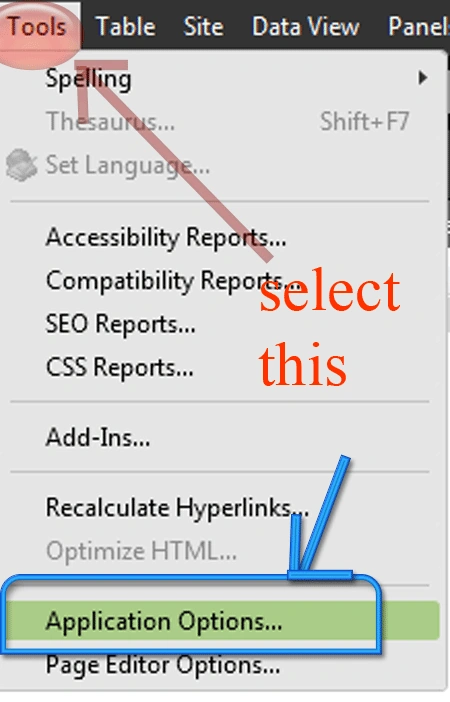
Step 2 : Then after opening the site go to Tools-->Application Options. The figure below will assist you for this.
Step 3 : After you select the Application options from the Tools menu a window opens up as shown below and has four tabs named :
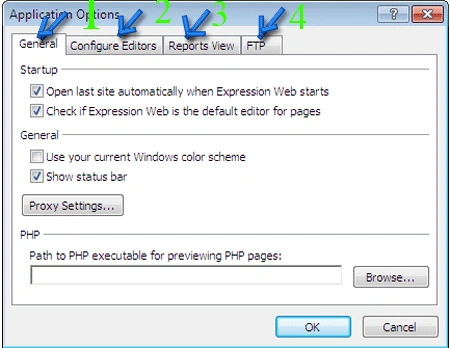
1. General
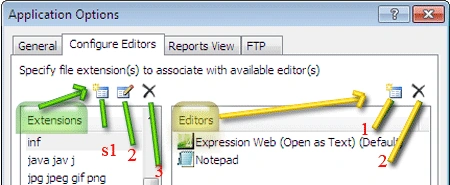
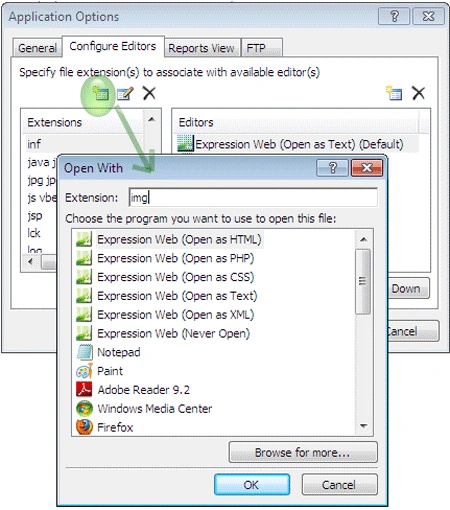
2. Configure Editors
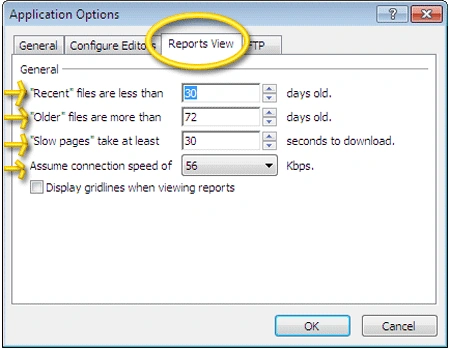
3. Report Views
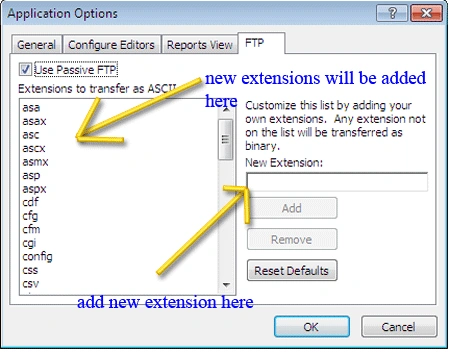
4. FTP
Step 4 : Looking at the General tab. This tab is opened by default as the window opens. This tab has main three options i.e.
(i) Start up : This option shows the major properties that the Expression Web4 would load on the starting of the application. This option has two main check boxes to deal with.
a. Open last site automatically when Expression Web starts :- The picture is clear from the line that if the user wants Expression Web would to open the site automatically that he worked recently upon, every time the Expression Web is initiated. By default this option is checked, you can uncheck it if you want to.
b. Check If Expression Web Is The Default Editor For Pages :- This option is also checked by default and is not of much importance so uncheck this option. Checking this option will prompt the user every time to make Expression Web their default Editor and this is very irritating so uncheck this option.
(ii) General : This is the other option under the General tab. In this option there are two checkbox options. These options are:
a. Use your current windows color scheme :- This check box is unchecked by default and is of less bothering as there is nothing to do with color schemes while focusing over application creation. Still funky user can check this option to allow color changes.
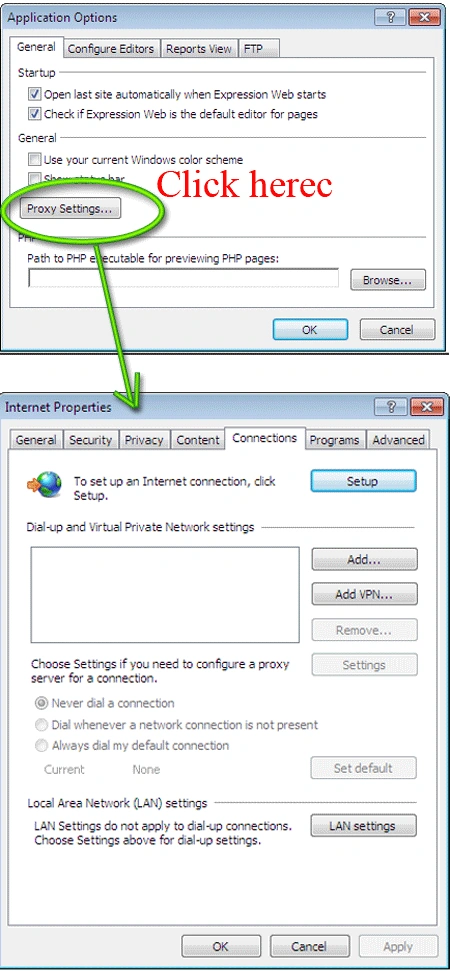
b. Show the status bar :- This is the next option and checked by default. Checking this option allows you to view the status bar in the application at the bottom right corner. The figure below will make it more clear.



Join the conversation! Your thoughts help the community grow.