

Introduction
With the release of Angular 6.0, one of the new features added is called Angular Material Starter Component. We can make use of various starter components which are listed below.
- Material Dashboard
- Material Sidenav
- Material Datatable
Learn more about how can we install and implement Material Dashboard here:
In this article, we are going to implement Material Sidenav and Material Datatable Starter Component one by one.
Installation
To work with Material Starter Component with the release of Angular 6.0, we should install it using the below ng command.
- ng add @angular/material
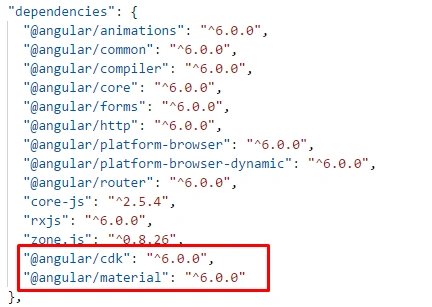
So far we have finished the installation part, now it's time to implement our starter component.
Material Sidenav
Sidenav is a material component which provides us collapsible side navigation and drawer component. To generate sidenav, we need to execute the below ng command, which generates a few numbers of a file into our current working directory.
- ng generate @angular/material:material-nav --name=MyNavigation

Now just open my-navigation.component.html file, and you can see the complete code generated for the sidebar navigation.
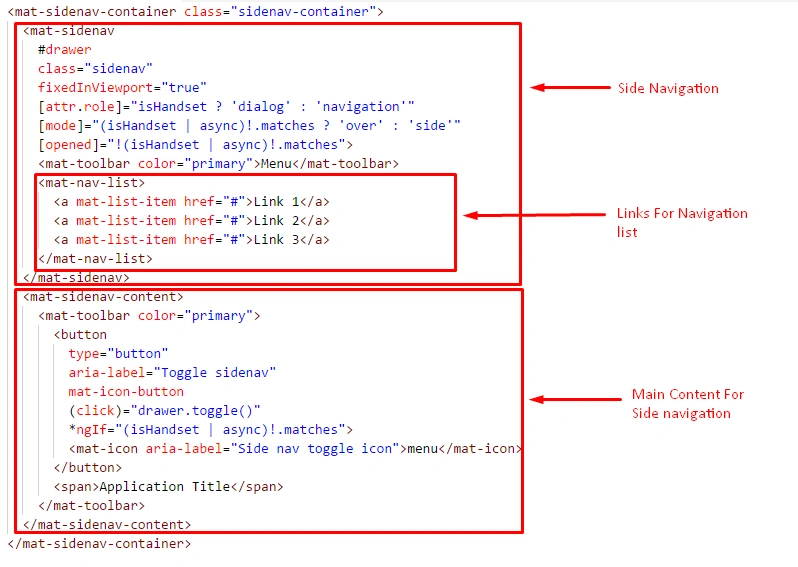
Basically it contains a group of material components, and by combining it will generate side navigation with drawer component, and few of the components used are:
- <mat-sidenav-container>
- <mat-sidenav>
- <mat-toolbar>
- <mat-sidenav-content>
- import { Component } from '@angular/core';
- import { BreakpointObserver, Breakpoints, BreakpointState } from '@angular/cdk/layout';
- import { Observable } from 'rxjs';
- @Component({
- selector: 'my-navigation',
- templateUrl: './my-navigation.component.html',
- styleUrls: ['./my-navigation.component.css']
- })
- export class MyNavigationComponent {
- isHandset: Observable<BreakpointState> = this.breakpointObserver.observe(Breakpoints.Handset);
- constructor(private breakpointObserver: BreakpointObserver) {}
- }
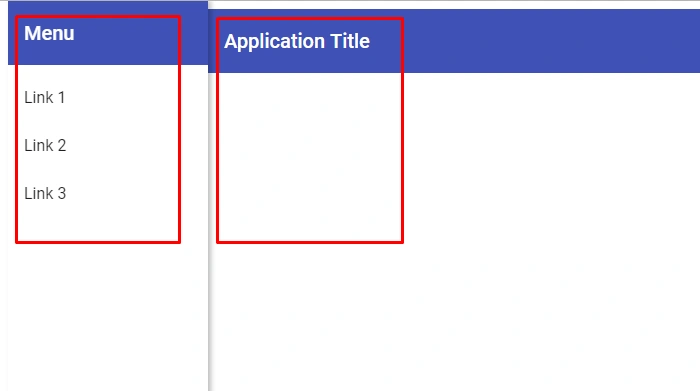
The last move is to run the sidenav component that we have generated, to do this just open the app.component.html file and remove all of the content then replace with the following lines of code.
- <!-- To render sidenav into home component -->
- <my-navigation>
- </my-navigation>
Material Datatable
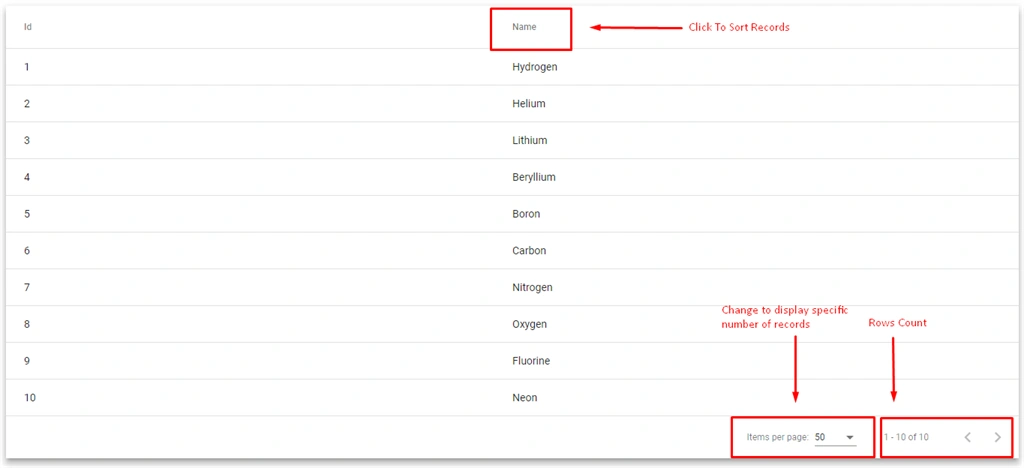
Material datatable is a very useful component by Angular/Material, which provides us with various features like pagination, filter, sorting etc.
Using Material Datatable starter component, we can get a pre-configured datatable with assigned data and a few useful features like pagination, sorting by just running a single line of command. Isn't it great?
Run the following command into the console and a few files will be generated to create a complete working data table.
- ng generate @angular/material:material-table --name=my-datatable

Open my-datatable.component.html file, it contains group of material components.
- <div class="mat-elevation-z8">
- <!-- Material Table -->
- <mat-table #table [dataSource]="dataSource" matSort aria-label="Elements">
- <!-- Id Column -->
- <ng-container matColumnDef="id">
- <mat-header-cell *matHeaderCellDef mat-sort-header>Id</mat-header-cell>
- <mat-cell *matCellDef="let row">{{row.id}}</mat-cell>
- </ng-container>
- <!-- Name Column -->
- <ng-container matColumnDef="name">
- <mat-header-cell *matHeaderCellDef mat-sort-header>Name</mat-header-cell>
- <mat-cell *matCellDef="let row">{{row.name}}</mat-cell>
- </ng-container>
- <!-- Matrial row header -->
- <mat-header-row *matHeaderRowDef="displayedColumns"></mat-header-row>
- <mat-row *matRowDef="let row; columns: displayedColumns;"></mat-row>
- </mat-table>
- <!-- Material Datatable Pagination -->
- <mat-paginator #paginator
- [length]="dataSource.data.length"
- [pageIndex]="0"
- [pageSize]="50"
- [pageSizeOptions]="[25, 50, 100, 250]">
- </mat-paginator>
- </div>
- <mat-table>
- <mat-header-cell>
- <mat-cell>
- <mat-header-row>
- <mat-row>
- <mat-paginator>
For displaying records into the datatable, there is a datasource file created while generating the datatable and the main task of that file is to assign records to datatable, now just open my-datatable-datasource.ts file
- const EXAMPLE_DATA: MyDatatableItem[] = [
- {id: 1, name: 'Hydrogen'},
- {id: 2, name: 'Helium'},
- {id: 3, name: 'Lithium'},
- {id: 4, name: 'Beryllium'},
- {id: 5, name: 'Boron'},
- {id: 6, name: 'Carbon'},
- {id: 7, name: 'Nitrogen'},
- {id: 8, name: 'Oxygen'},
- {id: 9, name: 'Fluorine'},
- {id: 10, name: 'Neon'},
- {id: 11, name: 'Sodium'},
- {id: 12, name: 'Magnesium'},
- {id: 13, name: 'Aluminum'},
- {id: 14, name: 'Silicon'},
- {id: 15, name: 'Phosphorus'},
- {id: 16, name: 'Sulfur'},
- {id: 17, name: 'Chlorine'},
- {id: 18, name: 'Argon'},
- {id: 19, name: 'Potassium'},
- {id: 20, name: 'Calcium'},
- ];
- import { Component, OnInit, ViewChild } from '@angular/core';
- import { MatPaginator, MatSort } from '@angular/material';
- import { MyDatatableDataSource } from './my-datatable-datasource';
- @Component({
- selector: 'my-datatable',
- templateUrl: './my-datatable.component.html',
- styleUrls: ['./my-datatable.component.css']
- })
- export class MyDatatableComponent implements OnInit {
- @ViewChild(MatPaginator) paginator: MatPaginator;
- @ViewChild(MatSort) sort: MatSort;
- dataSource: MyDatatableDataSource;
- /** Columns displayed in the table. Columns IDs can be added, removed, or reordered. */
- displayedColumns = ['id', 'name'];
- // Provided datasource to datatable
- ngOnInit() {
- this.dataSource = new MyDatatableDataSource(this.paginator, this.sort);
- }
- }
Just open app.component.html and replace source code with the following code.
- <!-- To render Material Datatable into Home Component -->
- <my-datatable>
- </my-datatable>
Conclusion
In this article, we have implemented two types of Angular Material Starter component. This is how we can get started quickly and implement it, and covered a few topics, so let's recap:
- Types of Angular Material Starter Component
- Installation of Angular Material
- Material Sidenav
- Material Datatable
If I missed something, then do let me know via comments, and download the attached source code and play with it. Thanks for reading!!!
Bhavesh JadavPosted May 14, 2018, 3:51 AM
Good one Manav Pandya.
Naresh SinghalPosted May 11, 2018, 11:34 PM
Very good Manav Pandya..........
Mahesh VermaPosted May 11, 2018, 10:32 AM
Great and very informative article sir......