

Message Dialogs in Window Store apps are the equivalent of Message Boxes in classic Windows. In this article, we will learn how to display a message box in a Windows Store app using the MessageDialog class.
The MessageDialog class is used to create and display a message dialog. This class is defined in the namespace "Windows.UI.Popups". You must import the Windows.UI.Popups namespace before using the MessageDialog class, as in:
using Windows.UI.Popups;
Creating a MessageDialog
The MessageDialog class has two constructors. The first constructor takes a single string type parameter, the message to be displayed and the second constructor takes two parameters, the message and the title of the dialog.
The following code snippet creates two message dialogs.
var messageDialog = new MessageDialog("Hello Windows Store App.");
var messageDialog2 = new MessageDialog("Hello Windows Store App.", "Hello Windows");
The first line of code creates a MessageDialog with a message. The second line of the code creates a MessageDialog with a message and title.
Content and Title
The Content property represents the text message to be displayed. The following code snippet sets and gets the content of a message dialog:
messageDialog.Content = "Hello Windows Store App.";
string message = messageDialog.Content;
The Title property represents the title of the dialog that appears in the title bar. The following code snippet sets and gets the title of a message dialog:
messageDialog.Title = "Hello Windows";
string title = messageDialog.Title;
Commands
Buttons are a very important part of a message dialog if your application expects an input from a user. OK, Cancel, Yes, and No buttons are typical message dialog buttons. The MessageDialog class has a command bar that can support up to three commands. The Commands property is used to add and read commands.
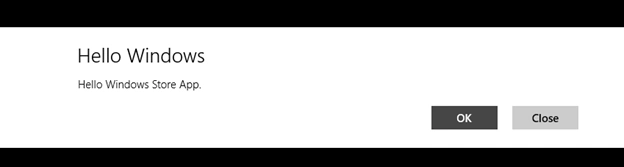
The following code snippet adds two commands to the command bar of a MessageDialog:
// Add commands and set their callbacks. You can create a single callback
// Or create a separate callback for different commands
messageDialog.Commands.Add(new UICommand("OK", new UICommandInvokedHandler(this.CommandInvokedHandler)));
messageDialog.Commands.Add(new UICommand("Close", new UICommandInvokedHandler(this.CommandInvokedHandler)));
Command Index
The MessageDialog class has the DefaultCommandIndex and CancelCommandIndex properties that are used to set the default button and cancel button sequence, as in:
// Set CommandIndex. 0 means default.
messageDialog.DefaultCommandIndex = 0;
messageDialog.CancelCommandIndex = 1;
Neha SharmaPosted Jan 4, 2013, 6:53 AM
great